
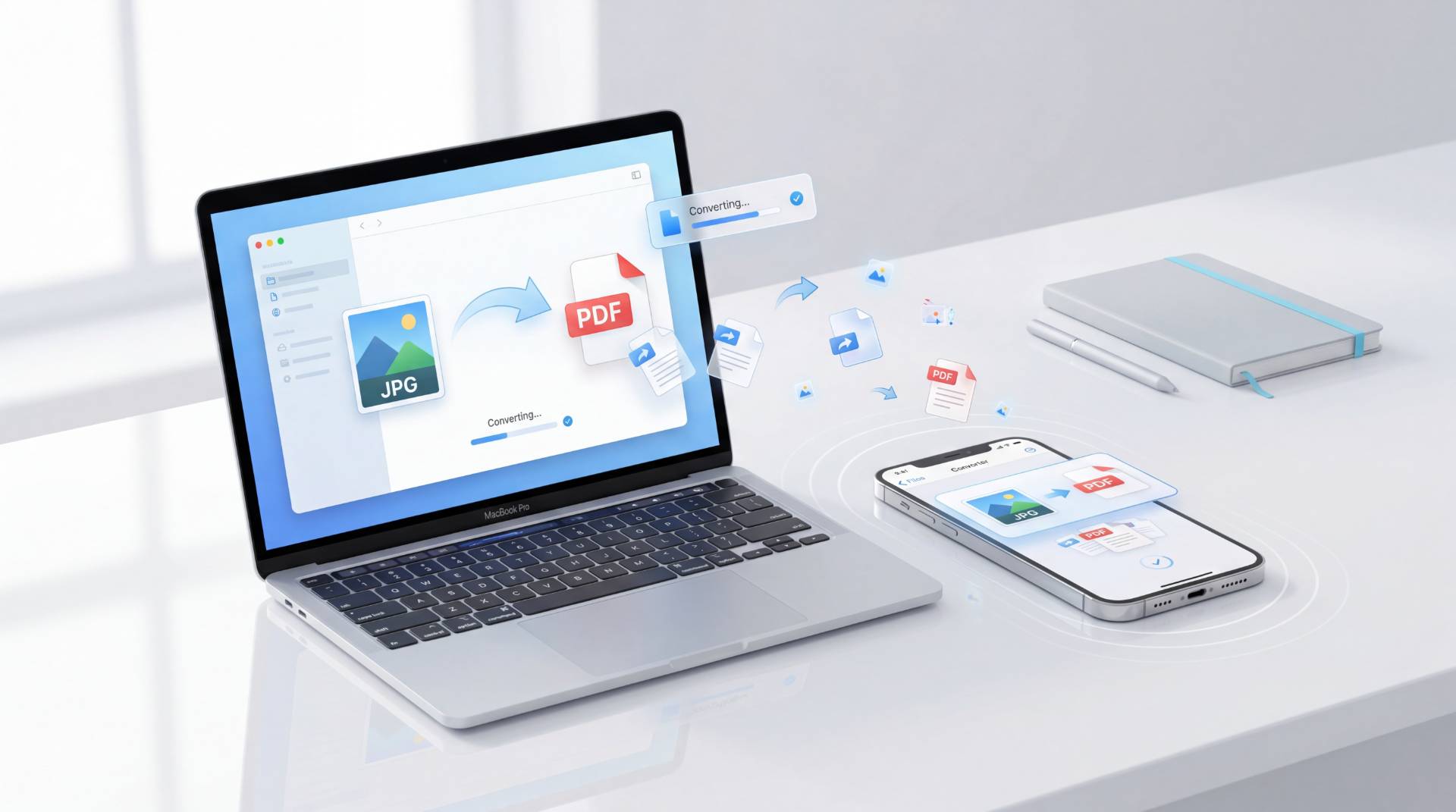
How to Convert Image to PDF on MacBook and iPhone
I'll be honest, the first time I needed to turn a photo into a PDF on my iPhone, I spent a good ten minutes looking for some obvious button that didn't exist. I ended up downloading an app, signing up for something I didn't want, and getting a watermarked PDF for my trouble.
Turns out, both iPhones and MacBooks can do this natively. No apps. No accounts. The options are just buried in places Apple never bothered to label clearly.
This guide covers every method that actually works on both MacBook and iPhone. Whether you've got one photo or twenty, there's a way to handle it without touching the App Store.
How to Convert Image to PDF on MacBook
MacBooks have supported image-to-PDF conversion for years. The challenge is that Apple hides the functionality inside Preview and the Print dialog. Once you know where to look, the entire process takes less than a minute.
Using Preview (The Easiest Method)
Preview comes pre-installed on every Mac and offers one of the quickest ways to convert a JPG or other image into a PDF.
- Double-click your image to open it in Preview.
- Click File in the top menu bar.
- Select Export as PDF.
- Choose a filename and save location.
- Click Save.
That's it. The image is now saved as a PDF.
Convert Multiple Images into One PDF
- Select all images in Finder.
- Right-click and choose Open With → Preview.
- Make sure thumbnails are visible in the sidebar.
- Arrange the images in your preferred order.
- Go to File → Print.
- Click the PDF dropdown in the bottom-left corner.
- Select Save as PDF.
You'll get a single PDF document containing every image as a separate page.
The Print Dialog Trick
One of macOS's most underrated features is the built-in PDF printer. Anything that can be printed can also be saved as a PDF.
- Open your image.
- Press Command + P.
- Click the PDF button.
- Select Save as PDF.
This method works in Preview, Photos, Safari, and most Mac applications.
Drag-and-Drop Method for Large Batches
If you're working with multiple images, this method offers the most control.
- Open an image in Preview.
- Enable thumbnails via View → Thumbnails.
- Drag additional images from Finder into the sidebar.
- Reorder them as needed.
- Select File → Export as PDF.
This workflow makes organizing pages much easier before exporting.
How to Convert Image to PDF Using FileReadyNow
Sometimes the built-in Apple methods are enough. But if you're working with multiple images, need better control over page order, or simply want a faster workflow that works across any device, FileReadyNow makes the process much simpler.
Here's how to convert an image to PDF using FileReadyNow:
- Open the FileReadyNow Image to PDF Converter.
- Drag and drop your JPG, PNG, HEIC, or other image files into the upload area.
- If you're converting multiple images, arrange them in the exact order you want them to appear in the PDF.
- Adjust any available settings such as page orientation, margins, or paper size if needed.
- Click Convert to PDF.
- Download your finished PDF file instantly.
The entire process takes less than a minute, and because everything happens directly in your browser, there's no software to install or complicated setup to deal with.
Why Use FileReadyNow Instead of Built-In Methods?
While macOS Preview and the iPhone Files app work well for basic conversions, FileReadyNow offers a few advantages:
- Works on Mac, iPhone, Windows, Android, and Chromebook.
- Easily combine multiple images into a single PDF.
- Rearrange pages before creating the PDF.
- No need to navigate hidden menus or use Apple's Print-to-PDF tricks.
- Ideal for receipts, scanned documents, forms, screenshots, and photo collections.
- No software downloads required.
If you regularly need to merge images, organize page order, or create professional-looking PDFs from multiple photos, FileReadyNow can save a lot of time compared to native device tools.
How to Convert Image to PDF on iPhone
Apple doesn't provide a visible "Convert to PDF" button in the Photos app, which is why many users assume they need a third-party application. Fortunately, that's not the case.
The Photos App Method (The Hidden Pinch Trick)
- Open the Photos app.
- Select the image you want to convert.
- Tap the Share icon.
- Scroll down and choose Print.
- On the Print Preview screen, place two fingers on the preview and pinch outward.
- The preview opens as a PDF document.
- Tap the Share button again.
- Select Save to Files or share the PDF directly.
It feels unintuitive the first time, but once you know the trick, it becomes a fast and reliable solution.
The Files App Method (Recommended)
If your image is stored in the Files app, this is the easiest approach.
- Open the Files app.
- Locate the image file.
- Long-press the image.
- Tap Quick Actions.
- Select Create PDF.
A PDF version appears instantly in the same folder.
Add Notes or Signatures Before Converting
Need to sign a document or annotate an image before turning it into a PDF?
- Open the image in Photos.
- Tap Edit.
- Select the three-dot menu.
- Choose Markup.
- Add text, drawings, or a signature.
- Tap Done.
- Convert the image to PDF using either method above.
This can save time when sending signed forms, receipts, or contracts.
Merging Multiple Photos into One PDF on iPhone
- Open the Files app.
- Navigate to the folder containing your images.
- Tap Select.
- Choose all images you want to combine.
- Tap the three-dot menu.
- Select Create PDF.
iOS automatically combines all selected images into a single PDF document.
Things to Know Before You Convert
Image Quality Does Not Improve
Converting an image to PDF changes the file format, not the image quality. A blurry photo will remain blurry after conversion.
PDF Files Can Be Larger
PDFs often end up larger than JPG files because JPG uses stronger compression. If size matters, consider compressing the PDF afterward.
Works with More Than JPG Files
These methods support:
- JPG / JPEG
- PNG
- HEIC
- Screenshots
- Most common image formats
Mac vs iPhone: Which Is Better?
While both devices can convert images to PDF, MacBook offers a smoother experience thanks to Preview's drag-and-drop interface and easier page reordering. iPhone is more convenient when you're on the go.
Read also: Image to PDF Conversion for Students: Submitting Assignments the Easy Way
Side-by-Side Comparison
| Situation | Recommended Method |
|---|---|
| One image to PDF on Mac | Preview → Export as PDF |
| Multiple images on Mac | Preview → Print → Save as PDF |
| One image on iPhone | Photos → Print → Pinch Outward |
| Multiple images on iPhone | Files App → Create PDF |
| Need advanced editing | Use a dedicated image-to-PDF converter |
Final Thoughts
Apple doesn't make image-to-PDF conversion particularly obvious, but the tools are already built into both macOS and iOS. Once you know where to find them, the process takes less than a minute.
For Mac users, Preview remains the easiest and most flexible option. On iPhone, the Files app provides the cleanest experience. Either way, you can skip the App Store, avoid watermarks, and create PDFs completely free.
Frequently Asked Questions
Yes. Converting a photo to PDF does not automatically reduce image quality. The PDF will retain the quality of the original image. However, if the original photo is blurry or low-resolution, converting it to PDF won't improve its appearance. For the best results, start with a clear, high-quality image.
.Both MacBook and iPhone support converting common image formats such as JPG, JPEG, PNG, HEIC, and screenshots into PDF files. The built-in methods work similarly regardless of the image format, making it easy to create PDFs without additional software.
There is no strict limit imposed by macOS or iOS for combining images into a PDF. However, very large batches of high-resolution photos may create large PDF files that take longer to generate and share. If you're working with dozens of images, it's a good idea to organize them first and compress the final PDF if necessary





