HEIC to JPG: Why Your iPhone Photos Won't Open Anywhere

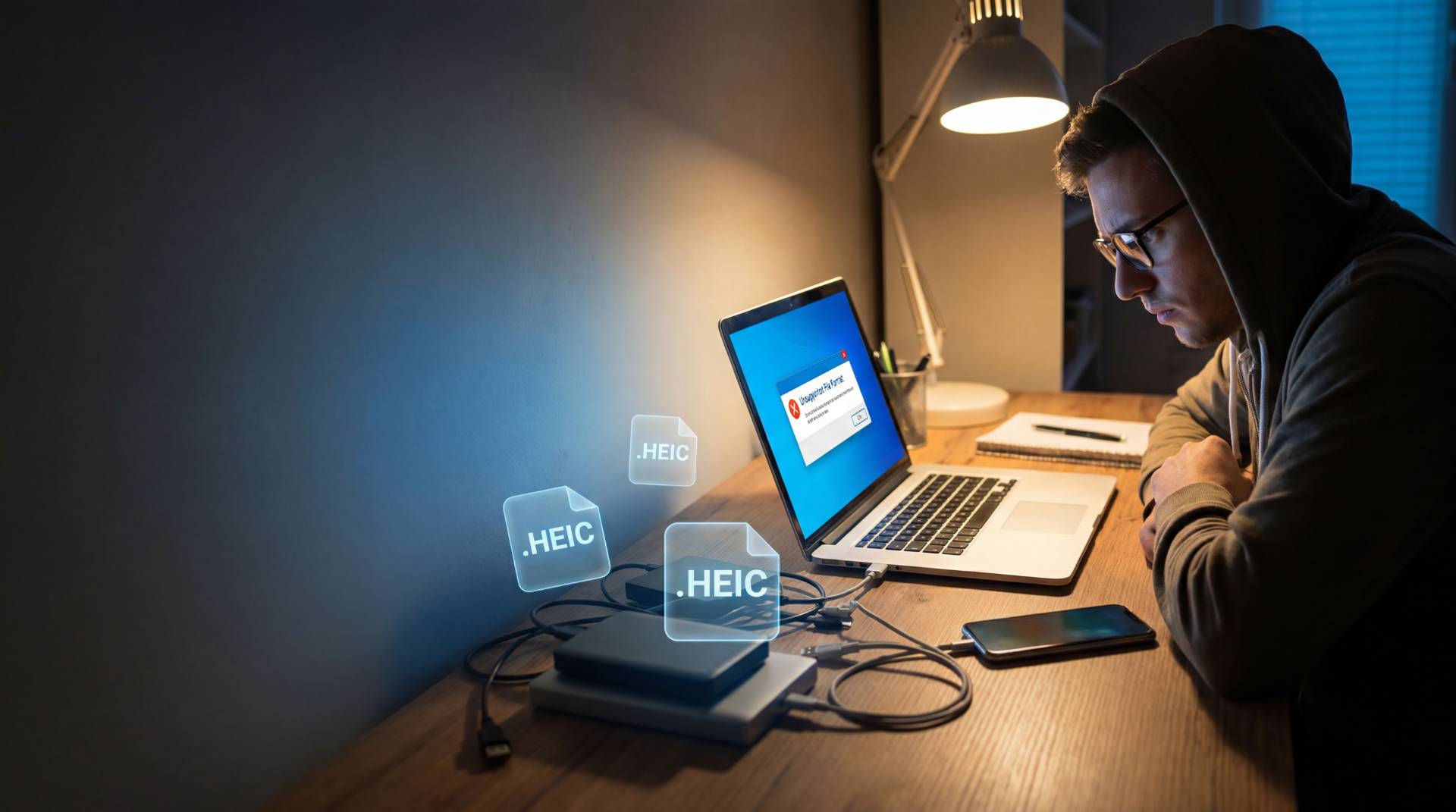
Last week, I tried sending a batch of photos from my iPhone to my laptop for editing. Should've been simple, right? Drag and drop, done. Except Windows looked at them and basically said "nah, I don't know what these are."
HEIC files.
Apparently, my iPhone decided that my new photos should be saved in a format that Windows 10 doesn't understand. And my client certainly didn't understand when I said "yeah, hold on, I need to convert these first."
If this has happened to you, you're dealing with the HEIC problem. And honestly? Apple knew what would happen. They just decided better compression was worth the headache.
What Is HEIC and Why Is Apple Making My Life Difficult?
So here's the thing about HEIC. It's not a bad format. It's actually pretty smart.
HEIC stands for High Efficiency Image Container. Apple switched to it back in 2017 because it does something JPG can't: it squashes file sizes down to about half the original without you noticing the difference in quality. When you're storing thousands of photos on a device with limited storage, that matters.
For Apple users in the Apple ecosystem? Perfect. Your iPhone, Mac, and iPad all understand it. Everything syncs beautifully. Photos are smaller. iCloud doesn't get overwhelmed.
The problem starts when you leave the Apple universe.
Windows doesn't get it natively. Android definitely doesn't. Most websites that ask you to upload a photo? They expect JPG or PNG. Email clients from the 2000s still don't recognize it. That print shop online? They'll probably reject it.
Basically, Apple invented a format that's better for their customers but incompatible with everyone else's stuff. And now millions of people are stuck holding files that nobody else's software wants to open.
Where HEIC Actually Ruins Your Day
Let me paint some scenarios you might recognize.
You're trying to email a photo to a coworker on Windows. It arrives, but they can't open it. "Can you just send me a normal image?" they ask. You feel stupid.
You're uploading photos to your business website or social media. The upload form says "unsupported file format." You can't figure out why. It's a photo, right? Apparently not the right kind.
You're working with a designer or marketer who needs your product photos. They ask what format you're sending. You say HEIC. They say "can you send JPG instead?" This happens every single time.
You want to order prints online. Upload your photos. The service rejects half of them. The technical support person tells you they only accept JPG. Ugh.
Your mom has an Android phone. You AirDrop her your vacation photos from your iPhone. She gets them. They won't open on her phone. She messages you asking what's wrong with the files you sent her.
Sound familiar? Yeah. This is the HEIC tax.
How to Actually Fix This (And Stop Being Frustrated)
Okay, enough venting. Let's fix it.
The good news? You don't need complicated software or technical knowledge. There are multiple ways to handle this, depending on whether you want to prevent future HEIC files or convert the ones you already have.
Method 1: Just Change Your iPhone Settings (Do This Today)
Want the simplest fix? Literally just tell your iPhone to stop making HEIC files.
- Go to Settings on your iPhone
- Tap Camera
- Scroll to Formats
- Switch from "High Efficiency" to "Most Compatible"
Done. From now on, new photos save as JPG. They'll be slightly bigger, but they'll open on literally any device on Earth.
The catch? Your old HEIC photos are still HEIC. But at least you're not making more of them.
I did this about a month ago. Wish I'd done it sooner. I haven't had a single "can you send JPG?" message since.
Method 2: Convert Them on Your Computer (Takes 5 Minutes)
You've already got photos backed up somewhere, right? On your Mac or Windows? Great. Converting them is stupid easy.
On a Mac:
- Open the photo in Photos app or Preview
- Click File → Export
- Choose JPEG from the dropdown
- Hit Export
That's it. One photo converted in like 10 seconds.
On Windows:
Windows is stubborn about HEIC. Your built-in Photos app won't do it. You need either an online tool or desktop software. Keep reading.
Method 3: Use an Online Converter (Honestly, Just Do This)
If you're not super technical or you just want something quick, an online converter is your friend. No installation, no complexity. Just upload and download.
Drop your HEIC file on the website, wait a few seconds, download the JPG. Done.
FileReadyNow is one option that works smoothly for this— just upload, grab your JPG, and move on. Takes maybe 30 seconds per photo.
If you've got 10-20 photos, you can knock them all out in under five minutes.
The trade-off? Your files go to someone's server temporarily. If that freaks you out (privacy concerns), then do Method 2 or 4 instead.
Method 4: Desktop Software for Bulk Converting
Got like 200 HEIC photos sitting in a folder? Don't convert them one by one. That's insane.
Use actual converter software. XnConvert is free and works on Windows, Mac, and Linux. You point it at a folder, tell it to convert everything to JPG, and walk away.
Same goes for FileReadyNow if they offer batch processing. You just upload the whole folder instead of single files.
This is faster than the web converter for large batches. You're not sitting there waiting for uploads.
Method 5: Google Photos (If You're Lazy Like Me)
Here's my secret move: I upload photos to Google Photos, and it just... handles it. Automatically converts them. I can download them as JPG whenever I need them.
It's not the fastest method if you need conversions immediately. But if you're already using Google Photos for backup anyway, you get compatibility as a bonus.
Amazon Photos does something similar for Prime members.
Real Talk: Do You Actually Need to Convert Everything?
Here's the thing though. Not every photo you take needs to be JPG.
Convert to JPG if:
- You share photos constantly (email, work, client stuff)
- You upload to websites regularly
- Other people need to open your files
- You're archiving photos long-term
Leave them as HEIC if:
- They only live in your Apple ecosystem
- You're just backing them up to iCloud
- You're sharing only with other iPhone users
- Storage space is tight
The choice doesn't have to be all-or-nothing. Change your iPhone settings so new photos are JPG (solves future problems), then convert the old ones that you actually share.
For me? Everything goes to JPG now. The slightly larger file sizes aren't worth the constant "can you send that in a different format?" messages.
The Annoying Parts Nobody Warns You About
So I've converted a lot of photos at this point. Here are the weird things that happen:
- The JPG sometimes looks slightly different. Not hugely, but if you zoom in close, the JPG might have a tiny bit more compression artifact than the HEIC.
- JPG files are sometimes bigger than the HEIC version. HEIC compression is really good.
- Some converters are just bad. I tried one random online converter and the colors got washed out.
- Your phone doesn't automatically re-download converted versions.
- Windows still feels annoyed about HEIC.
What Happens If You Don't Fix This
Real talk? You don't have to do anything. But life gets annoying.
You'll be that person who keeps saying "oh, it's in HEIC format, let me convert it."
People will get tired of waiting. Clients will subtly judge you. Your workflow will be slower.
It's not a catastrophe. It's just friction. Unnecessary friction that solves itself in five minutes.
The Smarter Way Forward
Look, this isn't about HEIC being bad. It's a legitimately good format. But until the entire world uses it, converting to JPG is just pragmatic.
Here's what I actually do:
- Changed my iPhone settings months ago.
- Batch converted my old library.
- I don't stress about it anymore.
The whole thing took maybe 2-3 hours total across several months. Absolutely worth it.
You don't need fancy software. You don't need to be technical. You just need to pick one method and spend 15 minutes getting it done.
One More Thing (That Actually Matters)
Before you convert everything, back it up somewhere. Not the converted versions, back up your originals.
I keep my HEIC originals on an external hard drive, just in case. The JPG versions are what I actually use and share.
Google Photos, Backblaze, or just an external drive. Doesn't matter. Just keep the originals somewhere safe.
Let's Just Do This
Stop waiting. Stop dealing with the "unsupported format" errors.
Change your iPhone settings right now. It takes 30 seconds.
Then grab your old photos and convert them using whatever method sounds least painful. Online tool, desktop software, Mac export function—whatever.
Spend an hour, solve the problem for the next five years.
Your future self will be grateful every time a photo just opens without drama.
Quick Recap
- For new photos: Change your iPhone camera settings to "Most Compatible." Takes 30 seconds.
- For old photos: Use an online converter for a few, or desktop software for a whole batch.
- The easiest option? FileReadyNow for quick conversions, or XnConvert for bulk work.
- Most important? Don't stress about this. It's one of those problems that feels bigger than it actually is.
That's it. You're done. Go take some photos.
Frequently Asked Questions
Windows does not fully support HEIC files by default on many devices. Since HEIC is primarily used by Apple devices, Windows users often need a converter, plugin, or third-party software to open and edit these images properly.
.Go to Settings → Camera → Formats on your iPhone, then select Most Compatible. This changes future photos to JPG format, which works on almost every device and platform.
The easiest method is using an online HEIC-to-JPG converter. You simply upload your HEIC image, wait a few seconds, and download the converted JPG file without installing any software.
Table of Contents
Recent Posts

PDF to JPG Blurry? How to Convert a PDF Page With Sharp Text
5 days ago
HEX vs RGB vs HSL vs CMYK: Which Color Code Should You Use?
1 week ago
Video Converter Online Free: Which Format to Pick and Why
2 weeks ago
Audio Trimmer Online Free: Cut, Keep, or Remove Any Section
2 weeks ago
How Strong Should Your Password Actually Be in 2026?
3 weeks ago
HEIC vs JPG: Which Should You Actually Use?
1 month ago