Compress PDF Online Free , Shrink File Size Without Quality Loss

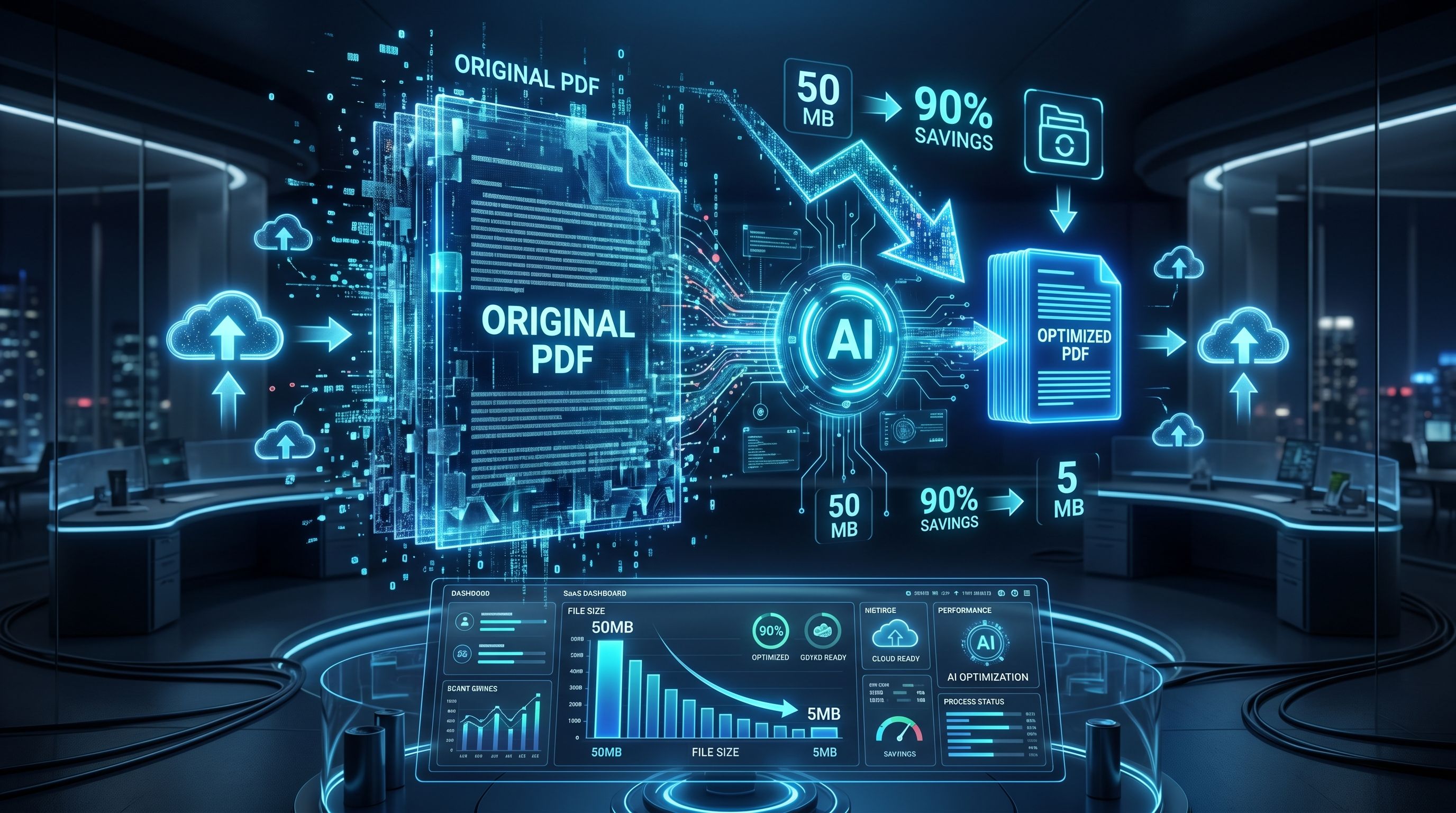
TL;DR: FileReadyNow’s free PDF Compressor shrinks oversized PDFs in seconds without losing quality. Upload up to 250MB, pick a compression level (Low, Medium, High), and download a smaller file. It works on any browser, keeps text sharp, and auto-deletes your file after. Compress your PDF now.
Last Tuesday, I had a problem. I needed to email a design portfolio, but the PDF clocked in at 47MB. Gmail blocked it. I needed a quick fix, not a software install. That’s when I turned to FileReadyNow’s PDF Compressor. I dragged the file in, chose Medium compression, and within seconds I had a 12MB version that looked exactly the same. No blurry text. No weird formatting glitches. Just a lighter PDF ready to send.
If you’ve ever had a PDF too large for an upload, you know the frustration. Maybe it’s a scanned contract, a presentation with high‑res images, or a stack of invoices. FileReadyNow’s compressor exists for those moments. It’s a free browser‑based tool that reduces file size without making you jump through hoops. You do need a free account, but after that, it’s just upload, compress, and download.
How to compress a PDF on Mac without downloading software?
You can shrink a PDF right in your browser, no Preview, no desktop apps. FileReadyNow’s PDF Compressor works on Mac, Windows, and ChromeOS. Just log in, upload your file, and pick a compression level. The tool processes everything on the web, so you don’t add any clutter to your Mac.
Mac users often try Preview’s “Export” function, but the quality and size reduction can be hit‑or‑miss. With FileReadyNow, you get three clear compression levels and predictable results every time. Plus, you avoid digging through menus. The interface is just a big drop zone and a slider. That’s it.
Can I get a PDF down to 1MB online?
Yes, depending on the original file. A mostly‑text PDF can often shrink below 1MB. But a PDF full of high‑resolution photos might only go down to a few megabytes, even with aggressive compression. The tool automatically applies the best settings to get as close to your target as possible without making the text fuzzy.
If you need a specific file size, there’s no “target size” field. Instead, you choose Low, Medium, or High compression. Medium works for most people. High will push the file as small as it can go, though images may show some visible compression. I’ve squeezed a 120MB scanned book down to 18MB using High, and the text remained perfectly crisp while photos softened a bit. That’s a fair trade for an email‑able file.
How does FileReadyNow’s compressor stack up against Adobe?
Adobe Acrobat’s compressor gives you fine‑grained controls, but it comes with a price tag. FileReadyNow’s PDF Compressor is free, runs in your browser, and skips the complex settings. For most everyday PDFs, invoices, forms, homework, it does the job just as well, and faster.
Here’s a quick side‑by‑side:
| Feature | FileReadyNow PDF Compressor | Adobe Acrobat (Pro) |
|---|---|---|
| Cost | Free (account required) | Paid subscription |
| Installation | None (browser) | Desktop app |
| Compression levels | 3 (Low, Medium, High) | Customizable presets |
| Max file size | 250MB | No hard limit (but large files may lag) |
| Speed | Fast, seconds for typical PDFs | Can be slower with big files |
| Privacy | Auto‑deletes after processing | Local processing |
Neither is “better” for everyone. But if you don’t already pay for Adobe, FileReadyNow saves you money and time.
What compression level should I pick?
Choose Low if quality matters most and you only need a modest size drop. Use Medium for a balanced result that works on most emails and uploads. Pick High only when you absolutely must hit the smallest possible size, and you’re okay with some image quality loss. Text stays sharp no matter what you choose.
The tool gives you a clear slider with these options. Here’s what really happens under the hood:
| Level | Image Quality | Size Reduction | Best For |
|---|---|---|---|
| Low | Nearly original | Small reduction | Print‑ready docs, contracts |
| Medium | Good, slight compression artifacts | Noticeable reduction | Emails, sharing, everyday use |
| High | Visible compression on images | Maximum reduction | Archiving, strict file size limits |
Remember: text is stored as vectors, so it doesn’t degrade. The compression only targets embedded images. That’s why a text‑heavy report can shrink dramatically with no visible loss, while a photo album will show the difference at High.
Is my PDF safe when I upload it to a web tool?
Yes. FileReadyNow processes your file over an encrypted connection, and the server permanently deletes your PDF after the download link expires. Nobody on the other end is peeking at your documents. If you’re still nervous about sensitive material, you’re in good company, but millions of people use online compressors without issue every day.
The tool’s privacy page (visible during upload) says it uses 256‑bit encryption and never keeps your files longer than necessary. For extra peace of mind, you can always use a local tool for highly confidential legal or medical documents. But for everyday work, the risk is minimal.
Shrink your next PDF in seconds
Large PDFs don’t have to ruin your workday. Whether you’re sending reports, forms, or presentations, FileReadyNow’s PDF Compressor gives you a fast, free, and frustration‑free way to reduce file size. I’ve used it for client proposals, personal scans, and everything in between, and the time I’ve saved not wrestling with desktop software adds up fast.
All you need is a free account and a browser. There’s no install, no hidden fees, and your files aren’t stored forever. If you want to explore other handy document tools, check out more Pdf Tools on FileReadyNow, from merging and splitting to converting PDFs to Word. Go ahead, upload that hefty file and see the difference.
Frequently Asked Questions
Will image quality in my PDF drop after compression?
The tool keeps text perfectly sharp because it’s stored as vectors. Images may show slight softening on Medium, and more noticeable compression on High. For most everyday documents, you won’t see a difference.
Do I need to install software to compress a PDF?
No. FileReadyNow’s PDF Compressor runs entirely in your browser. Just sign up for a free account, upload your file, and download the compressed version. It works on Mac, Windows, Chromebooks, and even mobile browsers.
Can I compress a PDF on a Mac using this online tool?
Absolutely. Open Safari, Chrome, or any browser on your Mac, log in, and upload the PDF. The tool handles the compression on the server side, so you don’t need to use Preview or install anything extra.
How close can I get to a 1MB file size?
It depends on the original PDF. Text‑heavy files often compress well below 1MB. Image‑laden files may end up larger, but the compressor does its best to minimize size without sacrificing readability. There’s no manual target size; choose a compression level and let the tool work.
Is FileReadyNow a safe alternative to Adobe’s PDF compressor?
Yes. It uses HTTPS encryption and auto‑deletes your files after processing. For most users, it’s a safe, free, and simpler option. Adobe’s tool offers more advanced features, but FileReadyNow covers the essentials without a subscription.
Table of Contents
Recent Posts

PDF to JPG Blurry? How to Convert a PDF Page With Sharp Text
5 days ago
HEX vs RGB vs HSL vs CMYK: Which Color Code Should You Use?
1 week ago
Video Converter Online Free: Which Format to Pick and Why
2 weeks ago
Audio Trimmer Online Free: Cut, Keep, or Remove Any Section
2 weeks ago
How Strong Should Your Password Actually Be in 2026?
3 weeks ago
HEIC vs JPG: Which Should You Actually Use?
1 month ago