How to Convert PNG to WebP (And Why You Probably Should)

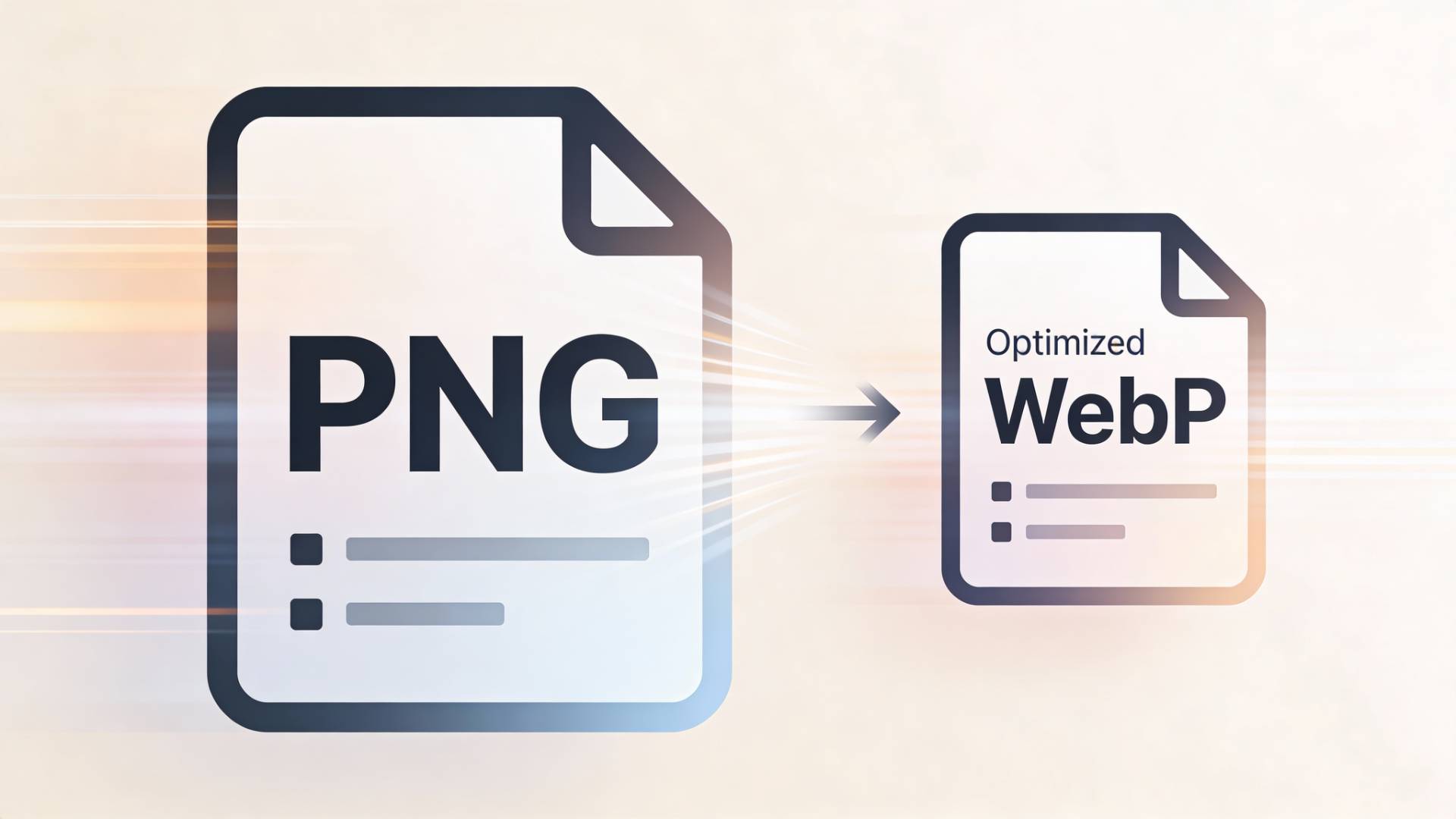
Let’s start with a simple truth: images are heavy.
Not emotionally, digitally. They’re often the biggest reason a website feels slow, clunky, or just a little annoying to use. And if you’ve been relying on PNG files for years, you’re not alone. PNGs are reliable, sharp, and familiar. But they’re also… bulky.
That’s where WebP comes in.
If you’re wondering how to convert PNG to WebP and whether it’s actually worth the effort, you’re in the right place. Let’s break it down in plain language, no tech fog, no marketing fluff.
First Things First: WebP vs PNG
Before we talk about how, it helps to understand why.
PNG is great when:
- You need transparency
- You want pixel-perfect quality
- File size isn’t a huge concern
WebP is great when:
- You care about page speed
- You want smaller files with similar quality
- You’re optimizing for modern browsers
Here’s the twist: WebP can do almost everything PNG can do, but with significantly smaller file sizes. In many cases, converting PNG to WebP can reduce image size by 25–35% without any visible quality loss.
That’s not a small win. That’s faster load times, better SEO, and happier users.
So yeah, the WebP vs PNG debate isn’t really a debate anymore. It’s more of a quiet handoff.
How to Convert PNG to WebP (Step-by-Step)
Let’s get practical. There are a few solid ways to handle PNG-to-WebP conversion tasks, depending on what you’re comfortable with.
1. Use an Online PNG to WebP Converter (Fastest Option)
If you don’t want to install software or mess with settings, an online PNG to WebP converter is your best friend.
Here’s how it usually works:
- Upload your PNG file
- Choose WebP as the output format
- Download the converted image
That’s it. No learning curve. No commitment.
Tools like PNG to WEBP of FileReadyNow offer a clean, no-friction way to do this, especially when you just need a quick conversion without overthinking it. One upload, one download, done.
This is also where most people look for a PNG to WebP converter, and thankfully, there are good options that don’t slap watermarks on your files or limit quality.
2. Convert PNG to WebP Using Image Editing Software
If you’re already working in tools like Photoshop, GIMP, or similar software, you can convert PNG to WebP directly during export.
The general flow:
- Open your PNG file
- Choose “Export” or “Save As”
- Select WebP as the format
- Adjust quality settings if needed
This approach gives you more control. Compression level, transparency handling, fine details—it’s all in your hands. The tradeoff? Slightly more time and a bit of technical confidence.
3. Bulk Convert PNG to WebP (For Large Projects)
If you’re managing a website, blog archive, or product catalog, converting images one by one gets old fast.
Bulk conversion tools, both online and desktop-based, let you upload entire folders and convert them in one go. This is where automation starts to feel like a gift from your past self.
Some online tools (again, PNG to WEBP of FileReadyNow fits nicely here) support batch uploads, which is perfect when you’re optimizing older content or migrating a site.
Does Converting PNG to WebP Affect Image Quality?
Short answer: not if you do it right.
Longer answer: WebP uses smarter compression. It keeps edges sharp, handles gradients well, and supports transparency—just like PNG. In most real-world scenarios, users can’t tell the difference unless they’re pixel-peeping at 300% zoom.
The key is balance:
- Use lossless WebP when quality is critical
- Use lossy WebP for decorative or large background images
You’re not downgrading your visuals. You’re just packing them more efficiently.
When Should You Not Convert PNG to WebP?
Good question. Because “always” is rarely the right answer.
You might stick with PNG if:
- You’re targeting very old browsers
- You’re working with niche systems that don’t support WebP
- The image is already extremely small and optimized
For everything else? WebP is usually the better call.
SEO Benefits of PNG to WebP Conversion
Google cares about speed. Users care about speed. Your bounce rate definitely cares about speed.
By switching from PNG to WebP:
- Pages load faster
- Core Web Vitals improve
- Image-heavy pages feel smoother
That’s why “convert PNG to webp” isn’t just a technical task—it’s a quiet SEO upgrade that compounds over time.
Final Thoughts
Converting PNG to WebP isn’t complicated. It’s not risky. And it doesn’t require you to be “technical.”
It’s one of those small decisions that quietly make everything better.
If you want quick results, an online PNG to WebP converter is more than enough. If you want control, desktop tools have you covered. Either way, once you start using WebP, going back to PNG feels a bit like using dial-up again.
And nobody misses that.
Table of Contents
Recent Posts

PDF to JPG Blurry? How to Convert a PDF Page With Sharp Text
5 days ago
HEX vs RGB vs HSL vs CMYK: Which Color Code Should You Use?
1 week ago
Video Converter Online Free: Which Format to Pick and Why
2 weeks ago
Audio Trimmer Online Free: Cut, Keep, or Remove Any Section
2 weeks ago
How Strong Should Your Password Actually Be in 2026?
3 weeks ago
HEIC vs JPG: Which Should You Actually Use?
1 month ago