APNS Configuration Tester: Free Online iOS Push Test

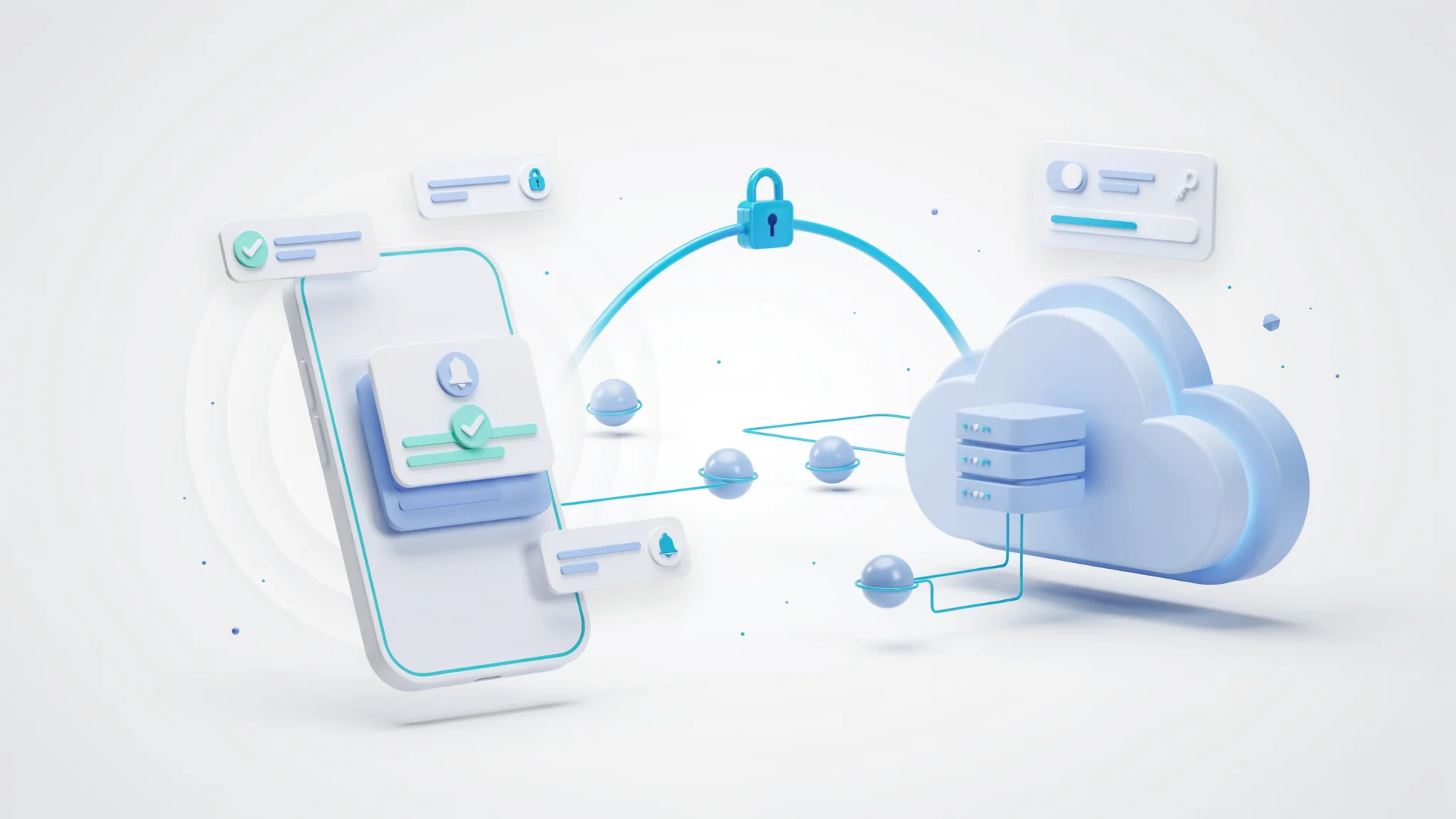
TL;DR: The APNS Configuration Tester on FileReadyNow is a free, no-signup web tool that checks your Apple Push Notification Service setup in minutes. Upload your .p8 key or .p12 certificate, fill in a few app details, and run a full diagnostic. It catches misconfigurations before your users notice and even lets you send a real test push to a device. No software install needed.
I’ve lost afternoons chasing a push notification that never arrived. My .p8 key looked fine, but it turned out I’d pasted the wrong Team ID. That tiny typo meant zero alerts reached my test device. If I’d had a fast, free way to validate the whole APNS handshake, I’d have saved hours. That’s exactly what the free APNS configuration tester on FileReadyNow does. It gives you an instant health check on your push notification credentials, the chosen environment, and the server-side connection, right from your browser. You don’t need to spin up Xcode or script a curl command. Within a minute you know whether your setup is ready for prime time.
Push notifications can silently fail for dozens of reasons: an expired certificate, a mismatched Bundle ID, using the sandbox gateway for a production app. Shipping code without testing those layers is a gamble. This online tool removes the guesswork. It supports both token-based authentication (the recommended method with a .p8 key) and the older certificate-based approach with .p12 or .pem files. Development and production environments are covered, and you can optionally provide a device token to fire a live test notification.
What Does the APNS Configuration Tester Actually Do?
It validates your APNS configuration and optionally sends a real push. The tool takes the credentials you type or upload, reaches out to Apple’s servers, and reports back whether the connection succeeds or fails, plus why. You get three test modes: Validate Configuration, Send Test Notification, and Check Token Validity. The first confirms that your authentication material, Team ID, Key ID, and Bundle ID all work together. The second pushes a light payload to a specific device. The third isolates the device token and tells you if it’s properly registered for the given app and environment.
You control the level of scrutiny. If you’re still wiring up the backend, start with a configuration-only check. No device token is needed for that, so you can iterate fast. Once a test device is ready, add its token and hit “Send Test Notification” to see the whole chain light up.
Token-Based vs Certificate-Based Authentication: Which Should You Use?
Token-based authentication (.p8 key) is the modern choice. It doesn’t expire, works across multiple apps, and is easier to manage. Certificate-based authentication (.p12/.pem) still works, but certificates expire every year and are tied to a single Bundle ID. The FileReadyNow tool supports both, so you can test whichever your project relies on.
| Feature | Token-Based (.p8) | Certificate-Based (.p12/.pem) |
|---|---|---|
| Expiration | Never (key doesn’t expire) | Annually (must renew) |
| Multi-app use | One key for all apps | One certificate per app |
| What you need | Team ID, Key ID, .p8 file, Bundle ID | .p12 or .pem file, password (if .p12), Bundle ID |
| Environment toggle | Same key for sandbox & production | Separate certificate per environment |
| Tool support | Fully supported | Fully supported |
Switching between the two in the tool is instant. Just choose the method at the top, fill in the matching fields, and run your test.
How to Test Your APNS Setup Step by Step
Open the APNS Configuration Tester page. Select “Token-based” or “Certificate-based.” For token-based, paste your 10-character Team ID (from your Apple Developer Account), the 10-character Key ID, and upload the .p8 private key you downloaded from the Apple Developer Portal. Add your app’s Bundle Identifier. Choose the APNS Environment: Development (sandbox) if you’re building with Xcode, or Production for TestFlight and App Store builds.
If you have a device token handy, type it into the Device Token field. It’s a 64-character hexadecimal string that you can grab from your app’s didRegisterForRemoteNotifications method. Leave the field blank if you only want to validate credentials. Click “Validate Configuration” or “Send Test Notification.” The tool reaches out to Apple’s servers and displays a clear pass/fail result along with any error details. A few seconds later you know what’s wrong, or that everything’s green.
What You Can Diagnose Without Sending a Real Push
You don’t need a device token to smoke-test your APNS configuration. The tool checks authentication, Bundle ID match, and environment routing without ever sending a notification. It confirms your private key or certificate is valid, that your team and key identifiers line up, and that Apple’s gateway accepts your request. If something’s off, like an expired certificate or a sandbox/production mismatch, you get an immediate explanation.
This fast feedback loop is invaluable when you’re still coding the server side. It lets you iterate on the APNS plumbing independently of the rest of your app, so by the time you wire up real deliveries, the foundation is solid.
Common APNS Setup Mistakes the Tester Catches
Most silent push failures trace back to a handful of simple errors. The tester flags them in seconds:
- Wrong Team ID or Key ID. One digit off, and Apple rejects the token. The tool spots the mismatch instantly.
- Mismatched Bundle Identifier. The Bundle ID you enter must match the one linked to your .p8 key or certificate. The tool validates this.
- Environment confusion. Pointing a production certificate at the sandbox gateway, or vice versa, breaks the connection. The tester warns you when the environment doesn’t align with your credential type.
- Expired or corrupted certificate. For .p12 users, the tester verifies the certificate is still valid and the password is correct.
- Invalid .p8 key format. If the file is truncated or isn’t a proper private key, the tool reports a cryptographic error.
- Untested device token. Even a valid configuration can fail if the token was generated with a different environment or app. The “Check Token Validity” option flags that.
Fixing these early means you never ship an app that “just doesn’t get notifications.”
Why This Free Online Tool Beats Local Debugging
You can absolutely test APNS with curl and OpenSSL on your machine. But you need to know the exact endpoint URL, construct the JWT token for .p8 auth, and manually parse the HTTP/2 response. That’s tedious. This browser-based validator does all the heavy lifting. No command line, no custom scripts, and no risk of leaving sensitive keys in terminal logs.
All traffic runs over encrypted HTTPS connections. The tool doesn’t store your credentials, and because there’s no account, you never give up an email address. One honest limitation: the tester confirms the handshake and basic delivery logic, but it can’t simulate your server’s full payload creation or custom JSON structure. Once the configuration passes, you’ll still want to verify your backend code with real payloads in your own staging environment.
When your push notifications need to work on day one, a quick pre-flight check saves more than time, it saves your launch confidence. Run your credentials through the APNS Configuration Tester right before you send that first release build. And if you’re troubleshooting more than push, take a look at the other free Seo Web Tools on FileReadyNow for DNS checks, JWT decoding, and more.
Frequently Asked Questions
What is APNS push notification testing?
APNS push notification testing verifies that your iOS app can successfully connect to Apple’s Push Notification service and that your credentials, certificates, or tokens are valid. It catches misconfigurations before your app goes live, so real users actually receive alerts.
Can I test APNS push notification online without installing anything?
Yes. The FileReadyNow APNS Configuration Tester runs entirely in your browser. You don’t need to install SDKs, frameworks, or command-line tools. Just open the page, enter your settings, and run the test.
Does this tool support testing the APNs API directly?
Absolutely. The tool builds and sends a real APNs API request using your credentials, then shows you the response from Apple’s servers. You can test both token-based (JWT) and certificate-based authentication, and inspect the raw validation results.
Who can use this online APNS testing tool?
Developers, QA engineers, and product teams can all use it. It’s built for anyone who needs to confirm push notification readiness quickly, whether you’re preparing a release or debugging a silent failure. No Apple Developer account role restrictions apply when using the tool.
Is it safe to test push notifications on this website?
Yes. All communication is encrypted with HTTPS, and the tool processes your credentials locally to make the test request. Nothing is stored on the server, no account is required, and your keys or certificates are never saved after you close the page.
Table of Contents
Recent Posts

PDF to JPG Blurry? How to Convert a PDF Page With Sharp Text
5 days ago
HEX vs RGB vs HSL vs CMYK: Which Color Code Should You Use?
1 week ago
Video Converter Online Free: Which Format to Pick and Why
2 weeks ago
Audio Trimmer Online Free: Cut, Keep, or Remove Any Section
2 weeks ago
How Strong Should Your Password Actually Be in 2026?
3 weeks ago
HEIC vs JPG: Which Should You Actually Use?
1 month ago