Image Compressor: Shrink Image File Sizes Without Losing Quality

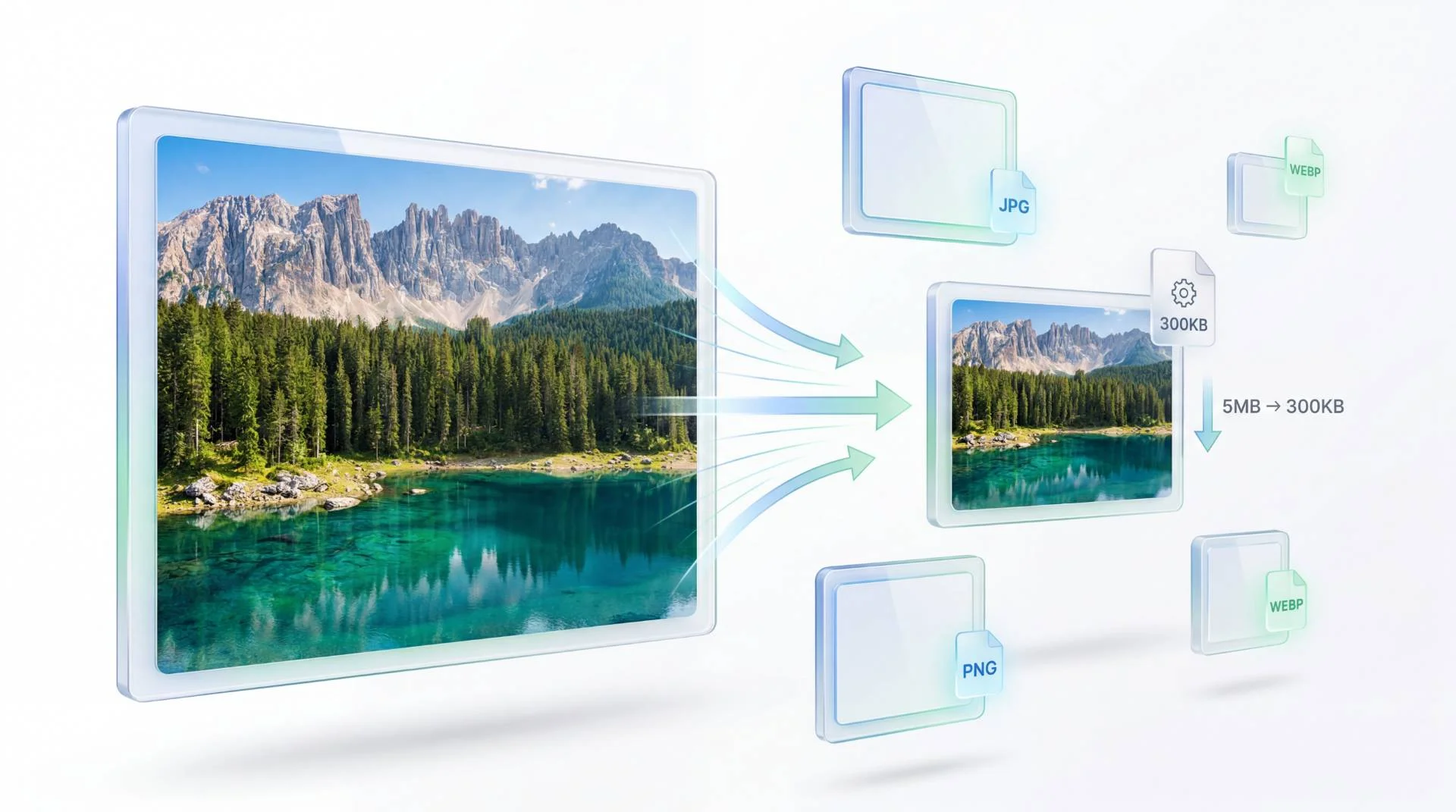
TL;DR: Use FileReadyNow’s free online Image Compressor to make JPG, PNG, and WebP files up to 90% smaller. It runs directly in your browser, so your images never leave your computer. Just drag, adjust the quality slider if you like, and grab your lighter files. No signup, no watermark, no upload anxiety.
You know the drill: a giant photo straight from your camera bogs down your website. Emails bounce because attachments are too big. Cloud storage fills up faster than you’d expect. That’s where an image compressor earns its keep, and the FileReadyNow Image Compressor handles it without any software installs or server uploads.
I had a folder of 15 product shots totaling 80 MB that I needed to upload to a client’s website. The tool shrank them all to under 12 MB, and I couldn’t spot a single difference on the screen. It’s that kind of real-world magic that makes you bookmark a tool.
How Do Huge Image Files Mess Things Up?
Large, uncompressed images slow down website loading times dramatically. A page that takes more than two or three seconds to appear loses visitors. Email providers cap attachments around 25 MB, and a single high-res photo can eat that whole allowance. Even on your own device, a folder of raw shots can gobble up gigabytes you’d rather use for something else.
Compressing images fixes all three problems at once. You keep the visual quality you need while making the files portable and lightning fast to load.
What Is FileReadyNow’s Image Compressor and How Does It Work?
It’s a browser-based tool that shrinks JPG, PNG, and WebP images on the spot. You don’t install anything, and you don’t upload anything to a server. All the compression happens locally using your device’s own processing power. You open the online image compressor, drop your images in, tweak a quality setting if you want, and hit download.
Here’s how easy it is:
- Drag and drop up to 20 images onto the page, or click to browse. Total size stays under 100 MB.
- Use the adjustable quality slider to decide the balance between smaller size and crispness. Slide left for tiny files, right for near-original detail.
- Each file compresses instantly. You’ll see original size, compressed size, and the percentage saved right next to the thumbnail.
- Download files one at a time or all together in a batch.
How Much Can You Reduce an Image’s Size Without Ruining Quality?
You can often cut file sizes by up to 90% and still have an image that looks clean and sharp. The key is the quality slider. At a lower quality setting, a 5 MB photo can drop to 300 KB, and on a standard screen you won’t notice the difference. If you need to preserve every pixel for a print job, just nudge the slider higher; compression will be less aggressive but still useful.
The tool shows a clear before-and-after report for every file. You see exactly how many kilobytes or megabytes you saved, so you can adjust until you hit the sweet spot for your use case (social media, email, website hero image, etc.). That honest feedback helps you avoid over-compression while still getting a file that loads fast.
Is It Safe When the Tool Runs Completely in the Browser?
Absolutely. Since the compression engine lives entirely within your browser, none of your images get sent to an outside server. They aren’t stored, shared, or cached anywhere you don’t control. That means sensitive screenshots, personal photos, or draft designs stay private.
In a world where many “free” tools quietly upload your files to their cloud, this client-side approach is a huge relief. You get the compression you need without the privacy gamble.
How Do You Compress Multiple Images in One Go?
Batch processing is built right in. You upload up to 20 files at once, as long as the total doesn’t exceed 100 MB. The tool compresses each one individually and shows a summary for the whole batch. You can then download all compressed versions as a set.
This is perfect when you have a whole album or a set of product images that need the same treatment. There’s no cap on how many batches you can run; just clear the list and start again. If you regularly work with more than 20 images at a time, split them into chunks. That’s an honest limitation, but one that takes seconds to work around.
Which Image Formats Work Best and What Are Their Compression Limits?
The tool supports the three most common web image formats: JPG, PNG, and WebP. It compresses each within its own format, no conversion happens. So a PNG stays a PNG, just smaller. If you need to switch file types before or after compression, you can pair this with one of the converter tools over in the more Image Tools section.
Here’s a quick guide to what you can expect from each format:
| Format | Best For | Typical Size Reduction |
|---|---|---|
| JPG | Photos, natural images with lots of colors | High , can lose 80-90% file weight with minimal visible change |
| PNG | Logos, screenshots, graphics that need transparency | Moderate to high , lossless by nature, but the quality slider lets you trade some detail for smaller files |
| WebP | Modern web images where you want the best of both worlds (lossless and lossy) | Very high , often beats JPG and PNG at the same quality level |
Give Your Images a Real-World Shrink
Large image files don’t have to be a daily headache. Whether you’re prepping a blog post, sending proofs to a client, or just cleaning up a messy photo folder, the FileReadyNow Image Compressor delivers exactly what it promises: smaller files that still look right. No uploads, no accounts, just a few clicks and you’re done.
Go ahead and try the Image Compressor with your own folder. See how it handles your toughest shots. Then pop over to the full set of Image Tools whenever you need resizing, format swaps, or background removal.
Frequently Asked Questions
Will compressing an image reduce its quality?
You may see a tiny quality loss, but the tool is built to keep visuals crisp. The adjustable slider lets you decide how much file size to drop versus how much detail to keep. For web screens and social posts, most people never spot a difference.
Can I compress more than one image at a time?
Yes. Drag up to 20 images at once, as long as the total size stays under 100 MB. The tool processes all of them in a single batch and shows the saved size for each file.
Is it safe to compress images that never leave my device?
Completely safe. The entire compression runs inside your browser. No image data gets uploaded, stored, or shared with any server. Your privacy is baked into the design.
What is the best image format to compress?
It depends on what you need. Use JPG for photos, PNG for graphics that need transparency, and WebP for a balance of small size and quality on modern websites. The tool compresses all three without converting them.
Do I need to install software or sign up?
No installation and no account required. The Image Compressor works entirely online in your browser, so you can start shrinking images the moment you land on the page.
Table of Contents
Recent Posts

PDF to JPG Blurry? How to Convert a PDF Page With Sharp Text
5 days ago
HEX vs RGB vs HSL vs CMYK: Which Color Code Should You Use?
1 week ago
Video Converter Online Free: Which Format to Pick and Why
2 weeks ago
Audio Trimmer Online Free: Cut, Keep, or Remove Any Section
2 weeks ago
How Strong Should Your Password Actually Be in 2026?
3 weeks ago
HEIC vs JPG: Which Should You Actually Use?
1 month ago