Image Cropper: Free Online Tool to Crop Images Instantly

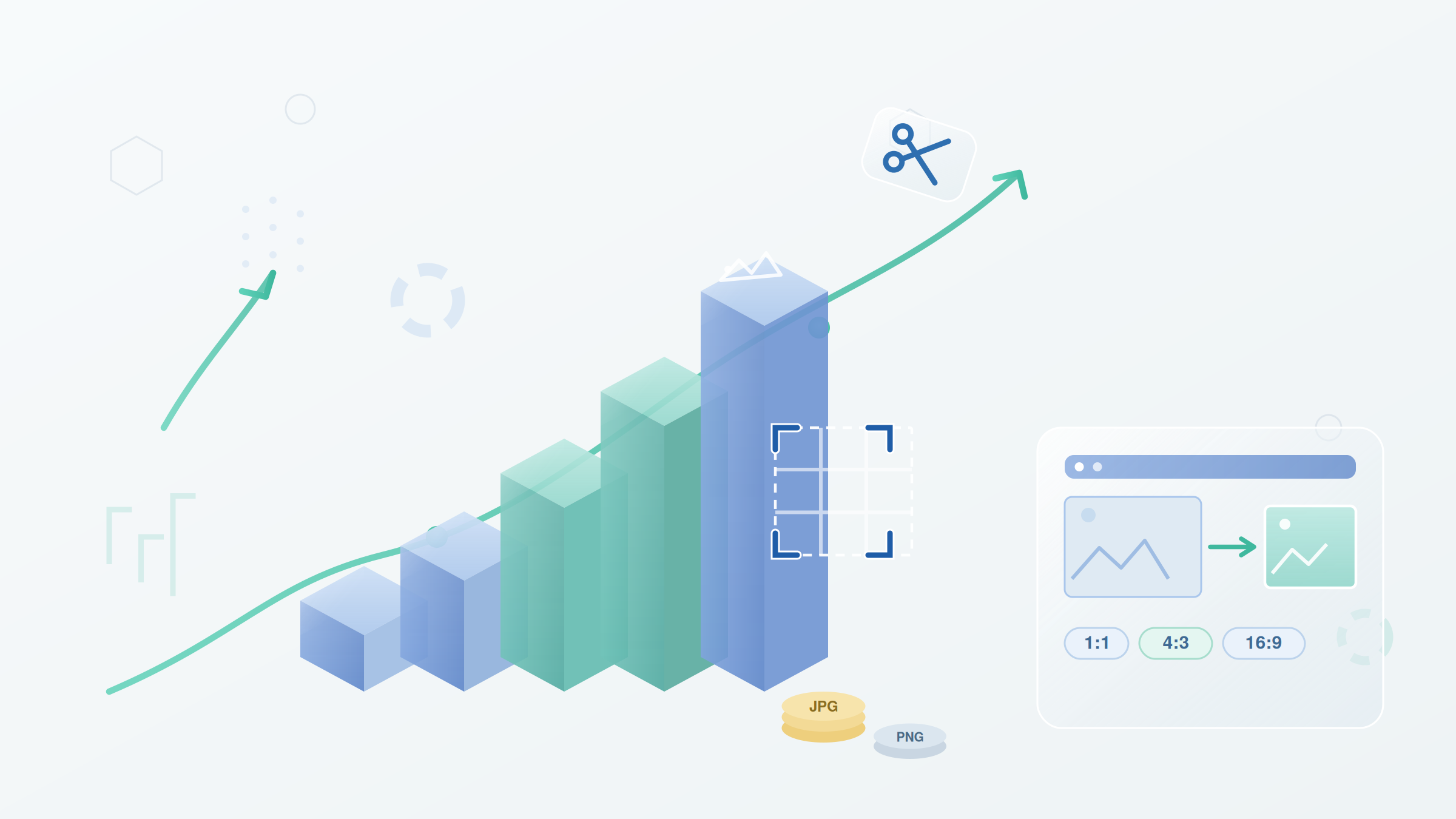
TL;DR: FileReadyNow's Image Cropper is a free, browser-based crop tool. Drop a JPG, PNG, or WEBP file, drag a crop box, lock an aspect ratio like 1:1 or 16:9, and download the cropped region at full resolution. No upload, no signup, no software. Your image never leaves your device. Perfect for quick photo trimming, social media sizing, and product shots.
You have a perfect shot, but a busy background steals the focus. Or your product photo needs a tighter, cleaner composition. Instead of installing bulky editing software, you can crop it directly in your browser. FileReadyNow's Image Cropper lets you do that instantly, for free, with no signup.
I've used it myself to trim blog header images to a 16:9 ratio in seconds. The tool works entirely on your device: nothing uploads to any server. You simply drag a crop box over your picture, lock a preset ratio like 1:1 or 4:5, or set custom dimensions. It supports JPG, PNG, and WEBP files up to 10MB, and outputs your cropped image at full resolution. You can even change the output format on the fly. Whether you're preparing a photo for Instagram, cutting out unwanted edges from a screenshot, or framing a product shot for a listing, this browser-based crop tool handles it in a few clicks.
How Do I Crop an Image Online Free?
You can crop an image online free using the FileReadyNow Image Cropper. Open the tool, drop your JPG, PNG, or WEBP file onto the page, and a crop box appears instantly. Drag the box or resize handles, lock an aspect ratio if needed, then click "Crop & Download" to save the region at full resolution. Everything runs in your browser, so no one sees your file.
The whole process takes three steps. First, choose your image by dragging it onto the dotted area or clicking to browse. A movable, resizable crop overlay appears. Second, adjust the selection. Grab any corner or edge handle to shrink or expand the box; the pixel dimensions update live. If you need a fixed shape, pick an aspect ratio from the dropdown or type a custom width and height. Third, hit the big "Crop & Download" button. Your cropped image downloads immediately in the output format you chose (Original, PNG, JPG, or WEBP). The only real limits are the 10MB file size per image and that it works one picture at a time. Touch devices are fully supported, so you can drag and resize the crop box with a finger on a phone or tablet.
Does Cropping Reduce Image Quality?
Cropping does not degrade image quality. The cropped area keeps the original resolution of the source image. Because the Image Cropper exports at your file's natural pixel density, you won't see any softening or compression artifacts caused by the crop itself. The final quality depends entirely on the original photo you uploaded.
If your original is a sharp, high-res JPG, the cropped version will be just as crisp. The tool never recompresses the cropped region unnecessarily. You also get to choose the output format. Keeping it on "Original" preserves whatever format your file came in. Switching to PNG or WEBP can hold onto transparency and lossless detail, while JPG applies compression that can slightly affect fine textures. That's a format choice, not a crop damage. Bottom line: the crop action simply discards pixels outside the box; what's inside stays untouched.
Can I Crop PNG Files Without Losing Transparency?
Yes, you can crop PNG files and preserve transparency. FileReadyNow's Image Cropper handles transparent PNGs correctly, keeping the alpha channel intact in the cropped output. Whether your image has a transparent background or semi-transparent elements, the tool processes it without flattening or adding a white background.
Choose "Original" or "PNG" as the output format, and all transparent areas survive the crop. If you export as WEBP, transparency also comes through. Only the JPG option gives a solid background because that format doesn't support transparency. Many online tools accidentally strip out the alpha channel during a crop, so it's good to know this one doesn't.
What Aspect Ratios Can I Lock When Cropping?
You can lock the crop box to several common aspect ratios: 1:1 (square), 4:3, 3:4, 16:9, 9:16, 4:5, 5:4, or a custom ratio. The tool shows a live readout of the output dimensions in pixels, so you always know exactly what you'll get.
Here's a quick guide to which ratio fits which platform:
| Aspect Ratio | Common Use |
|---|---|
| 1:1 | Instagram profile, product thumbnails |
| 4:3 | Standard photo prints, presentations |
| 3:4 | Tall vertical prints, portrait framing |
| 16:9 | YouTube thumbnails, widescreen displays |
| 9:16 | Instagram Stories, TikTok, mobile wallpapers |
| 4:5 | Instagram portrait posts (optimal) |
| 5:4 | Some print sizes, alternate framing |
| Custom | Any exact W:H you type in |
Pick "Free" if you want an unrestricted shape. Switch to a locked ratio and the box automatically constrains to that proportion as you drag. The custom fields accept integers and decimals, so you can dial in precise cropping like 1200:630 for a Facebook link preview.
Is It Safe to Crop Sensitive Photos Online?
Yes, cropping sensitive photos on FileReadyNow is safe because the tool runs entirely within your browser. Your image never uploads to a server. All processing happens locally on your device. No one else can view, copy, or store your picture.
There's no signup, no cookies tracking your activity. The page explicitly states "100% Private , Your file never leaves your device. Processed entirely in your browser." That's as safe as using an offline editor, without the need to install anything. Even if you're on a shared or public computer, closing the tab removes all trace of the file. This local-only design makes the cropper a smart choice for ID photos, confidential documents, or any picture you'd rather keep private.
How to Crop an Image to an Exact Pixel Size
Drag the crop box over your image while watching the live pixel dimensions displayed at the top or near the handles. The tool shows width and height in real time. Resize from corners or edges until the numbers match your target. Lock a custom aspect ratio first, and the box will constrain to those proportions, making it easy to hit a specific size such as 1200x630 pixels for Facebook thumbnails.
If you need a precise pixel output, the easiest method is to type the desired ratio into the custom fields (for example, 1200:630) and then scale the box. The final download will be exactly the cropped region, at full resolution, with those pixel dimensions. The tool does not upscale, though. If your source image is smaller than the crop box, the output remains that size and won't magically become sharper. That's an honest limitation: cropping only cuts out parts of the existing picture; it doesn't create new pixels.
Start Cropping Images Right in Your Browser
Cropping images shouldn't require a download or a learning curve. FileReadyNow's Image Cropper strips the process down to dragging, picking a shape, and saving. Because everything stays local, you never worry about privacy or slow uploads. It handles all common formats and works on desktop and mobile. Head over to the Image Cropper tool the next time you need to trim a photo for a post or a profile. And if your workflow needs more than cropping, browse the other image tools for resizing, compressing, and one-click background removal.
Frequently Asked Questions
What is an image cropper?
An image cropper is a tool that lets you cut out a selected area of a picture and discard the rest. It helps reframe your subject, remove distractions, or set exact dimensions for social media and prints.
Can I crop images online for free?
Yes. FileReadyNow's Image Cropper is completely free and works online without any software installation. Just upload your photo, adjust the crop area, and download the edited version right away.
Can I crop a PNG file?
Absolutely. The tool supports PNG, JPG, and WEBP formats. It maintains the original quality and transparency of your PNG after cropping.
Will cropping reduce my image quality?
No. Cropping only selects a portion of the original file. Quality stays the same because the tool outputs the cropped area at full resolution. Any quality loss would come from the original image itself.
When should I use a photo cropper?
Use a photo cropper whenever you need to remove unwanted edges, focus on a subject, adjust the composition, or prepare an image for a specific platform's size requirements.
Table of Contents
Recent Posts
PDF to JPG Blurry? How to Convert a PDF Page With Sharp Text
5 days ago
HEX vs RGB vs HSL vs CMYK: Which Color Code Should You Use?
1 week ago
Video Converter Online Free: Which Format to Pick and Why
2 weeks ago
Audio Trimmer Online Free: Cut, Keep, or Remove Any Section
2 weeks ago
How Strong Should Your Password Actually Be in 2026?
3 weeks ago
HEIC vs JPG: Which Should You Actually Use?
1 month ago