Image Resizer: Resize Images Online Free Without Quality Loss

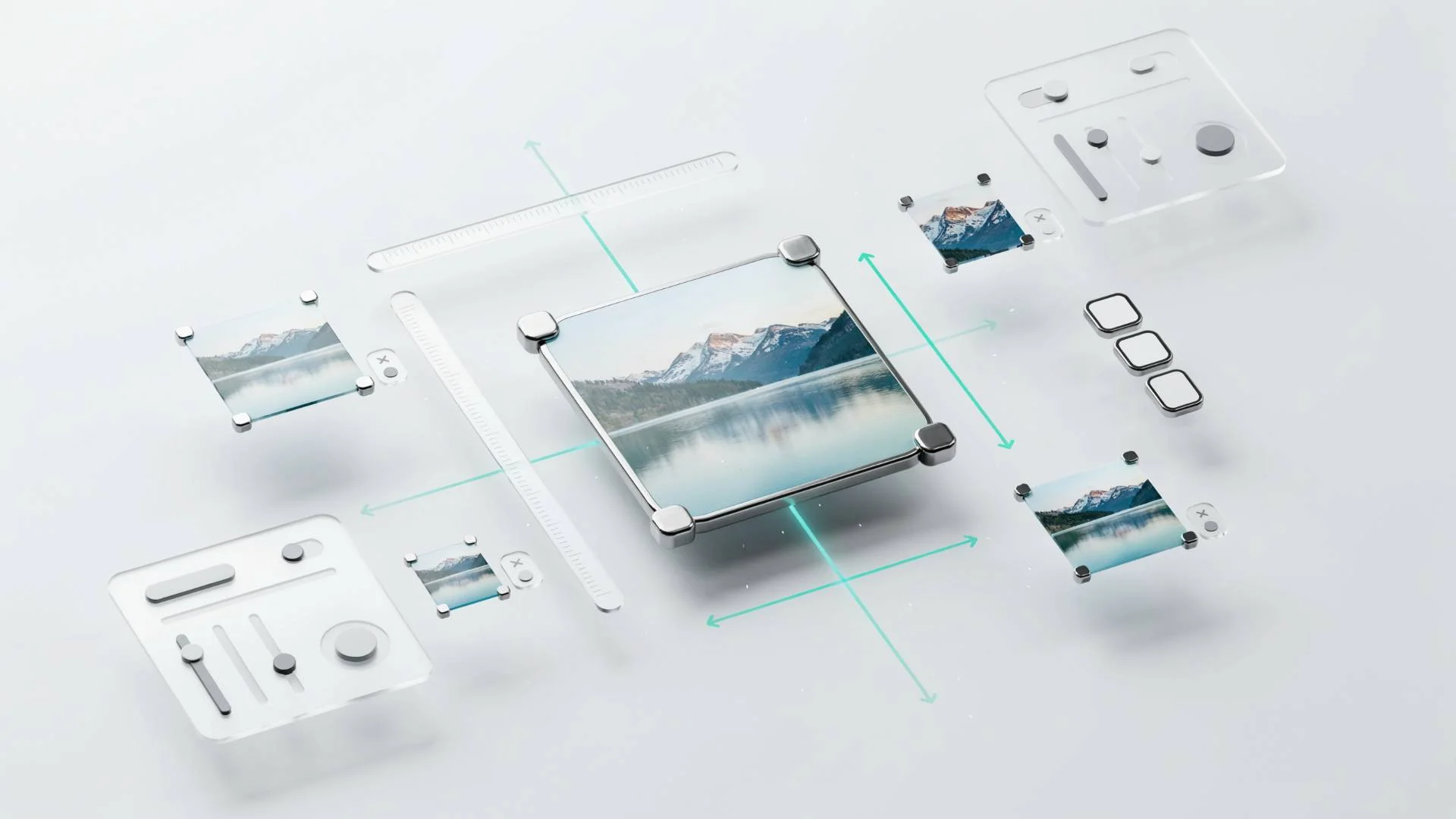
TL;DR: FileReadyNow’s free Image Resizer lets you resize JPG, PNG, WEBP, and GIF files right in your browser. No signup, no uploads to a server, your files stay private. Adjust by exact pixels, scale by percent, pick a platform preset, or hit a target file size. Works with up to 20 images at once.
I had 14 product photos that needed to be exactly 800×800 pixels for an online store. One look at my phone’s clunky photo editor and I knew I needed something faster. That’s when I tried FileReadyNow’s Image Resizer. Within a minute all 14 images were resized, no app install, no login, and I didn’t even need to upload them to a cloud. The whole thing happens inside the browser, on your own device.
Whether you’re prepping a YouTube thumbnail, shrinking a photo for a quick email, or hitting exact pixel dimensions for a print layout, a good image resizer saves real time. The tool handles single images or batches of up to 20 files, gives you full control over dimensions, and offers smart presets that guess the right size for where your image is going.
How to Resize an Image Without Losing Quality
Resizing an image doesn’t have to mean a blurry, pixelated mess. FileReadyNow’s resizer uses optimized compression algorithms that preserve as much detail as possible. You can lower the dimensions of a photo and still keep it looking sharp, especially if you’re making small reductions.
To keep quality high when you resize:
- Choose the right output format. For photos, JPG with a quality setting between 70 and 92 strikes a good balance. For graphics with flat colors, PNG or WEBP often produce cleaner results.
- Use the quality slider. After picking an output format, you can drag the quality slider. The default 92 is already quite high, but you can push it all the way up for maximum fidelity at the cost of slightly larger file size.
- Avoid extreme enlargements. The tool includes a “Don’t enlarge if image is already smaller than target” checkbox that prevents forced upscaling. Turning that on keeps small images from becoming artificially soft.
- Match the fit mode to your goal. “Cover” fills the given dimensions, cropping excess. “Contain” fits the whole image inside, adding letterboxing if needed. “Exact” stretches to the exact dimensions, which may distort the image, and “Pad” adds a colored background around the image to fill the frame without cropping.
The difference is visible when you compare the before and after previews right on the tool page. If something looks off, you can quickly switch modes or adjust the pad color.
How to Resize Images for Instagram, YouTube, and Other Platforms
Forget memorizing dimension charts. The Image Resizer includes one‑click presets for all major social and content platforms. Just pick the preset, and the width and height fields fill automatically.
| Platform | Preset name | Dimensions (px) |
|---|---|---|
| General | Full HD | 1920×1080 |
| General | HD 720p | 1280×720 |
| 1080×1080 | ||
| Instagram / TikTok | Story / TikTok | 1080×1920 |
| Facebook / OG | 1200×628 | |
| LinkedIn Post | 1200×627 | |
| Twitter Header | 1500×500 | |
| YouTube | YouTube Thumb | 1280×720 |
| YouTube | YT Channel Art | 2560×1440 |
| 1000×1500 | ||
| Messaging | WhatsApp DP | 800×800 |
| Print (2K) | 2048×2048 | |
| Avatars | Avatar | 400×400 |
| Quick thumb | Thumbnail | 128×128 |
You can still tweak the numbers after selecting a preset. The preset just gets you close fast. For example, if you want a YouTube thumbnail that also works as a blog post header, start with the YouTube Thumb preset and then adjust the height.
FileReadyNow vs Canva Image Resizer: Which Is Right for You?
Both tools resize images, but they serve different workflows. FileReadyNow is built for speed and privacy; Canva wraps resizing inside a full graphic‑design experience.
| Feature | FileReadyNow Image Resizer | Canva Image Resizer |
|---|---|---|
| Signup required | No | Yes (free account needed) |
| Processing location | Entirely in your browser | Cloud server |
| Multi‑file upload | Up to 20 images at once | One image at a time |
| Social media presets | 14 platform presets | Many presets for social and marketing |
| Custom quality control | Quality slider and format picker | Basic quality export options |
| Design tools (text, overlays) | None | Full suite |
| Privacy | Files never leave your device | Files are uploaded to servers |
If you only need to resize, crop, and convert images quickly, FileReadyNow keeps it simple and secure. If you want to add text, illustrations, or apply templates, Canva gives you that creative layer. For quick batch resizing without signing up, the press‑and‑go nature of FileReadyNow wins.
How to Resize an Image on iPhone or iPad (No App Download)
You can resize photos on an iOS device without installing anything. Open Safari or Chrome, visit the Image Resizer page, tap the upload area, and choose a photo from your camera roll. The tool shows the actual image size. Type new dimensions or pick a preset, then hit the resize button and download. Because the tool runs in your browser, it uses your device’s processing power, and the resized file saves straight to your downloads or photos.
This works equally well on Android phones and tablets. The interface adapts to mobile screens, and the controls stay easy to tap. You never wait for an upload bar, and you don’t need to give a third‑party app permission to access all your photos.
How to Resize Multiple Images at Once
Batch resizing is one of the tool’s strongest points. You can drop up to 20 files at the same time. All images get processed with the same dimensions, format, and quality settings. That means you can take a folder of photos and turn them into uniform thumbnails or product shots in one go.
After dropping the files, you’ll see a list of images. The dimensions you set in the width and height fields apply to every image. A quick glance at the preview shows how each one will look with the chosen fit mode. If an image’s aspect ratio differs, “Contain” or “Pad” keeps it from being stretched awkwardly. For a set of square product photos, pick the Instagram preset, set output to JPG at quality 85, and click resize. In seconds you have a matching set ready to use.
Image Formats You Can Resize and Output Formats
The tool accepts JPG, PNG, WEBP, and GIF files. You can keep the original format when you resize, or convert to JPG, PNG, or WEBP during the process. For instance, you might open a large PNG screenshot, resize it smaller, and save it as a compressed JPG to reduce file size.
One thing to note: if you upload an animated GIF and choose an output format other than “Original,” the tool will convert only the first frame. The animation won’t carry over to JPG, PNG, or WEBP. If you need to resize a GIF while preserving animation, you’ll want a dedicated GIF editor, but for static frames, this works perfectly.
There is also a per‑file size limit of 10 MB. High‑resolution DSLR photos usually fall under that, but very large uncompressed TIFFs won’t pass the limit. For everyday web images, product shots, and screenshots, 10 MB covers most needs.
Quick Steps to Start Resizing
- Go to the Image Resizer page.
- Drop your images or click to browse (up to 20 files, each under 10 MB).
- Set your target dimensions using pixels, a percentage, a file‑size target, or a platform preset.
- Choose a fit mode (Contain often works best for mixed aspect ratios) and an output format.
- Adjust the quality slider if needed, and toggle “Don’t enlarge” to avoid upscaling small images.
- Click resize and download the new files.
Everything happens in your browser. The original files stay on your machine; nothing is ever stored or sent anywhere.
Conclusion
FileReadyNow’s Image Resizer takes the friction out of resizing. No accounts, no uploads, no waiting for a progress bar on someone else’s server. You can resize a single image for an Instagram post or knock out a uniform set of 20 thumbnails in seconds. The presets handle the remembering for you, and the quality controls keep photos looking crisp. If you need a fast, private way to resize images online for free, give it a try. When you’re done, explore more free image tools like the Background Remover or Image Compressor, all built to run right in your browser.
Frequently Asked Questions
Is the Image Resizer really free?
Yes. There is no payment, no signup, and no trial period. The tool processes everything in your browser, so you can resize as many images as you need without ever creating an account.
Will resizing affect my image quality?
When you reduce an image’s dimensions, some fine detail is inherently lost. However, FileReadyNow’s resizer uses optimized algorithms and gives you a quality slider so you can decide the balance between file size and sharpness. Small reductions stay nearly indistinguishable from the original.
Can I use this resizer on my phone?
Absolutely. Open the Image Resizer in any mobile browser (Safari, Chrome, Firefox) on iPhone, iPad, or Android. Upload a photo, set your dimensions, and download the resized version directly. No app store download is required.
What’s the maximum file size per image?
Each file can be up to 10 MB. This limit comfortably covers most photos from smartphones and digital cameras. If your file is larger, you might need to use an image compressor first, which FileReadyNow also offers for free.
How do I resize a photo for Instagram?
Upload your photo, select the “Instagram” preset from the presets menu. It automatically sets the dimensions to 1080×1080 pixels. You can then choose JPG as the output and adjust the quality to your liking before resizing.
Table of Contents
Recent Posts

PDF to JPG Blurry? How to Convert a PDF Page With Sharp Text
5 days ago
HEX vs RGB vs HSL vs CMYK: Which Color Code Should You Use?
1 week ago
Video Converter Online Free: Which Format to Pick and Why
2 weeks ago
Audio Trimmer Online Free: Cut, Keep, or Remove Any Section
2 weeks ago
How Strong Should Your Password Actually Be in 2026?
3 weeks ago
HEIC vs JPG: Which Should You Actually Use?
1 month ago