PDF Split Tool: Everything You Need to Know [2026 Guide]

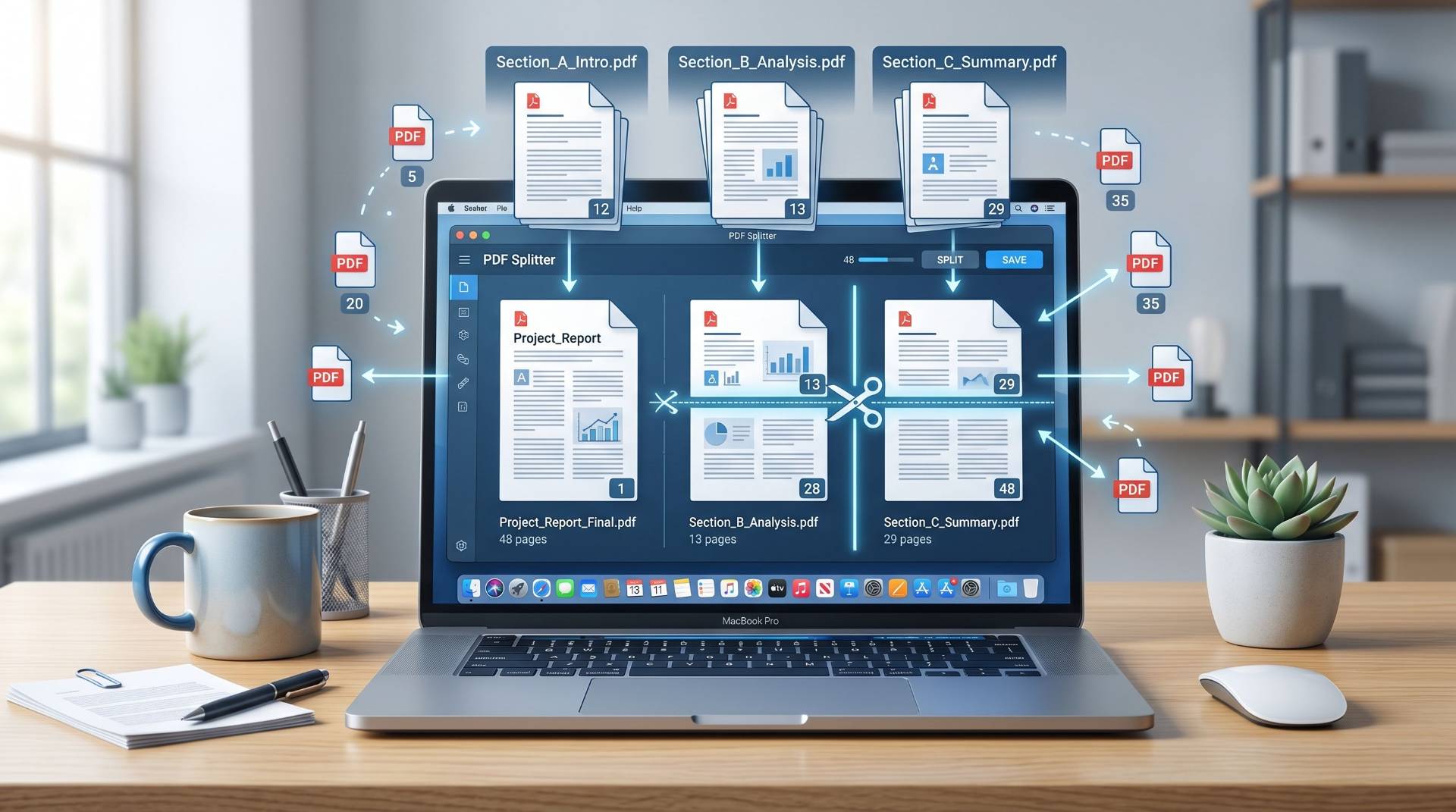
Last month a friend of mine was applying for a government grant. The portal had a strict 5MB upload limit. Her supporting document, a single PDF combining financial records, tax papers, and project notes, was 22MB.
She spent almost two hours trying to figure out how to break it up. Not because the task is genuinely complicated. Just because nobody had ever shown her a straightforward way to do it. She ended up printing the whole thing and re-scanning sections separately. Not ideal.
Her situation is more common than people admit. Splitting a PDF sounds like something any computer-literate person should just know. But between confusing interfaces, unexpected paywalls, and tools that occasionally corrupt your file, plenty of people end up doing things the long way.
So here's everything laid out plainly, without the fluff.
What "Splitting a PDF" Actually Means
Before anything else, let's get specific, because "splitting" covers a few different things depending on what you're trying to do.
You might want pages 4 through 9 pulled out of a 40-page report. That's extraction, pulling a slice out of the middle of a document.
You might want every page turned into its own individual file. That's a full split, common when you've batch-scanned a pile of invoices and need each one separated.
Or you might want to divide a document evenly, into thirds, say, based on page count. Same general idea, different logic behind it.
The tools handle all three, but slightly differently. Knowing which type of split you're after saves a lot of random clicking.
How to Split PDF Files — Every Real Option
Your browser already handles basic splits
Most people don't realize Chrome has a quiet little trick built into its print dialog that works for basic PDF page extraction, no download, no account, nothing.
Open the PDF in Chrome. Hit Ctrl+P (or Command+P on a Mac). In the page range field, type in the pages you want, something like 12-19. Change the destination to "Save as PDF." Click Save.
That's it. New file, only those pages.
It won't work if you need to split one document into ten separate files at once. But for grabbing a specific section fast, it's genuinely hard to beat. Already on your computer, completely free, takes about 30 seconds.
Read also: How to Split a PDF File Without Any Hassle
Online tools — fast, but worth a moment's thought
There are plenty of online PDF splitters. The experience is usually the same across all of them: upload your file, set your split parameters, download the output.
The one thing people don't think about until later is privacy. When you upload a document to an online tool, that file sits on their server for some period of time. Reputable services delete it within an hour or a day. But if you're splitting a contract, a medical record, or anything sensitive, that's worth pausing on before you hit upload.
For everyday stuff though, online tools are the fastest path. Something like FIieReadyNoow's split PDF keeps it straightforward, you pick whether you want to split by page range, by a fixed number of pages, or into individual files, and it just does the thing without making you jump through sign-up hoops first.
Desktop apps — for regular use
If splitting PDFs is a weekly thing for you, maybe you process scanned contracts, or handle a lot of multi-section reports, a dedicated desktop app makes more sense than repeating an online workflow every time.
PDFsam (PDF Split and Merge) is free, open-source, and does exactly what the name says. It runs fully offline, so your files never go anywhere. The interface isn't pretty, but it's solid and handles batches reliably.
PDF Arranger is another decent option, especially on Linux. It gives you a visual page-by-page view where you can drag things around, delete pages, and then export — which is useful when you're not sure exactly which pages you need until you see them.
Python, if you're into that
For developers or anyone comfortable in a terminal, writing a quick script to handle this is actually satisfying — and it scales in ways no manual tool does.
from pypdf import PdfReader, PdfWriter

reader = PdfReader("full_report.pdf")
writer = PdfWriter()

# Pull pages 5 through 11 (index starts at 0)
for i in range(4, 11):
    writer.add_page(reader.pages[i])

with open("section_one.pdf", "wb") as f:
    writer.write(f)
For a single file, an online tool is faster. But if you're processing a folder of 200 PDFs with the same split logic applied to each one, this is the right approach.
How to Split a PDF Into Multiple Files
This comes up constantly. You have one big document, you need several smaller ones, not just a single extraction.
Fixed page count. If your document is 60 pages and you want 10-page chunks, look for a "split every N pages" setting. Set N to 10, get six files back. Most tools have this, though they label it differently.
Every page individually. Common with scanned documents where each page is a separate record. Look for "split all pages" or "extract each page." The output will be sequentially named files. Fair warning — rename them before you close the tool, or you'll end up with twenty files called "output-page-1" through "output-page-20" that you can't distinguish later.
Custom ranges. If the natural split points aren't evenly spaced — pages 1-8 are one section, 9-23 are another, 24-30 are a third — you need a tool that lets you define multiple ranges manually. FileReadyNow handles this well in its "Split by custom ranges" mode. Some online tools do too.
By file size. If the goal is just getting under an attachment limit, a few tools let you specify a maximum megabyte size and split accordingly. Acrobat is the most reliable for this. Blunt method, but effective.
Things That Catch People Off Guard
A few frustrations that aren't obvious until you actually run into them:
Locked PDFs. Some PDFs have extraction restrictions baked in by whoever created them. If your split fails or produces blank pages, this is often why. You'd need to remove those restrictions first — and only if you have the legitimate right to do so. Most tools won't warn you upfront; they'll just quietly produce a broken output.
Scanned images vs. real text. A scanned PDF looks completely normal when you open it. But the "text" is actually pixels, not real characters. Splitting works fine on these. Searching, copying, or editing the text afterward — that won't work without running OCR first. Splitting and OCR are two separate problems; don't conflate them.
Swollen output files. Sometimes a split PDF ends up noticeably larger than you'd expect. This usually happens because fonts and embedded assets get duplicated across output files rather than shared. Not a quality issue, just a size one. Compress afterward if that matters.
Broken internal links. If the original document had a table of contents with hyperlinks to specific pages, those links often break after a split. Check the output before sending it anywhere important.
What to Actually Look for in a PDF Splitter
Quick gut-check before you commit to a tool:
- Does it handle your specific split type? Range-based, fixed count, individual pages, bookmark-based, not every tool does all of these. Make sure it does yours before uploading a large file and discovering limits.
- Does it keep your files private? Online tools are convenient but your document leaves your machine. Desktop apps keep everything local. Know which category the tool falls into.
- Does it demand an account for basic use? Some tools park the actual functionality behind a sign-up wall. Easy to spot, worth avoiding.
- Does it maintain output quality? Run a test on something non-critical first. A good splitter doesn't change anything, fonts, layout, image resolution should be identical to the original.
A Few Things Worth Knowing Right Now
The tools themselves haven't changed dramatically, but a couple of things have shifted recently.
Mobile has gotten workable. Splitting a PDF on a phone was genuinely painful a few years ago. It's not perfect now, but it's reasonable, both iOS and Android have usable options, and several web tools work fine in a mobile browser.
Content-aware splitting is starting to appear. A small number of tools are experimenting with detecting natural document boundaries automatically, where one invoice ends and the next begins, for instance, without you having to specify page numbers manually. Results are inconsistent right now, but the direction is useful.
Privacy information is more visible. More services now clearly state retention periods and whether uploads are encrypted in transit. Some of that is regulatory pressure, some is just users demanding it. Either way, read that section of the page before uploading anything you'd rather keep private.
One Last Thing
Splitting a PDF is one of those tasks where the actual doing takes 45 seconds, and the other hour and 59 minutes is figuring out which method to use.
Chrome's print trick is for quick, one-off jobs. An online tool handles most other cases without any setup. A desktop app earns its place if you're doing this regularly or working with files you'd rather not upload anywhere. And if you're batching large volumes, a short script will outperform any manual process.
Pick whatever matches how you actually work. The only goal here is getting the right pages in front of the right people, how you get there is just a detail.
Frequently Asked Questions
You can split PDF files using Chrome’s print feature, desktop apps like PDFsam, or online tools like FileReadyNow. Just select the pages you need and save them as a new PDF.
.Yes. Most PDF splitter tools let you divide a PDF into smaller files by page count, individual pages, or custom page ranges.
Yes, for regular documents. But for sensitive files like contracts or financial records, offline tools are usually the safer option.
Table of Contents
Recent Posts
PDF to JPG Blurry? How to Convert a PDF Page With Sharp Text
5 days ago
HEX vs RGB vs HSL vs CMYK: Which Color Code Should You Use?
1 week ago
Video Converter Online Free: Which Format to Pick and Why
2 weeks ago
Audio Trimmer Online Free: Cut, Keep, or Remove Any Section
2 weeks ago
How Strong Should Your Password Actually Be in 2026?
3 weeks ago
HEIC vs JPG: Which Should You Actually Use?
1 month ago