Top 5 Image Resizer Tools You'll Actually Use in 2026

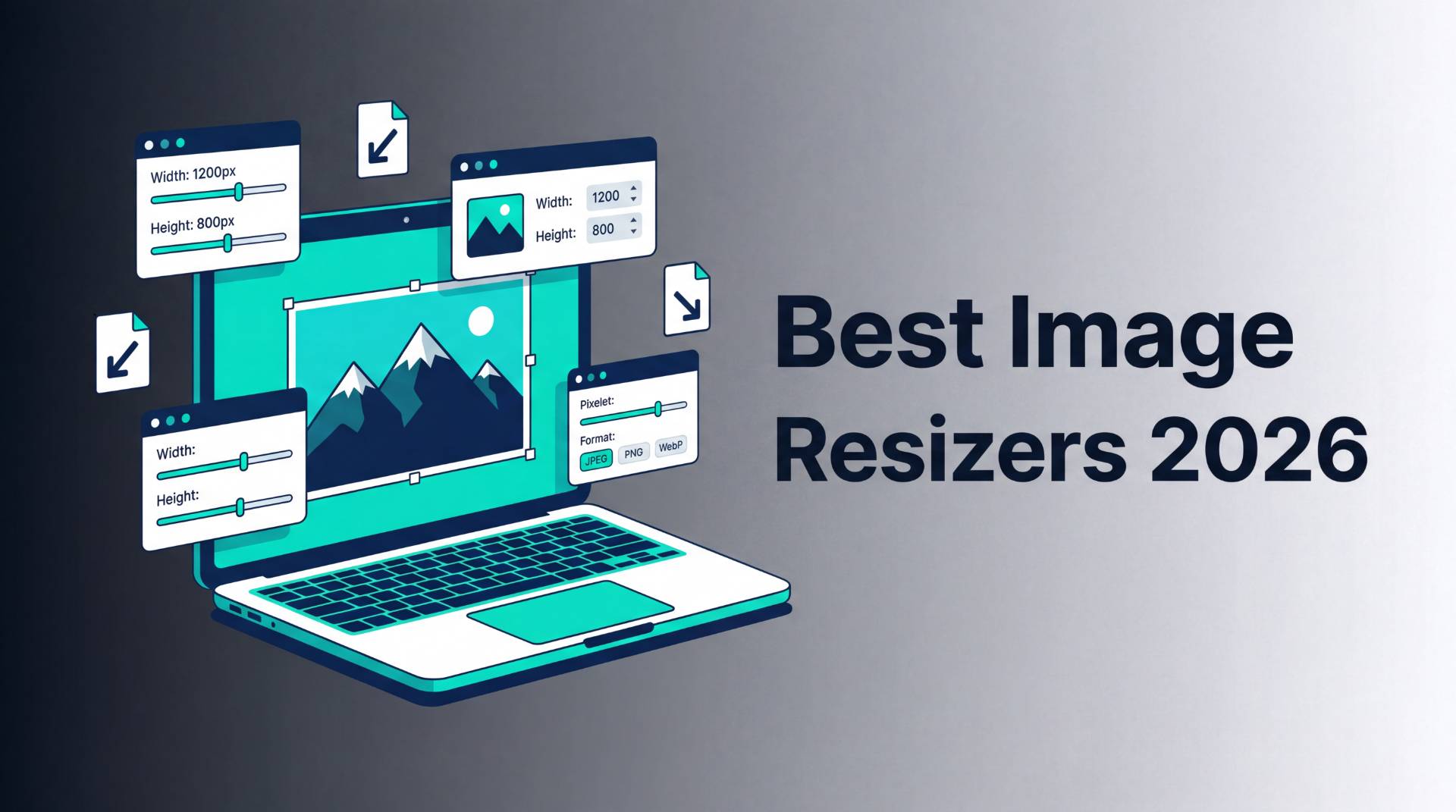
Top 5 Image Resizer Tools You'll Actually Use in 2026
You know that moment when you've taken the perfect photo, or designed something you're genuinely proud of, and then you hit a wall? The platform won't accept it. File too large. Wrong dimensions. Format not supported.
Yeah. That wall is annoying.
The good news? In 2026, there are some genuinely excellent image resizer tools that make this problem disappear in under a minute. The bad news? There are also a lot of bad ones, cluttered with ads, slapping watermarks on your work, or quietly uploading your files to servers you know nothing about.
So let's cut through the noise. Here are the five best image resizer tools right now, broken down honestly so you can pick the one that actually fits how you work.
Why Resizing Images Still Matters More Than Ever
Before we get into the tools, let's talk about why this even matters.
Every platform has its own image rules. Instagram wants 1080x1350 pixels for a portrait post. LinkedIn profile banners need 1584x396. Etsy product listings perform best at 2000x2000. And if you're uploading anything to a website, file size directly impacts page load speed, which affects your SEO rankings.
Here's the thing most people miss: resizing and compressing aren't the same operation.
Resizing changes the pixel dimensions. Compression reduces file size without (ideally) touching the visual quality. The best tools do both. And the difference between a good resizing algorithm and a lazy one? It's visible. Especially if you're enlarging an image.
Cheap tools use bilinear interpolation, fast but blurry. Better ones use Lanczos resampling. And the newest wave of AI-powered tools can actually reconstruct detail when you scale up, which was basically magic five years ago.
Alright. Let's get into it.
1. FileReadyNow: Best All-Around Free Image Resizer Online

Here's a tool that's been quietly picking up a strong reputation in 2026, and for good reason.
FileReadyNow hits a sweet spot that's genuinely hard to find. It's a free image resizer online that doesn't feel stripped-down. No watermarks. No hidden premium tier for the features you actually need. It handles both single-image resizing and bulk batch processing, so whether you're a content creator prepping one hero image or an e-commerce seller working through an entire product catalog, it's got you covered.
What makes it particularly practical is that client-side processing is prioritized. Your files stay in your browser session rather than making a round trip to a server. For anyone working with client images or proprietary assets, that matters more than most people think.
It also supports format conversion including WebP output, which runs 25 to 35% smaller than JPG at comparable quality. So you're not just resizing, you're also getting leaner files ready for the web.
The interface is clean. Drag, drop, resize, download. It's the definition of a simple image resizer that doesn't make you work for it. And because it handles batches just as smoothly as single files, it's the kind of tool you actually keep coming back to rather than hunting for something new each time.
Best for: Content creators, marketers, small business owners, e-commerce sellers, and anyone who wants a capable free tool without the learning curve.
Price: Free.
2. IrfanView: Best for Batch Resizing on Windows

Let's be honest. IrfanView looks like it was designed in 2003. Because it was. And yet, it remains one of the most powerful free image resizer tools available in 2026, especially if you're on Windows and dealing with large volumes of images.
Its Batch Conversion dialog lets you define exact dimensions, output quality, format, and even filename patterns, then run it across hundreds or thousands of images at once. Nothing browser-based comes close to this for pure throughput.
If you're a photographer, an e-commerce seller with a massive product library, or anyone who regularly processes image batches, IrfanView is genuinely hard to beat for Windows users.
Best for: Windows users, photographers, e-commerce workflows, bulk image processing.
Price: Free (donationware).
3. Canva Image Resizer: Best for Designers and Social Media Teams

Canva has become so embedded in the content creation world that most people forget it also functions as a solid image resizer online.
The real value here is context. You're not just resizing an image in isolation. You're doing it inside a broader design ecosystem. Templates, brand kits, text overlays, export presets, it's all connected. A social media manager can design a graphic, then use Canva's Magic Resize to reformat it for Instagram, LinkedIn, and Twitter simultaneously.
For creators who live inside Canva anyway, using a separate resizer tool is kind of pointless. Just do it here.
The limitation is that serious resizing control, pixel precision, advanced compression settings, format-level optimization, isn't really what Canva is built for. It's a design tool that resizes, not a resizing tool that also designs. Know the difference and you'll use it correctly.
Best for: Social media managers, content creators, teams already using Canva.
Price: Free tier available; Canva Pro at $12.99/month.
4. Photopea: Best Free Photoshop Alternative for Image Resizing

Photopea is the dark horse on this list. It's essentially a full Photoshop clone that runs in a browser, and it's free.
For image resizing specifically, you get the same Image Size dialog as Photoshop, with control over pixel dimensions, resolution (DPI), and resampling method. If you're preparing images for print and need to think in terms of DPI rather than just pixels, Photopea is one of the very few free options that handles this properly.
It also supports PSD files, which means designers who receive layered Photoshop files can open, edit, and resize them without paying for a Creative Cloud subscription. That alone makes it worth knowing about.
Yes, the interface is a bit dense if you've never used Photoshop. But for anyone with even basic design experience, the learning curve is minimal.
Best for: Designers, print-focused workflows, anyone who needs Photoshop-level control without the subscription.
Price: Free.
5. ON1 Resize AI: Best for Upscaling and High-Resolution Work

Most tools on this list are built for making images smaller. ON1 Resize AI is built for the harder problem: making them bigger without destroying them.
Traditional upscaling just stretches pixels and blurs the result. ON1 uses AI-powered reconstruction to actually rebuild detail at larger sizes, working particularly well for professional photography and large-format print work. If you've ever needed to take a decent-resolution photo and turn it into something printable at poster size, this is the category of tool you need.
It works as both a standalone application and as a plugin inside Photoshop, Lightroom Classic, and Capture One, which is useful if you already have an editing workflow you don't want to disrupt. The learning curve is real, but so is the output quality.
Fair warning: this isn't a casual, free image resizer. It's for people who need results that hold up at 100% zoom on a large display or in print. For everything else on this list, the free tools are more than enough.
Best for: Professional photographers, print designers, anyone upscaling images beyond 2x.
Price: Paid (free trial available).
How to Resize an Image on iPhone
This question comes up a lot, and the answer depends on how much control you want.
The built-in way (iOS Photos app): Apple doesn't give you a native resize-by-pixel option inside the standard Photos app. You can crop, but you can't set exact dimensions. It's genuinely one of the more frustrating omissions in iOS.
The practical workarounds:
1. Use the Shortcuts App
iOS has a built-in "Resize Image" action in Shortcuts. You can build a simple automation that resizes any image to a target dimension with a single tap. It works well and requires no third-party app.
2. Use a Browser-Based Tool on Mobile
Any of the tools above work on Safari or Chrome on iPhone. Open a free image resizer online, upload the photo from your Photos library, set your dimensions, and download. Takes about 30 seconds.
3. Use a Dedicated App
Image Size (by Spiderwiz) is a popular choice on the App Store. It's clean, simple, and handles exact pixel dimensions properly.
If you're regularly needing to resize images on your iPhone for work or content creation, setting up the Shortcuts workflow is worth the five minutes it takes. You'll thank yourself later.
Quick Comparison: Which Tool Should You Actually Use?
| Need | Best Tool |
|---|---|
| Precise quality control, single image | Squoosh |
| Fast, free, online batch processing | FileReadyNow |
| Mass batch resizing on Windows | IrfanView |
| Design + resize in one place | Canva |
| Print-ready, DPI control, Photoshop-level editing | Photopea |
| Upscaling and high-resolution print work | ON1 Resize AI |
| Resize images on iPhone | iOS Shortcuts or Browser Tool |
Common Image Resizing Mistakes and How to Avoid Them
Even with the right tool, a few bad habits will quietly ruin your images. Here are the ones worth knowing about before they cost you.
Scaling Up More Than 2x with Traditional Tools
Standard resampling algorithms start inventing detail when pushed too far. The result looks soft and artificial. If you need a significant upscale, use an AI-powered tool. Otherwise, work with the original resolution you have.
Ignoring Aspect Ratio
If you manually set both width and height without locking the ratio, you'll stretch or squish your image. Always use the "constrain proportions" or "lock aspect ratio" option unless you have a specific reason not to.
Exporting at the Wrong Format for the Use Case
JPG is fine for photos. PNG is better for graphics with transparency or sharp edges like logos and screenshots. WebP is ideal for web use since it's noticeably smaller than both at the same visual quality. Choosing the wrong format adds unnecessary file size or visible compression artifacts.
Not Previewing on Mobile Before Publishing
A resized image can look perfectly sharp on a desktop monitor and look slightly blurry or oddly cropped on a phone screen. Always check both before anything goes live.
Saving Over the Original
This one is simple but painful when it happens. Always keep a copy of the original at full resolution. Storage is cheap. Recreating a lost original is not.
What to Look For in a Good Image Resizer Tool
Not all tools are honest about what they actually do to your files. Here's a quick checklist for evaluating any image resizer, free or paid.
Client-Side vs Server-Side Processing
Client-side means the resizing happens in your browser, on your device. Your file never touches an external server. That matters if you're handling client images, internal documents, or anything you'd rather not see uploaded somewhere.
Tools like Squoosh, Photopea, and FileReadyNow prioritize this approach, making them attractive options for privacy-conscious users.
No Watermarks on Output
Some free tools add a watermark to resized images unless you upgrade. Check the output before committing to a workflow. The tools listed in this article don't do this, allowing you to keep your images clean and professional.
Format Support
A solid image resizer should at minimum handle JPG, PNG, and WebP. Bonus points for AVIF, GIF, and TIFF support depending on your needs and workflow requirements.
The more formats supported, the less likely you'll need additional conversion tools later.
Batch Processing
If you resize more than a handful of images at a time, single-file tools will slow you down. Look for tools that support bulk uploads or batch queues.
Batch processing can save hours of repetitive work for photographers, marketers, and e-commerce businesses.
Output Quality Controls
Being able to adjust the quality slider (typically 1-100 for JPG) matters more than most people think. A setting of 85-90% gives you a much smaller file with almost no visible quality loss.
Below 70% is where you start to notice visible artifacts and image degradation. A simple image resizer that nails these basics beats a bloated tool with dozens of features you'll never use.
A Few Things Worth Knowing Before You Pick
Before settling on an image resizer, there are a few practical considerations that can make a noticeable difference in your workflow and results.
Privacy Matters
If you're working with client images, internal assets, or anything sensitive, pay attention to whether the tool uploads files to a server.
Client-side tools process everything in your browser, meaning nothing leaves your device. For many professionals, that level of privacy is non-negotiable.
WebP Is Worth Switching To
If you're resizing for web use, export as WebP whenever possible. It's typically 25 to 35% smaller than JPG at the same visual quality.
Most modern browsers support WebP fully, and the reduction in file size can noticeably improve page load speed and user experience.
Don't Scale Up More Than 2x on Non-AI Tools
Traditional resampling algorithms start breaking down when pushed beyond their limits. The larger the enlargement, the more obvious the softness and quality loss become.
For significant upscaling, AI-powered tools like ON1 Resize AI produce dramatically better results by reconstructing image detail rather than simply stretching pixels.
Preview Before Publishing
Compression artifacts and resizing issues don't always appear the same on every screen.
An image that looks sharp on a desktop monitor may appear blurry, oversharpened, or awkwardly cropped on mobile devices. Always preview your resized images on multiple screen sizes before publishing.
Final Thought
There's no single "best" image resizer. There's only the best image resizer for your particular situation.
If you want simplicity and it's a one-off task, open a browser and use a free image resizer online. If you're doing this regularly, build a workflow around a tool that matches how you work.
Windows power user? Get IrfanView set up. Designer? Stay in Canva. Developer? Squoosh belongs in your toolkit. Need to upscale images for print? ON1 Resize AI is worth the investment.
The tools above are genuinely good. They're the ones worth your time in 2026: tested, practical, free or freemium, and built for real-world use rather than constant upselling.
Now go resize that image. You've got stuff to publish.
Frequently Asked Questions
What is the best free image resizer in 2026?
The best free image resizer depends on your needs. For online resizing and batch processing, FileReadyNow is a strong option. For Windows users handling large image libraries, IrfanView remains one of the most powerful free tools available.
What is the difference between image resizing and image compression?
Image resizing changes the pixel dimensions of an image, while image compression reduces the file size. Many modern tools combine both functions to optimize images for web use and storage.
How can I resize an image without losing quality?
Use a high-quality resizing algorithm, maintain the original aspect ratio, and avoid excessive upscaling. For enlargements beyond 2x, AI-powered tools typically produce better results than traditional resizing methods.
How do I resize an image on iPhone?
You can use the built-in Shortcuts app, an online image resizer through Safari or Chrome, or a dedicated app such as Image Size to set precise dimensions.
Which image format should I use for websites?
WebP is generally the best choice for modern websites because it offers smaller file sizes than JPG and PNG while maintaining excellent image quality and broad browser support.
Is client-side image processing safer?
Yes. Client-side processing keeps your files on your device instead of uploading them to external servers, offering greater privacy and security for sensitive images.
Table of Contents
Recent Posts
PDF to JPG Blurry? How to Convert a PDF Page With Sharp Text
5 days ago
HEX vs RGB vs HSL vs CMYK: Which Color Code Should You Use?
1 week ago
Video Converter Online Free: Which Format to Pick and Why
2 weeks ago
Audio Trimmer Online Free: Cut, Keep, or Remove Any Section
2 weeks ago
How Strong Should Your Password Actually Be in 2026?
3 weeks ago
HEIC vs JPG: Which Should You Actually Use?
1 month ago