Best Free Tools for Image to Pixel Art Conversion

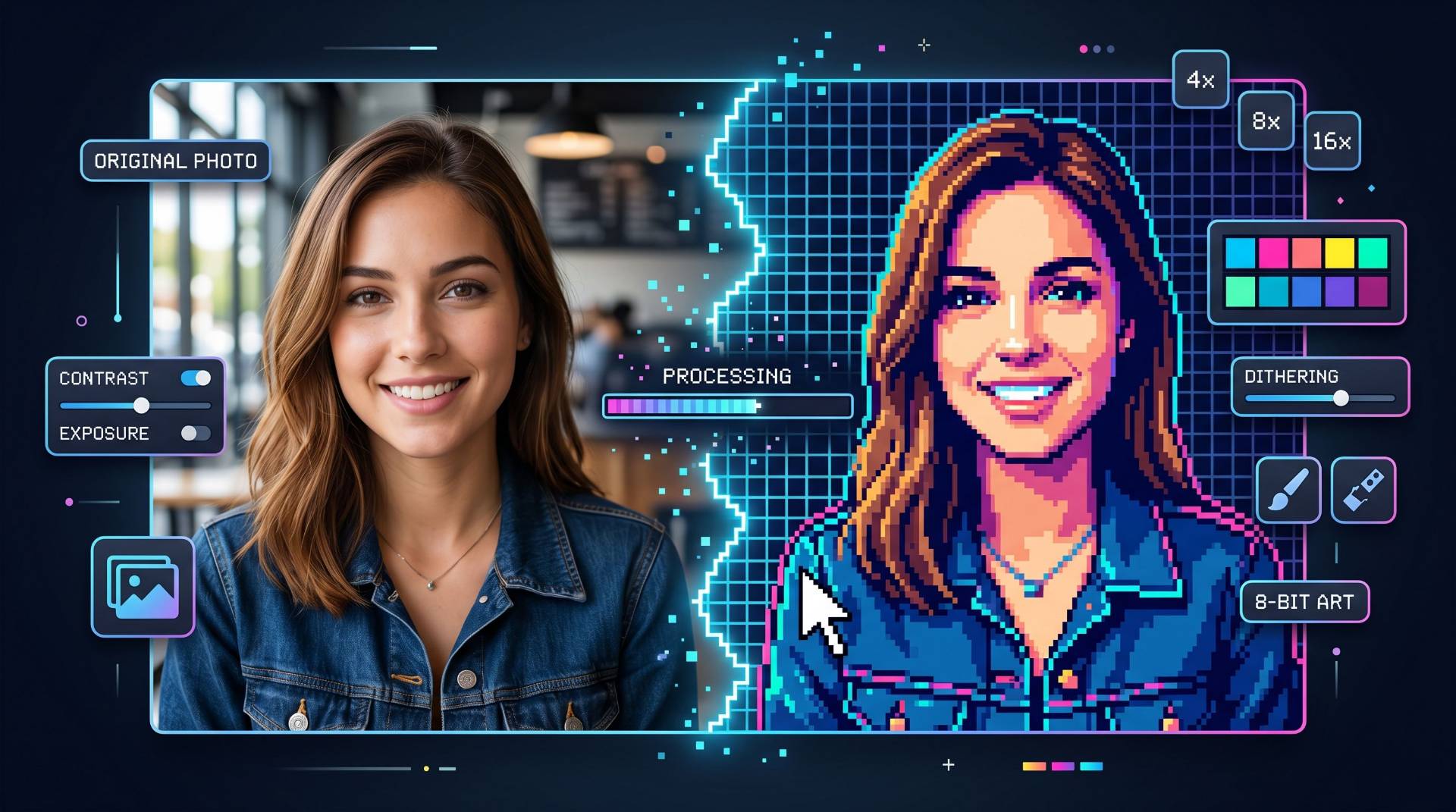
So you want to turn your photos into pixel art, huh? I get it. There’s something awesome about taking a regular photo and transforming it into that classic retro gaming look.
Whether you’re bored on a weekend and want to mess around with your pics, or you’re actually trying to make game assets, there are some solid free tools out there that can do the job without emptying your wallet.
Let me walk you through some of the best options I’ve found for converting images into pixel art. Spoiler alert: most of them are actually pretty easy to use.
Why Would You Even Want to Do This?
Honestly, converting an image to pixel art has become way more popular than you’d think. It’s not just about the nostalgia factor (though that’s definitely part of it).
People use pixel art conversions for all kinds of stuff:
- Making memes and funny content for social media
- Creating indie game assets without hiring an artist
- Turning memories into cool-looking profile pictures
- Adding that retro vibe to their design projects
- Just because it looks rad, honestly
How Does This Actually Work?
Here’s the simple explanation: when you convert an image to pixel art, the tool basically breaks down your image into a grid of colored blocks—think of it like a really low-res version of your photo.
Instead of smooth colors and gradients, you get these chunky blocks of solid colors in a pixel art grid.
The bigger the blocks, the more “8-bit” it looks. Smaller blocks? More detail. You’ll see what I mean once you start playing with it.
Read also: Master the Art of Pixel Art: Tools, Techniques & Tips for Beginners
The Best Free Tools for Image to Pixel Art Conversion
Alright, here are the tools I’ve actually tested and used. They’re all free, and they all do the job, but each one has its own vibe.
1. FileReadyNow – Seriously, Just Use This One

Look, I’m not gonna sugarcoat it—FileReadyNow is my go-to when I need to convert image to pixel art.
It’s dead simple. You upload a photo, slide the pixel size around until it looks good, and boom—you’ve got pixel art.
What makes it great:
- You don’t need to sign up for anything
- The pixel art grid controls are super intuitive
- It actually shows you a preview before you download
- Fast as hell
- No ads trying to kill you
- Works in your browser
Real talk: I’ve tried making this more complicated than it needs to be with other tools, and then I just come back to FileReadyNow because it actually works the way you’d want it to.
2. Media.io – For When You Want More Control

This one’s got more buttons and options, which is good if you like tinkering.
You can mess with color palettes, add filters, and even edit your stuff after it’s converted.
What you get:
- More granular controls than other tools
- Can edit after conversion
- Multiple export formats
- Active community that shares tips
Who’d want this: People who like to fiddle with settings and get their hands dirty with editing.
3. Photopea – For Photoshop People

If you’re already used to Photoshop, this one will feel familiar.
It’s basically a free Photoshop clone that runs in your browser, and yes, you can do pixel art conversion with it too.
The good stuff:
- All the Photoshop tools you know
- Pixelate filters that actually work pretty well
- Can layer stuff for complex projects
- Export to basically any format you want
Real use case: You already know Photoshop and don’t want to learn a new interface.
4. PixelArtVillage

Honestly? This tool is for when you just want to slap an image in and get pixel art out.
No overthinking. No complicated options.
What it does:
- One-click conversion
- Minimal settings
- Super fast
- No registration
- Clean and simple
5. Piskel – If You’re Building Games

Piskel is actually an open-source pixel art editor.
You can use it to create pixel art from scratch, or import an image and convert it.
Why people use it:
- Frame-by-frame animation support
- Made for game developers
- Free and open-source
- Pretty active community
- Can create sprite sheets
Use this if: You’re actually making a game and need to generate assets.
6. Canva – If You’re a Designer

Canva’s got pixel art filters built in, which is cool if you’re already using it for other design stuff.
It’s not dedicated to pixel art, but it works.
The appeal:
- One platform for all your design needs
- Templates and pre-made stuff
- Easy to share designs
- Good for social media graphics
Read also: Pixel Art for UI Design: Icons & Micro-Graphics
Picking the Right Tool (It’s Easier Than You Think)
Here’s the simple breakdown:
- Want the easiest possible experience? FileReadyNow.
- Want more control? Pixelart.io or Photopea.
- Need something fast? Online-Convert.
- Making a game? Piskel.
- Already using Canva? Use their filter.
That’s honestly it. Don’t overthink it.
Tips for Getting Good Results
Pick the right source image:
- Clear subjects work better than busy backgrounds
- Good contrast is your friend
- A high-res original will give better results
- Bright, distinct colors convert cleaner
Mess with the pixel size:
- Ultra-tiny (16x16): Super blocky, very retro
- Medium (24x24 to 32x32): Classic 8-bit look
- Bigger (48x48+): More detail, less retro
Other advice:
- Don’t be afraid to try multiple times
- Simple images work better
- Fewer colors = more retro
Why I Keep Coming Back to FileReadyNow
Look, I’ve tried all these tools. But when I need to convert an image to pixel art and I want it done right without hassle, I use FileReadyNow.
It’s not because it’s the fanciest or has the most features. It’s because it was literally designed just for this job.
Every button, every slider, every option—it’s all there because it actually makes the conversion better.
You upload a photo, adjust your pixel art grid size, preview it, and download.
Stuff People Actually Ask About This
- Can I turn an animated GIF into pixel art?
- Most tools can’t handle animated stuff. Piskel can.
- What file types does this work with?
- JPG, PNG, GIF, BMP—basically any image format.
- Will my image lose details?
- Yes. That’s what creates the pixel art look.
- Can I edit it after conversion?
- Photopea and Pixelart.io allow editing after conversion.
- Is there a file size limit?
- Most tools cap uploads between 5MB and 25MB.
- Do I need to download software?
- Nope. Everything works in your browser.
Just Start Playing Around
Here’s the thing—all these tools are free. There’s literally no risk in trying a few and seeing which one you like best.
Spend 10 minutes on FileReadyNow, then try one of the others if you want.
Some people like simple. Some like control. Some are building games.
If you’re reading this and thinking “okay, I’m gonna give this a try,” start with FileReadyNow.
Grab a photo, upload it, and see what happens. The retro aesthetic is cool, and it’s genuinely fun seeing your photos transformed into pixel art.
Frequently Asked Questions
The best free tool depends on your needs. If you want quick and easy conversion, FileReadyNow is a simple option. For advanced editing and customization, tools like Pixelart.io and Photopea offer more control.
.Yes, pixel art conversion intentionally reduces image detail by simplifying colors and replacing smooth gradients with blocky pixels. This creates the classic retro 8-bit or 16-bit style.
Yes, most online pixel art converters support common formats like JPG, PNG, GIF, and BMP. Upload your image, adjust the pixel size and color settings, and download the final pixel art in seconds.
Table of Contents
Recent Posts

PDF to JPG Blurry? How to Convert a PDF Page With Sharp Text
5 days ago
HEX vs RGB vs HSL vs CMYK: Which Color Code Should You Use?
1 week ago
Video Converter Online Free: Which Format to Pick and Why
2 weeks ago
Audio Trimmer Online Free: Cut, Keep, or Remove Any Section
2 weeks ago
How Strong Should Your Password Actually Be in 2026?
3 weeks ago
HEIC vs JPG: Which Should You Actually Use?
1 month ago