How to Compress a PDF to 300 KB Online for Free: A Practical Guide

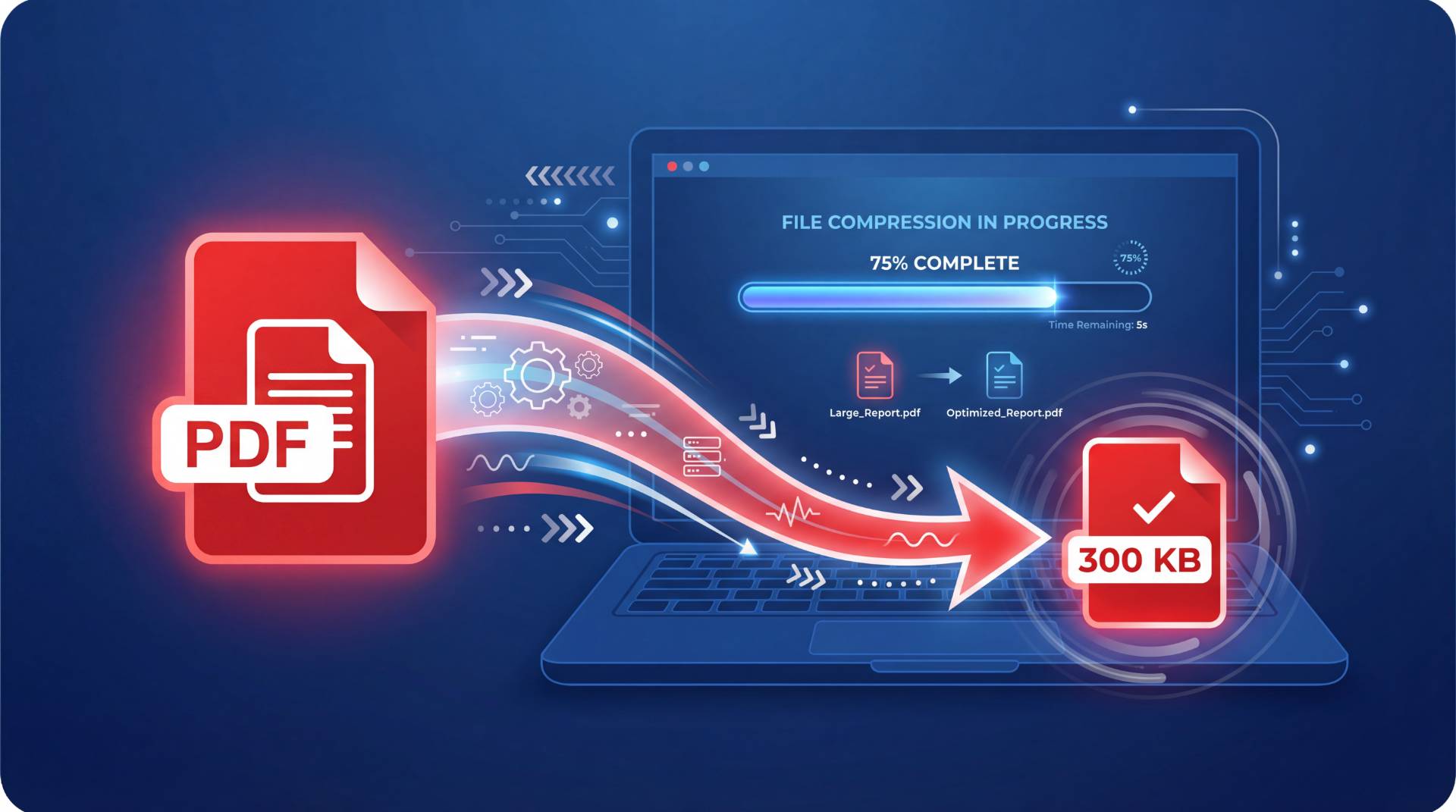
You've got a PDF that's way too large. Maybe it's a presentation with high-res images, a scanned document, or a design file. You need to send it via email, upload it somewhere with size limits, or just free up space. The problem? It's massive. And you're thinking: there's got to be a simple way to fix this.
There is. And honestly, it's easier than you think.
Compressing a PDF file has become something you shouldn't need a degree in IT to accomplish. In this guide, we're walking through exactly how to compress a PDF to 300 KB online for free, without needing special software, subscriptions, or losing critical quality along the way.
Why Compress Your PDF Files?
Before we jump into the how, let's talk about the why.
File size matters more than people realize. Here's the thing: a bloated PDF can be a real friction point. Email servers often reject files over 25 MB. Cloud storage fills up fast. Websites with upload limits will reject your file outright. And let's be honest—downloading a 50 MB PDF on a slower connection is painfully slow.
There's also the matter of professionalism. When you're sending a proposal, invoice, or contract to a client, a massive file feels sloppy. A lean, optimized PDF? That signals you've got your act together.
The good news: most PDFs can be compressed to a fraction of their original size without any noticeable quality loss. We're talking 60%, 70%, sometimes even 80% reduction.
Real-World Scenarios Where Compression Matters
Email attachments: Gmail, Outlook, and most corporate email servers cap attachments at 25 MB. But here's the practical issue—if your PDF is 15 MB and someone's internet is spotty, it times out during upload. Compress it to 3-5 MB, and you've eliminated that headache entirely.
Sharing via messaging apps: WhatsApp, Slack, and Teams have file limits. If you're sharing a document across these platforms, compression is essential. A 20 MB file might not upload at all, but a 2 MB version goes through instantly.
Website uploads: Job applications, form submissions, and document portals often have strict limits (5 MB, 10 MB). Exceeding them? Your upload fails silently. Compression ensures your file actually makes it through.
Storage and backup: If you're backing up thousands of documents or paying for cloud storage (Google Drive, Dropbox, OneDrive), file size directly impacts your costs. Compressing PDFs by 60-70% can save you from upgrading your storage plan.
Mobile downloads: On slower connections or mobile data, a 30 MB file takes forever. A 3 MB version downloads in seconds. This matters for user experience, especially for forms or reports accessed on phones.
How to Compress a PDF File: The Main Methods
Understanding What Happens During PDF Compression
Before jumping into methods, it helps to know what's actually happening when you compress a file.
- Image data (the biggest culprit—often 70-80% of file size)
- Text and fonts
- Metadata and document properties
- Compression already applied
When you compress a PDF, the tool:
- Resamples images
- Applies compression algorithms
- Removes unnecessary metadata
- Consolidates fonts
The result? Same visual appearance, fraction of the file size.
Method 1: Using Online Compression Tools (The Fastest Option)
This is the path most people take, and for good reason—it's instant and requires zero technical knowledge.
Step 1: Choose a Compression Tool
Open your browser and head to a free online PDF compression platform.
Step 2: Upload Your PDF
Drag and drop your PDF or browse your files.
Step 3: Select Compression Level
- Low compression — 10–20%
- Medium compression — 40–60%
- High compression — 70–90%
Step 4: Download Your Compressed File
Download and check file size.
Pro tip: Always preview before downloading.
Method 2: Compress a PDF Using Your Operating System
On Mac:
- Open in Preview
- File → Export
- Select "Reduce File Size"
On Windows:
- File → Print
- Select "Microsoft Print to PDF"
- Lower quality settings
Method 3: Using PDF Reader Software
- Adobe Acrobat
- PDFtk
- ImageMagick
- Ghostscript
Method 4: Batch Compression
Upload multiple PDFs and compress them together.
The Best Online Tools to Compress PDF Files
- FileReadyNow
- ilovepdf.com
- Smallpdf.com
- PDF.io
- Compresss.com
How to Achieve 300 KB Specifically: A Strategic Approach
Step-by-Step Strategy
- Establish baseline
- Apply high compression
- Assess content
- Preview and test
- Verify and adjust
Factors Affecting File Size
- Images
- Number of pages
- Scanned documents
- Fonts
- Metadata
Common Questions About PDF Compression
Will compression ruin quality?
Not significantly unless using maximum compression.
Can I compress multiple times?
Yes, but with diminishing returns.
Is it safe to upload PDFs?
Generally yes, but avoid sensitive documents.
Can I compress multiple PDFs?
Yes, batch processing is supported by many tools.
Advanced Compression Techniques
- Optimize images before PDF creation
- Reduce DPI
- Remove embedded fonts
- Use Ghostscript
Troubleshooting Common Problems
- Blurry output → reduce compression
- Minimal reduction → already optimized
- Unreadable text → avoid high compression
PDF Compression Use Cases
Email Distribution
Reduce size to 5–10 MB
Document Portals
Reduce to 2–5 MB
Cloud Storage
Save 30–50% space
Mobile Access
Keep under 5 MB
Final Thoughts
Compressing a PDF is simple—upload, compress, download. Don't overthink it.
Frequently Asked Questions
Compression usually does not noticeably reduce quality when using medium settings. However, high or maximum compression may slightly reduce image clarity while keeping text readable.
Yes, but it depends on the content of the file. Text-based PDFs can often reach 300 KB easily, while image-heavy or scanned documents may require higher compression or content adjustments.
Most reputable tools use encryption and delete files after processing. However, avoid uploading sensitive or confidential documents and always choose tools with clear privacy policies.
Table of Contents
Recent Posts

PDF to JPG Blurry? How to Convert a PDF Page With Sharp Text
5 days ago
HEX vs RGB vs HSL vs CMYK: Which Color Code Should You Use?
1 week ago
Video Converter Online Free: Which Format to Pick and Why
2 weeks ago
Audio Trimmer Online Free: Cut, Keep, or Remove Any Section
2 weeks ago
How Strong Should Your Password Actually Be in 2026?
3 weeks ago
HEIC vs JPG: Which Should You Actually Use?
1 month ago