Text Case Converter: Free & Instant Online Case Change

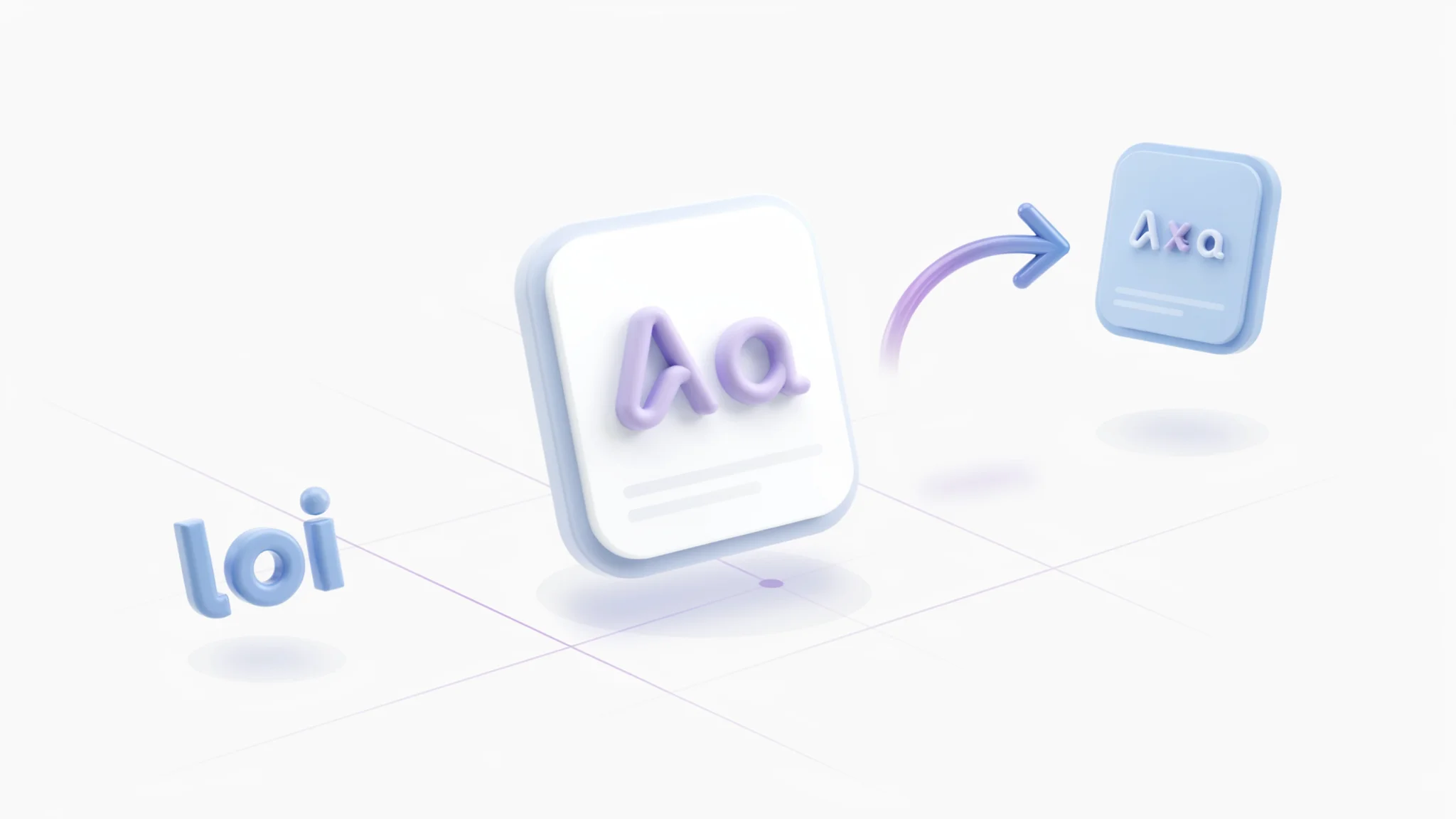
TL;DR: The FileReadyNow Text Case Converter changes your text to uppercase, lowercase, sentence case, title case, or alternating case with one click. No signup, no ads, no download. Paste, click, done. Perfect for fixing caps lock mistakes, formatting headlines, or standardizing copied text.
You’ve copied a chunk of text, but it’s all in caps. Or you need to turn a messy email into proper sentence case without retyping. The Text Case Converter on FileReadyNow.com solves that instantly. It’s a free browser tool that flips the case of any text, from single words to full essays. No installation, no login. I’ve personally used it when a client sent me a product list in all uppercase and I had to make it presentable in under two minutes. Paste, pick your case, and you’re done.
What Is a Text Case Converter?
A Text Case Converter takes any written content and switches its letter case to uppercase, lowercase, sentence case, title case, or alternating case. You don’t need any software. Everything happens in your browser on FileReadyNow. It’s a lightweight fix that saves you from manually retyping or reformatting text you copied from a PDF, website, or document. Just paste, choose, and copy the clean result.
Many people use case converters daily to clean up all-caps notes, fix broken text formats, or quickly prepare headlines for articles and social media. Because the tool is entirely client-side, your text never leaves your device.
How Do I Use the Text Case Converter?
Using the tool takes seconds. First, head to the free Text Case Converter. You’ll see a large input box at the top. Paste or type your text. Below, there are buttons for each case style: Uppercase, Lowercase, Sentence case, Title Case, and Alternating Case. Tap one, and the output box instantly shows the converted text. You can then copy it with a click or select and use Ctrl+C.
No signup, no waiting. I often switch between cases to compare how a headline looks in title case versus sentence case. It’s that simple.
Which Case Options Does the Converter Support?
The tool gives you five distinct transformations. Uppercase turns all letters into capitals (e.g., HELLO). Lowercase makes everything small (hello). Sentence case capitalizes the first letter of each sentence (Hello. Goodbye.). Title Case capitalizes the first letter of every major word (Hello World). Alternating case switches every other letter’s capitalization (hElLo), which can be fun for styling but less formal.
Here’s a quick comparison:
| Case Type | Example Input | Output |
|---|---|---|
| Uppercase | hello world | HELLO WORLD |
| Lowercase | HELLO WORLD | hello world |
| Sentence case | hello. goodbye | Hello. Goodbye. |
| Title Case | hello world | Hello World |
| Alternating | hello world | hElLo wOrLd |
Can the Converter Handle Long Paragraphs or Entire Documents?
Yes, it handles large blocks of text without trouble. You can paste an entire article, a list of hundreds of product names, or a long email. The conversion happens instantly, not line by line. I recently ran a 600-word draft through the tool to switch it from all lowercase to sentence case, and the result was perfect and ready in a blink.
There’s no hidden character limit. If your text fits in the input box, it converts. That makes the converter useful for bloggers, students, and anyone dealing with bulk content.
Does the Tool Keep My Original Bold or Italic Formatting?
The honest answer: no. The Text Case Converter strips any rich text formatting, including bold, italics, underlines, or colored fonts. Only the letter case changes. What you get is clean, plain text. If you need the styling, you’ll have to reapply it later. This is a deliberate design: the tool focuses solely on case, so you aren’t stuck with hidden formatting that might mess up a word processor or email client.
When Should I Use Each Case Type?
Different cases serve different purposes. Use Uppercase for acronyms or to create visual emphasis (but sparingly, because all-caps can feel like shouting). Lowercase is handy when you need to standardize usernames, email addresses, or code snippets. Sentence case is the go-to for body text in emails, reports, and casual writing. Title Case makes blog post headlines, chapter titles, and subject lines look polished. Alternating case is mostly for social media or decorative text when you want to grab attention in a playful way.
Here’s a use-case guide:
| Case Type | Best For |
|---|---|
| Uppercase | Acronyms, labels, strong emphasis |
| Lowercase | Email addresses, URLs, code |
| Sentence case | Paragraphs, articles, formal writing |
| Title Case | Headlines, book titles, presentation slides |
| Alternating | Social media, stylized quotes, fun graphics |
No matter why your text ended up in the wrong case, you can fix it in seconds with the Text Case Converter. It’s free, fast, and works for everything from a single word to a long document. Next time you get a file that’s all caps or need to polish a headline, just open the tool, paste, and pick your case. While you’re there, check out more Productivity Tools that make everyday file tasks easier.
Frequently Asked Questions
What is a Text Case Converter?
A Text Case Converter is a free online tool that changes your text to different letter cases like uppercase, lowercase, title case, or sentence case. You paste text, choose the case, and get instant results without installing anything.
Is the Text Case Converter really free?
Yes, it's completely free. You don't need to create an account, sign in, or watch ads. Just visit the page and start converting.
Can I paste a full paragraph into the converter?
Absolutely. The tool works with long blocks of text, not just single words. You can paste an entire email, article, or list and convert its case in one go.
Does it support title case for blog headlines?
Yes, the title case option automatically capitalizes the first letter of every major word, making it perfect for blog post titles, headers, or book titles.
Will my original bold or italic formatting stay?
No, the converter processes only the letters. Any rich text styling like bold, italics, or colored text will be removed. You'll get clean, plain text as a result.
Table of Contents
Recent Posts
PDF to JPG Blurry? How to Convert a PDF Page With Sharp Text
5 days ago
HEX vs RGB vs HSL vs CMYK: Which Color Code Should You Use?
1 week ago
Video Converter Online Free: Which Format to Pick and Why
2 weeks ago
Audio Trimmer Online Free: Cut, Keep, or Remove Any Section
2 weeks ago
How Strong Should Your Password Actually Be in 2026?
3 weeks ago
HEIC vs JPG: Which Should You Actually Use?
1 month ago