How to Password Protect a PDF File (Free & Easy)

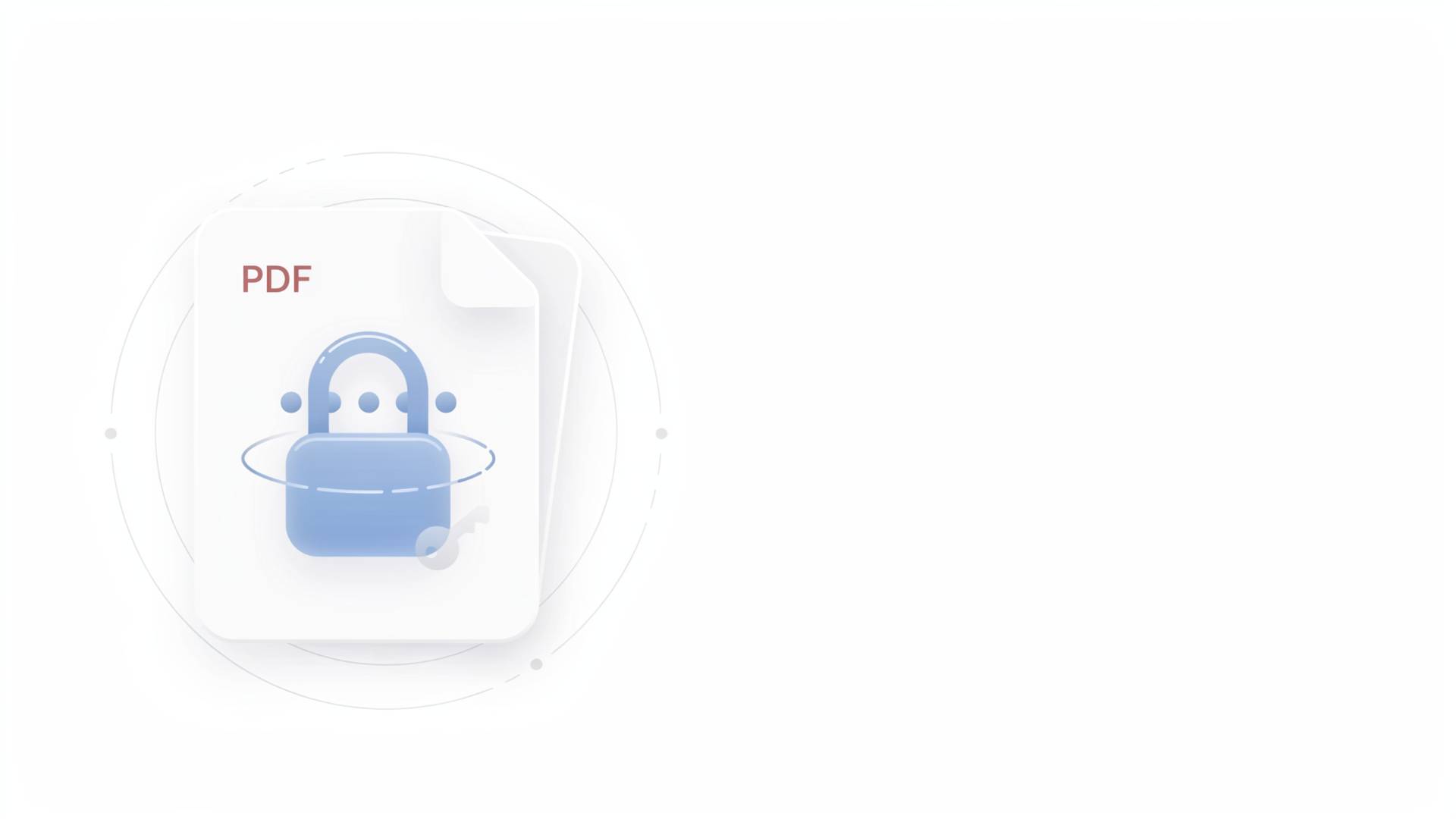
You just finished a contract, a tax form, or maybe a set of medical records you need to email to someone. And right before you hit send, a small voice in your head goes: wait, should this really be sitting in an inbox unprotected?
Good instinct. PDFs travel. They get forwarded, downloaded, saved to random desktops, sometimes synced to cloud folders nobody remembers exists. If there's anything sensitive inside, financial numbers, personal details, a client's private info, locking it down with a password isn't paranoia. It's just basic hygiene, the same way you'd lock your front door even in a "safe" neighborhood.
So let's get into it. This is a full walkthrough on how to password protect a PDF, whether you're on Windows, Mac, or just want a free browser-based fix without installing anything.
Why Even Bother Password Protecting a PDF?
Here's the thing people underestimate: a PDF isn't inherently secure just because it looks "final" or uneditable. Anyone with the right tool can open it, copy the text, or edit it if there's no password on it. A password doesn't just stop nosy people, it adds a layer that keeps the file useless to anyone who doesn't have the key, even if it ends up in the wrong hands.
Think about it like mailing a letter versus mailing a locked box. The letter can be opened by whoever's holding it. The locked box needs a key. Same document, very different risk.
Common reasons people look this up:
- Sending contracts or invoices to clients
- Sharing financial statements or tax documents
- Protecting personal ID scans (passport, license, etc.)
- Keeping internal company reports from being forwarded carelessly
- Meeting compliance requirements (HR, legal, healthcare)
If any of those sound familiar, you're in the right place.
How to Password Protect a PDF on Windows
Windows doesn't have a built-in "add password" button sitting in File Explorer, which trips people up. Here's the most reliable native route, using Microsoft Word (since most Windows users already have it):
- Open the PDF in Microsoft Word — Word will convert it automatically.
- Go to File > Save As, then choose PDF as the format.
- Click Options in the Save dialog.
- Check Encrypt the document with a password.
- Set your password, save, and you're done.
One catch, converting through Word can sometimes shift formatting slightly, especially with complex layouts, tables, or images. If your PDF needs to stay pixel-perfect, skip ahead to the free online method below.
How to Password Protect a PDF on Mac
Mac users actually have it a little easier, thanks to Preview being genuinely capable here.
- Open the PDF in Preview.
- Go to File > Export.
- Check the box for Encrypt.
- Enter and confirm your password.
- Hit Save.
That's it. No extra software, no plugins. It's one of those quiet Apple features that just works and nobody talks about.
How to Password Protect a PDF for Free, Without Installing Anything
Not everyone wants to mess with Word conversions or worry about formatting shifting around. If you just want to lock a PDF fast, without downloading software or learning a new interface, a browser-based tool does the job in under a minute.
This is where something like the Protect PDF tool from FileReadyNow comes in handy, you upload your file, set a password, and download the locked version. No installs, no sign-ups, no watermarks. For a one-off task like sending a single protected invoice, this is honestly the path of least resistance.
The general flow with tools like this usually looks like:
- Upload your PDF file.
- Set a password (and sometimes permissions, like disabling printing or copying).
- Confirm and download the new, password-protected file.
- Share the password separately from the file itself, never in the same email.
That last point matters more than people realize. Sending a locked PDF and the password in the same message is like locking your door and taping the key to it.
Encrypt PDF vs Password Protect PDF, What's the Difference?
People use these two phrases interchangeably, and honestly, in casual conversation, that's fine. But technically, there's a small distinction worth knowing.
- Password protecting a PDF restricts who can open it or what they can do with it (print, edit, copy).
- Encrypting a PDF scrambles the actual content using an algorithm (usually AES-128 or AES-256), so even if someone bypassed the password screen somehow, the data itself is unreadable without the correct key.
Most modern tools do both at once when you set a password, the password protection and the encryption happen together. So functionally, when someone searches "encrypt PDF" or "password protect PDF," they're usually looking for the same outcome: a file nobody but the intended person can open.
Two Types of PDF Passwords You Should Know About
This part often gets missed, and it's actually important:
1. User Password (Open Password)
This is the one most people mean when they say "password protect a PDF." It prevents the file from being opened at all without entering the password first.
2. Owner Password (Permissions Password)
This one controls what someone can do after opening the file, like whether they can print it, edit it, or copy text out of it. You can set this even if the file doesn't require a password to open.
You can use one or both. If you're sending something to a client who needs to view but not edit, a permissions password alone might be enough. If it's genuinely private, use both.
Common Mistakes People Make When Locking a PDF
A few things worth flagging, because they come up constantly:
- Reusing the same password everywhere. If that password leaks from somewhere else, your "protected" PDF isn't protected anymore.
- Sending the password in the same email as the file. As mentioned earlier, this defeats the purpose almost entirely.
- Assuming "protected" means "unhackable." A weak password (like "1234" or a birthday) can be cracked. Treat PDF passwords like any other password, long, unique, and not guessable.
- Forgetting the password themselves. This one's surprisingly common, and it leads to the next section.
What to Do If You Forget Your PDF Password
There isn't a magic undo button here, and honestly, that's the whole point of encryption. If you set a password and lose it, here's what your realistic options look like:
- Check if you saved it somewhere, password managers, a notes app, an email draft to yourself. People forget they've already stored it.
- Try common variations you might've used, if you have a pattern you usually follow.
- Third-party PDF password recovery tools exist, but they work by brute-forcing weaker passwords and can take a long time (or fail entirely) against strong ones. This isn't guaranteed, and frankly, it shouldn't be, a PDF that could be easily cracked wouldn't be much of a protection in the first place.
The best fix, really, is prevention: keep a password manager and store PDF passwords the same way you'd store any other credential.
Quick Recap: How to Password Protect a PDF
| Method | Best For | Cost |
|---|---|---|
| Microsoft Word | Windows users, already have Word | Free (if you own Word) |
| Preview (Mac) | Mac users, quick native option | Free |
| Online tool (like Protect PDF from FileReadyNow) | Fast, no installs, cross-platform | Free |
| Adobe Acrobat Pro | Advanced permissions, bulk files | Paid |
Whichever route you pick, the core idea stays the same: set a strong, unique password, keep it separate from the file when sharing, and don't assume "protected" means "invincible." It's a lock, not a vault, but a good lock stops almost everyone who has no business getting in.
If you've got a PDF sitting on your desktop right now that probably should've been locked weeks ago, this is your sign to go do it.
Table of Contents
Recent Posts
PDF to JPG Blurry? How to Convert a PDF Page With Sharp Text
5 days ago
HEX vs RGB vs HSL vs CMYK: Which Color Code Should You Use?
1 week ago
Video Converter Online Free: Which Format to Pick and Why
2 weeks ago
Audio Trimmer Online Free: Cut, Keep, or Remove Any Section
2 weeks ago
How Strong Should Your Password Actually Be in 2026?
3 weeks ago
HEIC vs JPG: Which Should You Actually Use?
1 month ago