PDF to Word Converter: Free Online, No Signup, Keeps Formatting

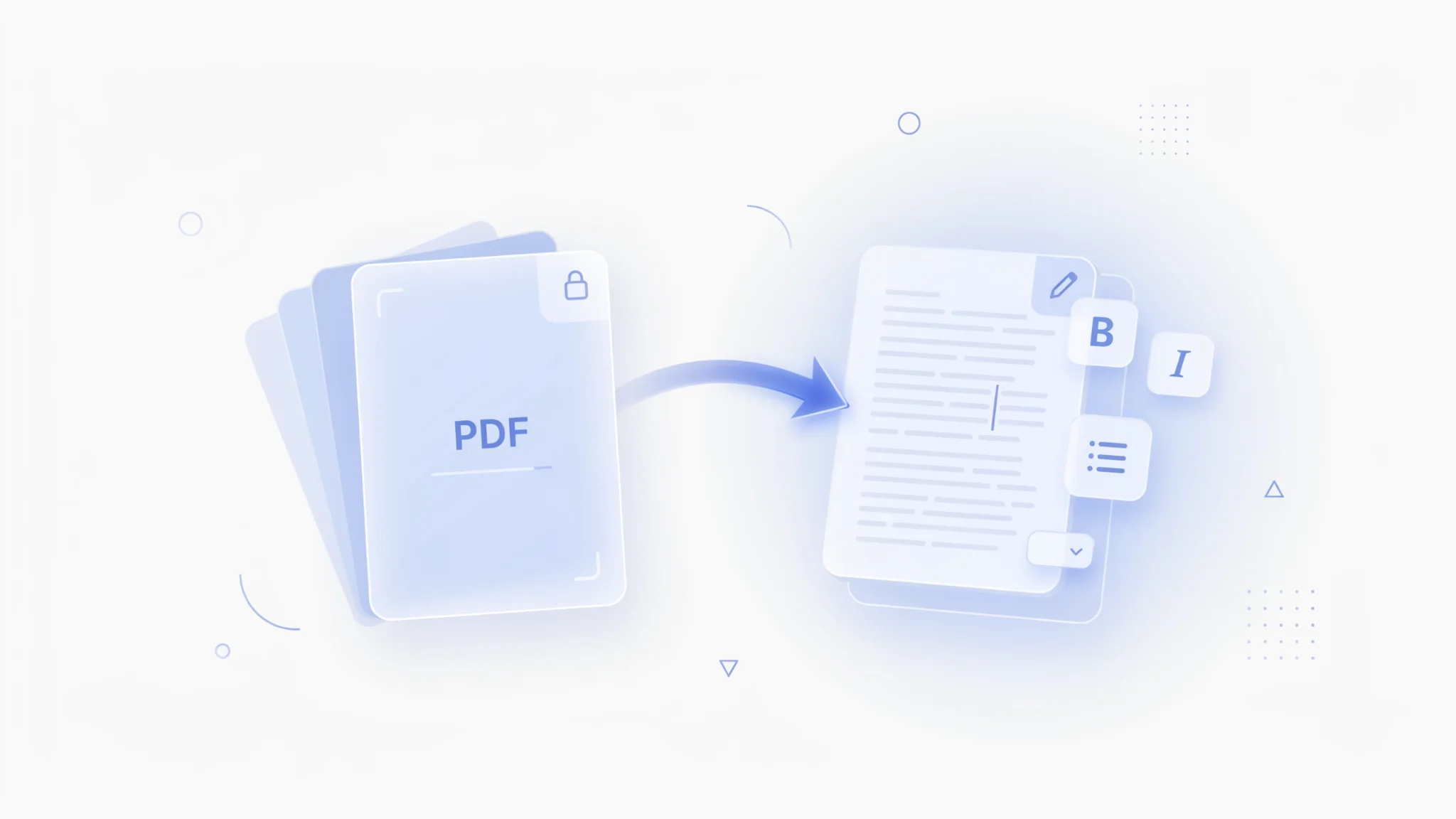
TL;DR: Need to turn a PDF into an editable Word file without messing up the layout? FileReadyNow’s free PDF to Word converter does exactly that. Upload your PDF (up to 50MB), click convert, and download a Word doc with fonts, tables, and images intact. No signup, no watermarks, and your file is auto-deleted after processing. Works on Mac, Windows, and even scanned PDFs via OCR.
You just received a PDF report, contract, or form. Now you need to edit it in Word. But copying and pasting from a PDF always scrambles the formatting into a jumbled mess. Tables break, images vanish, and it takes forever to fix. There’s a simpler way: FileReadyNow’s PDF to Word converter. It’s a free, browser-based tool that turns your PDF into a clean .docx file while keeping the original look. I’ve used it to rescue a client contract that needed last-minute edits, and the tables stayed perfectly aligned. No retyping headache.
The tool works directly in your browser. You upload the file, hit convert, and download the Word document. It handles multi-page PDFs, tables, images, and text styling. Even scanned documents get treated with OCR. Best part? You don’t need to create an account or install anything. Just drag, drop, and get an editable Word file that actually looks like the original.
How Do I Convert a PDF to Word Without Losing Formatting?
With FileReadyNow’s free online PDF to Word converter, you preserve headings, paragraphs, columns, fonts, and alignment. Upload your PDF, click convert, and download a Word document where tables stay editable and images stay in place. The tool’s layout engine keeps the document structure intact, so you don’t have to rebuild it from scratch.
Here’s the simple process:
- Go to the convert PDF to Word online tool.
- Drag and drop your PDF file (max 50MB) onto the upload area.
- Click ‘Convert to Word’. The tool processes the file and shows a download button.
- Download the .docx file. Open it in Microsoft Word, Google Docs, or LibreOffice.
Formatting like bold, italics, font sizes, and alignment all carry over. Tables appear as editable Word tables, not static images. For complex files with mixed columns, you might see minor shifts, but overall you get a working document fast.
Formatting: FileReadyNow vs. Manual Retyping
| Feature | FileReadyNow PDF to Word | Retyping from PDF |
|---|---|---|
| Text formatting | Preserved | Lost, must be recreated |
| Tables | Editable Word tables | Rebuilding needed |
| Images | Embedded in place | Copy-paste often fails |
| Multi-page documents | All pages in one file | Painful, page by page |
| Scanned PDFs | Supported via OCR | Not possible |
Can I Convert a Scanned PDF to Editable Text?
Yes, the tool includes OCR (optical character recognition) that extracts text from scanned images or PDFs created by a scanner. Even a photo of a document can be turned into searchable, editable text inside a Word file.
When you upload a scanned PDF, the converter automatically detects it and applies OCR. The text gets pulled out and placed into the Word document. Handwriting may not be perfectly recognized, but printed text comes through accurately most of the time. After conversion, you can edit the content directly in Word. This is a huge time-saver for old contracts, archived forms, or any document trapped in an image-based PDF.
Does the Tool Preserve Tables and Images During Conversion?
It keeps tables as editable Word tables, not flattened images. Images stay embedded exactly where they appeared in the PDF. You can resize, move, or delete them in Word just like any other inserted picture. Charts and graphs do become non-editable images, though.
That’s the one honest tradeoff. Detailed charts and graphs from the PDF are converted to images, so you can’t edit data points. But for reports with simple tables, you’ll get fully functional Word tables. The tool also preserves document-level elements like headers, footers, and page breaks when possible.
Is There a Free PDF to Word Converter That Doesn’t Require Signup?
FileReadyNow’s PDF to Word converter is entirely free, with no account creation or email required. You just upload your file, convert it, and download the result. There are no hidden fees, watermarks, or page limits beyond the 50MB file size cap.
Many online converters ask you to sign up after the first conversion or limit daily usage. Not this one. You can use it as many times as you need, file by file. Each uploaded file is securely processed and then automatically deleted from the server once the download link expires. That means your data stays private and you don’t have to worry about someone else accessing it. For privacy-conscious users, that’s a big plus.
How to Convert PDF to Word on a Mac (or Any Device)?
Because the tool runs entirely in your web browser, it works on Mac, Windows, Linux, Chromebooks, and even mobile devices. There’s no software to install. Open your browser, go to the tool, upload your PDF, and download the Word doc.
Mac users especially appreciate not having to deal with third-party apps or fiddly Preview exports that often strip formatting. Whether you’re on Safari, Chrome, or Firefox, the experience is the same. You can even do it from an iPad while on the go. The converted file opens natively in Pages or Microsoft Word for Mac.
What Are the Limitations of the FileReadyNow PDF to Word Tool?
While the tool does an excellent job preserving most formatting, a few things are worth knowing. The maximum file size is 50MB, which accommodates the vast majority of documents. Very complex layouts with overlapping text boxes or custom fonts may require minor adjustments after conversion. And as mentioned, charts and graphs are rendered as non-editable images. But for standard business documents, contracts, academic papers, and forms, the output is highly accurate and ready to edit right away.
Next time you need to turn a PDF into a Word document, skip the copy-paste nightmare. FileReadyNow’s PDF to Word converter gives you a clean, editable file in seconds. It’s free, secure, and respects your privacy. Whether you’re revising a report, updating a form, or extracting text from a scanned file, the tool handles it without fuss. For other document tasks, explore more Pdf Tools to merge, split, compress, or convert PDFs further.
Frequently Asked Questions
How do I convert a PDF to Word using the tool?
Upload your PDF to the converter, click ‘Convert to Word’, and download the .docx file once processing finishes. The tool automatically preserves formatting, tables, and images. No signup or software installation is needed.
Will the formatting of my PDF remain the same in Word?
Most formatting, including fonts, headings, paragraphs, and alignment, carries over accurately. Tables convert into editable Word tables, and images stay in place. Very complex layouts might need small tweaks, but the output is a solid starting point.
Can I convert scanned or image-based PDFs?
Yes. The tool uses OCR technology to extract text from scanned documents and turn them into editable Word files. Printed text converts reliably; handwritten notes are less predictable but may still produce usable results.
Is there a file size limit?
The tool supports files up to 50MB. That covers most multi-page documents, reports, and presentations. Very large or graphic-heavy PDFs may take a bit longer, but they still process without issues within that limit.
Are my files kept private and secure?
Absolutely. All uploads are protected with 256-bit encryption and are permanently deleted from our servers soon after the download link expires. Your data is never stored longer than necessary or shared with anyone.
Table of Contents
Recent Posts

PDF to JPG Blurry? How to Convert a PDF Page With Sharp Text
5 days ago
HEX vs RGB vs HSL vs CMYK: Which Color Code Should You Use?
1 week ago
Video Converter Online Free: Which Format to Pick and Why
2 weeks ago
Audio Trimmer Online Free: Cut, Keep, or Remove Any Section
2 weeks ago
How Strong Should Your Password Actually Be in 2026?
3 weeks ago
HEIC vs JPG: Which Should You Actually Use?
1 month ago