JPG to PDF: Page Size, Fit and Margin Settings Explained

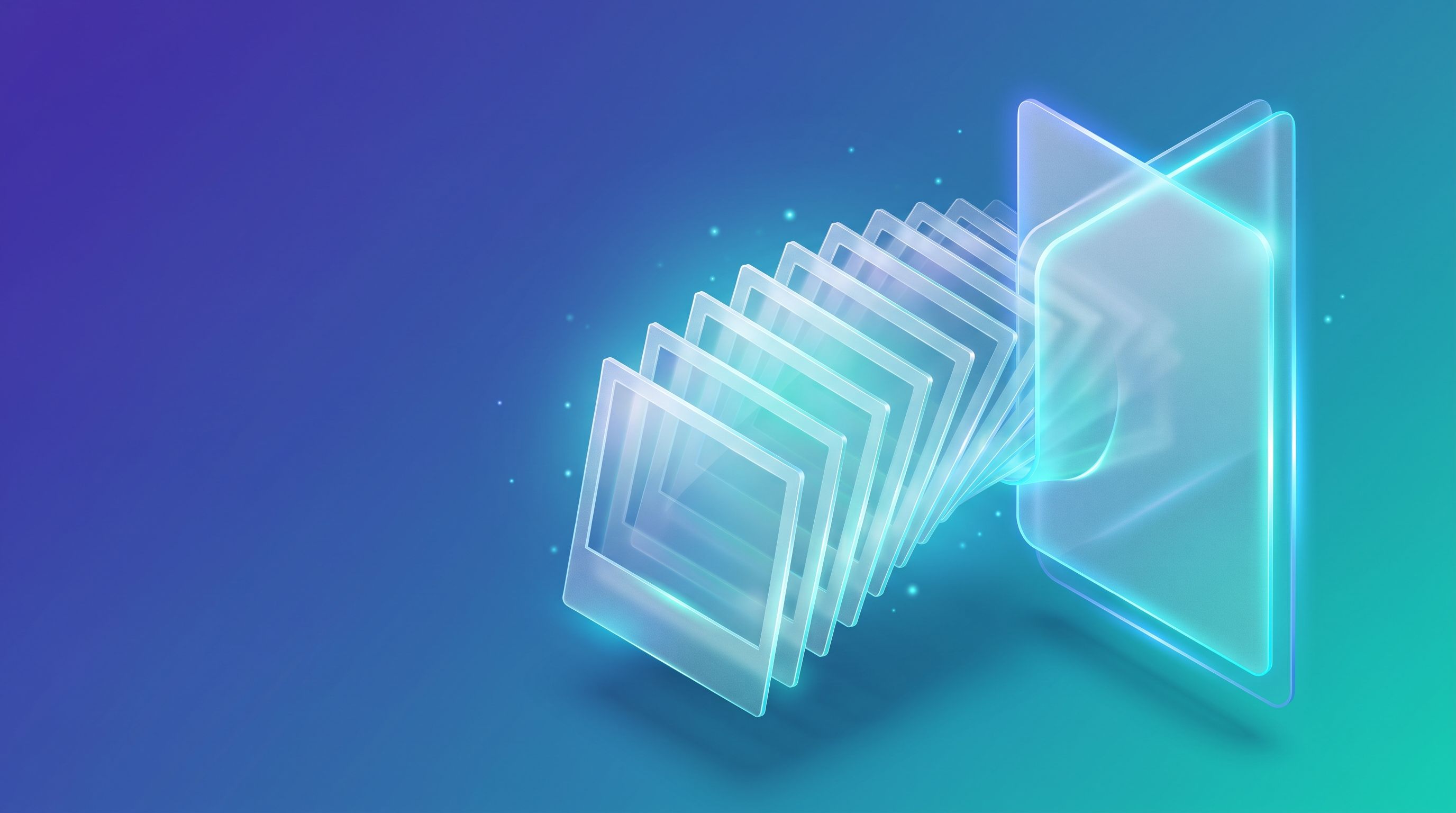
To turn JPG photos into one PDF, open FileReadyNow's JPG to PDF tool, add up to 20 JPG or JPEG files, drag them into the order you want, choose the page settings, and click Convert to PDF. The page says the conversion runs in your browser, so the photos stay on your device.
FileReadyNow built this tool, so read this as a walkthrough from the maker, not an outside review. Most guides stop at "upload and click". This one is about the four settings on the page, because they decide how the finished PDF looks. The facts come from the live tool page, and I say where the page leaves something unstated.
What does each setting on the page do?
The tool shows four choices before you convert. Here is what the page lists, and what I would think about for each.
| Setting | Options listed on the page | What to think about |
|---|---|---|
| Page Size | A4, Letter, A3, Legal, Auto (image size) | Match the paper it will be printed on. Auto makes each page follow its photo. |
| Orientation | Portrait, Landscape, Auto | Portrait suits upright photos and documents. Landscape suits wide photos. |
| Margin | None, Small (5 mm), Medium (10 mm), Large (20 mm) | A margin keeps edges away from a printer's unprintable border. None fills the page edge to edge. |
| Image Fit | Fit (letterbox), Fill (crop), Stretch, Original size | Fit keeps the whole photo. Fill covers the page and trims the edges. Stretch changes the shape. |
The page also has an Image Quality slider, which showed 88% when I opened it, and an Output Filename field. Some options carry an asterisk on the page, which looks like a default marker, but the page does not say so, so check what is selected before you convert.
How do I convert JPG to PDF step by step?
- Open the JPG to PDF tool and drop your photos into the box, or click to browse.
- Drag the thumbnails to reorder them. The page says the PDF pages are created in that order.
- Pick the page size, orientation, margin and image fit.
- Leave Merge all images in one PDF file on if you want a single document.
- Click Convert to PDF. The page says the PDF downloads automatically once conversion is complete.
Which page size should I pick?
It depends on who will print or open the file. A4 measures 210 by 297 mm, and US Letter measures 8.5 by 11 inches, about 216 by 279 mm. According to the Wikipedia article on paper sizes, almost every country except the United States and Canada uses the A series as its standard. So if your reader prints in the United States or Canada, choose Letter. Elsewhere, A4 is the safer pick.
If nobody will print the file, try Auto (image size). The page labels it that way, which suggests each page takes the size of its photo, though I would run one test file to confirm how the result looks.
Fit, Fill, Stretch or Original size?
These four options decide what happens when the photo and the page have different shapes, which is almost always. Going by the labels on the page:
- Fit (letterbox) shows the whole photo inside the page and leaves empty bands where the shapes differ. Use it for receipts, IDs and anything where cutting off an edge would be a problem.
- Fill (crop) covers the whole page and trims what does not fit. It suits photos where the edges do not matter.
- Stretch forces the photo to the page shape, so people and text can look distorted. I would avoid it for most uses.
- Original size keeps the photo at its own size. The page does not explain how it handles photos larger than the page, so test it with one of your files.
A worked example on an A4 page
Say you have a landscape phone photo of 4000 by 3000 pixels, and you choose A4, Portrait, Medium margin and Fit. A Medium margin is 10 mm on every side, so the usable area is 190 by 277 mm. The photo is 4:3, so its width fills the 190 mm and its height comes to 142.5 mm. That leaves about 134 mm of empty space on the page, split above and below, which is the letterbox effect. This is my own arithmetic from the page sizes, not a result I measured in the tool.
Now the quality side. The page says photos up to 2000 pixels on the longest side are embedded at full resolution, and larger photos are scaled down cleanly. So the 4000 pixel photo would be scaled to about 2000 by 1500 pixels. Spread over 190 mm, that is roughly 267 pixels per inch, which is generally fine for reading on screen and for ordinary office printing. If you choose Landscape instead, the same photo fills the page better, with a usable width of 277 mm and a height of 190 mm.
Is my photo uploaded to a server?
The tool page says your files are processed entirely in your browser, never leave your device and never reach FileReadyNow's servers. That is the page's own statement, and you can test it. Open your browser's DevTools, switch to the Network tab, and convert a harmless test photo. You should not see a request that sends the image out. Run that check before you convert a document that matters, such as an ID or a signed form.
What can this tool not do?
It accepts JPG and JPEG only, so for PNG files use the PNG to PDF tool, or use the Image to PDF tool for a mix of formats. It limits you to 20 images, 10 MB each and 200 MB in total. The page does not state how long the download is available, so save the PDF as soon as it appears.
It also does not edit the finished PDF. If you need to join the result with other PDFs, use Merge PDF. If the file is too big to email, use the PDF Compressor.
Frequently asked questions
How do I convert JPG to PDF for free?
Open the JPG to PDF tool, add up to 20 JPG or JPEG files, drag the thumbnails into the order you want, choose your page settings, and click Convert to PDF. The page says the PDF downloads automatically when the conversion finishes, and the tool runs in your browser.
Can I combine several JPG photos into one PDF?
Yes. The page has a Merge all images in one PDF option, and each photo goes on its own page, in the order you set by dragging. If you turn it off, the page says you get one PDF per photo instead. You can also set the output file name.
Which page size should I choose, A4 or Letter?
Pick the size your reader will print on. A4 is the standard in most of the world, while US Letter is used mainly in the United States and Canada. If the PDF will only be viewed on screen, Auto (image size) makes each page match its photo.
Does it work with PNG or other image types?
This page accepts JPG and JPEG files only. For PNG files, use the PNG to PDF tool. The Image to PDF tool lists JPG, JPEG, PNG, WEBP, GIF and BMP, so it suits a mixed set of files. Each tool has its own file limits.
What are the file limits?
The page lists up to 20 images at once, 10 MB per file and 200 MB in total. It does not state a page limit for the finished PDF. If the PDF comes out too large to email, run it through the PDF Compressor afterwards.
Looking for a shorter step-by-step walkthrough of the same tool? Read JPG to PDF Free: Merge, Reorder and Size Pages.
Where should I go next?
Ready to try it? Open the JPG to PDF tool with three or four photos, change one setting at a time, and compare the results before you convert a full batch.
Sources: Wikipedia, Paper size (A4 and US Letter dimensions and regions of use, accessed November 06, 2026).
Last updated: November 06, 2026.
Table of Contents
Recent Posts
JPG to PNG: What It Fixes, What It Cannot, Transparency
3 days ago
PNG to JPG: What Happens to Transparency and File Size
5 days ago
JWT Decoder: Read a Token and Know What It Cannot Prove
1 week ago
GST Calculator: How to Add or Remove GST, With Examples
1 week ago
JPG to PDF Free: Merge, Reorder and Size Pages
2 weeks ago
Unlock PDF Free: Remove a PDF Password or Restrictions
2 weeks ago