Audio to Text Free: Transcribe MP3, WAV & Video Online

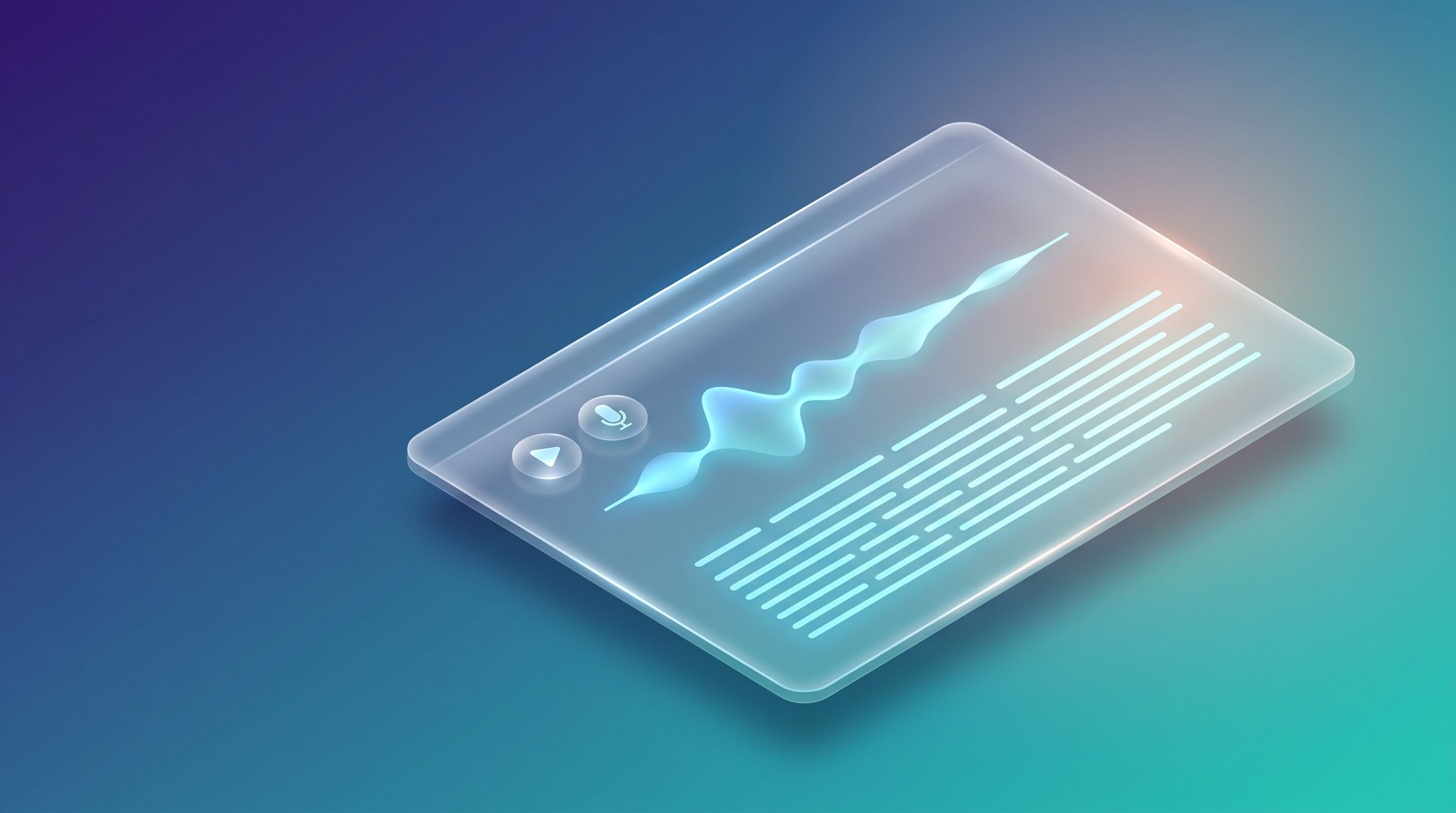
To turn audio into text for free, open FileReadyNow's Audio to Text Converter, drop in an MP3, WAV, M4A or video file, pick a model and the spoken language, and click Transcribe. The page says it runs OpenAI's open-source Whisper model inside your browser, so the transcript appears as editable, timestamped lines that you can copy or download as TXT, Word, SRT or VTT.
FileReadyNow built this tool, so read this as a walkthrough from the maker, not an outside review. Everything below comes from the live tool page and the Whisper project's own documentation, and I say where the page leaves something unstated.
How do I convert audio to text for free?
You need a recent Chrome, Edge, Firefox or Safari. On an unsupported browser the page shows a "Browser not supported" message. The steps:
- Open the Audio to Text Converter.
- Drop an audio or video file onto the drop zone, click it to browse, paste a file with Ctrl or Cmd V, or use Record from microphone.
- Choose a model: Fast, Balanced or Accurate.
- Set the Spoken language, then choose Transcribe (same language) or Translate to English.
- Click Load AI model if the page asks for it, then click Transcribe.
- Fix any wrong words in the transcript lines, then use Copy text or download the result.
The first run is slower because the AI model has to download once, and the page says it is cached after that. Later runs skip the download.
Which model should I pick: Fast, Balanced or Accurate?
Pick Balanced for clear speech and Accurate for accents, background noise or technical vocabulary. Fast is for voice notes and quick drafts. The page maps its three options to three sizes of Whisper:
| Model in the tool | Whisper size | Parameters | First download (per the page) | Best for (per the page) |
|---|---|---|---|---|
| Fast | Whisper Tiny | 39 million | About 40 to 120 MB | Voice notes and quick drafts |
| Balanced | Whisper Base | 74 million | About 80 to 210 MB | Clear speech, the default pick |
| Accurate | Whisper Small | 244 million | About 250 to 590 MB | Accents, noise and jargon |
Bigger models cost you a bigger first download and more processing time. Whisper's own documentation shows the same trade-off: its tiny model is listed as roughly ten times faster than its large one, and its small model needs about twice the video memory of tiny. Those figures were measured by the Whisper project on a data-centre GPU, so a laptop or phone will behave differently.
My advice: start with Balanced, and move up to Accurate only if the result has too many mistakes. That way you do not download the biggest model for a recording that did not need it.
Speed also depends on your browser. The page says Chrome and Edge can use WebGPU, which is faster than CPU-only processing, and that the tool picks the fastest option your browser supports. MDN describes the WebGPU API as having limited availability across browsers, so a different browser may simply run slower.
Is my audio uploaded to a server?
The tool page says your file never leaves your device and is processed entirely in your browser, with only the model downloaded. That is the page's own statement, and you should not have to take it on trust.
To check, open your browser's DevTools and switch to the Network tab before you start. Use a short, harmless clip, for example ten seconds of you reading a made-up sentence. On the first run you should see the model files download. Then look at the requests made while the transcription runs and confirm that none of them sends your audio file out. Do that check before you use a recording that matters.
Which audio and video files and lengths does it accept?
The upload hint lists MP3, WAV, M4A, OGG, FLAC, MP4, MOV and WEBM. The page sets a limit of 500 MB per file and says recordings can run up to 3 hours on a computer and 1 hour on phones and tablets.
If a file will not load, the page suggests converting it to MP3 first. FileReadyNow's Audio Converter does that. If you only need one part of a long recording, cut it with the Audio Trimmer before transcribing, which also keeps the transcript short enough to proofread.
Can I make subtitles from a video?
Yes. Add the video file, transcribe it, and download the result as SRT or VTT. Both are plain text files that pair timestamps with lines of text. MDN describes WebVTT as text tracks that provide time-aligned cues for media, mainly subtitles and captions. Check which of the two formats your video platform asks for, since the tool exports both.
Edit the lines before you download. The page says your edits carry into every download, including the subtitle files, so you only fix a mistake once.
How can I get a more accurate transcript?
Start with the recording, because no model fully rescues muffled audio. A clear voice close to the microphone helps more than any setting. After that, my advice is short:
Set the Spoken language to the language in the recording instead of leaving it on a guess. Switch to the Accurate model for strong accents, noise or specialist terms. Trim out long silences and unrelated sections first. Then read the transcript while the audio plays. The page lets you click a timestamp to jump the audio to that line, which makes checking names and numbers quick. The page describes accuracy in general terms and does not publish an error rate, so proofread anything that matters before you share it. When you need a quick length check on the finished text, the Word Counter handles that.
What can this tool not do?
It does not identify speakers automatically. It translates only into English, through the Translate to English option. Phones and tablets are capped at 1 hour per recording. The first run needs the model download, which can be several hundred megabytes on the Accurate setting. And it works on sound, not on pictures: if your text is trapped in a scan or photo, the Image to Text (OCR) tool is the right one to use.
Frequently asked questions
How do I convert audio to text for free?
Open FileReadyNow's Audio to Text Converter, add your audio or video file, choose a model and the spoken language, then click Transcribe. The page describes the tool as free and says it processes the file in your browser. When the transcript appears, you can edit it, copy it or download it.
Is my audio uploaded to a server?
The tool page states that your file never leaves your device and is processed entirely in your browser, with only the AI model downloaded once. You can check this yourself by watching the Network tab in your browser's DevTools while you transcribe a short, harmless test clip.
Which model should I choose?
Choose Balanced for clear speech, Fast for quick drafts or voice notes, and Accurate for accents, background noise or technical terms. Accurate has the largest first download, listed on the page at roughly 250 to 590 MB, so expect the first run to take longer than later ones.
How long can the recording be?
The page lists a maximum of 500 MB per file, with up to 3 hours on a computer and 1 hour on phones and tablets. For anything longer, cut the recording into parts with the Audio Trimmer first, transcribe each part, and join the text afterwards.
Does it identify different speakers?
No. The page states that the tool does not identify speakers automatically. Every line carries a timestamp, and you can add speaker names yourself while editing the transcript. Your edits carry into the downloads, including the subtitle files, so the names appear there too.
Where should I go next?
Ready to try it? Open the Audio to Text Converter and run a short test clip first. For clips that need work before transcribing, use the Audio Trimmer or the Audio Converter.
Sources: OpenAI Whisper repository (model sizes, relative speed and license, accessed October 26, 2026); MDN, WebGPU API and MDN, WebVTT API (accessed October 26, 2026).
Last updated: October 26, 2026.
Table of Contents
Recent Posts
JPG to PNG: What It Fixes, What It Cannot, Transparency
3 days ago
PNG to JPG: What Happens to Transparency and File Size
5 days ago
JWT Decoder: Read a Token and Know What It Cannot Prove
1 week ago
GST Calculator: How to Add or Remove GST, With Examples
1 week ago
JPG to PDF: Page Size, Fit and Margin Settings Explained
2 weeks ago
JPG to PDF Free: Merge, Reorder and Size Pages
2 weeks ago