Audio Trimmer Online Free: Cut, Keep, or Remove Any Section

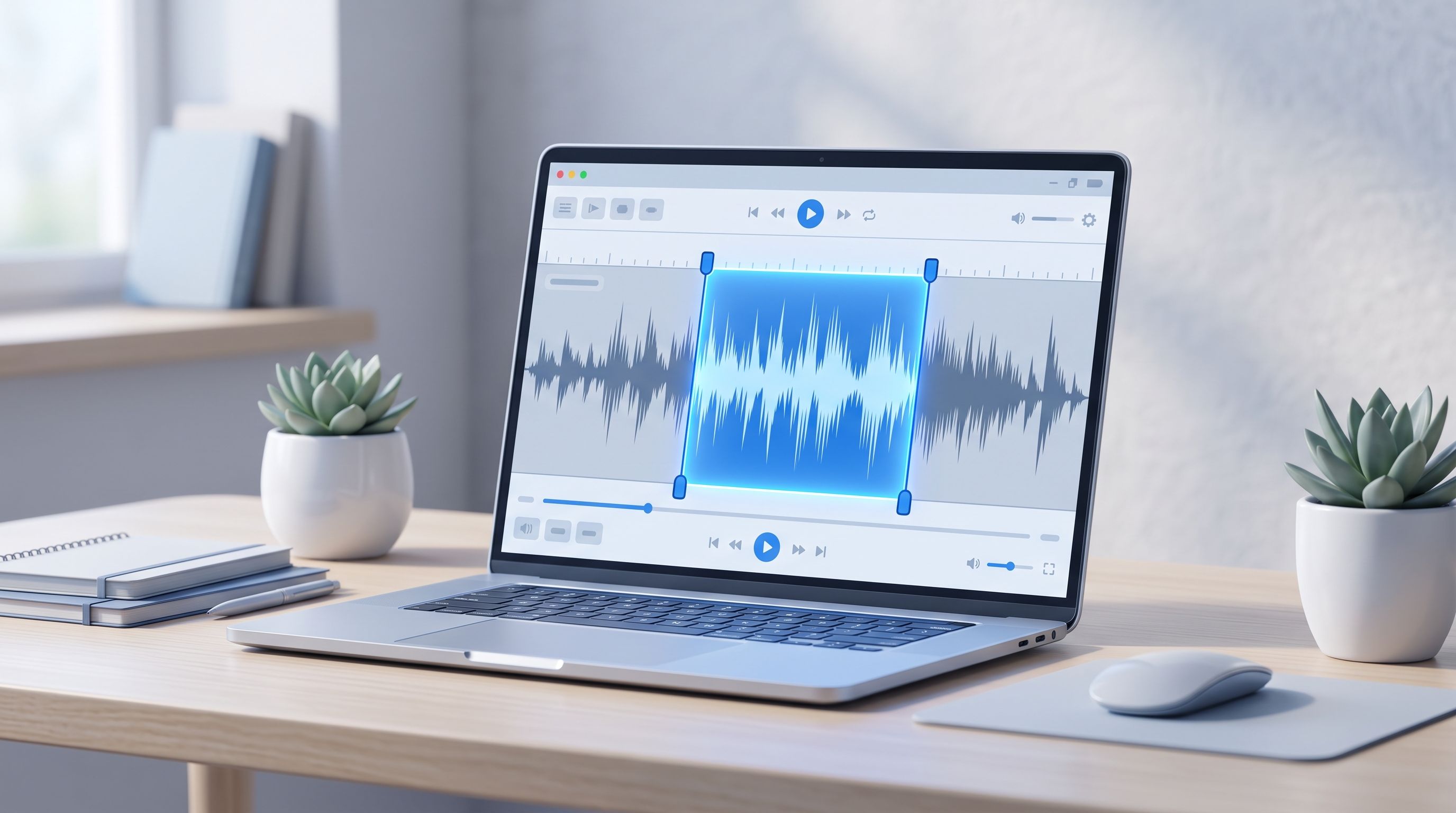
A podcast recording I edited recently had eleven seconds of dead air right in the middle, someone's dog barking at the door mid-sentence. Most audio trimmers only let you select the part you want to keep, which is useless when the part you need to cut is stuck in the middle of a clip you otherwise want. FileReadyNow's Audio Trimmer has a Remove mode built in specifically for that, select the dead air, remove it, done, without exporting two separate clips and stitching them back together.
How to Trim an Audio File Online for Free
Upload your audio file, drag the waveform handles to set your start and end points, choose Keep or Remove mode, and export. The whole process runs in your browser with no software to install.
The steps in order:
- Drop your audio file into the upload box, or click to browse. MP3, WAV, OGG, and M4A supported, up to 250MB.
- Drag the waveform sliders to select your region, or enter exact timestamps.
- Choose Keep mode to save the selected section, or Remove mode to cut it out and keep everything else.
- Pick your output format and click Crop Audio to download.
No account is required, and the file never uploads to a server, everything happens locally on your device.
Keep Mode or Remove Mode: What's the Difference?
Keep mode is what almost every audio trimmer online offers: drag the handles around the section you want, and everything outside that selection gets discarded. Remove mode does the opposite, select the part you don't want, and the tool cuts it out while keeping everything before and after it intact.
Most free audio cutters only support Keep mode, which is fine when what you want is one continuous section at the start, middle, or end of a file. It falls apart the moment the thing you need to remove sits in the middle of content you otherwise want to keep, a cough in the middle of a voice memo, a phone ringing during a podcast segment, dead air between two good parts of a recording. Without Remove mode, that usually means trimming the file into two separate pieces and stitching them back together in a different tool. Remove mode does it in one pass.
Does Trimming Reduce Audio Quality?
No, not with this tool. Trimming works by copying the existing audio data for your selected region rather than re-encoding the entire file, so the output preserves the original quality without another compression pass degrading it.
Not every audio trimmer online handles this the same way. A trimmer that decodes your file and re-encodes it after cutting introduces a second round of compression, which very slightly degrades quality even if you can't hear it on a single trim. A trimmer that copies the audio stream directly, which is what happens here, avoids that entirely. The practical result is the same whether you're cutting an MP3 down to ten seconds or trimming thirty seconds off a WAV recording, no generational quality loss either way.
Can I Use This to Make an iPhone Ringtone?
You can trim the clip here, but there's one extra step iPhones specifically require. iOS ringtones need the M4R format, not MP3, WAV, or OGG, which is what this tool exports. Trim your clip to the length you want here, then convert the exported file to M4R separately, either by renaming an M4A file's extension or using a dedicated converter, before it will work as an iPhone ringtone.
Android is more forgiving and generally accepts an MP3 directly as a ringtone or notification sound, so this extra step is specifically an iPhone quirk, not something every ringtone project needs.
How Do I Read the Waveform to Find the Right Spot?
The waveform is a visual map of the audio's volume over time, taller peaks mean louder moments, flat stretches mean silence or near-silence. Scanning for flat sections is the fastest way to spot dead air, pauses, or gaps between words without listening to the whole file first.
For music, a sudden change in the waveform's density or pattern usually marks a transition, the start of a chorus, a drop, a new section, which makes visually finding a hook or beat drop faster than scrubbing through playback by ear. Zooming into the waveform, combined with previewing your selection before exporting, is the difference between an accurate cut and one that clips off a syllable or starts half a beat early.
What Do People Actually Use This For?
Anywhere a clip needs to be shorter, or a specific section needs to disappear from the middle:
- Podcast editing: remove dead air, a flubbed line, or background noise from the middle of a recording using Remove mode, without needing multi-track editing software.
- Ringtones and notification sounds: cut the hook or chorus out of a song, then convert to M4R for iPhone if needed.
- Voice memo cleanup: trim the silence at the start or end of a recording before sending it.
- Social media clips: pull a short section out of a longer recording for a caption, a Reel, or a TikTok voiceover.
- Sound effects: extract one specific sound from a longer file for use in a video or presentation.
If your clip also needs converting to a different audio format after trimming, FileReadyNow's Audio Converter handles that separately.
Is It Safe to Upload My Audio File?
Your file never uploads anywhere. Trimming runs entirely in your browser, so the audio is read locally from your device and the trimmed output is generated on your machine, not on a server.
For a private voice memo, an unreleased demo, or any recording you'd rather not send anywhere, that's one less thing to think about. It also means there's no upload wait regardless of file size, processing speed depends on your device rather than a connection to a server.
Do I Need an Account to Use This Tool?
No. There's no signup and no limit on how many files you trim. Upload an audio file, cut it, and download the result as many times as you need.
The one limit is file size on upload, up to 250MB, which covers nearly any music file, podcast episode, or voice recording you'd realistically need to trim.
Frequently Asked Questions
Is the Audio Trimmer really free?
Yes, with no signup and no limit on how many files you trim.
What audio formats are supported?
MP3, WAV, OGG, and M4A, up to 250MB per file.
Does trimming reduce sound quality?
No. The tool copies the existing audio data for your selection instead of re-encoding the file, so quality is preserved.
Can I cut a section out of the middle of a file, not just the start or end?
Yes, using Remove mode. Select the part you don't want, and everything before and after it stays intact.
Can I use the trimmed file as an iPhone ringtone directly?
Not directly. iPhones require the M4R format, so you'll need to convert the trimmed file to M4R as a separate step.
Is my audio file uploaded to a server?
No. Trimming happens entirely in your browser, and the file never leaves your device.
Conclusion
Most audio trimmers assume the part you want is one continuous block at the start, middle, or end of a file, and fall apart the moment it isn't. FileReadyNow's Audio Trimmer handles both directions, keep what you want or remove exactly what you don't, without quality loss and without installing anything. Next time a recording needs a quick cut, trim it directly instead of reaching for heavier software.
Table of Contents
Recent Posts

Surviving the Meme Monster: OBUNGA Game Review
3 hours ago
Surviving the Chilling Horrors of a Gothic Manor
3 hours ago
Get Ready to Ride: Skateboard Wheelie Review
1 day ago
Fun Shopping Fun: Review of Funny Shopping Supermarket
1 day ago
Racing to Fun: A Look at Super Star Body Race
2 days ago
Hoop Dreams: Basketball Master 2 Review
3 days ago