Base64 to Image Converter: Decode Strings to PNG/JPG

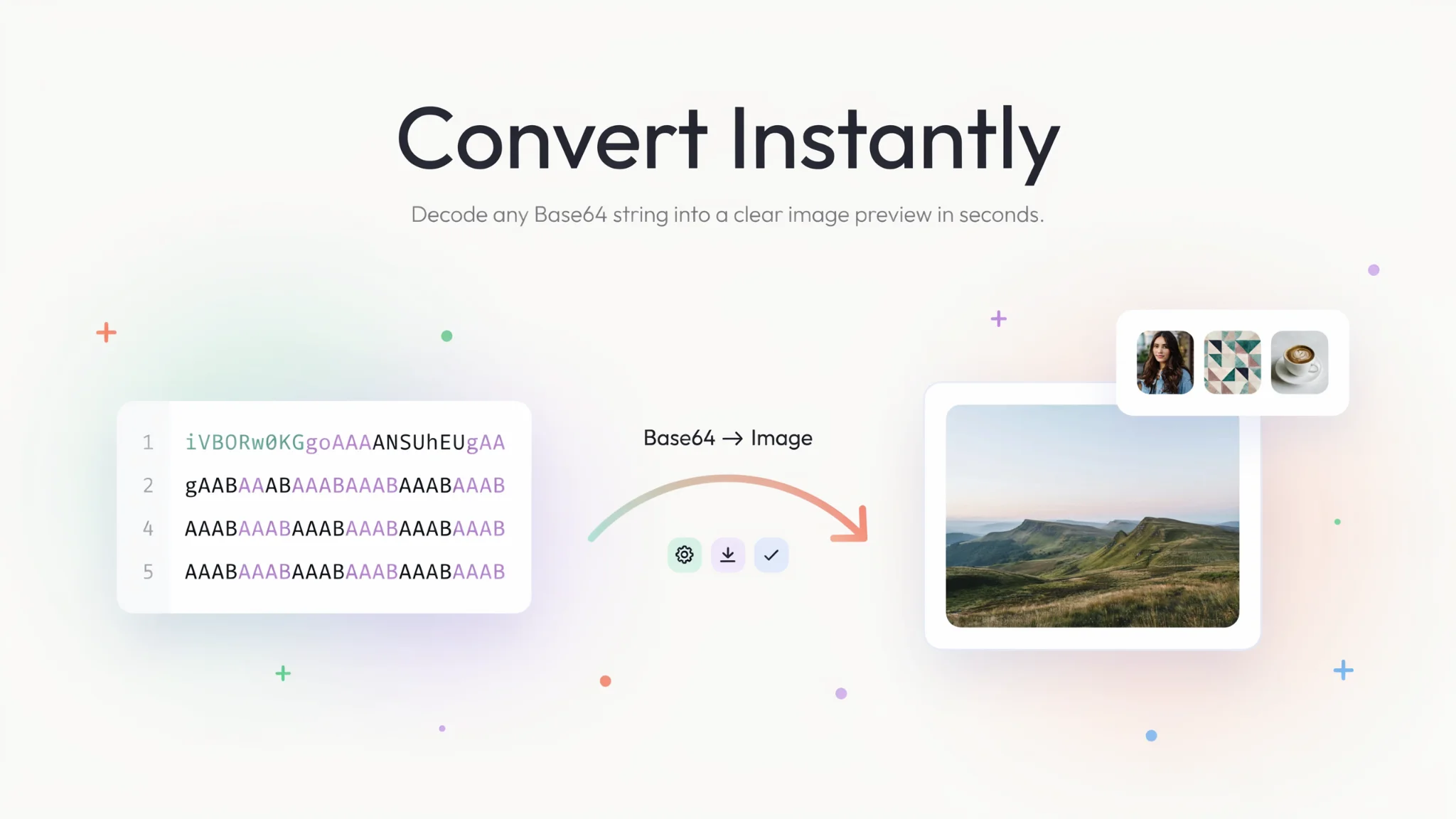
TL;DR: The Base64 to Image converter at FileReadyNow takes your Base64 string (with or without data URL) and turns it into a viewable image preview. Download the image as PNG, JPG, or GIF. Everything runs locally in your browser: no upload, no signup, completely free. Drop your string, see your picture, and grab the file.
You've got a long string of text that starts with data:image/png;base64,… and you know it's an image. But how do you actually view it or save it as a file? The Base64 to Image converter on FileReadyNow solves exactly that. It takes encoded image data and renders the picture right in your browser, no extra software needed.
I ran into this recently when a client sent a logos file inside a JSON payload. Instead of hacking together a script, I pasted the string and had the logo downloaded as a crisp PNG in seconds. It felt like magic the first time, because there was zero delay waiting for a server. The whole thing happens on your device.
What Is a Base64 to Image Converter?
A Base64 to Image converter is a tool that decodes Base64-encoded text strings back into viewable image files. Base64 is a way of representing binary data (like an image) as plain text. The converter strips away the encoding, rebuilds the original file, and shows you the picture. With FileReadyNow, you can then download that image in a standard format.
Many APIs, emails, and HTML documents embed images as Base64 data URLs. When you need the actual file, a browser-based decoder is the quickest path. You don't have to write any code or install anything.
How Do I Use the Base64 to Image Converter?
Using the tool takes three simple steps. First, copy your Base64 string (it can be a raw block of characters or the full data URL including the MIME type prefix). Second, paste it into the input box on the Base64 to Image page. The moment you hit Convert, the preview appears below the input area. You'll see the image dimensions, file size, and a live visual. Third, choose your preferred format from the dropdown (PNG, JPG, or GIF) and click Download Image. That's it.
The tool auto-detects whether your string is a data URL or raw Base64. That means you can paste something like data:image/jpeg;base64,/9j/4AAQ… directly without stripping the prefix manually. A small convenience that saves a lot of copy-paste annoyance.
What Output Formats Are Supported?
You can export the decoded image as a PNG, JPG, or GIF file. The choice depends on how you plan to use the picture. For transparent logos or graphics, PNG is usually best. For photographs and web sharing, JPG gives a good balance of quality and file size. GIFs are handy for simple animated images or line art where you need tiny file sizes.
| Format | Best For | Compression |
|---|---|---|
| PNG | Logos, screenshots, transparent images | Lossless |
| JPG | Photos, complex images, social media | Lossy |
| GIF | Animations, simple graphics, small icons | Lossless (256 colors) |
The converter preserves the visual quality of the original Base64 data. You won't see extra compression artifacts unless you deliberately choose a lossy format like JPG for export.
Is My Base64 Data Safe When Using This Converter?
Yes, all decoding happens locally in your browser. Nothing is uploaded or saved on any server. The Base64 to Image tool never transmits your data over the internet; it uses JavaScript to reconstruct the image on your own device. Once you close the tab, no trace remains.
That client-side approach is a big reason I recommend it for work-related assets. You can decode sensitive screenshots, internal mockups, or private images without worrying about leaks. There's no account to create and no logs to track.
Does It Work with Large Base64 Strings?
Yes, but very large files may take a bit longer to decode. The browser's JavaScript engine has to parse the entire string and build the image in memory. For a typical photo (a few megabytes), the conversion is nearly instant. If you push a huge string over 50 MB, you might notice a brief pause before the preview appears. It still works; just don't expect the same speed as a native app for extreme sizes.
If you're decoding a high-resolution print-ready image, be aware that the browser tab might consume more RAM. For day-to-day web images, logos, and screenshots, there's no slowdown at all.
Why Choose a Browser-Based Converter Over Desktop Software?
You avoid installing anything. No image editing suite, no command-line utility, no plugin. Open a browser, paste the string, get the image. That's powerful when you're on a locked-down work laptop, a friend's computer, or a mobile device. Plus, because processing stays local, you're not trusting a third-party with your data.
I used to keep a Python script around just for this task. Now I just type the URL and I'm done. It's one less tool to maintain and it works identically across Windows, macOS, and ChromeOS.
Ready to Pull Your Images Out of Base64?
Next time a Base64 image string lands in your inbox, code, or clipboard, don't scratch your head. Head to the Base64 to Image converter, paste it, and download the actual file. No fees, no signups, no uploads. If you need other quick file transformations, check out all the free Image Tools on FileReadyNow.
Frequently Asked Questions
What is a Base64 to Image converter?
It converts Base64-encoded text strings back into viewable image files. The tool rebuilds the exact image from the text data and lets you save it as a PNG, JPG, or GIF.
Which file types can I download?
You can export images as PNG, JPG, or GIF files. The dropdown on the tool page lets you pick the format before downloading.
Is my data secure?
Yes, all decoding happens locally in your browser. Nothing is uploaded or saved on any server. Your Base64 string stays on your device.
Can I use this tool for large Base64 strings?
Yes, but very large files may take a bit longer to decode. For typical web images and screenshots, the conversion is instant.
Is this converter free?
Yes, it's 100% free and requires no signup. There are no limits on usage.
Table of Contents
Recent Posts

PDF to JPG Blurry? How to Convert a PDF Page With Sharp Text
5 days ago
HEX vs RGB vs HSL vs CMYK: Which Color Code Should You Use?
1 week ago
Video Converter Online Free: Which Format to Pick and Why
2 weeks ago
Audio Trimmer Online Free: Cut, Keep, or Remove Any Section
2 weeks ago
How Strong Should Your Password Actually Be in 2026?
3 weeks ago
HEIC vs JPG: Which Should You Actually Use?
1 month ago