Audio Trimmer: Cut MP3, WAV & More Free Online | FileReadyNow

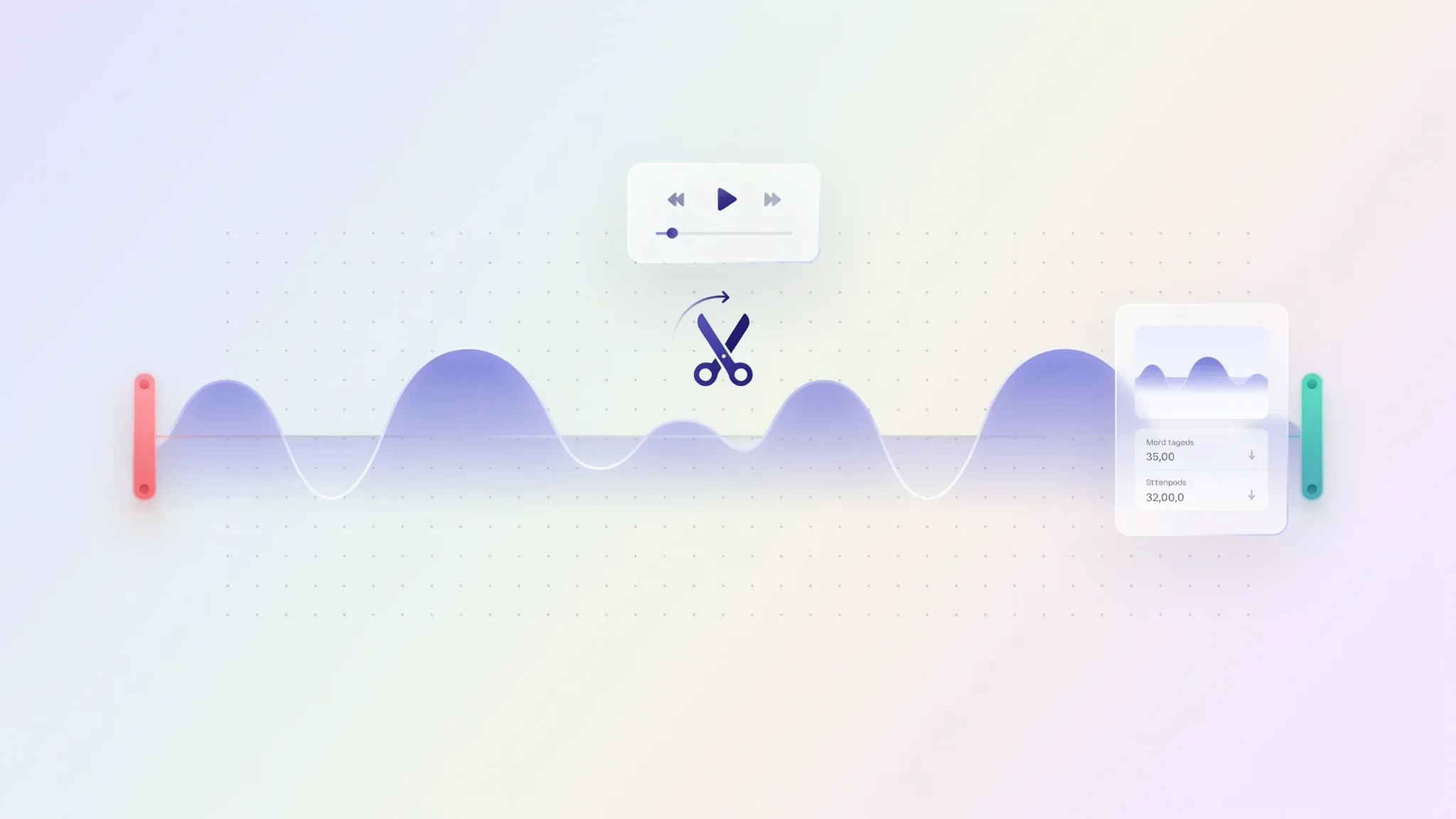
TL;DR: The FileReadyNow Audio Trimmer is a free browser tool that lets you cut any section from an MP3, WAV, OGG, or M4A file without installing software. No uploads, no signup. Set start and end points visually on a waveform, preview the result, and download a perfect clip with zero quality loss. Works fully offline inside your browser, up to 250MB files.
Picture this: you recorded a long voice memo but only need 15 seconds from the middle. Or you want to cut a clean intro for a podcast. You fire up a search, find a dozen tools, and most make you jump through hoops: install this, convert that, upload the whole file to some unknown server. Frustrating. The Audio Trimmer from FileReadyNow solves exactly that problem. It is a dead-simple, private editor that lives entirely inside your browser. You drag a file in, select the part you want to keep, and download the trimmed clip a few seconds later. It does not care if you are on a laptop, tablet, or phone. It just works. No accounts, no paywalls, no quality guesses. And the file never leaves your device.
What Is the FileReadyNow Audio Trimmer?
It is a free online tool that cuts or trims sections from an audio file directly in your browser. You load a track, pick a start and end point, and download only the segment you want. The tool processes everything locally using your device’s own power. There is no waiting for an upload, no server queue, and no risk of your audio sitting on a third-party server. That means you can trim a sensitive voice recording or a private music project with total peace of mind.
How Do I Trim an Audio File Without Losing Quality?
This trimmer preserves the original audio quality because it works without re-encoding the entire file. When you select a section to keep, the tool extracts the raw data and saves it in the same codec, bitrate, and sample rate as the source. The waveform display shows you exactly where loud and quiet spots live, so you can slice without accidental cut-offs. If you choose a different output format, like turning an MP3 into WAV, the tool does a clean conversion. But if you keep the same format, the quality stays untouched. You can test it yourself: open the trimmer, load a high-bitrate WAV, trim a few seconds, and download. The output will sound identical to the original segment.
Which Audio Files Can I Trim With This Tool?
The Audio Trimmer accepts MP3, WAV, OGG, and M4A files. That covers the most common formats people actually use, from music downloads to voice memos and web-optimised audio. The maximum file size is 250MB. For most individual tracks, that is plenty; even an hour-long uncompressed CD-quality WAV usually comes in under 600MB, so a 250MB limit handles long recordings in compressed formats easily. Because the processing happens on your machine, very large files may take a bit longer to load and scan, but the tool stays responsive.
| Format | Typical Use | Support |
|---|---|---|
| MP3 | Music, podcasts, ringtones | Full trim and export |
| WAV | Studio recordings, uncompressed audio | Full trim and export |
| OGG | Game audio, streaming | Full trim and export |
| M4A | Apple voice memos, iTunes tracks | Full trim and export |
Can I Preview the Trimmed Audio Before Downloading?
Yes. Once you set the start and end points, simply hit the play button. The built-in player will play back only the highlighted section, not the full file. You hear exactly what you will get. If the cut sounds off, drag the sliders, listen again, and tweak until it is perfect. No need to download multiple versions or guess. I have used it to slice a 3-second music snippet for a presentation; hearing the preview right there saved me from including a sloppy fade at the end.
How Does the Audio Trimmer Protect My Privacy?
Everything stays on your computer. The tool uses browser APIs (the same tech that lets websites play audio) to read and cut the file locally. Zero bytes are transmitted to FileReadyNow’s servers. That is a big deal if you handle business recordings, personal interviews, or any audio you would rather not expose to a remote cloud. Because there is no account and no signup, your identity is never tied to a file. You can even disconnect your internet after loading the page and the trimmer will keep working. It is a truly offline-capable web app.
Why Use an Online Audio Trimmer Instead of Desktop Software?
Desktop audio editors are powerful, but they come with a cost: installation, learning curves, price tags, and often bloated interfaces. A browser trimmer removes all that friction. You get a focused tool that does one job cleanly. The FileReadyNow version adds a waveform view that rivals some desktop apps. It also works on any device with a modern browser: a Chromebook in a library, a friend’s Mac, or your Android phone during a commute. The only real limitation is the 250MB file cap; for mastering full-length albums or multi-hour audio, a dedicated DAW still makes more sense. But for quick, precise edits, a browser tab beats launching Audacity or GarageBand every time.
Quick Comparison: Browser vs. Desktop Audio Trimming
| Feature | FileReadyNow Audio Trimmer | Typical Desktop Editor |
|---|---|---|
| Installation | None, opens in any browser | Requires download and setup |
| File Upload | Local only, never leaves device | Opens local file, no upload |
| Privacy | Maximum; no server interaction | Fully offline, file stays local |
| Cost | Free, no account needed | Often paid or limited free version |
| File size limit | 250MB | Usually no limit (depends on RAM) |
| Waveform preview | Yes | Yes |
| Learning curve | Almost zero | Moderate to steep |
Now you see why the simplest choice often wins. The Audio Trimmer gives you most of the precision with none of the clutter.
Ready to cut your clip? Head over to trim your audio file online right now. There is no sign-up, no waiting, and nothing to install. Just open the page, drop your file, and slice away. If you want to explore other quick editing helpers, check out more Editing Tools on FileReadyNow. From video trimming to background removal, you will find simple utilities that do exactly what you need without any fuss.
Frequently Asked Questions
What is an Audio Trimmer?
An audio trimmer is an online tool that lets you cut out a specific section of an audio file by setting start and end points. FileReadyNow’s version does this directly in your browser, with no software installs, uploads, or signups.
Which audio formats are supported?
The trimmer works with MP3, WAV, OGG, and M4A files. All these formats can be loaded, previewed, and exported without any extra conversion steps.
Is this Audio Trimmer really free?
Yes, it is completely free. There is no trial period, no watermark, and no request for payment. You can use it as often as you like, no account required.
Does trimming reduce audio quality?
No. The tool preserves the original quality because it does not re-encode the audio during trimming. The selected segment is saved with the same codec, bitrate, and sample rate as the source file.
Can I use the trimmer on my phone?
Absolutely. The tool runs in a mobile browser just like on a desktop. Visit the page, tap to upload a file, set the start and end points using the sliders, preview, and download the trimmed audio. It works on both iOS and Android devices.
Table of Contents
Recent Posts

PDF to JPG Blurry? How to Convert a PDF Page With Sharp Text
5 days ago
HEX vs RGB vs HSL vs CMYK: Which Color Code Should You Use?
1 week ago
Video Converter Online Free: Which Format to Pick and Why
2 weeks ago
Audio Trimmer Online Free: Cut, Keep, or Remove Any Section
2 weeks ago
How Strong Should Your Password Actually Be in 2026?
3 weeks ago
HEIC vs JPG: Which Should You Actually Use?
1 month ago