Free Image to Pixel Art Converter , Turn Any Photo Into Pixel Art

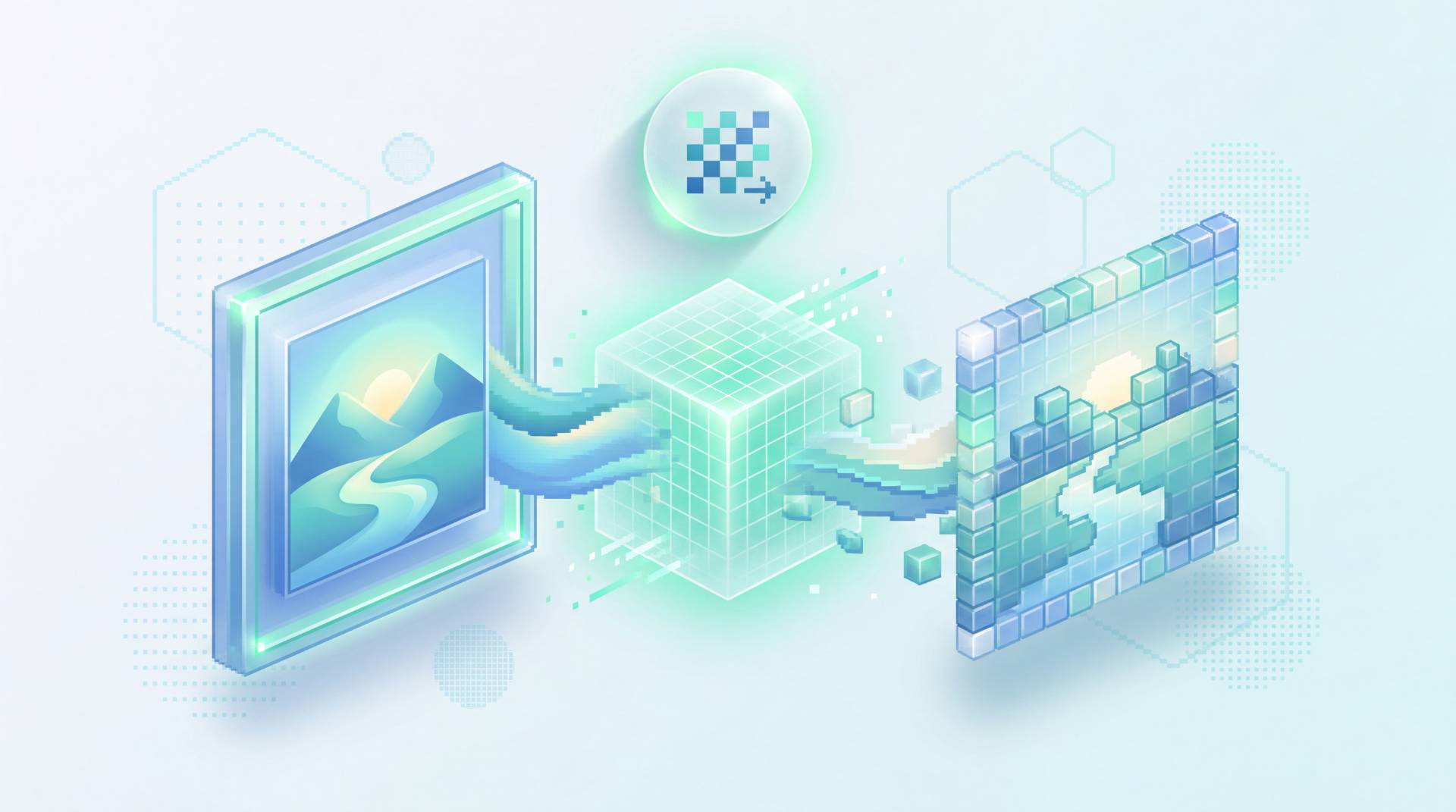
TL;DR: FileReadyNow's free Image to Pixel Art tool transforms any photo into retro pixel art in your browser, with no signup. Adjust pixel size, choose from multiple color palettes (or create your own), and download the result. Your image never leaves your device, and the tool supports JPG, PNG, and WEBP files up to 10 MB.
You’ve seen pixel art on social media and thought, “I wish I could make my profile picture look like that.” Maybe you want a funky thumbnail or a throwback-style poster. But downloading software feels like overkill. The free Image to Pixel Art tool from FileReadyNow solves this. It’s a straightforward browser-based editor that turns any photo into pixelated art in seconds. No installation. No hidden costs. You just upload a JPG, PNG, or WEBF under 10 MB, and the magic happens right in front of you. I tried it with a photo of my rooftop garden, and the live preview made it easy to tweak until it looked just right.
How to Turn a Photo Into Pixel Art Without Any Software
You can convert an image to pixel art entirely online using FileReadyNow’s Image to Pixel Art tool. Visit the page, drag in your photo, and use the sliders to dial in the pixel size and color palette. The tool works in your browser and does not require downloading or installing anything.
Here’s how the process works step by step:
- Go to the Image to Pixel Art converter.
- Drag your photo onto the upload area or click to browse your files.
- As soon as the image loads, you’ll see a live pixelated preview.
- Move the Pixel Size slider left for larger, chunkier blocks, or right for more detail. Shifts are instant.
- Open the Palette section. Choose a preset color scheme that matches the mood, or switch to the custom palette builder to pick your own colors and limit the total number of shades.
- When you’re happy, click the download button. Pick Small for a crisp pixel‑accurate file at the new art resolution, or Large if you want the pixel art scaled back to the original image dimensions (with an optional grid overlay).
Everything is done locally, so there’s no waiting for uploads or worrying about privacy.
Can I Control How Big the Pixel Blocks Are?
Yes, the pixel block size is fully adjustable via a slider. Smaller values produce a subtle mosaic effect, while larger values create the classic chunky pixel art look. You can see the changes in real time.
The Pixel Size slider sits right under the preview canvas. Slide it toward the left (1, 5) to reduce the block size, giving the image a soft mosaic texture that still shows the original details. Push it to the right (10, 30+) and you get the unmistakable old-school pixel art vibe, where a portrait becomes a grid of bold color squares. I found that a value of 12 turned my garden photo into a brilliant, icon-like avatar, while 30 made it look like abstract geometric art. Because the preview updates live, you can experiment without second‑guessing.
What Color Palettes Can I Use?
The tool provides several preset palettes inspired by classic digital art, along with a full custom palette editor. You can also adjust the number of colors manually, extract a palette from the canvas, or import palettes from Lospec.
On the right side, you’ll find the palette panel with ready-to-use options. While the tool includes recognizable retro schemes, I’ll describe them by their visual character:
| Palette Type | Colors | Best for |
|---|---|---|
| Grayscale 4‑color | 4 | High‑contrast, iconic style |
| Bright 16‑color | 16 | Playful, colorful avatars |
| Extended 25‑color | 25 | Shading and gradients |
| Custom mode | Any | Full creative control |
If none of the built-in palettes fit, switch to the custom palette tab. You can add or delete individual hex colors, set an exact color count, or even extract a palette directly from the canvas. Another neat feature: you can import palettes from Lospec.com, a huge library of community‑created color schemes. This makes it dead simple to nail a specific mood without guesswork.
Is My Image Safe and Private With This Tool?
Yes. The Image to Pixel Art tool processes everything locally in your browser. Your photo is never uploaded to a server, and no one else can access it. There is no account needed, so no data is stored.
The tool page explicitly states, “Your file never leaves your device. Processed entirely in your browser.” That means you can work on personal photos, sensitive design mockups, or even client images without a data privacy concern. No hidden storage, no logs, no copying to a remote server. Once you close the tab, the session is gone. This is a big advantage over many online editors that require uploading files to a cloud service.
Can I Use the Pixel Art for My Own Projects?
Absolutely. As long as you own the original photo or have the rights to it, you can use the pixel art for personal or commercial purposes. The tool places no restrictions on the output.
You hold all the rights to the converted image. Whether you want to print it on a T‑shirt, use it as a social media avatar, or incorporate it into a client website design, there’s no licensing fee or attribution required. Just make sure you have the legal right to use the source photo. If you snapped the picture yourself or bought a royalty‑free image, you’re in the clear.
What Download Options Do I Have?
You can download a small file at the exact pixel art resolution or a large file scaled to the original dimensions. An optional grid can be applied to the large download to mimic a true pixel editor look.
The download button offers two choices. Small exports the pixel art at its actual pixel count (for example, 64×64 pixels) and is perfect for icons, sprites, or anything that needs to stay tiny and crisp. Large takes that same pixel art and upscales it back to your photo’s original dimensions. This is useful if you need a high‑resolution version for printing or embedding in a larger design. When you select Large, a grid overlay becomes available: check the Apply Grid box and pick a grid color. The grid won’t show on small downloads, and the tool warns you if the image has too many pixels for a clean grid display.
A minor limitation: the tool caps files at 10 MB. That covers most photos, but very high‑resolution DSLR images might need downsizing first.
To wrap up, FileReadyNow’s Image to Pixel Art tool gives you everything you need to turn a photo into striking pixel art without clunky software or sign‑ups. The live preview, custom palettes, and instant downloads make the whole process fun rather than technical. Give it a try: convert your image to pixel art right now , it’s free and takes just a few clicks. If you need other image edits, check out the full Image Tools category for compressors, resizers, and more.
Frequently Asked Questions
Does the Image to Pixel Art tool cost anything?
No, it’s completely free. There are no subscription plans, watermarks, or hidden fees.
Which image types can I upload?
You can use JPG, PNG, or WEBP files, up to 10 MB each.
Can I change the pixel density after upload?
Yes, moving the Pixel Size slider lets you adjust how blocky the image looks, from fine mosaic to large chunks.
Are my uploaded images stored online?
No. Everything happens on your device. Your files are not kept or shared.
Do I need to create an account or install anything?
Not at all. The converter works directly in your web browser with no signup and no software installs.
Table of Contents
Recent Posts
Surviving the Meme Monster: OBUNGA Game Review
9 hours ago
Surviving the Chilling Horrors of a Gothic Manor
9 hours ago
Audio Trimmer Online Free: Cut, Keep, or Remove Any Section
1 day ago
Get Ready to Ride: Skateboard Wheelie Review
1 day ago
Fun Shopping Fun: Review of Funny Shopping Supermarket
1 day ago
Racing to Fun: A Look at Super Star Body Race
2 days ago