Free Video Converter: Change Video Formats in Your

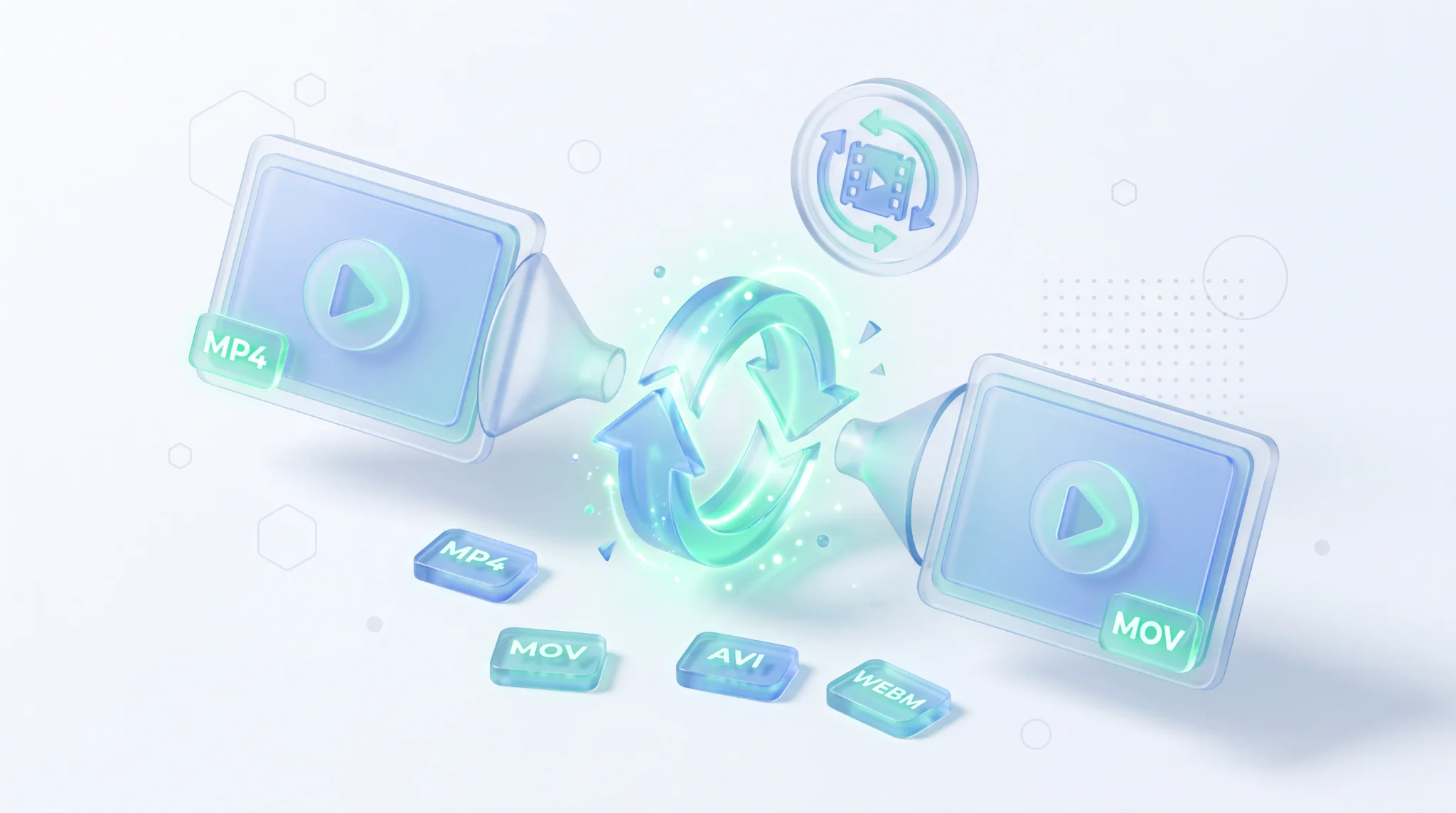
TL;DR: FileReadyNow's Video Converter instantly changes your video file to MP4, MOV, AVI, MKV, WEBM, or FLV right in your browser. No software install, no account creation. Drop any video up to 500 MB, pick an output format, adjust quality and resolution if you want, and download the result. Your original resolution stays intact unless you choose to scale it down.
You shot a video on your DSLR and it's a massive MOV file. Your editing app only loads MP4. Or your presentation software rejects the AVI clip your colleague sent. Online uploads and social media platforms each demand a specific format. Video formats are a maze, and converting them shouldn't require downloading bulky software or watching endless ad-filled tutorials. FileReadyNow's Video Converter is a free, browser based tool that handles the mess for you. It accepts MOV, AVI, MKV, WEBM, FLV, and MP4 and lets you convert them right away. No signup. No watermark. Just upload, choose your new format, tweak a few settings if you like, and download. I recently had to share a family video clip from my phone in a group chat. The default MOV file wouldn't open for half the group. I dragged it into this converter, selected MP4, left the quality on high, and had a universally playable video in under two minutes. The whole thing felt like a simple file rename, not a complex encoding job.
How Does the Browser Video Converter Work?
Working with FileReadyNow's converter is straightforward: you upload a video, pick your output format, optionally adjust resolution and quality, and click convert. The whole process happens inside your browser, so you don't download or install anything.
Here's the step by step flow:
- Upload your file: Drag and drop a video onto the upload area or click to browse. You'll see an instant preview with the filename, size, format, duration, and current resolution.
- Configure the output: Choose from the format dropdown (MP4, WEBM, MOV, AVI, MKV, FLV). Open Advanced Settings to pick a different resolution, set the quality level, or switch the audio codec. If you don't touch anything, the tool keeps the original resolution and uses high quality with AAC audio.
- Start conversion and download: Hit the “Start Conversion” button. A progress bar shows the encoding status. When it finishes, a download link appears. The file expires after five minutes for privacy, so grab it right away.
Which Video Formats Can I Convert To?
The online video converter transforms your file into MP4, MOV, AVI, MKV, WEBM, or FLV. It reads most common input types including those six and likely any standard format under the 500 MB size limit. Below is how the output options compare.
| Output Format | Codec & Audio | Best For |
|---|---|---|
| MP4 | H.264 / AAC | Web platforms, smartphones, social media, and universal playback |
| WEBM | VP9 / Opus | HTML5 browsers, web embeds, and sites that prefer open codecs |
| MOV | Apple QuickTime (H.264/AAC) | Apple devices, Final Cut Pro, and professional editing suites |
| AVI | DivX / XviD (MP3) | Legacy Windows systems, older media players, and archive collections |
| MKV | Matroska (H.264/AAC) | Archiving videos with multiple subtitles or audio tracks |
| FLV | Flash Video (H.264/MP3) | Legacy Flash content only (rarely needed today) |
Will Converting Video Lower the Quality?
By default, the converter keeps your original resolution and uses a high quality encoding preset, so you won't notice any drop in sharpness or frame rate. You can also manually select a lower resolution or bitrate if you need a smaller file.
The tool does not apply aggressive compression automatically. From the Advanced Settings panel you control how the video is processed. Choose “Keep Original” resolution to pass through the exact height and width of your source. Set Quality to “High Quality” for a visually transparent encode. Only if you deliberately reduce the resolution (for example, from 4K to Full HD) or pick a low quality tier will the output look different. I converted a 1080p MOV to MP4 with the default settings and saw no pixelation or motion smearing, even when pausing frame by frame.
Can I Use the Converter on My Phone or Tablet?
Yes, FileReadyNow's Video Converter works entirely in a mobile browser on both Android and iOS. No app download required.
The upload, configuration, and download interfaces all resize smoothly to smaller screens. You can tap to select a video from your phone’s gallery, choose an output format, and start the conversion on the same device. I tested it on a three year old Android phone using Chrome, and a 250 MB MKV file converted to MP4 in about the same time as on a desktop. Because the heavy lifting happens in the browser’s engine, performance depends more on your CPU and connection speed than the operating system.
What Are the File Size and Time Limits?
You can upload videos up to 500 MB in size. Larger files won't be accepted. Conversion time depends on the file size and the quality settings you choose, but most videos finish within a couple of minutes.
While 500 MB covers most clips you'd record on a phone or export from a screen recorder, it does mean huge raw footage or feature length films are off limits. The progress indicator gives a real time estimate so you know when to expect the download. Privacy is built in: after the conversion completes, the file is automatically deleted from the server within a short window (shown by the expiration timer). For anything beyond 500 MB, you'd need a desktop converter, but for everyday format switches this ceiling is rarely a problem.
Which Audio Options Are Available?
Besides the video track, you can choose an audio codec: AAC (recommended for most devices), MP3, high fidelity FLAC, OGG Vorbis, uncompressed WAV, or strip the audio entirely.
Selecting the right audio codec helps match the video to its destination. AAC delivers wide compatibility and good quality at low file sizes. MP3 works on virtually every old and new player. FLAC preserves the exact studio audio when you're archiving or editing. OGG Vorbis pairs well with WEBM for an open, royalty free setup. WAV is completely uncompressed, useful if you plan to do further audio work later. The “Remove Audio” checkbox gives you a silent video, perfect for GIFs or background visuals.
Why a Browser Converter Beats Desktop Software
You avoid installation bloat, permanent license keys, and the security risk of shady free downloads. The converter runs entirely off more Editing Tools on FileReadyNow, all designed to work with the same no account, instant delete privacy model. You get exactly the same encoding flexibility you'd expect from a standalone program, just packaged inside a web page.
Next time a video format blocks your workflow, skip the downloads and pop open FileReadyNow's Video Converter. It's free, respects your file sizes up to 500 MB, and works on any device. Give it a try right now and put format headaches behind you. Use the video converter today and see how fast you get a perfectly playable file.
Frequently Asked Questions
What is this video converter?
FileReadyNow's Video Converter is a free online tool that lets you change a video file from one format to another without installing software.
Which video formats are supported?
The tool accepts MP4, AVI, MOV, MKV, WEBM, FLV, and more as input. You can convert them into MP4, MOV, AVI, MKV, WEBM, or FLV.
Will the video lose quality after conversion?
No. By default it retains the original resolution and uses high quality encoding. You can also adjust settings if you need a smaller file.
Is the converter really free?
Yes, it's 100% free with no sign up, no watermarks, and no hidden charges. There's no limit on how many times you use it.
Can I use the converter on my smartphone?
Absolutely. The tool is fully compatible with mobile browsers on both Android and iOS. No app needed.
Table of Contents
Recent Posts

Surviving the Meme Monster: OBUNGA Game Review
4 hours ago
Surviving the Chilling Horrors of a Gothic Manor
4 hours ago
Audio Trimmer Online Free: Cut, Keep, or Remove Any Section
1 day ago
Get Ready to Ride: Skateboard Wheelie Review
1 day ago
Fun Shopping Fun: Review of Funny Shopping Supermarket
1 day ago
Racing to Fun: A Look at Super Star Body Race
2 days ago