Image to Text: Extract Text from Photos & Screenshots Free

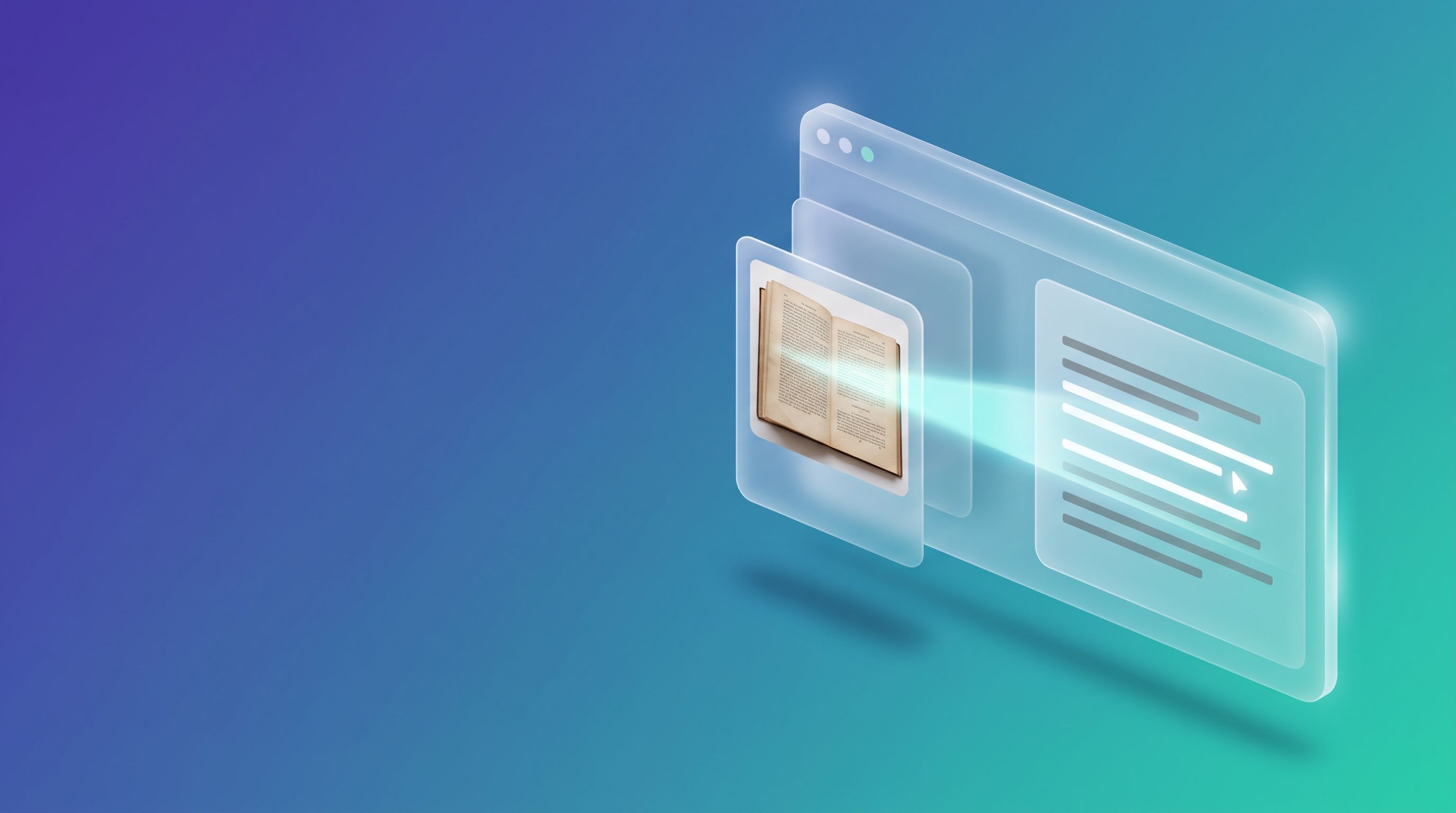
To pull text out of an image for free, open FileReadyNow's Image to Text tool, drop in a JPG, PNG, WEBP or BMP file (or paste a screenshot), click Extract Text, and copy the result from the editable box. The page says the OCR runs in your browser using Tesseract.js, so the image is processed on your own device.
FileReadyNow built this tool, so read this as a walkthrough from the maker, not an outside review. The facts below come from the live tool page and from Tesseract's own documentation, and I say where the page leaves something unstated.
How do I extract text from an image?
- Open the Image to Text tool.
- Drop images into the box, click it to browse, or paste an image straight from your clipboard. A screenshot works well here.
- Decide whether to switch on Enhance for OCR (grayscale + contrast), which I cover below.
- Click Extract Text. The page shows "Running OCR..." and warns that large images can take a while.
- Read the result in the editable box, fix any wrong characters, and click Copy Text.
You can queue up to 10 images in a batch, up to 15 MB each. Add More and Clear All help you manage the list. The page lists JPG, PNG, WEBP and BMP as the accepted formats.
Is my image uploaded to a server?
The tool page says your file never leaves your device and is processed entirely in your browser. It adds that your images never touch FileReadyNow's servers. That is the page's own statement, and you can test it.
Open your browser's DevTools, switch to the Network tab, and run a harmless test image, for example a screenshot of a sentence you wrote yourself. Browser OCR engines can download their own program or language data files the first time they run, so a few requests are normal. What you are looking for is any request that sends your image out. Run that check before you use a document that matters.
What does the Enhance for OCR option do?
It converts the image to grayscale and raises the contrast before the text is read. The page labels it Enhance for OCR (grayscale + contrast). It tends to help with faded print, photos taken in dim light and scans with a grey cast, because OCR works best on dark text over a light background. Tesseract's documentation says the same about contrast.
My advice: run the image once with it on and once with it off if the first result looks wrong. The page does not say which setting is the default or how the enhancement is tuned, so compare the two outputs yourself instead of assuming one is always better.
How can I get more accurate results?
Accuracy depends on the picture, not on any button. The page says so itself: image quality, font clarity, resolution and the complexity of the text all matter. Tesseract's documentation points the same way. It says the engine works best on images of at least 300 DPI, that stray scanner borders can be picked up as extra characters, and that the text lines should be horizontal. Tesseract.js is a JavaScript port of the engine, so treat that guidance as a strong rule of thumb, not a guarantee for this exact tool.
| Problem with the image | What goes wrong | What to do |
|---|---|---|
| Blurry or tiny image | Characters merge or get skipped | Use a sharper original, or enlarge it with the Image Resizer |
| Lots of background around the text | Stray characters from edges and borders | Crop to the text area with the Image Cropper |
| Uneven lighting or low contrast | Light gray text on a patterned or shaded background | Switch on Enhance for OCR (grayscale and contrast) |
| Tilted photo of a page | Lines read out of order or merge | Retake the photo with the page straight, so the lines are level |
| Decorative or stylised fonts | Wrong letters, especially in logos | Retype that part by hand, since OCR is built for ordinary printed text |
Two of those fixes use FileReadyNow tools. The Image Cropper trims an image down to the text, which Tesseract's guidance also recommends, with a small margin left around it. The Image Resizer enlarges a small image before you extract text from it.
Which languages and file types does it support?
The page does not state which languages the tool recognises, and I did not see a language picker in its labels, so test any language other than your main one before you rely on it. Tesseract.js describes itself as supporting more than 100 languages, but what a particular website enables is a separate question.
For file types, the page accepts JPG, PNG, WEBP and BMP. It does not accept PDFs, although some of its marketing text mentions them. If your text is inside a PDF, use the PDF to Text tool, which says it runs OCR on pages that are only images.
What can this tool not do?
It gives you text on screen and a Copy Text button. I did not find a TXT download option on the page. It is built for printed text, and the page does not mention handwriting. The page does not describe any layout or table recognition, so expect columns and tables to come out as plain text that you may need to tidy. For a quick tidy-up of what you copied, the Word Counter is handy when you need to check length.
Frequently asked questions
How do I extract text from an image for free?
Open FileReadyNow's Image to Text tool, drop in a JPG, PNG, WEBP or BMP file, paste an image from your clipboard, or click to browse. Click Extract Text and wait for the OCR to finish. The text appears in an editable box, and Copy Text puts it on your clipboard.
Is my image uploaded to a server?
The tool page states that your image never leaves your device and is processed entirely in your browser, so nothing reaches FileReadyNow's servers. You can check this yourself by watching the Network tab in your browser's DevTools while you run a harmless test image through the tool.
What image formats and sizes does it accept?
The page lists JPG, PNG, WEBP and BMP files. You can add up to 10 images in one batch, and each file can be up to 15 MB. If your image is in another format, convert it first with one of FileReadyNow's image converters, then run the extraction.
Why is my extracted text full of mistakes?
Accuracy depends on image quality, font clarity, resolution and how complex the text is, as the page itself says. Try the Enhance for OCR option, crop to the text, and use a sharper or larger image. Tesseract's documentation recommends about 300 DPI for the best results.
Can it read text from a PDF or from handwriting?
The Image to Text page accepts JPG, PNG, WEBP and BMP, not PDF files. For a PDF, use FileReadyNow's PDF to Text tool, which says it runs OCR on scanned pages. The page describes printed text and does not mention handwriting, so do not rely on it for handwritten notes.
Where should I go next?
Ready to try it? Open the Image to Text tool and start with one clear screenshot. If the result is rough, crop or enlarge the image first and run it again.
Sources: Tesseract documentation, Improving the quality of the output (DPI, noise, skew and border guidance, accessed October 27, 2026); Tesseract.js repository (what the library is and runs in the browser, accessed October 27, 2026).
Last updated: October 27, 2026.
Table of Contents
Recent Posts

JPG to PNG: What It Fixes, What It Cannot, Transparency
3 days ago
PNG to JPG: What Happens to Transparency and File Size
5 days ago
JWT Decoder: Read a Token and Know What It Cannot Prove
1 week ago
GST Calculator: How to Add or Remove GST, With Examples
1 week ago
JPG to PDF: Page Size, Fit and Margin Settings Explained
2 weeks ago
JPG to PDF Free: Merge, Reorder and Size Pages
2 weeks ago