PDF to Image Converter: Convert PDFs to JPG or PNG

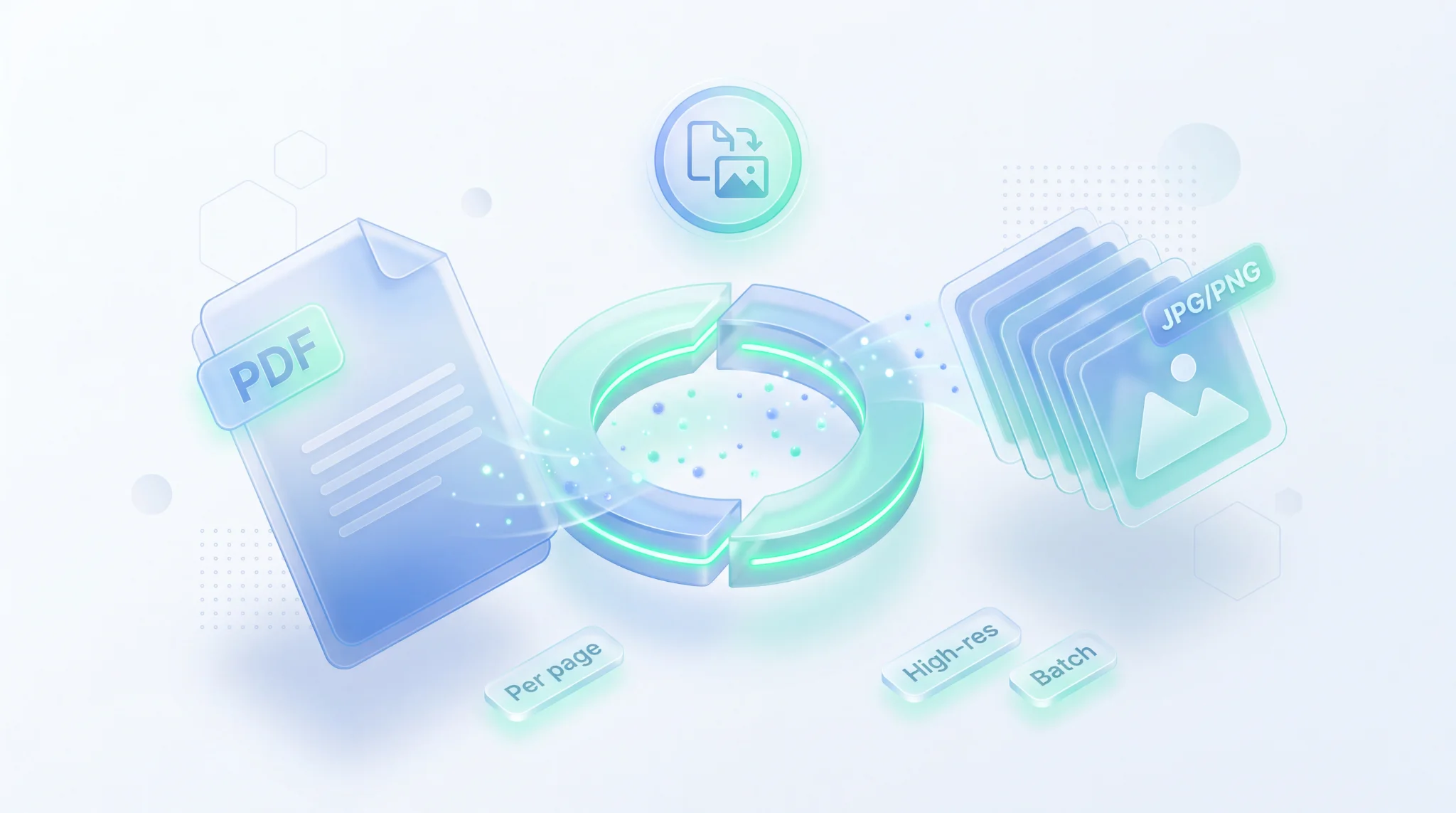
TL;DR: You can convert each page of a PDF into separate JPG or PNG images right in your browser, no software needed. FileReadyNow’s PDF to Image tool extracts every page, preserves sharp text and graphics, and bundles them into one ZIP file. Free to use after a quick signup.
Ever needed to pull a chart from a PDF report or send a single page as an image? PDFs are great for documents, but they aren’t always easy to share on social media or drop into a presentation. PDF to Image converter on FileReadyNow solves this by turning each page of your PDF into a crystal-clear JPG or PNG file. The whole thing happens in your browser. No uploading files to a server. Just pick a format, click convert, and download. I’ve used it to extract slides from a PDF presentation for Instagram stories. The images came out sharp and ready to post.
How Do I Convert a PDF to an Image?
FileReadyNow’s PDF to Image tool works in three simple steps: drag in your PDF, select JPG or PNG, and click Convert. Each page becomes a separate image, and you get them all at once in a ZIP file.
Here’s exactly what to do:
- Visit the PDF to Image converter page. (You’ll need a free FileReadyNow account. Signup takes less than a minute.)
- Drop up to 10 PDFs anywhere on the page. Total file size can’t exceed 100 MB.
- Pick your output format: JPG or PNG.
- Click the “Convert to Image” button. Because everything runs locally on your device, there’s no waiting for an upload.
- Download the ZIP. Inside you’ll find each page saved as a separate, numbered image file.
That’s it. The original PDF stays untouched, and the converted images are removed from memory as soon as you close the tool.
JPG or PNG: Which Should I Pick?
Choose JPG when you need smaller files and faster sharing; pick PNG if edges and text must stay perfectly crisp. JPG compresses images for a lighter load, while PNG keeps every pixel lossless.
| Feature | JPG | PNG |
|---|---|---|
| File size | Smaller | Larger |
| Quality | Slightly compressed | Lossless, crisp edges |
| Best for | Photos, web sharing, quick emails | Text-heavy pages, logos, screenshots |
| Transparency | No | Supports transparent backgrounds |
If you’re not sure, go with PNG. You can always convert that PNG to JPG later using another free tool on the site.
Does This Tool Handle Multiple PDF Pages?
Yes, the converter extracts every page from your PDF automatically. You don’t have to convert one page at a time. All pages turn into individual images, numbered in sequence, so you can use them separately.
Even a 50-page report gets processed in one go. After conversion, you download a single ZIP. Open it, and you’ll see files named something like page_1.jpg, page_2.jpg, and so on. It’s the cleanest way to grab a batch of images from a PDF without extra steps.
Will the Image Quality Match My Original PDF?
The output is high resolution, but the final sharpness depends on the source PDF. A low-res PDF will still produce a low-res image. That said, for most documents, text and graphics stay clear and usable for web or print.
The tool renders pages at a resolution that tries to keep text sharp and graphics true to the original. If your PDF was created from a high-quality source (like a Word doc or a scanned document at 300 DPI), the images will look great. If the PDF itself is blurry, there’s only so much the converter can do. For best results, start with the cleanest PDF you have.
Is It Safe to Use a Browser-Based Converter?
Yes. FileReadyNow processes everything on your device, not on a remote server. Your PDF never leaves your computer. Converted images are also never stored, so your data stays private.
When a tool works entirely inside your browser, you sidestep the risk of someone else accessing your sensitive files. The tool page mentions 256-bit encryption, but the real privacy win is that there’s simply no upload at all. Once you close the tab, nothing lingers.
What Can You Do with PDF Pages as Images?
Extracting images from PDF opens up lots of possibilities: insert a page into a presentation, share a specific chart on social media, embed a diagram on a website, or print a single page as a photo.
Here are a few real-world uses:
- Pull a table from a PDF report and paste it into a Google Slide.
- Save a contract page as a PNG to sign electronically.
- Turn a PDF flyer into social media posts without redesigning it.
- Send a single page as a WhatsApp image rather than a clumsy PDF attachment.
Once you have the images, you’re free to use them in any app or platform that accepts JPG or PNG.
Give the free PDF to image converter a try. Sign up, drop your PDF, and you’ll have a ZIP full of crisp images in seconds. For more ways to work with documents, visit FileReadyNow’s PDF tools: merge, split, compress, and convert files without any software downloads.
Frequently Asked Questions
How do I convert a PDF to an image?
Visit the tool, upload your PDF, choose JPG or PNG, and click Convert. The tool processes the file entirely in your browser and downloads a ZIP containing each page as a separate image.
Is the PDF to image converter really free?
Yes, the tool is free to use. You just need a free FileReadyNow account. There’s no software to install.
Will the image quality match the original PDF?
In most cases, yes. The tool preserves layout and clarity. However, the final quality depends on the resolution of your original PDF.
Can I convert all pages of a PDF at once?
Absolutely. Every page in your PDF is converted automatically. They’re provided as individually numbered image files inside a ZIP.
Which format should I pick, JPG or PNG?
JPG offers smaller file sizes, ideal for sharing. PNG delivers higher quality and sharper details, perfect for documents with text or graphics.
Table of Contents
Recent Posts

Get Ready to Ride: Skateboard Wheelie Review
23 hours ago
Fun Shopping Fun: Review of Funny Shopping Supermarket
23 hours ago
Racing to Fun: A Look at Super Star Body Race
1 day ago
Hoop Dreams: Basketball Master 2 Review
2 days ago
Retro Speed: A Fast-Paced Racing Fix for Busy Days
2 days ago
Coffee Stack 1: A Fun Casual Game to Pass the Time
3 days ago