Video Converter Online Free: Which Format to Pick and Why

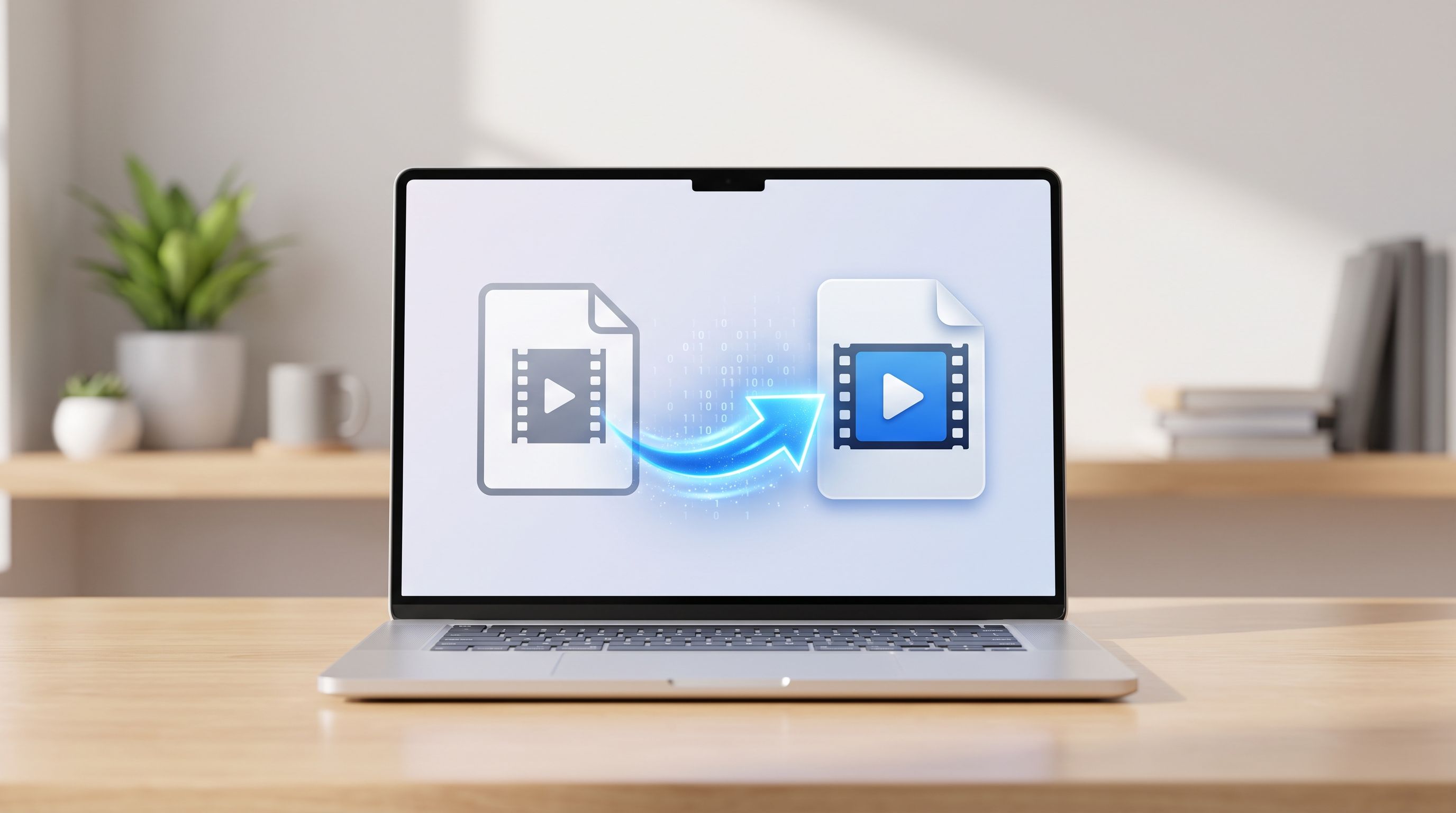
A client once sent me a product demo recorded on an iPhone, and it would not play on the Windows laptop in their own conference room. Same file, same day, perfectly fine on my Mac. The video was fine. The format was the problem. I ran it through FileReadyNow's Video Converter, switched the output to MP4, and had a file that opened everywhere in under a minute.
Format problems like that are some of the most common video headaches, and almost all of them have the same fix. Here is how the converter works, which format to pick for which situation, and what actually happens to quality and file size when you convert.
How to Convert a Video Online for Free
Upload your video, choose an output format, adjust resolution and quality if you need to, then start the conversion. When it finishes, download the new file.
The steps in order:
- Drop your video into the upload box, or click to browse. MP4, AVI, MOV, MKV, WebM and more are accepted, up to 500MB per file.
- Pick the output format: MP4, WebM, MOV, AVI, MKV, or FLV.
- Open Advanced Settings to choose a resolution, a quality level, and an audio option, or leave everything on the defaults.
- Click Start Conversion, then download the result before the link expires.
There is no signup and no watermark on the converted video.
Which Video Format Should You Convert To?
If you are not sure, choose MP4. It plays on phones, browsers, editing software, smart TVs, and every major social platform, which makes it the safe answer for almost any situation. The other formats each have a narrower job.
| Format | Best for |
|---|---|
| MP4 | Universal playback, sharing, uploading to social platforms |
| WebM | Embedding video on websites, smaller files at similar quality |
| MOV | Apple devices and Final Cut Pro workflows |
| AVI | Older Windows software and hardware that still requires it |
| MKV | Archiving, media servers, files with multiple audio or subtitle tracks |
| FLV | Legacy streaming workflows that still ask for it |
The most common conversion by a wide margin is MOV to MP4, because iPhones record in MOV and plenty of the places you would send that video, Windows players, older TVs, some upload forms, handle MP4 more reliably. Going the other direction, MP4 to MOV, mainly matters if you are importing footage into Final Cut Pro.
Does Converting a Video Reduce Its Quality?
It can, slightly, and it depends on the settings you pick. Converting between formats usually means re-encoding the video, and any re-encode is a small step away from the original. At the High Quality setting the difference is very hard to see in normal viewing. At Medium or Low, you are deliberately trading some visual detail for a smaller file.
One thing no converter can do is add detail that the original never had. If your source is a 480p clip, converting it to a 4K output will not make it sharper, it will only make the file bigger. The output can be as good as the source, never better, so start from the best version of the video you have.
What Resolution Should You Choose?
Keep Original unless you have a reason to change it. If you only need a different format, changing the resolution too is unnecessary work and a needless quality hit. The resolution options run from 4K down to 360p, and picking a lower one is the fastest way to shrink a file.
As a rough guide, going from 1080p to 720p cuts the file size roughly in half, and going from 4K to 1080p brings it down to about a quarter. For social uploads, 1080p is the practical ceiling, since platforms re-encode what you upload anyway and the difference above that is invisible after their compression. For email or messaging apps with attachment limits, 720p or lower usually gets the file small enough to send.
What Do the Audio Options Do?
The audio codec is a separate choice from the video format, and the default suits most people. AAC is the safe pick for broad compatibility. MP3 works in most players but is not ideal inside an MP4 file. FLAC is lossless, for cases where the audio has to be preserved exactly. OGG Vorbis is open source and common in web projects. WAV is uncompressed and produces large files.
There is also a Remove Audio option, which is useful for a looping background clip, a silent product loop, or any video where the sound is irrelevant and you would rather have a smaller file.
How Do You Make a Video Small Enough to Send?
Combine a lower resolution with a lower quality level. Dropping from Full HD to HD and choosing Medium quality cuts the size dramatically for most videos, and it stays perfectly watchable on a phone screen. If you need a specific target, the Custom Bitrate option lets you set the bitrate yourself, since file size is essentially bitrate multiplied by duration.
Removing the audio track shaves off a little more if the clip does not need sound. And if the video is longer than you need, trimming it first with the Video Trimmer makes every other setting matter less, since a shorter video is a smaller file at any quality.
Why Do Editing Programs Sometimes Reject a Video?
Editing software is picky about input formats. Premiere Pro, DaVinci Resolve, and Final Cut each handle certain formats cleanly and struggle with others, especially AVI and FLV files from older cameras or capture cards. The symptoms are dropped frames, audio that drifts out of sync, and endless proxy generation errors.
Converting to MP4 or MOV before importing usually clears all of that up. The same applies when a client sends footage in a format your project was not built around.
Is It Safe to Upload My Video?
This tool processes video on a server rather than inside your browser, because converting video needs far more computing power than a browser tab can reliably provide. Your file is sent over an encrypted connection, and both the video you upload and the converted file are permanently deleted from the server once the download link expires, which is five minutes after the conversion finishes.
That makes it a different privacy model from FileReadyNow's tools that run entirely on your device, like the Video Thumbnail Generator. For a family clip or a public marketing video, that is a normal trade-off. For footage that is genuinely confidential, keep it in mind before uploading.
What Do People Actually Use This For?
- Making iPhone videos play everywhere: convert MOV to MP4 so the file opens on Windows, Android, and older TVs.
- Preparing web video: convert to WebM for a smaller file when embedding on a site.
- Fixing editing problems: convert old AVI or FLV footage to MP4 or MOV before importing it into an editor.
- Getting under upload limits: lower the resolution or quality until the file fits an email, messaging app, or form.
- Stripping audio: remove the sound track from a clip that does not need it.
If you also need to crop the frame before converting, the Video Cropper handles that, and the Audio Converter is there when you only need the sound.
Do I Need an Account, and Is There a Size Limit?
No account and no watermark. You can convert as many videos as you like, with one practical limit: files up to 500MB per upload, which covers most phone recordings, screen captures, and short edited clips.
Frequently Asked Questions
Is the Video Converter free?
Yes, with no signup and no watermark added to the converted video.
Which formats can I convert to?
MP4, WebM, MOV, AVI, MKV, and FLV.
What is the maximum file size?
500MB per file.
Will converting reduce quality?
Slightly, in some cases, because converting usually re-encodes the video. The High Quality setting keeps the difference very hard to notice, and no converter can improve on the original.
Can I shrink a video to send it by email?
Yes. Choose a lower resolution and a lower quality level, or set a custom bitrate for a specific size.
Is my video uploaded to a server?
Yes. Conversion happens on a server, and both your original and the converted file are deleted once the download link expires.
Can I use it on my phone?
Yes, it works in mobile and desktop browsers.
Conclusion
A video that will not play, will not upload, or is too big to send is almost always a format or size problem, and both are quick to fix. FileReadyNow's Video Converter lets you pick the format, resolution, quality, and audio in one place and download the result without installing anything. The next time a file refuses to cooperate, convert it and move on.
Table of Contents
Recent Posts

Surviving the Nightmare: Freddy in Five Nights Terrors Review
2 hours ago
Blob Wars: A Fun, Frantic IO Experience
2 hours ago
Defy Gravity in Jumpero: The Ultimate Jumping Game
1 day ago
Clicker Romance with a Twist: Your Silver Wife Review
1 day ago
Escape the Cubicle: A Thrilling FPS Adventure
2 days ago
High-Speed Action in Grandfather Road Chase
3 days ago