Why Are My iPhone Photos HEIC? (And How to Get JPG Instead)

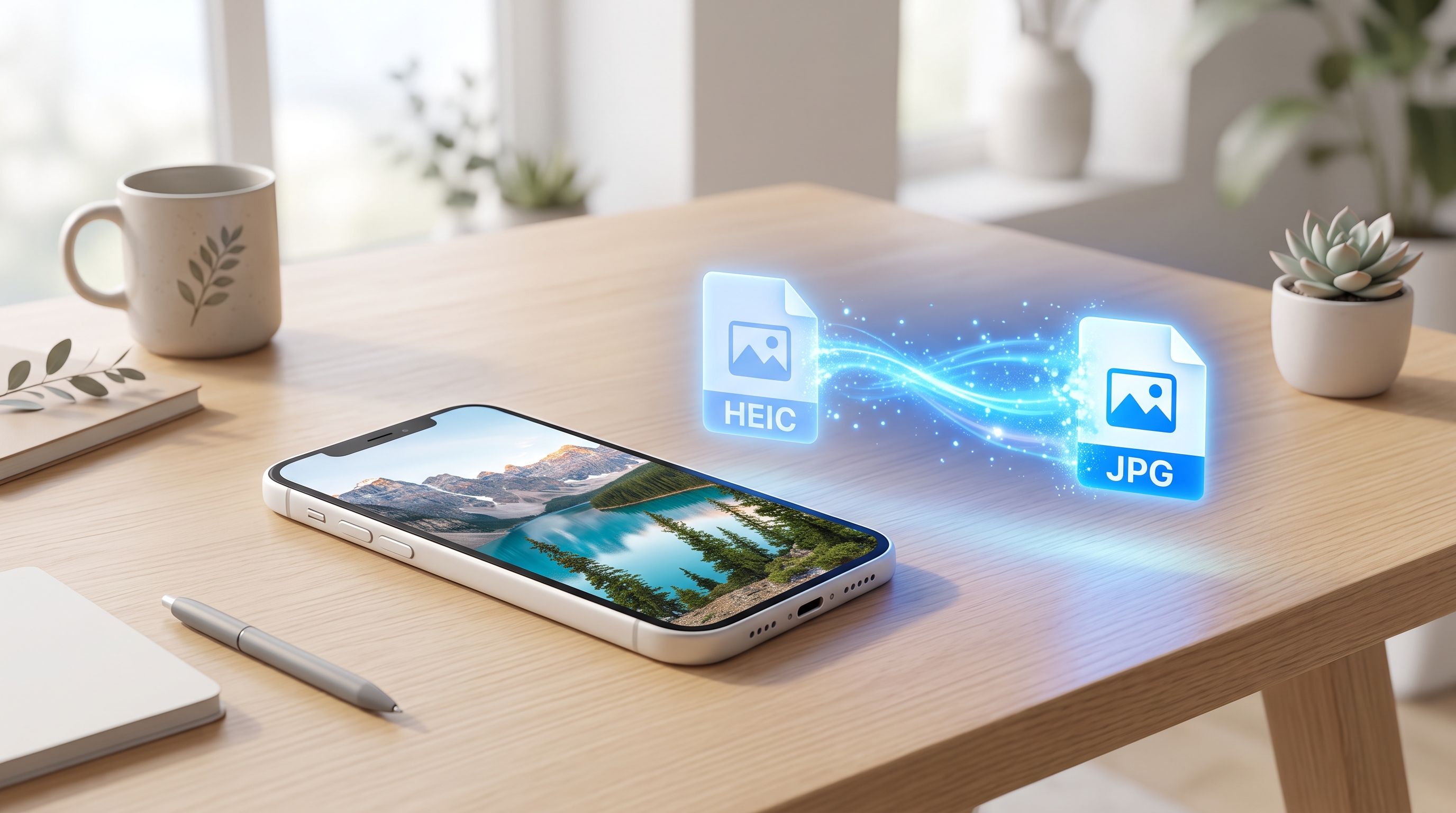
You AirDrop a photo to a friend on Windows, or try to upload one to a website, and it just doesn't show up. No error that makes sense, no obvious fix, just a broken thumbnail where your photo should be. If this has happened to you, the file was almost certainly HEIC, and there's a simple reason your iPhone is doing this to you.
Why Does My iPhone Save Photos as HEIC?
Since iOS 11, iPhones have defaulted to a format called HEIC (High Efficiency Image Container) instead of the JPG most of the internet still runs on. The reason is genuinely practical: HEIC files store the same image quality as a JPG in roughly half the file size. On a phone where photo storage fills up fast, that's a meaningful win for Apple, and for you, since it means more photos fit before you hit your storage limit.
The catch is that HEIC is still an Apple-favored format. Windows doesn't open it without an extra codec. A lot of websites, upload forms, and older software don't recognize it at all. Your iPhone made a smart storage decision on your behalf, it just didn't ask whether everyone you share photos with would be able to open them.
How to Make Your iPhone Save Photos as JPG Instead
If you'd rather your camera just save JPG from now on, this is a one-time setting, not something you manage per photo:
- Open Settings
- Tap Camera
- Tap Formats
- Select Most Compatible instead of High Efficiency
Once that's set, every new photo you take saves directly as JPG. Your files will run a bit larger, since you're giving up that compression Apple built in, but you'll never hit the "why won't this open" wall again on a new photo. Worth knowing: this only affects photos you take going forward. It does nothing for the HEIC photos already sitting in your camera roll.
Converting the HEIC Photos You Already Have
This is where most people actually get stuck. Changing the setting fixes tomorrow's photos, but you're probably sitting on hundreds or thousands of HEIC files already, and going through them one by one isn't realistic.
A few options exist. You can email individual photos to yourself, since Apple's Mail app sometimes converts them to JPG automatically, but this is slow and unreliable at any real volume. You can use software on a Mac or PC to batch convert, but that means installing something and learning its interface for what should be a five-minute task. Or you can use a browser-based converter and skip both problems.
FileReadyNow's HEIC to JPG converter handles this directly: drop in up to 10 HEIC files at once, and it converts all of them to JPG in your browser, no software, no account, no waiting on an email attachment to process. The conversion happens locally on your device rather than uploading your photos to a server, so nothing about your camera roll leaves your machine in the process, which matters if the batch includes anything personal.
What to Expect When You Convert a Batch
You get a quality slider before converting, running from smaller file size up to best quality. For most everyday photos, sitting in the 80 to 90 range keeps the JPG visually identical to the original HEIC while trimming the file down. There's also an option to strip EXIF metadata, the hidden data every photo carries with GPS coordinates and the exact time it was taken, which is worth doing before sharing photos publicly.
Once converted, all the files download together as a single ZIP, so a batch of vacation photos or an old event folder comes out the other side as one download instead of ten separate ones.
Which Approach Makes Sense for You
Change the Camera Formats setting if you're tired of this being a recurring problem and don't mind slightly larger files going forward. Convert your existing photos separately, since the setting change won't touch anything already in your camera roll. For the backlog, running them through the HEIC to JPG tool in one batch clears the problem in the time it takes to drag and drop the files in.
Do both, and you're set on both ends: new photos save in a format everyone can open, and the old ones you actually need to share or upload somewhere are a couple of clicks away from working too.
Frequently Asked Questions
Does changing the iPhone setting affect photos I already took?
No. Switching to Most Compatible only changes new photos going forward. Existing HEIC photos stay HEIC until you convert them.
Will converting HEIC to JPG make my photos look worse?
Only if you choose a low quality setting. At 80–90 on the quality slider, the JPG looks visually identical to the original HEIC for most everyday photos.
Can I convert more than one photo at a time?
Yes, up to 10 HEIC files per batch, downloaded together as a single ZIP.
Do I need to install anything to convert HEIC files?
No. A browser-based converter handles it without installing software or creating an account.
Table of Contents
Recent Posts
Encrypt Text Online Free: Lock a Message With a Passphrase
2 days ago
Base64 to PDF: How to Convert a Base64 String Into a PDF (Free)
5 days ago
Merge PDFs Without Uploading Them: Free, In-Browser Method
1 week ago
How to Resize an Image to 100 KB (or Any Target File Size)
1 week ago
PDF Too Large to Email? How to Get It Under 25 MB
1 week ago
How to Make Pixel Art Online: Beginner Guide (Free Tool)
1 week ago