How to Make Pixel Art Online: Beginner Guide (Free Tool)

Last updated: October 16, 2026
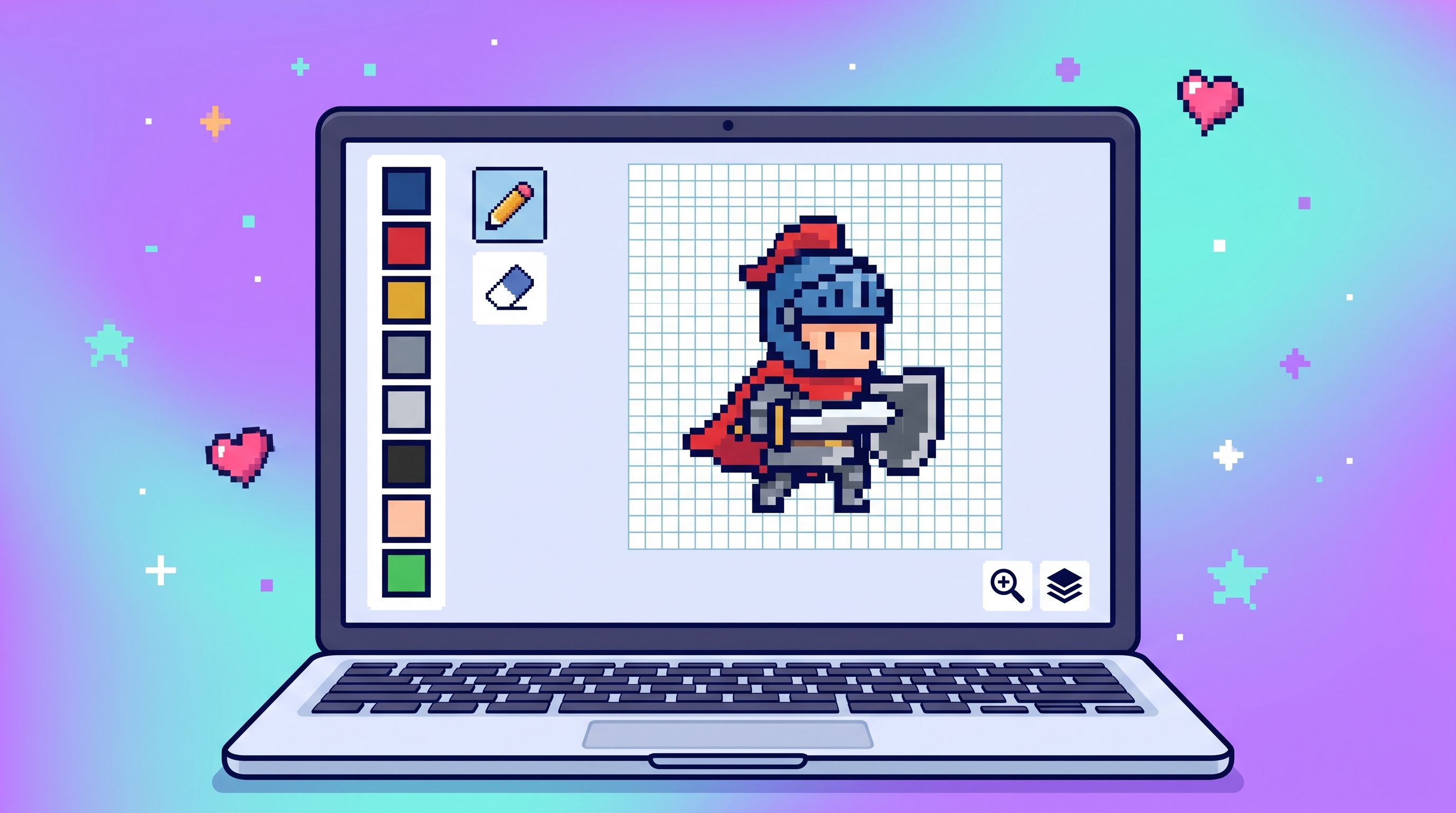
You can make pixel art online in a few minutes. Open a pixel art editor in your browser, pick a small grid such as 16x16, choose a few colours, fill squares one at a time, and export the result as a PNG. FileReadyNow's free Pixel Art Creator does all of that without any software to install.
This guide walks through the steps using the settings the tool really has, then covers the basics that make beginner pixel art look cleaner: grid size, palettes, and exporting.
The Pixel Art Creator runs entirely in your browser. Your drawing is never uploaded to FileReadyNow's servers, so it stays on your device the whole time.
What pixel art is, in plain terms
Pixel art is artwork drawn one pixel at a time on a grid, where every square is a deliberate colour choice. Nothing gets smoothed or blended, so each pixel stays visible. That is the look of classic game sprites and tiny icons.
The small canvas is the point. With only a handful of squares to work with, you have to decide what matters. A simple heart reads perfectly well on a 16x16 grid, and adding more detail would only muddy it.
Step by step: your first piece in the Pixel Art Creator
- Pick a grid size. The tool supports grids from 8x8 to 64x64, set by typing a number. Choose 16 for a first attempt. Changing the size later resets the canvas, so decide before you start drawing.
- Choose a palette. Six presets are built in: Default, Game Boy, NES, Commodore 64, Pastel and Earth Tones. You can also set any colour with the hex picker or the colour wheel, and recently used colours stay in a row so you can reuse them.
- Try a template if a blank grid feels intimidating. There are twelve quick-start templates, including a heart, a star, a smiley, a cat and a rocket. Load one and change it until it is yours.
- Draw, erase and fill. Draw colours one square at a time, Erase removes a square, and Fill floods an area with the current colour. The Pick tool lets you grab a colour you have already used.
- Turn on Symmetry Mode for faces and characters. It mirrors your strokes, so you only draw one half of a face, a ship or a creature.
- Fix mistakes freely. Undo and Redo step through your changes, and Clear All wipes the canvas if you want a fresh start.
- Export. Choose Download PNG, or Copy to Clipboard if you want to paste it straight into a chat or document.
Which grid size should you choose?
For most beginners the answer is 16x16, and 32x32 is the next step. Bigger grids give you more room, but they also give you far more squares to keep consistent.
| Grid | Good for | Watch out for |
|---|---|---|
| 8x8 | Tiny icons, simple symbols, quick practice | Very little room, so only the strongest shapes survive |
| 16x16 | Icons, items, a first character sprite | Details need to be exaggerated to be seen |
| 32x32 | Characters, animals, small scenes | Takes longer, and symmetry becomes more useful |
| 64x64 | More detailed portraits and scenes | Easy to lose track of consistent shading |
Choosing a palette: fewer colours usually look better
A short palette is what holds pixel art together. When you only allow yourself a few colours, shapes stay readable and the piece looks like one piece instead of a collage. Try drawing the same 16x16 icon with four colours and then with twelve. The four-colour version often looks more confident.
The classic console presets are a good way to practise with limits. The original Game Boy screen is 160 x 144 pixels and shows four shades, according to the Pan Docs hardware specifications. The NES can display up to 25 colours on screen at once (13 for the background and 12 for sprites), as described in this overview of video game console palettes. Those limits are the reason retro art has such a distinct look.
If you want an exact shade from a logo or a reference picture, find its hex value with the Color Code Generator and paste it into the hex picker. Our guide to HEX vs RGB vs HSL vs CMYK colour codes explains what each format means and when to use it.
One honest note about scale: the Pixel Art Creator tops out at 64x64, which is smaller than a full Game Boy screen. It suits sprites, icons and tiles better than full-screen scenes.
Small habits that make beginner pixel art look better
Outline your shape first, then fill it. A clear silhouette tells the viewer what they are looking at before any detail does. If you squint and cannot tell what it is, the outline needs work.
Pick one direction for your light and stick to it. If the top left is lighter on one side of a character, keep it that way everywhere. Mixed lighting is the quickest way to make a small sprite look confusing.
Watch for stray single pixels. A lone square floating away from its neighbours usually looks like a mistake, not a detail. Zoom out now and then to see the piece at the size people will actually view it.
Exporting your pixel art: PNG sizes and transparency
The Pixel Art Creator exports PNG only. That is a sensible fit for this kind of art. PNG uses lossless compression and supports transparency, whereas JPEG is lossy and has no transparent background, as explained in the MDN guide to image file types. Lossy compression would smear the hard edges that define pixel art.
You choose how large each pixel is in the downloaded file:
| Quality | Size of each pixel | A 32x32 grid becomes |
|---|---|---|
| Low | 5 px | 160 x 160 px |
| Medium | 10 px | 320 x 320 px |
| High | 20 px | 640 x 640 px |
| Very High | 30 px | 960 x 960 px |
Two extra options matter. You can include grid lines in the download, which helps for tutorials or cross-stitch style planning, and you can switch on a transparent background, which is what you want for sprites and stickers. Leave both off for a clean, flat image.
If you need a JPG for a platform that does not take PNG, convert it afterwards with the PNG to JPG converter. Just remember you lose transparency in that step.
Starting from a photo instead of a blank grid
Sometimes you do not want to place every square by hand. FileReadyNow also has an Image to Pixel Art converter. You upload an image, set a pixel size, adjust brightness, contrast and saturation, and apply a palette preset such as Pico-8, Game Boy or CGA. The page says it processes images in your browser and exports PNG, JPEG or WebP. It is a different job from the creator: one is for drawing, the other is for restyling something that already exists. For settings and examples, read our guide to turning a photo into pixel art.
Pixel art questions, answered
How do I make pixel art online for free?
Open a browser-based pixel art editor, choose a small grid like 16x16, pick a palette, and click squares to colour them. When you are done, export the result as a PNG. FileReadyNow's Pixel Art Creator works this way and needs no download, so you can start drawing right away.
What grid size is best for a beginner?
Start with 16x16. It is small enough to finish in one sitting and forces you to keep shapes simple. Move up to 32x32 once you are comfortable, for characters or small scenes. The Pixel Art Creator supports grids from 8x8 to 64x64, and changing the size resets the canvas.
What file format does the Pixel Art Creator export?
It exports PNG only. You can pick Low, Medium, High or Very High quality, which scale each pixel to 5, 10, 20 or 30 pixels. You can also add grid lines or use a transparent background, then download the file or copy it to your clipboard.
Can I use my pixel art in a game?
Yes, a PNG works as a sprite or icon in most game engines. After importing, switch the texture filter to nearest or point, because smoothing blurs the hard edges that make pixel art look sharp. If you plan to ship commercially, check the licence terms of any palette or reference you borrowed from.
What is the difference between the Pixel Art Creator and Image to Pixel Art?
The Pixel Art Creator is a blank grid where you draw each square yourself. Image to Pixel Art takes an existing picture and converts it into a pixelated version using palette presets and a pixel size setting. Use the first to create from scratch and the second to restyle a photo or image.
Is the Pixel Art Creator free, and do I need an account?
Yes, it is free and needs no account. Open the page and start drawing straight away. There is no signup, no install and no watermark on the PNG you download, so you can make and save as many pieces as you like.
Does the Pixel Art Creator upload my drawing?
No. FileReadyNow's Pixel Art Creator runs entirely in your browser, so your drawing stays on your device and is never sent to our servers. When you finish, use Download PNG or Copy to Clipboard to keep your work.
Related pixel art guides and tools
Want to start from a photo instead? Our image to pixel art guide walks through the converter, and the Image to Pixel Art tool does the conversion in your browser. If you design apps or websites, pixel art for UI design covers icons and small interface graphics. Need a JPG copy of your finished sprite? Use the PNG to JPG converter, keeping in mind JPG drops transparency.
Ready to try it? Open the Pixel Art Creator, set the grid to 16, load the heart or star template, and change three squares. You will understand the whole workflow in under five minutes.
Table of Contents
Recent Posts
Base64 to PDF: How to Convert a Base64 String Into a PDF (Free)
1 day ago
Merge PDFs Without Uploading Them: Free, In-Browser Method
4 days ago
How to Resize an Image to 100 KB (or Any Target File Size)
5 days ago
PDF Too Large to Email? How to Get It Under 25 MB
6 days ago
PNG vs HEIC: Which Is Smaller, and Should You Convert?
1 week ago
PDF to JPG Blurry? How to Convert a PDF Page With Sharp Text
1 week ago