Merge PDFs Without Uploading Them: Free, In-Browser Method

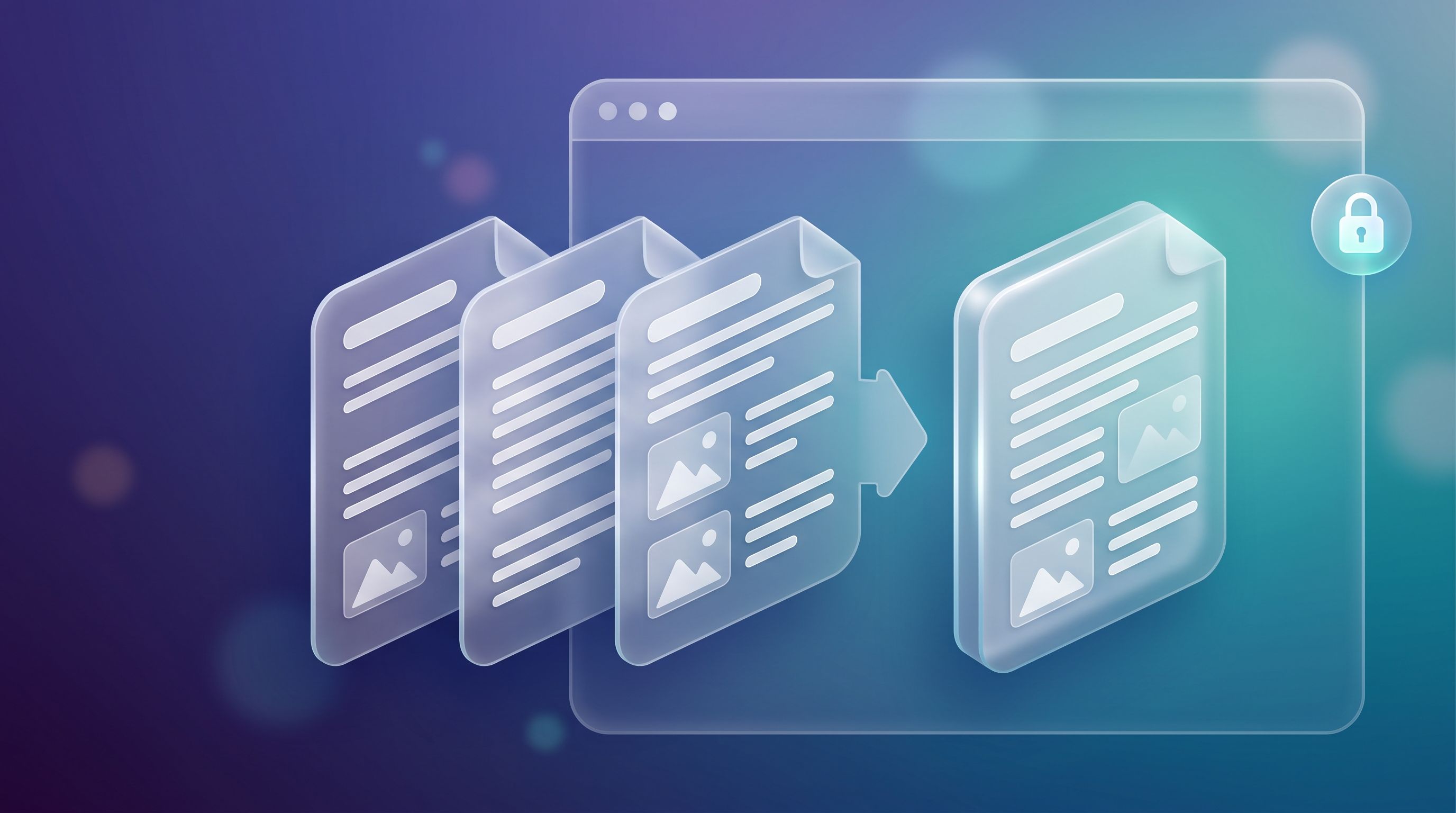
You can merge PDF files without uploading them by using a tool that does the work inside your browser. FileReadyNow's free Merge PDF tool works this way: you add your files, drag them into order, and it builds one merged PDF on your own device. This guide shows how to use it, what "in the browser" actually means, and how to check the claim yourself instead of taking anyone's word for it.
Why it matters where the merge happens
When you use an online PDF tool, one of two things happens. Either your files are sent to a server, which merges them and sends the result back, or your browser does the merging locally and nothing is sent. For a holiday itinerary the difference hardly matters. For a signed contract, a tax document or a medical form, you may prefer that fewer copies of the file exist anywhere else, even briefly.
| Question | Browser-based tool | Server-based tool |
|---|---|---|
| Where is the file processed? | On your own device | On the provider's server |
| Does the file travel over the internet? | Not for the merge itself | Yes, it is uploaded, then the result is downloaded |
| What happens to a copy afterwards? | The provider never receives one | Depends on the provider's deletion policy |
| What limits the file size? | The tool's own limits and your device's memory | The provider's server limits |
How FileReadyNow's Merge PDF works
The tool page says everything runs in your browser using PDF-lib, and that your files are never sent to FileReadyNow's servers. PDF-lib is an open JavaScript library for creating and modifying PDF documents, and its own site says it works in any JavaScript environment, including browsers. It can combine several PDFs into one by copying pages from each into a new document.
Browsers can also read files you pick without sending them anywhere. MDN's guide to using files from web applications explains that web content can ask you to select local files and then read their contents, and its examples show files being read and displayed locally. Uploading is a separate step that a page has to choose to take.
Step by step: merge PDFs in your browser
- Open the tool. Go to the Merge PDF page.
- Add your files. Drag and drop them or choose them from your device. The upload area lists up to 20 files, 50 MB per file and 150 MB in total. Scanned, text-based and mixed PDFs are all supported, with no preparation needed.
- Put them in order. Drag the files up or down before merging. The order you set is the order the pages will appear in the final PDF.
- Merge. Click the Merge PDFs button. The page says the result is one PDF with no separator pages, added headers or watermarks.
- Download and check. Open the merged file and scroll through it. Look at the first and last page of each original and confirm the order is what you wanted.
Does merging change the quality?
According to the tool page, the merge keeps the original quality without re-encoding, because it joins the files at the structural level. In plain terms, pages are copied into the new file instead of being recompressed, so images and text are not run through compression a second time. Your own check is still worth the ten seconds: scroll through the result before you send it.
If the merged file turns out too big to email, merge first and compress second. Our guide on getting a PDF under an email size limit walks through that step.
Check it yourself: how to confirm nothing is uploaded
You do not have to trust any website's claim about privacy, ours included. Here is a quick way to look for yourself.
- Use harmless test files. Take two ordinary PDFs with nothing private in them.
- Open developer tools. In Chrome, press F12 on Windows or Linux, or Cmd+Option+I on a Mac, then click the Network tab.
- Clear the log. Use the clear button in the Network tab so you start from an empty list.
- Merge the files. Add your two PDFs and run the merge as usual.
- Read the requests. Small requests for scripts, images or analytics are normal on almost every website. What you are looking for is a large request, usually a POST, whose size is close to the size of your files and which is sent to the site. If there is none, the merge happened on your device.
Know the limits
Not every FileReadyNow tool works this way. The PDF Compressor, for example, uploads your file to a server to process it, and its page says files are deleted automatically afterwards. Merging is done in the browser. Compressing is not, and it is worth knowing the difference before you choose a tool for a sensitive document.
Because the work happens on your device, speed can depend on your computer or phone, especially with several large files. And processing locally does not replace your organization's rules. It reduces where a file travels, but it does not decide whether a document is appropriate to share or handle in the first place.
If you ever need the opposite job, pulling pages out of a document, the Split PDF tool covers that.
Merging PDFs privately: questions answered
Can I merge PDFs without uploading them?
Yes, if you use a browser-based tool that processes files on your own device. FileReadyNow's Merge PDF says it runs in your browser using PDF-lib and that your files never reach its servers. You can confirm this yourself by watching the Network tab in your browser's developer tools while you merge.
Does merging PDFs reduce quality?
The tool page says the merge keeps original quality without re-encoding, because it joins the files at the structural level. In plain terms, pages are copied into the new file instead of being recompressed. Still, open the merged PDF and scroll through it before you share it.
How many PDFs can I merge at once?
The upload area on the Merge PDF page lists up to 20 files, with a limit of 50 MB per file and 150 MB in total. If your files add up to more than that, merge them in two batches, then merge the two results into one final file.
Can I change the order of the files before merging?
Yes. Drag the files up or down in the list before you start the merge. The merged PDF follows the order you set, with the pages of each file kept together. Check the order once more in the finished file before you send it to anyone.
How do I check that a PDF merger does not upload my files?
Open your browser's developer tools, go to the Network tab, clear the log, then merge two harmless test PDFs. Small page and analytics requests are normal. A large request whose size matches your files, sent to the site, would suggest an upload. If you see none, the merge happened locally.
Ready to try it? Open the Merge PDF tool, add two test files, and watch the Network tab while you merge. It takes about a minute, and you will know exactly what happened to your files.
Table of Contents
Recent Posts
Base64 to PDF: How to Convert a Base64 String Into a PDF (Free)
1 day ago
How to Resize an Image to 100 KB (or Any Target File Size)
5 days ago
PDF Too Large to Email? How to Get It Under 25 MB
6 days ago
How to Make Pixel Art Online: Beginner Guide (Free Tool)
1 week ago
PNG vs HEIC: Which Is Smaller, and Should You Convert?
1 week ago
PDF to JPG Blurry? How to Convert a PDF Page With Sharp Text
1 week ago