Why Is My PDF File So Large? Causes and Fixes

A PDF is usually large because of what is inside it, not because of how many pages it has. The three usual causes are scanned pages saved as pictures, high-resolution images and embedded fonts, and each has its own fix. If you just need a smaller file right now, try the free PDF Compressor from FileReadyNow, which we built, and compare the before and after sizes it shows. The rest of this guide helps you work out which cause you have, so you pick the right fix.
How can I tell what is making my PDF so large?
Three quick checks will narrow it down, and none needs special software.
- Work out the size per page. Divide the file size by the page count. Here is an example, and the arithmetic is mine: a 12 MB file with 4 pages is about 3 MB a page, which usually means pictures. A 12 MB file with 400 pages is about 0.03 MB a page, so that file is simply long.
- Try to select text. Drag across a line of text, or search the file with Ctrl+F (Cmd+F on a Mac). If nothing can be selected, the pages are probably pictures of paper. A scan that went through text recognition can still let you select words while keeping a picture of each page underneath, so a successful selection does not rule out a scan.
- Run a space audit if you have Adobe Acrobat. Adobe's help page for the audit feature says it lists how much space elements such as text, images, fonts, forms and comments use, in bytes and as a share of the file. In Acrobat, go to Save as Other, choose Optimized PDF, then select Audit space usage.
| Cause | How to spot it | First fix to try |
|---|---|---|
| Scanned pages | You cannot select or search any text, and the size per page is high | Rescan with lighter settings, or compress the file |
| High-resolution images | Photos, screenshots or charts on most pages; Audit space usage shows images as the biggest share | Resize images before inserting them, or compress the file |
| Embedded fonts | Many font families in one document; Audit space usage shows fonts as a large share | Subset fonts when you export, use fewer font families |
Is my PDF large because it is a scan?
It probably is if you cannot select any text. A scanner saves every page as a picture, and a full-color, high-resolution picture of a mostly white page still takes a lot of space.
If you can scan again, change the settings first. Adobe's scanned PDF settings page recommends 300 dpi for color or grayscale pages and 600 dpi for black and white when you use its adaptive compression. It also says the color mode decides the compression method: black-and-white scans use CCITT Group 4 or JBIG2, and the page says lossy JBIG2 can cut file size by up to 60 percent, though it is slower than CCITT.
If you only have the finished file, compress it. The PDF Compressor page says it lowers image resolution, strips hidden metadata and tidies the internal file structure, and that it works on scanned documents. Start with a gentler level and move up only if the file is still too big. In my opinion a scan is the case most likely to need a stronger level, and the page itself says files with large images or scans may need stronger compression, which can affect quality.
Are high-resolution images the problem?
Often, yes. Adobe's guide to oversized PDFs says high resolution and bit depth, especially in color images, can greatly increase file size. A photo taken on a phone and dropped into a document at full size is the classic case.
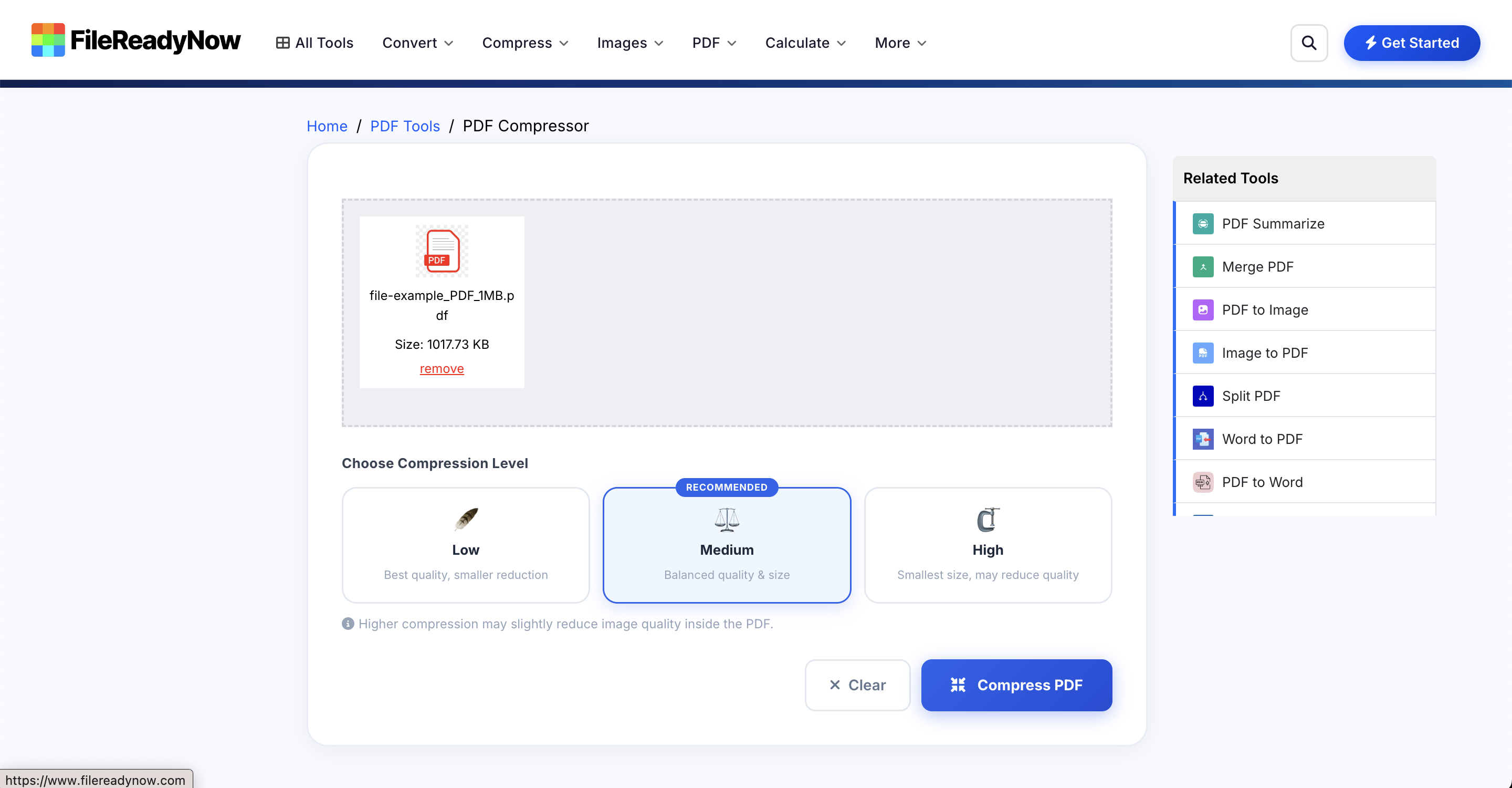
The cleanest fix happens before the PDF exists. Adobe suggests deciding whether an image needs the highest quality and compressing it before you add it, and using RGB color if the file will not be printed. If the PDF already exists, the PDF Compressor has three levels: Low (best quality, smaller reduction), Medium (balanced) and High (smallest size, may reduce quality). The tool notes that higher compression may slightly reduce image quality inside the PDF, and the page says text is stored as vectors so compression does not affect it. Our guide to choosing the right PDF compression level explains when to step up.
Could embedded fonts be making my PDF large?
Sometimes. The Adobe guide says embedding and subsetting fonts can noticeably increase file size, and that even one added font can make a big difference. A document that mixes many font families is the usual suspect, and the Audit space usage report shows the font share if you have Acrobat.
The fix belongs at export time. When you create the PDF, choose the subset option so only the characters you actually use are stored, and cut down the number of font families. Adobe also notes that using Save As to write a new file can keep the result smaller than saving changes over the same file again and again.
The PDF Compressor page does not say it changes fonts, so I would not count on it to shrink a file where fonts are the main cost. The before and after check below will show you quickly.
How do I check the result before and after?
A simple check takes a minute and tells you whether the fix worked.
- Note the original size in your file properties (right-click and choose Properties on Windows, or Get Info on a Mac), and keep the original file.
- Upload the PDF to the compressor, pick a level and run it. The result screen shows the original size, the compressed size and the percentage saved, plus a countdown after which the download expires, so save the file before it runs out. The page promises no particular percentage, so treat the sizes it reports as the real answer.
- Open the new file and zoom to 100 percent. Look at one photo and one line of text.
- Repeat the size-per-page sum from earlier. If the number is still high, move up one level or try a different fix from the table.
What if my PDF is still too big?
Try the next level up, then check the quality again. If only some pages are heavy, the Split PDF tool can pull out the pages or page ranges you need, and its page says it works in the browser without uploading files. Going the other way, the Merge PDF tool joins files into one, so a merged file starts from the combined size of its parts, which is my reasoning rather than a figure from the page. Compress the parts first.
If the target is an email limit, our guide to getting a PDF under 25 MB covers the common attachment limits step by step.
Does the PDF Compressor upload my file?
According to the tool page, yes. It says the file is uploaded to FileReadyNow's server over HTTPS, accepts PDF files only up to 250 MB, and deletes files automatically within 15 minutes. The page describes the exact deletion moment in more than one way, so read its security page if timing matters to you. FileReadyNow built this tool, so please treat those statements as the vendor's own and check them yourself.
- Open the PDF Compressor page, press F12 and select the Network tab.
- Clear the log, then compress a harmless test PDF with no personal details.
- Look for a request that sends your file. Its size should be close to the file you chose.
- Compare what you see with what the page says. Use a test file, not a sensitive one, until you are satisfied.
The Split PDF and Merge PDF pages describe their processing as happening in your browser, so the same test should show no file upload there.
Frequently asked questions
Why is my PDF so large when it only has a few pages?
A few pages can still be large because each page may be a high-resolution picture. Scanned pages, photos and embedded fonts add the most weight, not page count. Divide the file size by the page count: several megabytes per page usually points to images or scans, while a tiny figure means the document is simply long.
How do I find out what is taking up space in a PDF?
In Adobe Acrobat, choose Save as Other, then Optimized PDF, then Audit space usage. It lists text, images, fonts, forms and comments by size and share of the file. Without Acrobat, divide the file size by the page count and test whether you can select text, which separates scans from digital pages.
Will compressing a PDF make it look worse?
It can. The PDF Compressor page says text stays sharp because it is stored as vectors, while higher levels may slightly reduce image quality. The tool labels Low as best quality and High as smallest size. Image-heavy files and scans show the effect most, so compress, then zoom into a photo and a line of text before you send it.
Can I make a scanned PDF smaller?
Yes. If you can rescan, Adobe's help recommends 300 dpi for color or grayscale pages and 600 dpi for black and white, and notes that the color mode changes the compression method. If you only have the file, run it through a compressor, starting gently and moving up only if it is still too big.
Does FileReadyNow upload my PDF to compress it?
Yes. The PDF Compressor page says the file is uploaded over HTTPS to FileReadyNow's server and deleted automatically within 15 minutes. FileReadyNow built the tool, so verify it: open your browser's DevTools Network tab, compress a harmless test PDF, and look for the upload request before trusting any sensitive file.
Last updated: 23 November 2026.
Table of Contents
Recent Posts
Compress vs Merge vs Split PDF: Which Tool Do You Need?
2 days ago
BMI Calculator: What Your Result Means and What It Misses
3 days ago
PDF to Excel: Convert PDF Tables to XLSX, CSV or ODS Free
5 days ago
JPG to PNG: What It Fixes, What It Cannot, Transparency
1 week ago
PNG to JPG: What Happens to Transparency and File Size
1 week ago
JWT Decoder: Read a Token and Know What It Cannot Prove
1 week ago