Compress vs Merge vs Split PDF: Which Tool Do You Need?

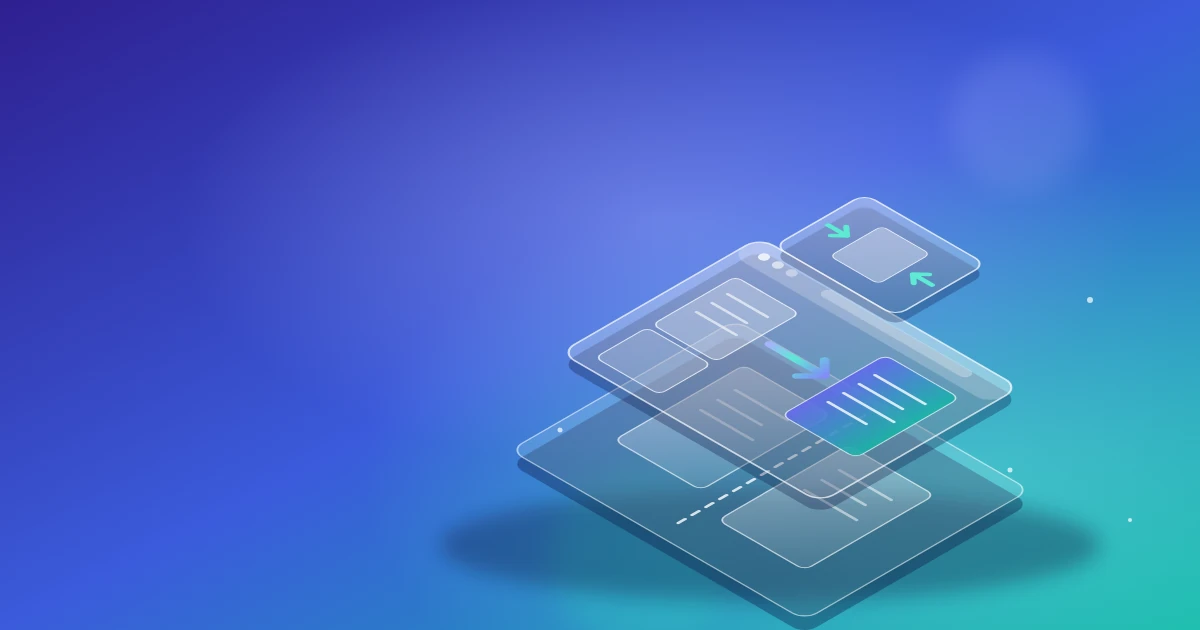
Pick PDF Compressor when a file is too big, Merge PDF when you have several files that should be one, and Split PDF when one file should become several or you only need some pages. FileReadyNow built all three tools, so read this as a guide from the maker. It sticks to what each tool page says and flags the rest as my own reasoning.
Which PDF tool solves which problem?
Match the tool to the symptom. Size problems go to the compressor, "too many files" goes to merge, and "too many pages" goes to split. The table summarises what each tool page states.
| Tool | Use it when | Limits on the page | Where it processes |
|---|---|---|---|
| PDF Compressor | The file is too large to upload or email | PDF only, up to 250 MB per file | On FileReadyNow's server (uploaded over HTTPS, deleted within 15 minutes, per the page) |
| Merge PDF | Several PDFs need to become one, in a set order | Up to 20 files, 50 MB each, 150 MB total | In your browser, per the page |
| Split PDF | You need certain pages, or one file in smaller parts | Up to 10 files, 50 MB each, 100 MB total | In your browser, per the page |
When should you compress a PDF?
Compress when the problem is file size and the pages are already right. The PDF Compressor offers three levels, Low (marked Recommended), Medium and High. The page says higher compression may slightly reduce image quality, and that text stays sharp because it is stored as vectors.
Email is the usual trigger. Gmail's help page gives 25 MB as the limit for personal accounts and says larger attachments are added as a Google Drive link instead. If the recipient needs a real attachment, compress first. If you are not sure why the file is big, Why Is My PDF File So Large? explains the common causes, and PDF Too Large to Email? walks through the email case.
When should you merge PDFs?
Merge when you already have the pages in separate files and want one document. You drop the files in, set the order, and click "Merge PDFs". The page's tip says to drag files to reorder them, and each file card also has a "Set File Order" box where you can type its position. The page says pages are combined without re-encoding, so original quality is kept, and that no separator pages or headers are added.
Each file card has its own "remove" link, so a wrong file can come out without clearing the list, and "Clear" empties everything. My own expectation, not a figure from the page, is that a merged file ends up about as large as the files you put in, because nothing is being recompressed. For a closer look at the browser-only side, see Merge PDFs Without Uploading Them.

When should you split a PDF?
Split when you only need part of a document, or when one file has to be cut into smaller parts. The page offers two modes: "Pick Pages By Range" (the page range field takes commas between pages or ranges) and "Every N Pages". Output can be "Separate files (ZIP)" or "Single PDF".
The page says pages are extracted without re-encoding, so quality is kept. It does not describe exactly how "Single PDF" behaves, so try it on a copy before you rely on it. If you only want to remove or keep pages, FileReadyNow also lists separate Delete PDF Pages and Extract PDF Pages tools.
In what order should you use them?
If you need more than one tool on the same document, this is the order I would use. It is my advice from how the tools work, not a rule from the tool pages.
- Remove or extract the pages you do not need first, so you handle less data in every later step.
- Merge next, once each part is final and in the right order.
- Compress last, on the finished file, so you only compress once.
There is one exception, and it comes straight from the page limits. Merge accepts 50 MB per file and 150 MB in total, while the compressor accepts up to 250 MB per file. If a file or the combined total is over the merge limits, compress the large files individually first, then merge.
Which of these tools upload your file?
The three tools do not work the same way, and the pages say so. Merge PDF and Split PDF both state that your file never leaves your device and is processed in your browser. The PDF Compressor states that it uploads your file to FileReadyNow's server, sends it over HTTPS and deletes it within 15 minutes.
Do not take any of that on trust, including from the people who built the tools. You can check it in a minute with a harmless test PDF, not a real document:
- Open the tool page, then open your browser's DevTools and go to the Network tab.
- Clear the list, add the test PDF and run the tool.
- Look for a request that carries your file. For Merge and Split, the page says you should not see one. For the compressor, you should.
If a tool behaves differently from its page, treat the page as wrong and tell us. For anything sensitive, a tool that processes in your browser removes the upload question entirely.
Frequently asked questions
Should I compress, merge or split a PDF first?
Remove or split out unwanted pages first, merge next, and compress last. Removing pages early means less data to handle, and merging keeps pages as they are, so one compression pass on the final file is enough. This is my suggested order, not a rule from the tool pages.
Does merging PDFs reduce quality?
The Merge PDF page says pages are combined without re-encoding, so original quality is kept. My own expectation is that the merged file is roughly as large as the files you put in. If the result is too big to send, run it through the PDF Compressor afterwards.
Which of these tools upload my file?
According to the tool pages, Merge PDF and Split PDF process files in your browser, while the PDF Compressor uploads your file over HTTPS and deletes it within 15 minutes. You can check any of them in your browser's DevTools Network tab using a harmless test file.
Why will my PDF not attach to an email?
It is probably over the attachment limit. Gmail's help page gives 25 MB for personal accounts and says larger attachments are added as a Google Drive link instead. If you need a real attachment, compress the file, or split it into parts that each stay under the limit.
Can Split PDF give me one file instead of many?
The tool page lists two output options, "Separate files (ZIP)" and "Single PDF". You choose pages by range or split every N pages. The page does not spell out how "Single PDF" works, so test it on a copy of your document before using it on something important.
Related tools and reads
Try the PDF Compressor, Merge PDF or Split PDF directly. To pick a compression level, read PDF Compressor Online Free: Choose the Right Compression Level.
Sources: FileReadyNow's PDF Compressor, Merge PDF and Split PDF tool pages, read on 24 November 2026. Google, Gmail Help: Send attachments with your Gmail message, accessed 24 November 2026.
Last updated: 24 November 2026.
Table of Contents
Recent Posts
Why Is My PDF File So Large? Causes and Fixes
2 days ago
BMI Calculator: What Your Result Means and What It Misses
3 days ago
PDF to Excel: Convert PDF Tables to XLSX, CSV or ODS Free
5 days ago
JPG to PNG: What It Fixes, What It Cannot, Transparency
1 week ago
PNG to JPG: What Happens to Transparency and File Size
1 week ago
JWT Decoder: Read a Token and Know What It Cannot Prove
1 week ago