PDF Compressor Online Free: Choose the Right Compression Level Every Time

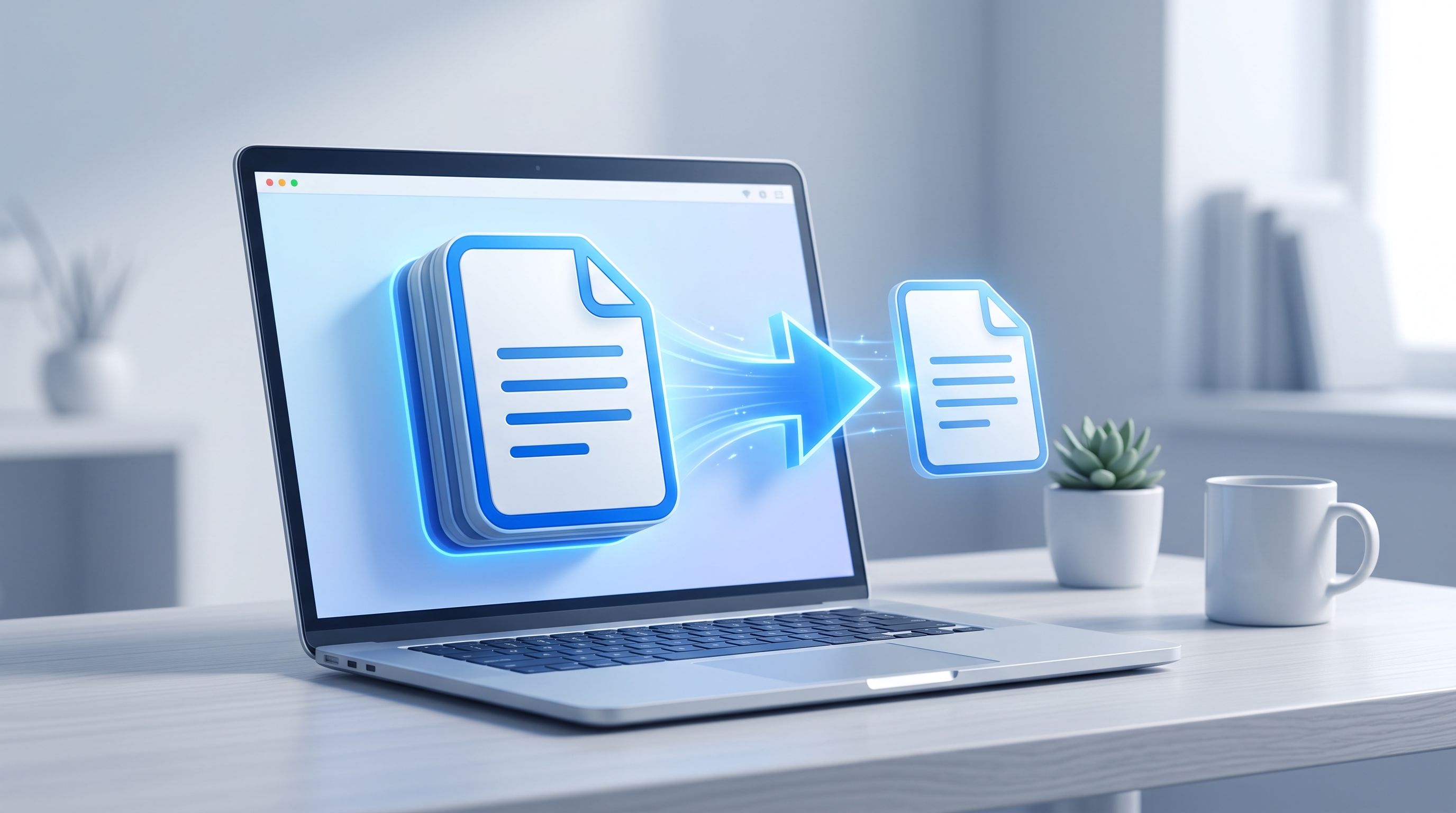
A job portal once rejected my resume PDF for being 400KB over its 5MB cap, which is a strange thing to get rejected for. I ran it through FileReadyNow's PDF Compressor, picked Medium, and had it under the limit in under ten seconds without the text losing any sharpness. The portal accepted it on the next try.
That's a small example of a problem this tool solves constantly: PDFs that are bigger than they need to be, for reasons that have nothing to do with how much you actually need to read them. Here's how the compression levels work, what actually gets removed, and where the size limits are.
How to Compress a PDF Online for Free
Upload your PDF, choose a compression level, and download the smaller file. The whole process runs in a browser tab with no software to install.
The steps in order:
- Drag your PDF onto the upload area, or click Browse. Files up to 250MB.
- Choose a compression level: Low, Medium, or High.
- Click Compress PDF and watch the progress bar.
- Check the original vs. compressed size shown, then download.
No account is required, and the uploaded file plus the compressed output are both deleted from the server once the download link expires.
Low, Medium, or High: Which Compression Level Should You Pick?
Low keeps image quality closest to the original and trims the file by a modest amount, the right call when a PDF has photos or diagrams that matter. Medium balances size against quality and works for most everyday documents, contracts, reports, slide decks. High pushes the file as small as possible and is built for text-heavy documents where image sharpness isn't the priority.
If you're not sure which to pick, Medium is the safe default for almost anything. Reach for Low specifically when a document is mostly visual, a portfolio, a photo-heavy report, anything where a viewer will notice softer images. Reach for High when the content is mostly text and the goal is squeezing under a strict upload limit.
What Actually Happens to the File When You Compress It?
The compressor lowers the resolution of embedded images to a level that still looks sharp on screen and in print, strips out hidden metadata left behind by whatever app created the PDF, and cleans up the internal file structure. Text is untouched throughout this process.
That last part matters more than it might seem. Text in a PDF is stored as vectors, mathematical descriptions of shapes, not as pixels, so compressing the file has no effect on how sharp the text looks. Only the image data gets reduced. A contract that's mostly paragraphs of text will barely shrink from image compression alone, since there's little image data to compress in the first place, while a scanned document or a photo-heavy report will shrink dramatically, since that's where the actual file weight sits.
Can I Compress a PDF Down to 1MB?
In many cases, yes, depending on the original file's size and content. A document with large embedded images or scanned pages may need High compression to get there, which can visibly soften image quality, while a text-heavy document reaches 1MB comfortably at Medium or even Low.
There isn't a way to force an exact target size, the tool applies the compression level you choose rather than working backward from a size goal. If the result is still larger than you need, running it through again at a higher compression level, or starting over at High instead of Medium, gets you closer.
Why Do Some PDFs Compress More Than Others?
Because file size in a PDF comes almost entirely from images, not text. A scanned document is essentially a folder of high-resolution photos wearing a PDF file extension, so it compresses heavily. A five-page text contract with no images has almost nothing for the compressor to work with, so it stays close to its original size no matter which level you choose.
If a document doesn't shrink much after compressing, that's usually a sign it was already lean, not that the tool underperformed.
Is It Safe to Upload My PDF to Compress It?
Yes. File transfers use SSL/TLS encryption, and both your uploaded PDF and the compressed output are automatically removed from the server once the download link expires. Nothing is stored or shared beyond that window.
Generating a compressed file this way runs on the server rather than entirely inside your browser, since real image recompression at this scale needs more processing power than a browser alone provides. For a resume, a report, or a slide deck, that's a non-issue. For a document with genuinely confidential content, that's the same trade-off any server-based PDF compressor makes, and it's worth knowing before you upload something sensitive.
What Do People Actually Use This For?
Anywhere a file size limit gets in the way of sending or uploading something that should be simple:
- Email attachments: Gmail caps attachments at 25MB. Compress first, then attach without the file bouncing back.
- Job applications: many HR portals cap resume uploads at 2 to 5MB. A compressed CV clears the limit without a second attempt.
- Client files: a smaller PDF opens faster on a phone or tablet, which matters when a client is reviewing it on the go.
- Cloud storage: ten compressed PDFs take up roughly the space of one uncompressed file, which adds up fast in a shared drive.
- Messaging apps: WhatsApp and Telegram both cap file sizes on mobile. A compressed PDF sends on the first try instead of failing silently.
If your PDF also needs pages removed or split into separate files before compressing, FileReadyNow's Split PDF and Delete PDF Pages tools handle that first.
Is This Better Than Compressing a PDF on Mac or in Adobe?
Mac's built-in Preview app can reduce PDF file size, but results vary and there's no control over how aggressive the compression is. Adobe's tools offer more advanced settings but usually sit behind a subscription for anything beyond occasional use.
This tool sits in between: more consistent and controllable than Preview's built-in reduction, without Adobe's subscription or learning curve. For someone who needs a smaller PDF now and doesn't want to manage software or a paid plan for it, that's the appeal.
Do I Need an Account to Use This Tool?
No. There's no signup and no limit on how many files you compress. Upload a PDF, choose a level, download the result, repeat as many times as you need.
The one real limit is file size on the way in, up to 250MB per upload, which covers nearly anything you'd realistically need to send or store.
Frequently Asked Questions
Is the PDF Compressor really free?
Yes, with no signup and no limit on how many PDFs you compress.
Will compressing affect my text quality?
No. Text is stored as vectors, not pixels, so compression only affects embedded images, never the text itself.
What's the maximum file size?
250MB per upload.
Which compression level should I use for a resume?
Medium usually gets a resume under most job portal limits while keeping any headshot or design elements sharp. Use High if the resume is text-only and needs to be as small as possible.
Is my file stored after I download it?
No. Both the uploaded PDF and the compressed output are deleted from the server once the download link expires.
Can I compress the same PDF more than once for extra size reduction?
Yes, though most of the size reduction happens on the first pass. Running it again at a higher level squeezes out a bit more if needed.
Conclusion
Most PDFs are carrying more file weight than the content actually needs, usually from images, metadata, or formatting left over from whatever created the file. FileReadyNow's PDF Compressor strips that weight out in seconds, whether the goal is clearing an email attachment limit or getting a resume past an HR portal's upload cap. Next time a file size warning gets in the way, compress it and move on.
Table of Contents
Recent Posts
Base64 to PDF: How to Convert a Base64 String Into a PDF (Free)
1 day ago
Merge PDFs Without Uploading Them: Free, In-Browser Method
4 days ago
How to Resize an Image to 100 KB (or Any Target File Size)
5 days ago
PDF Too Large to Email? How to Get It Under 25 MB
6 days ago
How to Make Pixel Art Online: Beginner Guide (Free Tool)
1 week ago
PNG vs HEIC: Which Is Smaller, and Should You Convert?
1 week ago