Compress PDF Online Free: Shrink PDFs Instantly

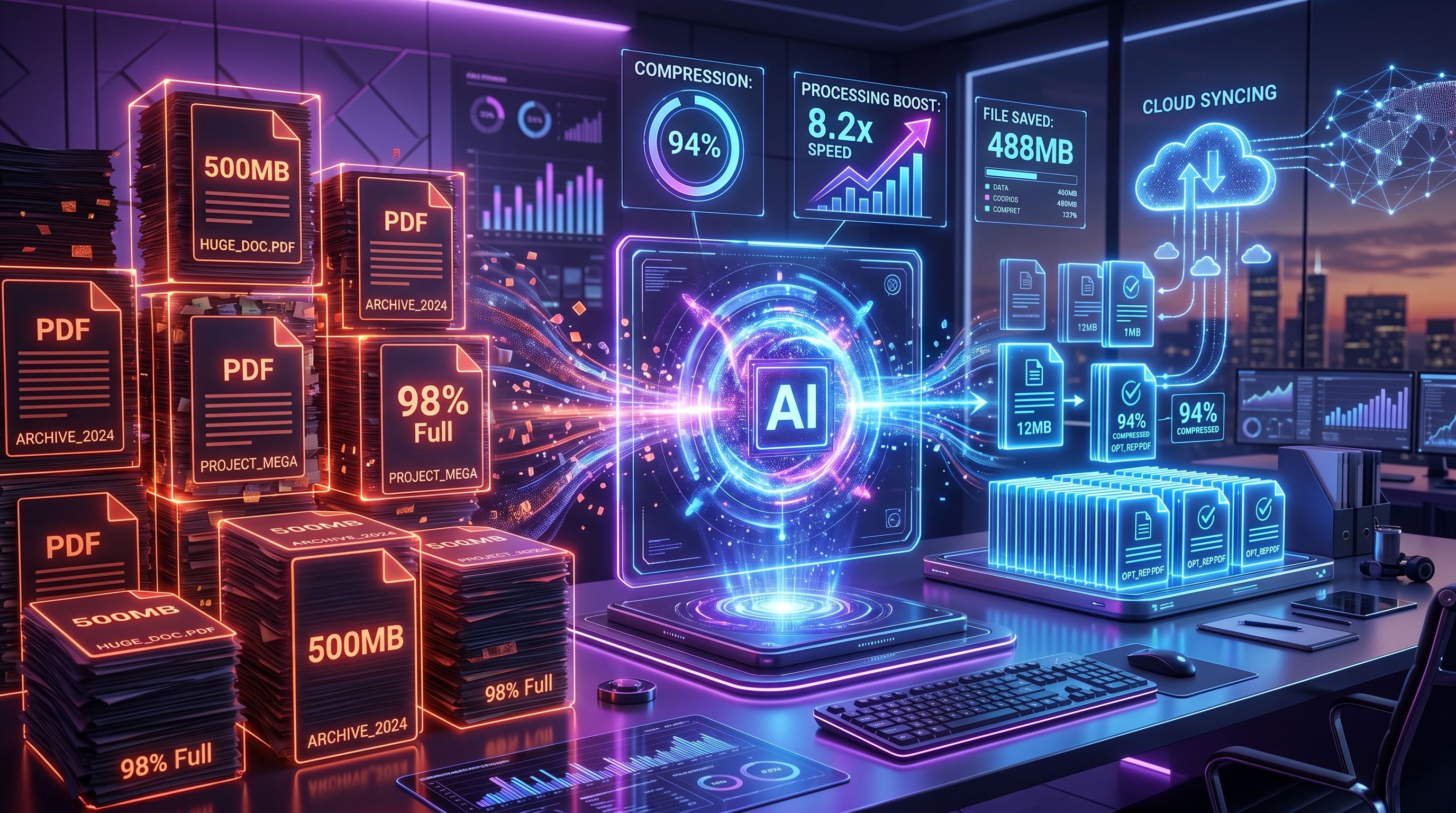
TL;DR: FileReadyNow’s free PDF Compressor shrinks PDF files up to 250MB with three compression levels (Low, Medium, High). Text stays sharp, only image data gets reduced. No software install, files auto‑delete. You need a free account. Try the PDF Compressor now.
A PDF that’s too large to email is a real headache. Last week I tried to attach a scanned contract, 12MB, and it bounced. I headed to FileReadyNow’s online PDF Compressor, picked Medium compression, and pulled down a 0.9MB file, still perfectly readable. If you need to send reports, forms, or presentations without hitting attachment limits, this tool solves that problem in a couple of clicks.
It works right in your browser, no downloads or installs. You just create a free account, upload your file, choose how much to shrink, and download the cleaned‑up version. The whole process takes seconds for most documents. Plus, the original stays untouched.
How Do I Compress a PDF to a Specific Size Like 1MB?
You can get close to 1MB, but the final size depends heavily on your PDF’s content. The tool automatically picks the best compression to hit a small target, but it doesn’t guarantee exactly 1MB. Plain text files often hit that mark easily; a scanned book with lots of images might stop around 1.5 MB to keep things legible.
If you really need to push the size down, choose the High compression level. It will reduce image quality more aggressively. For most mixed‑content documents, the result lands close to your expectation, and you can always try again with a different level if the first attempt feels too compressed.
Will Compressing PDF Affect Text Quality?
No. Text inside PDFs is stored as vectors, not pixels, so compression never touches the letters. Words, numbers, and fonts stay razor‑sharp at any compression level. Only embedded images (photos, scanned pages) may show a slight drop in quality when you pick Medium or High.
That means a text‑heavy contract or invoice will look identical after shrinking. If your PDF is a scan, you might notice minor softening in High mode, but the text remains readable. Stick to Low if the original images must remain pixel‑perfect.
PDF Compressor vs Adobe: Which Is Better for Quick Shrinking?
If you need to shrink a PDF fast without a subscription, complex settings, or software install, FileReadyNow’s PDF Compressor is the straightforward pick. Adobe Acrobat packs a lot of power, but Adobe’s compression often lives behind a paywall and comes with a toolbox of options most people never touch.
FileReadyNow’s tool gets you the same visual outcome for everyday files, with clear Low‑Medium‑High levels and no clutter. The trade‑off: you won’t get Acrobat’s detailed pre‑press controls. But if you just want to email a PDF or upload it to a portal, that trade‑off is worth it.
How to Use the PDF Compressor in 3 Steps
1. Sign up and upload. After your free signup, drag your PDF (up to 250MB) onto the upload area. The tool accepts scanned documents, exports from word processors, and mixed‑content files.
2. Pick a compression level. Choose Low for top quality, Medium for a balanced result, or High for the smallest file. The interface marks Medium as the recommended sweet spot.
3. Compress and download. Click “Compress PDF” and watch the progress bar. In seconds, a download link appears. Grab your smaller file and you’re done, the original stays as is.
Three Compression Levels Explained
Every PDF reduction happens by trimming excess image data while leaving text unchanged. The three levels let you decide how much to trim.
| Level | Quality | Best for |
|---|---|---|
| Low | Excellent, nearly lossless | Printed materials, image‑heavy brochures where every detail counts |
| Medium (Recommended) | Very good, minimal visible change | Reports, presentations, mixed‑content PDFs you need to email or share online |
| High | Fair, may soften images | Quick web uploads, attachment size limits, where speed matters more than pixel fidelity |
Testing a scan on Medium, I couldn’t spot any difference from the original on a normal screen. Only when I switched to High did some fine print in charts look slightly less crisp.
The online PDF compressor handles files up to 250MB, deletes everything after you download, and works on any device. Next time you hit that “file too large” wall, skip the workarounds. Sign up for free, visit the compressor, and you’ll have a leaner PDF in under a minute. If you need to merge, split, or convert PDFs, explore more Pdf Tools on FileReadyNow.
Frequently Asked Questions
How do I compress a PDF on a Mac without installing software?
You can compress a PDF on Mac without Preview or any downloads. Just go to FileReadyNow’s PDF Compressor, sign up for free, upload your file, choose a level, and download the smaller version. It gives you more consistent size control than Preview’s “Reduce File Size” option, plus it works across Windows, Chromebook, and mobile browsers.
Can I compress a PDF to exactly 1MB?
You can get very close, but the tool does not guarantee an exact 1MB output. It applies the best compression to shrink as much as possible while keeping the document readable. Text‑only PDFs often land well under 1MB. Image‑heavy scans might end up slightly larger; using the High level gives you the smallest size.
Is this PDF compressor better than Adobe’s tool?
This tool is simpler and faster for everyday needs. Adobe Acrobat gives you fine‑tuned controls and presets, but it requires a subscription and a heavy desktop app. FileReadyNow’s compressor handles 99% of the same files with zero friction: pick a level, click, and you’re done. For quick, free compression, it’s often the better choice.
Will compressing my PDF ruin the text?
No, text stays perfect. PDF text is stored as mathematical outlines, so compression never blurs or alters it. Only embedded images may lose some detail when you use Medium or High levels. Even then, the text on scanned pages remains legible, and you can always choose Low to keep images pristine.
Are my uploaded PDFs secure and private?
Yes. Files are processed over an encrypted connection (256‑bit), and they are automatically deleted from the server after the download link expires. FileReadyNow does not store or access your documents permanently. Nothing lingers on the backend.
Table of Contents
Recent Posts

PDF to JPG Blurry? How to Convert a PDF Page With Sharp Text
5 days ago
HEX vs RGB vs HSL vs CMYK: Which Color Code Should You Use?
1 week ago
Video Converter Online Free: Which Format to Pick and Why
2 weeks ago
Audio Trimmer Online Free: Cut, Keep, or Remove Any Section
2 weeks ago
How Strong Should Your Password Actually Be in 2026?
3 weeks ago
HEIC vs JPG: Which Should You Actually Use?
1 month ago