Convert WEBP to PNG on Mac Without Photoshop

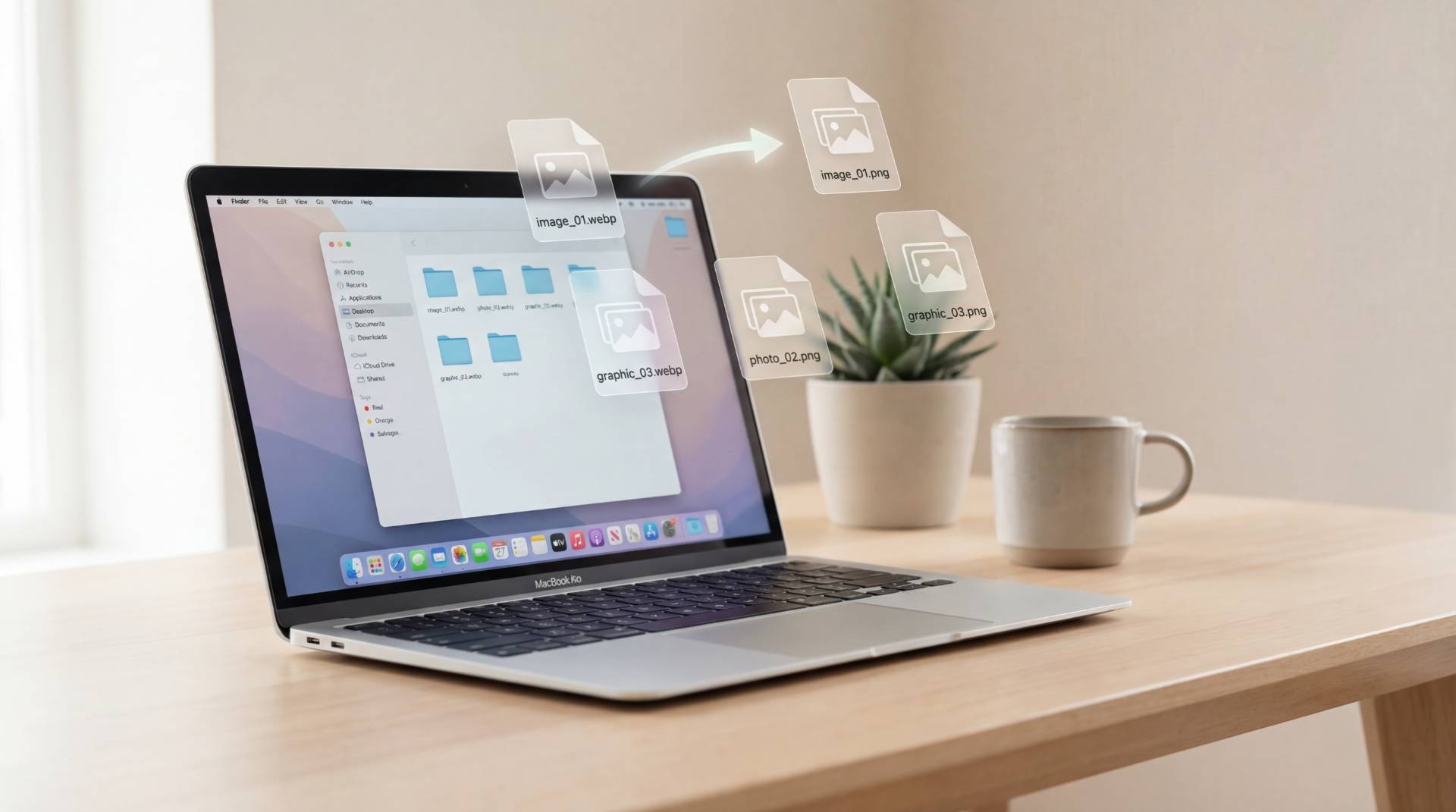
You download an image, double-click it, and macOS just kind of stares back at you. That’s usually when you realize it’s a WebP.
You grab an image from the web, drop it into a design project, and suddenly things stop cooperating. Some apps don’t like it. Some websites won’t accept it. And now you’re stuck with a file that looks fine but won’t behave.
That’s where PNG comes in. It’s old, reliable, and compatible with basically everything. So when you need to change WebP to PNG on a Mac, the real question becomes: how do you do it quickly without buying Photoshop or installing something sketchy?
Good news, macOS already has what you need. And for bigger batches, there are clean, modern options too.
Why WebP Exists (and Why It’s Still Annoying)
Before we start converting anything, it helps to know what we’re dealing with.
WebP was created by Google to solve a real problem: images were too big, and websites were too slow.
WebP compresses images more efficiently than PNG or JPG, which is why so many developers ask: Does WebP load faster than PNG? In most cases, yes. WebP files are often 25–35% smaller while keeping similar visual quality. That means faster page loads and less bandwidth.
But smaller doesn’t always mean better.
Design software, print shops, email tools, and CMS platforms still love PNG. It’s predictable. It’s universal. It doesn’t randomly break. Which is why people keep needing to webp convert to png, even now.
How to Convert WEBP to PNG on Mac (The Simple Way)
This is the method most Mac users never realize they already have.
Use Preview (Built into macOS)
No downloads. No signups. Just your Mac.
- Right-click the WebP file
- Choose Open With → Preview
- In the menu bar, click File → Export
- In the format dropdown, choose PNG
- Click Save
That’s it. You’ve just converted a WebP to PNG using software that’s been sitting on your Mac this whole time.
For one or two images, this is perfect. But what if you’ve got 30 screenshots? Or a whole folder of assets? Yeah… clicking that many times gets old fast.
How to Convert WebP to PNG in Bulk on Mac
When people search for WebP to PNG bulk conversions, what they’re really asking is: “How do I do this once, not 100 times?”
Option 1: Use a Lightweight Online Converter
If you want bulk conversion without touching Terminal, an online tool is usually the sweet spot.
Something like WEBP to PNG of FileReadyNow is built for exactly this: drop in a folder of WebP files, get clean PNGs back, and move on. No watermarks. No weird filenames. Just images that work.
You won’t need it every day — but when you do, it saves a ridiculous amount of time.
Option 2: Terminal (Fast but Not Friendly)
If you’re comfortable with command lines, macOS can handle bulk conversion using ImageMagick.
magick *.webp *.pngEvery WebP file in that folder becomes a PNG. It’s fast. It’s powerful. It’s also a bit much if all you wanted was to resize a logo.
When Should You Actually Use PNG Instead of WebP?
Just because you can change WebP to PNG doesn’t always mean you should.
Use PNG when:
- You need transparency (logos, UI elements)
- You’re uploading to platforms that don’t accept WebP
- You’re sending files to clients, printers, or designers
- You’re editing images in apps that don’t handle WebP well
Stick with WebP when:
- You’re running a website
- You want smaller file sizes
- The platform supports it cleanly
WebP is great for the web. PNG is great for everything else.
Common Problems (and How to Avoid Them)
“My PNG looks blurry.”
That’s because the original WebP was already compressed. Conversion doesn’t bring lost detail back.
“The file got bigger.”
Totally normal. PNG uses a different compression method.
“Some apps still won’t open it.”
Make sure the export format was truly PNG. Preview handles this properly when you export.
A Quick Reality Check
You don’t need Photoshop. You don’t need expensive software. You don’t even need to be technical.
macOS already gives you the basics. And when you need to convert a whole batch, something like WEBP to PNG of FileReadyNow keeps it simple without turning it into a project.
No drama. No complexity. Just get the file into the format you need, and get back to what you were doing before WebP interrupted your day.
Table of Contents
Recent Posts

PDF to JPG Blurry? How to Convert a PDF Page With Sharp Text
5 days ago
HEX vs RGB vs HSL vs CMYK: Which Color Code Should You Use?
1 week ago
Video Converter Online Free: Which Format to Pick and Why
2 weeks ago
Audio Trimmer Online Free: Cut, Keep, or Remove Any Section
2 weeks ago
How Strong Should Your Password Actually Be in 2026?
3 weeks ago
HEIC vs JPG: Which Should You Actually Use?
1 month ago