Free Online Pixel Art Maker: Create Stunning Pixel Art

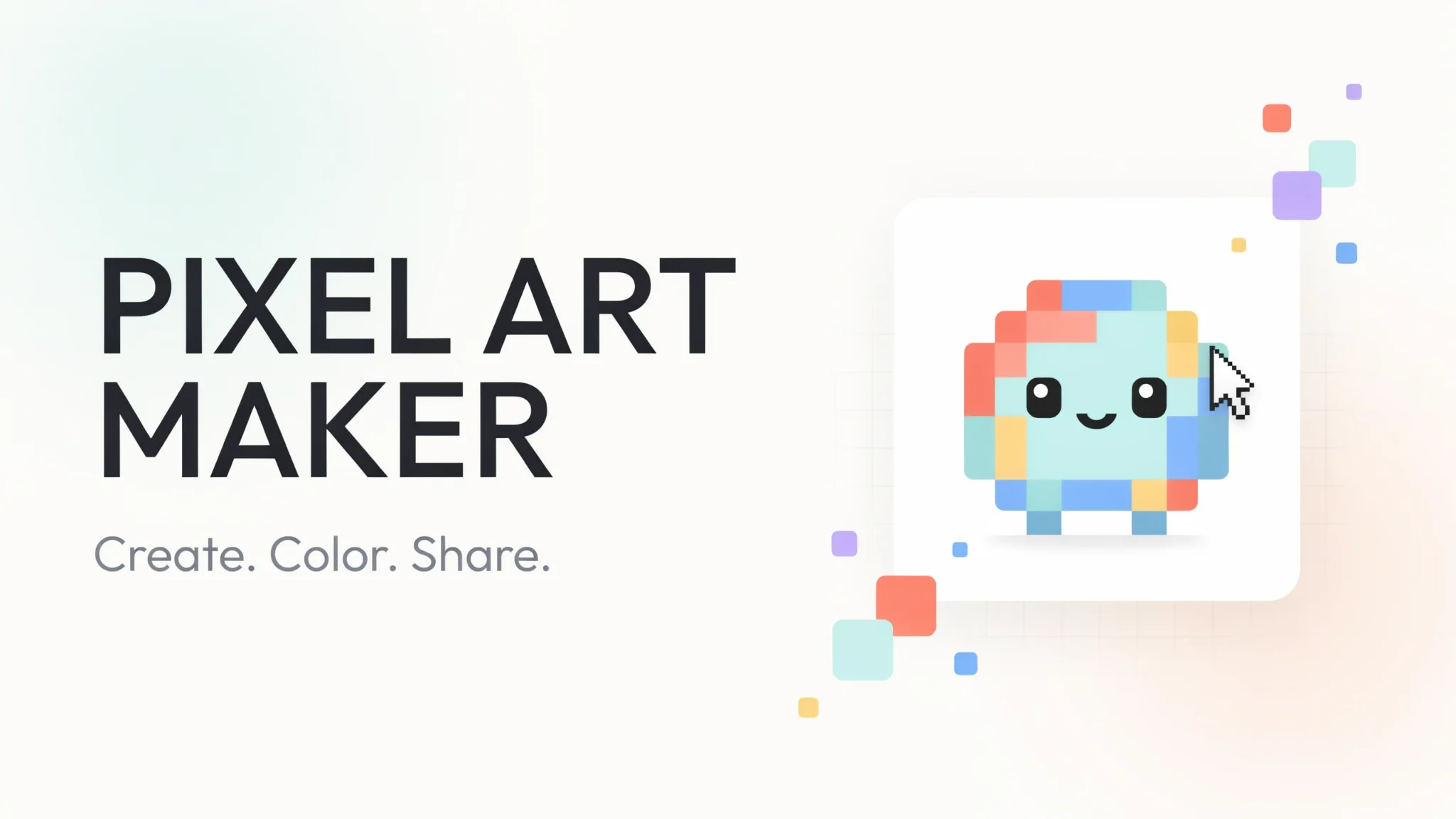
TL;DR: FileReadyNow's free Pixel Art Maker lets you draw pixel art right in your browser, no install or signup needed. Choose a grid up to 64x64, pick colors from a full palette, use Draw/Fill/Erase, and download your design as a crisp transparent PNG. Start from a blank canvas or use one of a dozen quick-start templates. Perfect for icons, avatars, and tiny digital art.
Sometimes you need a tiny, crisp graphic and you don't want to open Photoshop or sign up for yet another service. That's exactly where a browser-based pixel editor shines. FileReadyNow's Pixel Art Maker gives you a simple grid, a full colour palette, and a handful of drawing tools, all right on the web page. You visit, you draw, you download. No watermarks, no account walls.
I recently needed a custom folder icon for a shared project. I opened the tool, picked the 16x16 grid, used the star template as a starting point, changed two colours, and exported a PNG in under two minutes. It felt like colouring a digital crossword, but with immediate, useful results.
How to Make Pixel Art Online for Free
Open the pixel art grid maker in any modern browser. Pick a grid size between 8 and 64 pixels. Choose a colour from the palette or use the custom colour wheel. Click any square to fill it, then switch to the Fill bucket to colour larger areas or the Erase tool to correct mistakes. When your design looks right, hit Download PNG to save it to your device. It's completely free and works without creating an account.
Here's the typical workflow:
- Set the grid dimensions. 16x16 and 32x32 are great starting points.
- Optionally, click a quick-start template like a heart, smiley face, or mushroom. The template instantly populates the grid with a base pattern you can edit.
- Use the Draw tool (pencil icon) to add individual pixels, the Fill tool (paint bucket) to flood an area with one colour, and the Eraser to clean up.
- Tweak colours from the palette presets (Game Boy green scale, NES retro, Commodore 64, soft Pastels, Earth Tones) or your own recent colours.
- Toggle "Show Grid Lines" and "Transparent Background" under download options before exporting.
- Click Download PNG. A file saves instantly, ready to use anywhere.
What Grid Size Should I Use for Pixel Art?
The right grid size depends on what you're making. Small grids like 16x16 are perfect for simple icons and favicons. A 32x32 grid gives you enough room for avatars and detailed small objects. For something more elaborate, like a full scene or a character with shading, go with 48x48 or the maximum 64x64. The tool's grid slider lets you adjust from 8 up to 64 in one step.
| Grid Size | Best For | Level of Detail |
|---|---|---|
| 8x8 | Tiny icons, symbols, badges | Very limited, blocky style |
| 16x16 | Favicons, simple icons, small labels | Clear shapes, two or three colours |
| 32x32 | Avatars, social media icons, buttons | Moderate detail, basic shading |
| 48x48 | Characters, objects, small illustrations | Fine features, multi-colour shading |
| 64x64 | Detailed scenes, complex icons | High detail, smooth colour transitions |
Keep in mind the grid only goes to 64x64. If you need poster-size pixel art, you'll export and scale the PNG later, but the built-in editor is designed for compact, sharp designs.
What File Format Does the Pixel Art Download In?
The pixel art saves as a PNG file. PNG keeps the hard edges of pixel art perfectly crisp. Unlike JPEG, it doesn't introduce blurry compression artifacts around sharp colour blocks. It also supports transparency, so you can toggle a transparent background and drop your icon onto any coloured surface without a white square behind it.
When you click Download, you get four quality options: Low (5px per pixel), Medium (10px per pixel), High (20px per pixel), and Very High (30px per pixel). These control how large each pixel appears in the downloaded image. A 16x16 grid downloaded at High quality becomes a 320x320 pixel PNG, still blocky and pixel-perfect but sized up for modern screens. Low quality keeps the file tiny. Transparent Background removes the white canvas layer, so only the coloured pixels remain.
How to Make Pixel Art for Beginners
Start with a small grid like 16x16 and pick a quick-start template. Click the heart, star, smiley face, or tree. This gives you a ready-made shape to experiment with instead of facing a blank grid. Use only two or three colours at first. The Fill bucket makes it easy to swap colours across the whole shape, and the Undo button (arrow pointing left) is your best friend while you try different combinations.
After you feel comfortable editing a template, clear the grid (Clear All) and try drawing something from scratch with the pencil tool. Stick to a limited palette, like the Pastel or Earth Tones presets, so you don't overthink colour choices. As you gain confidence, increase the grid to 32x32 and start adding simple shading with a slightly darker version of your base colour.
Can I Design Icons and Avatars with a Pixel Art Maker?
Yes, absolutely. A pixel art grid is ideal for crafting small, sharp icons, user avatars, browser favicons, and social media badges. The 32x32 grid with a transparent background export gives you a clean, professional-looking result that fits profile picture dimensions perfectly. You can design a tiny house for a real estate app, a musical note for a playlist icon, or a rocket for a launch button, all using the built-in templates as jump-off points.
I used the mushroom template to make a quick icon for a gardening blog sidebar. I recoloured the cap red, changed the stem to a lighter shade, and downloaded it with a transparent background. It looked hand-crafted, not generic. The symmetry mode also helps when you need both sides of an icon to mirror each other, like a smiley face or a badge.
Start Making Pixel Art Right Now
You don't need expensive software or login credentials. Open the Pixel Art Maker, pick a template or a blank grid, and start clicking. In a few minutes you'll have a custom PNG built pixel by pixel. Download as many as you want, every single one free of watermarks and limits. When you're done, explore more free Productivity Tools on FileReadyNow, from image converters to PDF editors, all running in your browser. Head over to the Pixel Art Maker now and bring your tiny ideas to life.
Frequently Asked Questions
How do I make pixel art online for free?
Open the pixel art maker, set your grid size between 8 and 64, pick a colour, and click squares to fill them. Use the Draw, Fill, and Erase tools to refine your art. Click Download PNG to save it. No signup or software needed.
How do I make pixel art for beginners?
Choose a small grid like 16x16 and click a quick-start template (heart, star, smiley). Limit yourself to two or three colours. Experiment with the Fill and Draw tools, and use Undo liberally. Templates give you a base to learn on without starting from nothing.
What grid size should I use for pixel art?
16x16 works well for simple icons and favicons. 32x32 suits avatars and small objects. 48x48 and 64x64 allow for detailed shading and full scenes. The slider adjusts from 8 to 64, so you can test sizes instantly.
What file format does the pixel art download in?
It downloads as a PNG file, which keeps pixel edges sharp and supports transparent backgrounds. You can select download quality (Low to Very High) to control the final image size while maintaining the pixel-perfect look.
Is the pixel art maker completely free?
Yes, it's free with no account required. You can create and download unlimited pixel art designs. There are no watermarks, charges, or hidden limits.
Table of Contents
Recent Posts
PDF to JPG Blurry? How to Convert a PDF Page With Sharp Text
5 days ago
HEX vs RGB vs HSL vs CMYK: Which Color Code Should You Use?
1 week ago
Video Converter Online Free: Which Format to Pick and Why
2 weeks ago
Audio Trimmer Online Free: Cut, Keep, or Remove Any Section
2 weeks ago
How Strong Should Your Password Actually Be in 2026?
3 weeks ago
HEIC vs JPG: Which Should You Actually Use?
1 month ago