Free Online Video Converter: Convert Videos Without

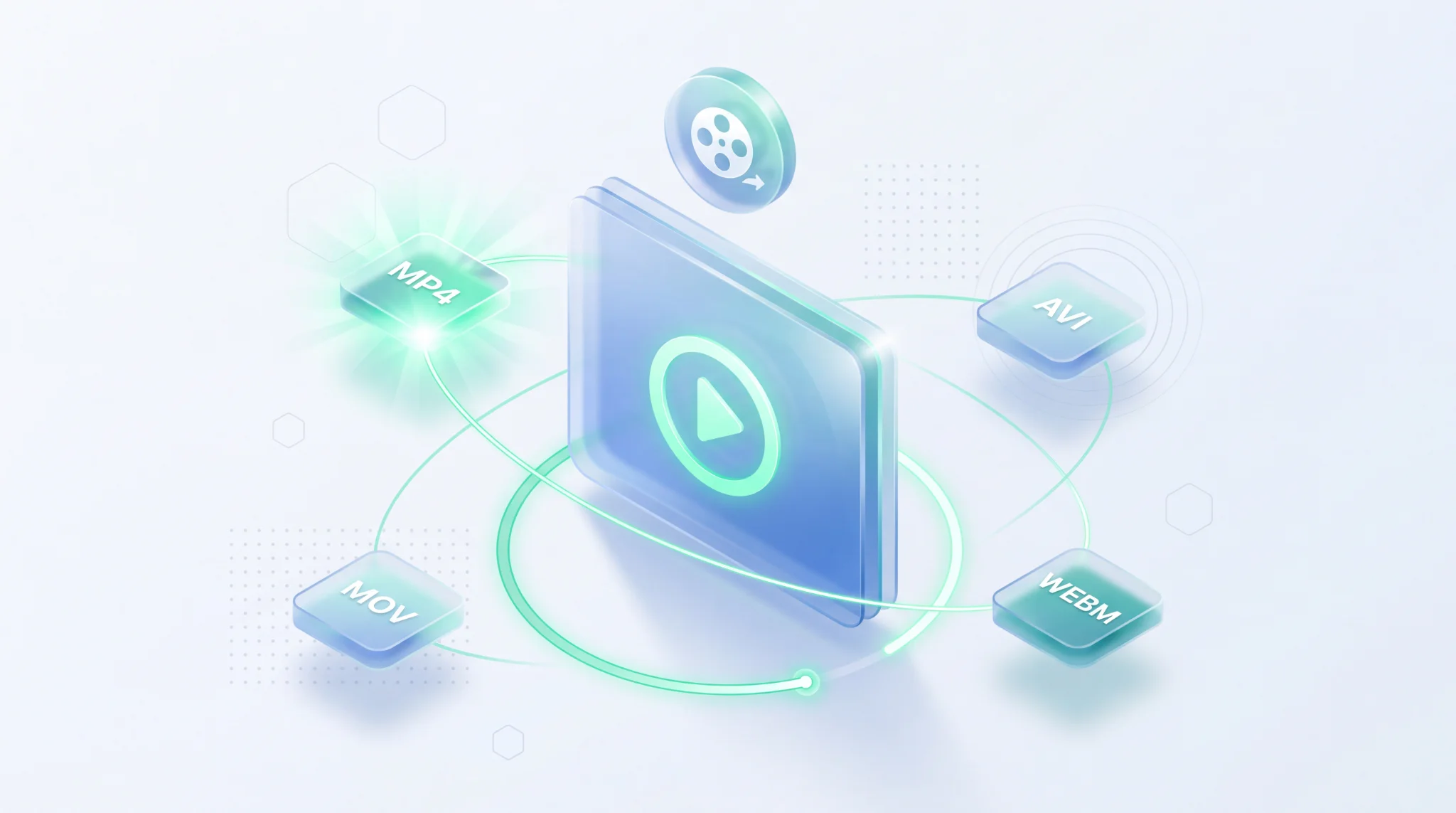
TL;DR: FileReadyNow's Video Converter is a free, no-signup online tool that changes your video's file type without hurting quality. Upload up to 500 MB, pick from MP4, AVI, MOV, MKV, WebM, or FLV output, tweak resolution and audio codec if you like, and download a ready-to-use file. No installations. No watermarks.
You shot a video on your phone. It's crisp, perfect. But your editing app won't open it. Or the file size feels too big to share. That's where the free online video converter from FileReadyNow steps in. It's a browser-based translator that rewrites your video into a format your device, software, or social platform actually understands. No slow installs. No email wall. Just upload, pick a format, convert, and download.
Why Do You Need a Video Converter?
Different devices, apps, and websites accept different video formats. A video that plays perfectly on an iPhone might be ignored by Windows Media Player or rejected by a website's upload form. Converting changes the container format while keeping the actual picture and sound intact. It's like translating a document into another language: the message stays the same, but now a new audience can read it.
Here are a few everyday reasons you might convert a video:
- Sharing a family clip from an Android phone with an iPhone user.
- Preparing a MOV file for a client who needs MP4.
- Compressing a large AVI into a smaller WebM for faster streaming.
- Making a video compatible with a specific software, like a video editor or a presentation tool.
FileReadyNow's converter handles all these headaches in seconds, directly in your browser.
How to Convert a Video Online (Without Any Signup)
Grab your video file and follow these steps. The whole process takes less than a minute for most clips.
- Go to the Video Converter tool page.
- Drag and drop your video onto the upload area, or click to browse. You'll see the file size, format, duration, and resolution appear right away.
- Open the "Output Format" dropdown and choose your target. MP4 works everywhere. WebM is ideal for websites. MOV suits Apple ecosystems.
- (Optional) Expand Advanced Settings to tweak resolution, quality, and audio codec, or to strip audio entirely.
- Click "Start Conversion" and wait briefly. A progress bar keeps you informed.
- Once done, hit "Download" right away. Your converted file stays available for 5 minutes, then it's deleted from the server.
That's it. Nothing to install. No account to create. Just a working video file.
What Video Formats Are Supported?
You can upload almost any common video file. The tool reads MP4, AVI, MOV, MKV, WEBM, FLV, and more. For output, you pick exactly what you need from this list:
| Output Format | Best For |
|---|---|
| MP4 | Universal playability, social media, phones, TVs |
| WEBM | Websites, HTML5 video, smaller file size |
| MOV | Apple devices, QuickTime, iMovie projects |
| AVI | Windows PCs, older software and hardware players |
| MKV | High-quality local storage, multiple audio tracks |
| FLV | Legacy Adobe Flash content |
If you're unsure, pick MP4. It's the Swiss Army knife of video files.
Does Converting a Video Reduce Quality?
Not when you use the right settings. By default, FileReadyNow's converter keeps your original resolution and frame rate. You can also set quality to High or even choose a lossless audio codec like FLAC.
That said, every video conversion involves re-encoding. If you convert a heavily compressed MP4 to another compressed format and then back again, you might see a tiny drop in crispness over many generations. For a single conversion, which is what most people do, the result is virtually identical to the original. I recently converted a 1080p MOV presentation clip to MP4 for a colleague's PC. Played side by side, I honestly couldn't tell the difference.
The tool also lets you manually set a custom bitrate if you want pixel-level control. For 99% of tasks, the default settings give you a perfect balance of quality and file size.
Can I Change Video Resolution or Audio Codec?
Yes. The advanced settings unlock several useful tweaks:
- Resolution: Keep the original, or scale down to 4K, 2K, Full HD (1080p), HD (720p), SD (480p), or Low (360p).
- Quality: High, Medium, Low, or set a custom bitrate (kbps) to fine-tune the file size.
- Audio Codec: AAC (recommended for compatibility), MP3, FLAC (lossless but larger), OGG Vorbis, or WAV (uncompressed). You can also check "Remove Audio" to create a silent video.
These options come in handy when you need a smaller file for email, or when you want to extract the audio separately. My go-to move: convert a 4K camera clip to Full HD with AAC audio for fast uploads, no visible quality loss.
Once you've made your choices, the conversion happens in your browser. The heavy lifting runs on FileReadyNow's servers, so your phone or laptop won't heat up. Download your file immediately. The link expires after 5 minutes, and your video is permanently wiped from the server.
Ready to make your videos play anywhere? Head over to convert your video online for free. No signup. No software. Just pick a format and hit convert. And if you need other quick edits, check out more Editing Tools for trimming, cropping, or compressing your media.
Frequently Asked Questions
What does a video converter actually do?
It changes the container format of a video file, like turning a MOV into an MP4. The pictures and sound stay the same; only the "package" changes so that different programs and devices can open it.
Which video formats can I convert to and from?
You can upload MP4, AVI, MOV, MKV, WEBM, FLV, and other common types. Output options include MP4, WEBM, MOV, AVI, MKV, and FLV. MP4 is usually the safest choice for wide compatibility.
Will my video lose quality after one conversion?
Barely. The tool preserves resolution and frame rate by default. A single conversion from a high-quality source results in a file that looks nearly identical to the original. Repeated conversions may introduce minor artefacting over time, but that's true of any video tool.
Is the FileReadyNow Video Converter really free?
Yes, totally free. No trial, no credit card, no sign-up wall. You can use it as often as you like, as long as each file is under 500 MB. No watermarks or hidden fees.
Can I use this on my phone?
Absolutely. The site works in mobile browsers just as smoothly as on desktop. Upload a video from your gallery, choose a format, and download the converted file to your phone within minutes.
Table of Contents
Recent Posts
PDF to JPG Blurry? How to Convert a PDF Page With Sharp Text
5 days ago
HEX vs RGB vs HSL vs CMYK: Which Color Code Should You Use?
1 week ago
Video Converter Online Free: Which Format to Pick and Why
2 weeks ago
Audio Trimmer Online Free: Cut, Keep, or Remove Any Section
2 weeks ago
How Strong Should Your Password Actually Be in 2026?
3 weeks ago
HEIC vs JPG: Which Should You Actually Use?
1 month ago