Markdown Previewer: Live Preview Your Markdown Free

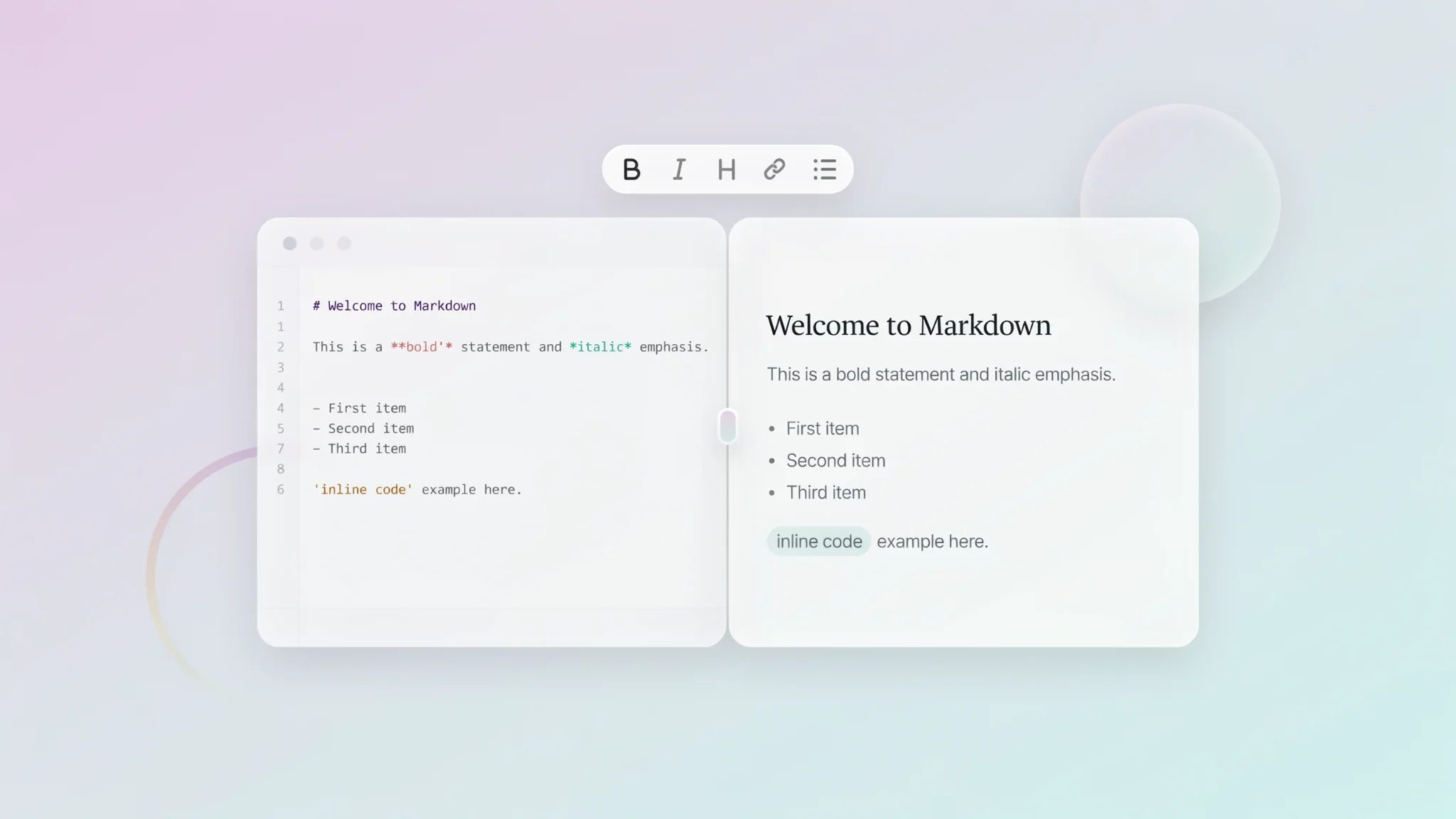
TL;DR: The FileReadyNow Markdown Previewer gives you a split-pane view to write Markdown on the left and watch it render live on the right. It supports headings, lists, tables, code blocks with syntax highlighting, and exports to clean HTML. No signup, no fees. Just open your browser and start previewing.
You type # Header or **bold** but you aren't completely sure how the final output will look until you render it somewhere. Staring at raw syntax can slow you down, especially when you are drafting documentation, blog posts, or even just a quick note for a teammate. The FileReadyNow Markdown Previewer solves that headache instantly. It splits your screen into two panes: an editor where you write Markdown, and a live preview that updates with every keystroke. There is no build step, no refresh button to mash. By the time you finish a sentence, its rendered version is already sitting beside it. That immediate feedback loop is what makes the tool so useful for both first-time Markdown users and seasoned developers who just want to check their formatting quickly.
What Is a Markdown Previewer and Why Do You Need One?
A Markdown previewer is a lightweight tool that converts plain-text Markdown syntax into formatted, styled output on the fly. You type in Markdown on one side, and the tool shows you exactly how it will appear when published. This matters because Markdown itself can look messy until you see it rendered. For bloggers who draft in Markdown, developers finalizing README files, or anyone typing meeting notes in a plain format, a live previewer eliminates the guesswork. You no longer have to push to a repository or upload a file just to check if that nested list or code block will display correctly.
How Do I Use the FileReadyNow Markdown Previewer?
Open the live Markdown previewer in any browser. You will see two panels: the left is a Markdown editor, the right shows the rendered HTML preview. Type or paste your Markdown text on the left. Instantly, the right panel displays it with proper formatting. You can toggle dark mode if your eyes prefer a darker background. When you are ready to export, click the HTML button to download the file, or hit Copy to grab the generated HTML for pasting into a blog, email, or CMS. A small real-world example: last week I needed to update a README with nested bullet points and a code snippet. I pasted the whole block into the previewer and immediately saw that a missing space broke the list. Fixed it right there, copied the HTML, and pushed the update without ever leaving the site.
Does the Markdown Previewer Support Code Blocks and Syntax Highlighting?
Yes, it fully supports fenced code blocks with automatic syntax highlighting. When you wrap code inside triple backticks and specify a language, the preview highlights keywords, strings, and comments just like a desktop editor. This works for JavaScript, Python, HTML, CSS, and many other languages. The rendered code looks clean and professional, which is a huge help when you are writing technical documentation or tutorials. A quick comparison of input and output:
| Markdown Input | Rendered Preview Output |
|---|---|
```python | Shows the code block with Python syntax coloring and a copy button |
``` | Displays as a plain code block without coloring, but still monospaced and readable |
Can I Export My Markdown as HTML?
You can export your rendered Markdown as clean HTML in two ways. After previewing, click the HTML button to download an .html file that preserves your formatting. Alternatively, use the Copy button to place the HTML snippet directly on your clipboard. That makes it dead simple to drop the formatted content into a website, an email, or a content management system that accepts HTML. The exported HTML includes properly structured tags for headings, paragraphs, lists, and code blocks, so you do not have to clean up anything afterward.
Is the Markdown Previewer Free and What Are Its Limitations?
Yes, the Markdown Previewer is completely free. You do not need an account and there are no download caps. The honest limitation: it requires an active internet connection because it runs entirely in your browser through the FileReadyNow website. There is no offline mode, so you cannot use it on a plane without Wi-Fi. Beyond that, the tool handles all standard Markdown elements and keeps your text private, nothing is uploaded to a server. Everything happens locally in the browser session. If you want to explore other useful utilities, check out more Productivity Tools on the site.
How Does the Split‑Pane Live Preview Boost Productivity?
The dual-pane design eliminates the constant cycle of write, render, check, and repeat. On the left, you compose; on the right, you see the formatted result in real time. This means you catch syntax mistakes immediately. A mistyped table separator or a forgotten closing bracket shows up as a broken element the moment you type it. The immediate visual feedback also helps you experiment with different formatting options. For instance, you can test how a numbered list inside a blockquote looks and adjust spacing without ever opening a separate preview window. That tight feedback loop shrinks editing time and keeps your flow intact.
Writing Markdown should feel effortless, and seeing the rendered output should not require extra steps. The FileReadyNow Markdown Previewer delivers exactly that: a simple, free, browser-based editor that shows you the final look while you are still typing. Whether you are drafting a GitHub README, composing a blog post, or taking structured notes, you can open the tool, write, preview, and export in one smooth motion. Try it now at the Markdown Previewer and see your text come to life as you write.
Frequently Asked Questions
What exactly does a Markdown previewer do?
A Markdown previewer converts raw Markdown text into formatted, styled output instantly. It shows you the final rendered version side-by-side while you write, so you know exactly how headings, lists, links, and code will look before you publish or share.
Is the FileReadyNow Markdown Previewer really free?
Yes, it is completely free. No account creation, no subscription, and no hidden fees. You can use it as often as you like, straight from your browser.
Can I save or download my work?
Absolutely. You can download the rendered HTML file or copy the HTML snippet directly. You can also download your original Markdown file (the .md file) for later editing.
Does it highlight syntax in code blocks?
Yes. When you use triple backtick code fences and specify a language, the previewer applies syntax highlighting automatically. It handles multiple programming languages and makes code examples look polished.
Do I need an internet connection to use it?
Yes, the Markdown Previewer is an online tool, so an active internet connection is required. However, once loaded in your browser, the rendering happens locally and no data is sent to any server.
Table of Contents
Recent Posts
PDF to JPG Blurry? How to Convert a PDF Page With Sharp Text
5 days ago
HEX vs RGB vs HSL vs CMYK: Which Color Code Should You Use?
1 week ago
Video Converter Online Free: Which Format to Pick and Why
2 weeks ago
Audio Trimmer Online Free: Cut, Keep, or Remove Any Section
2 weeks ago
How Strong Should Your Password Actually Be in 2026?
3 weeks ago
HEIC vs JPG: Which Should You Actually Use?
1 month ago