Merge PDF Online Free: Combine Multiple PDFs Instantly

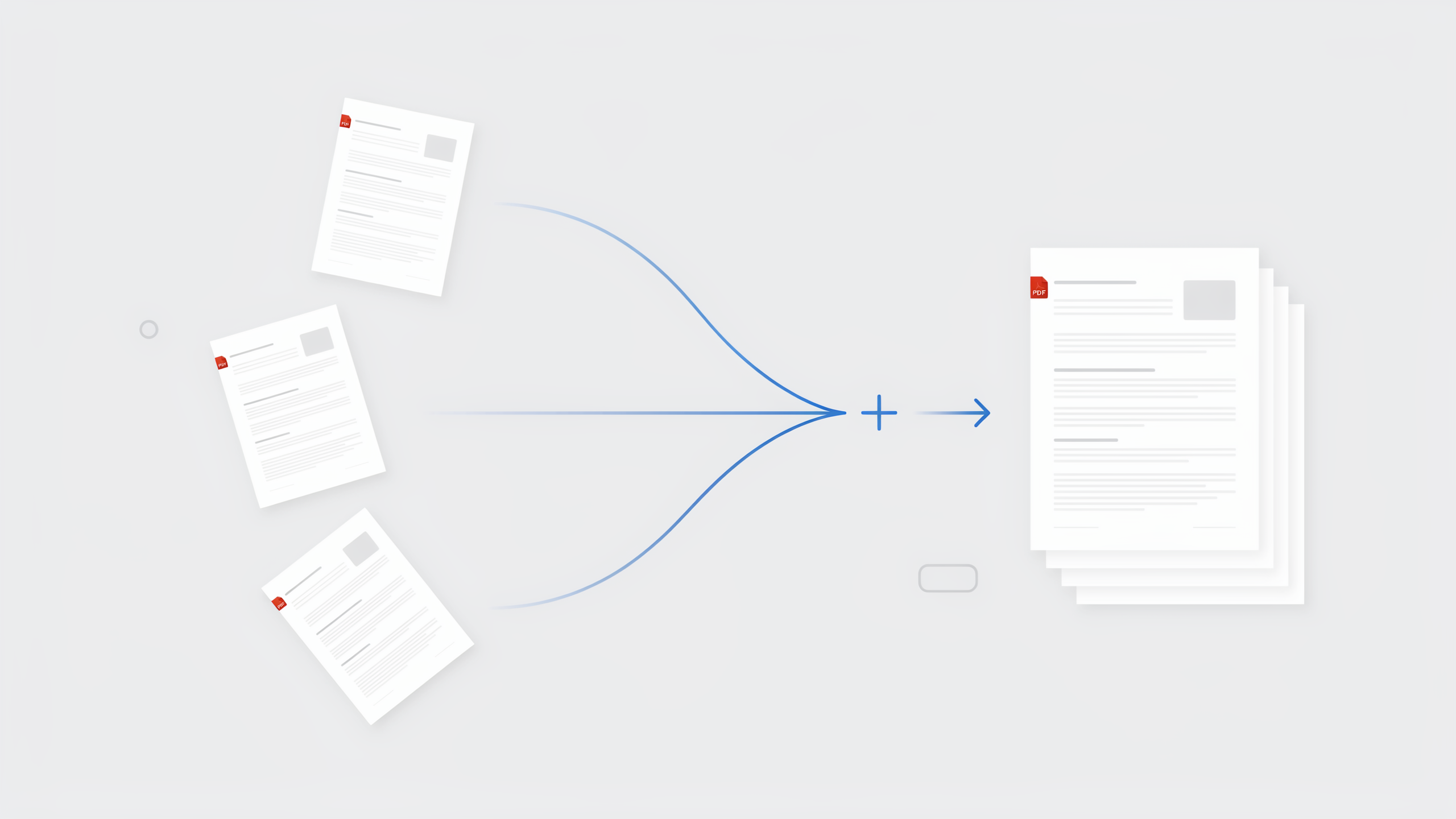
FileReadyNow’s Merge PDF tool combines multiple PDFs into one file right in your browser. No software, no signup, and no watermark. Drag and drop up to 20 files, reorder them, and get a single PDF in seconds. The merge runs locally, so your documents stay private.
Sending five separate PDFs when you really need one complete document is a headache you know too well. The recipient has to open each file, figure out the order, and hope nothing got lost. The fix is simple: use FileReadyNow’s free online merger. You can combine up to 20 PDFs into a single, clean file without installing anything or creating an account. All you need is a browser, any browser, on any device. I recently had to submit a multi-section report split across six scanned PDFs. With FileReadyNow, I dragged them into order, hit merge, and had one tidy PDF ready in under a minute.
How to Merge PDFs Without Installing Any Software
You can combine PDFs entirely in your web browser using FileReadyNow’s tool. No installation needed. Just upload your files, arrange them, and get the merged document instantly. Because the processing runs on your device, it works the same on Windows, macOS, Linux, or any mobile system.
Here is exactly what you do:
- Go to the Merge PDF tool page.
- Click the upload area or drag and drop your PDFs right onto the page. You can add up to 20 files, as long as the total size stays under 150 MB.
- Once the files appear, drag the thumbnails to reorder them. The first file becomes page 1, the second follows, and so on.
- Click the Merge PDFs button. The tool joins all pages in sequence using PDF-lib, without recompressing anything.
- Your merged PDF downloads automatically. No signup, no watermark, no waiting for an email.
How online merging compares to desktop and mobile methods
| Method | Installation required? | Works on all devices? | File size limit | Privacy |
|---|---|---|---|---|
| FileReadyNow (browser) | No | Yes | 150 MB total (20 files) | Local processing |
| Desktop software (Preview, Acrobat) | Yes | OS‑specific | Varies | Local |
| Mobile merger apps | Yes | Mobile only | Often lower | App‑dependent |
How to Merge PDF Files on a Mac
While your Mac’s Preview app can combine PDFs, it’s often clumsy and limited. FileReadyNow gives you a much simpler way, no need to open Preview at all. Just open your browser, drag in the PDFs, and merge them online. You get a reordered, single PDF with zero loss in quality.
Preview requires you to open each document, show the sidebar, and individually drag pages into another file. Reordering more than a few files gets frustrating fast. With the online tool, you skip all that. Open Safari or Chrome, visit the combine PDFs online page, select your files from Finder, and drag them into the exact sequence you need. Hit merge, and you have one polished PDF that anyone can open, on any device.
Can I Combine PDFs on My iPhone or iPad?
Yes, you can merge PDFs right from Safari or Chrome on iOS without installing any app. The mobile‑friendly merge tool lets you pick files from iCloud, the Files app, or other storage, adjust order, and produce a merged PDF on the go.
On your iPhone, tap the upload area, then tap Choose Files. Browse to your PDFs and select them (up to 20). The files appear as thumbnails. Long‑press a file and drag it to change the order, or use the grab handles. Tap Merge PDFs and the finished document downloads straight to your phone. You can share it from Safari’s download manager or open it in Mail, Files, or any PDF reader.
Does Merging PDFs Change the Quality or Layout?
No. The merge tool preserves the original quality of each page. Text, images, and formatting stay exactly as they were because pages are combined at the document level, not re‑encoded. Even mixed PDFs, like a scanned contract followed by a typed proposal, remain unchanged.
The tool uses PDF‑lib to join the pages without recompressing them. That means your crisp scans stay crisp, and vector text stays sharp. If your PDFs have different page sizes, each page keeps its own dimensions. The result is a single file that looks just as professional as the originals, ready for printing or sharing.
How Many PDFs Can I Merge at Once?
You can upload and merge up to 20 PDF files in a single session, with a total combined file size of 150 MB. If you need to combine more, simply merge in batches. There is no account‑based cap on how many times you use the tool.
Most reports, invoices, or scanned book pages fall well within that limit. If you have 25 files, run one merge with the first 20, save the output, then merge that combined file with the remaining five. The process adds less than a minute extra.
Is It Safe to Use a Free Online PDF Merger?
Absolutely, because FileReadyNow’s merger runs entirely in your browser. Your PDFs never leave your device; there’s no upload to a remote server. All processing happens locally, keeping confidential reports, contracts, or personal documents private.
Since the tool never sends your files anywhere, you can safely merge sensitive tax forms, legal agreements, or medical records. The website itself uses HTTPS to protect your connection, but the merge operation itself is off‑the‑grid. After you download the merged PDF, no copy stays on any server.
Conclusion
When you have a handful of PDFs that need to become one clean document, don’t waste time wrestling with desktop software. FileReadyNow’s Merge PDF tool combines up to 20 files in any order you choose, with zero quality loss and no signup required. It works on any browser, on any device, and keeps your data local. Next time you need to bundle reports, contracts, or receipts, head to the merge PDF online page and finish the job in seconds. If you need to compress, split, or convert PDFs, check out our more PDF tools as well.
Frequently Asked Questions
How can I combine PDFs on a Mac without using Preview?
Just open FileReadyNow’s Merge PDF tool in Safari or Chrome. Upload your PDFs, drag them into the order you want, and download the merged file. It skips Preview’s complicated page‑by‑page insertion and works identically on every macOS version.
Can I merge PDFs on my iPhone without downloading software?
Yes. Open the Merge PDF page in your mobile browser, tap Choose Files, select PDFs from iCloud or the Files app, reorder them by dragging, and tap Merge PDFs. The combined document downloads straight to your phone.
Will merging my PDFs affect formatting or image quality?
No quality loss occurs. The tool joins pages at the document structure level without re‑encoding, so text, images, and formatting remain exactly like the original files.
Do I need to create an account or sign up first?
Not at all. The merger is completely free and does not ask for a login, an email, or any personal information. You can use it as often as you want with no watermark added.
Is it safe to merge confidential documents with this online tool?
Your files stay on your device because the merging happens entirely in your browser. No upload takes place, so private contracts, tax returns, or medical records never reach a remote server.
Table of Contents
Recent Posts

PDF to JPG Blurry? How to Convert a PDF Page With Sharp Text
5 days ago
HEX vs RGB vs HSL vs CMYK: Which Color Code Should You Use?
1 week ago
Video Converter Online Free: Which Format to Pick and Why
2 weeks ago
Audio Trimmer Online Free: Cut, Keep, or Remove Any Section
2 weeks ago
How Strong Should Your Password Actually Be in 2026?
3 weeks ago
HEIC vs JPG: Which Should You Actually Use?
1 month ago