Merge PDFs Free Online: Combine Multiple Files Instantly

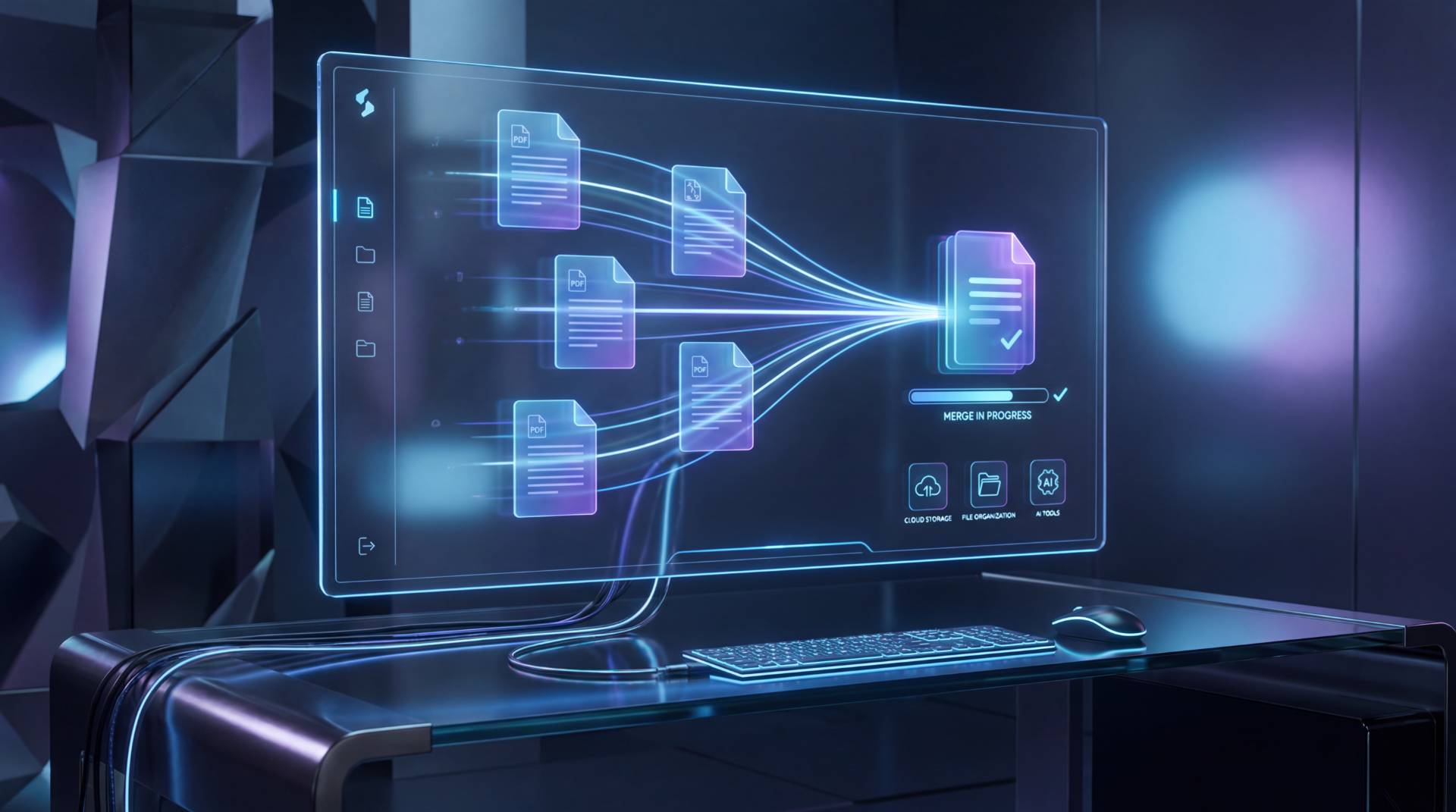
TL;DR: Combine up to 20 PDFs into one clean file without installing anything. Just upload your documents, drag to reorder, and download the merged PDF. No signup, no watermark, and the original quality stays intact. Works on any browser, phone or desktop, and the files are automatically deleted after download.
Sending five scattered PDFs when a single document would do creates extra work for everyone. Whoever opens them has to figure out the right order and hope nothing got lost in the shuffle. That exact frustration is why the merge PDFs online free tool exists. You upload, arrange, and combine everything into one seamless file right inside your browser.
I saw this play out last week: a colleague sent three signed contracts as separate attachments, and the client asked for one clean file. Instead of shuffling pages in desktop software, I opened the merger tool, dropped the PDFs in, rearranged them by dragging, and had the combined download ready in under thirty seconds. The final document looked identical to the originals, no formatting or image quality lost.
How to Merge PDF Files Without Installing Anything?
You can combine multiple PDFs into one document using a browser-based tool that runs entirely online. No downloads, no signup. Visit the merge page, upload your files, arrange them in the preferred order, and click Merge. The combined PDF downloads immediately and the original formatting stays exactly as it was.
The whole process takes four straightforward steps:
- Open the merger: Head to the free online PDF merger.
- Add your files: Drag and drop PDFs onto the page or click to browse your device. You can add up to 20 files at once (150 MB total).
- Reorder the sequence: Drag the thumbnails into the exact order you need. The final file will flow from first to last just as you arranged them.
- Merge and download: Click the Merge PDFs button. The tool processes the pages without re-encoding, so the output preserves every detail, and then the merged file downloads automatically.
How to Merge PDFs on a Mac (and When an Online Tool Saves Time)
On a Mac, you can use Preview to combine PDFs, but the built-in method asks for several clicks and sometimes re-encodes images, which can subtly change quality. The online merger works directly in your browser, keeps the original data untouched, and accepts files from any device without extra steps.
Here is a quick comparison to help you decide:
| Feature | Apple Preview | Online PDF Merger |
|---|---|---|
| Ease of use | Requires multiple menu selections and dragging thumbnails in sidebar | Drop files, drag to reorder, click Merge |
| Quality preservation | May re-encode images and alter compression | No re-encoding; original page data kept intact |
| File limits | No hard limit, but large sets may slow down the app | Up to 20 files, 150 MB total |
| Account required | No | No |
| Works on other devices | Mac only | Any device with a browser: Windows, iOS, Android, Chromebook |
For quick, quality-focused merges when you are not on your own Mac, the online tool eliminates the friction of transferring files just to use Preview.
Can I Combine PDFs on an iPhone or Android?
Yes, the PDF merger works fully on mobile browsers like Safari and Chrome. You can upload files directly from your phone, drag to rearrange them with your finger, and download the merged PDF on the spot. No extra app is needed, and the interface adapts to a small screen without clutter.
Here is how to merge on a phone:
- Tap the browse button and select PDFs from your files or cloud storage.
- Long-press a file thumbnail and drag it to reorder the sequence.
- Tap Merge PDFs and the combined document saves to your downloads.
This works flawlessly for things like combining scanned receipts, class notes, or signed forms while you are away from a computer.
Will the Quality of My PDFs Change After Merging?
The merge process does not re-encode pages. Every word, image, and piece of formatting stays exactly as it was in the original documents. Whether you are combining text-heavy reports or scanned documents, the final output looks clean and professional, with no blurred text or washed-out visuals.
Unlike some desktop tools that may recompress content to shrink file size, this tool simply concatenates the original page data. That means font styles remain crisp, vector graphics stay sharp, and scanned pages keep their original resolution.
What Are the File Limits? (Size, Number, and Security)
You can merge up to 20 PDF files in one operation, and the total size of all selected files must not exceed 150 MB. Each file must be a valid PDF. After merging, both the uploaded files and the combined result are automatically deleted from the server, and the transfer uses 256-bit encryption.
Need to combine more than 20 documents? That is not a dead end. Merge the first 20 into one file, download the result, then merge that combined PDF with the remaining files. You can repeat this as many times as you like, and you never hit a usage cap or paywall.
One honest limitation: the tool merges whole documents, not individual pages. If you need to reorder pages inside a single PDF, split it into separate pages first using the Split PDF tool, then import the pages in your desired order.
Head over to the merge PDFs online free page and get your documents combined in seconds. For more handy document helpers, explore all more Pdf Tools including compressors, splitters, and converters.
Frequently Asked Questions
Do I need an account to use the PDF merge tool?
No, you can use the tool without signing up. Simply upload your files, arrange them, merge, and download. No watermark, no registration required.
How many PDF files can I combine at once?
You can merge up to 20 PDF files in one operation. If you need to combine more, first merge 20 into one combined file, download it, then merge that result with the remaining documents.
Is there a maximum file size limit?
The total size of all uploaded PDFs must not exceed 150 MB. Individual files can be large as long as the sum stays within the limit. The tool handles text-heavy PDFs and scanned documents equally well.
Will merging affect the layout or quality of my PDF?
No. The tool keeps the original pages intact without re-encoding. Text, images, and formatting remain unchanged. The merged document looks exactly like the individual files you uploaded.
Can I reorder the pages inside a PDF using this tool?
This merger combines whole PDF files, not individual pages. To reorder pages within a single document, you can split it into separate pages first using the Split PDF tool and then merge the pages in your preferred sequence.
Table of Contents
Recent Posts

PDF to JPG Blurry? How to Convert a PDF Page With Sharp Text
5 days ago
HEX vs RGB vs HSL vs CMYK: Which Color Code Should You Use?
1 week ago
Video Converter Online Free: Which Format to Pick and Why
2 weeks ago
Audio Trimmer Online Free: Cut, Keep, or Remove Any Section
2 weeks ago
How Strong Should Your Password Actually Be in 2026?
3 weeks ago
HEIC vs JPG: Which Should You Actually Use?
1 month ago