PDF to PowerPoint Online Free: Convert Any PDF to an Editable PPTX

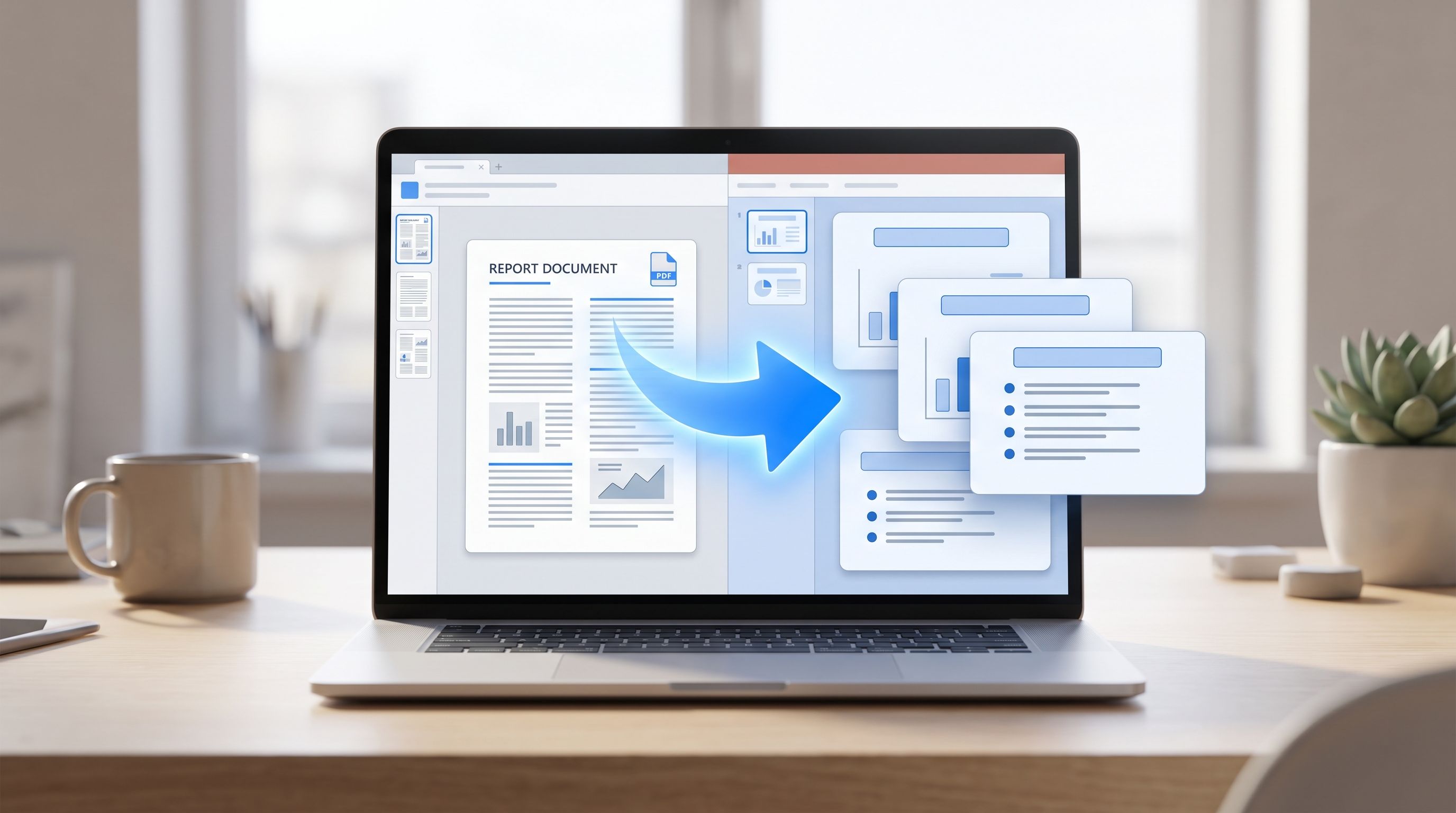
TL;DR: FileReadyNow's PDF to PowerPoint tool lets you convert PDF to PowerPoint online free, no signup, no watermark. Choose Image Slides for pixel perfect fidelity or Editable Text if you need to click in and rewrite content. Pick your slide size, download a real PPTX file, and open it in PowerPoint, Google Slides, or Keynote.
A client sent over a proposal as a PDF the night before I had to present it. Ten slides of content, but I only had the flattened document, not the original deck. Rebuilding it by hand would have meant an hour of copying text boxes and guessing fonts. Instead I ran it through FileReadyNow's PDF to PowerPoint converter, picked the editable mode, and had a working PPTX I could tweak and present from inside fifteen minutes.
That's the situation this tool is built for. Here's how it works, when to use each mode, and what actually affects how clean the result looks.
How to Convert PDF to PowerPoint Online Free
Upload your PDF, choose a conversion mode and slide size, then click convert. The tool generates a PPTX file with one slide per page, ready to download and open in PowerPoint, Google Slides, or Keynote.
The steps in order:
- Drop your PDF into the upload box, up to 50 MB per file and five files at once.
- Choose Image Slides or Editable Text as your conversion mode.
- Pick your slide size and image quality.
- Click Convert to PowerPoint, then download the PPTX before the link expires.
There's no account required and no watermark added to the output.
Image Slides or Editable Text: Which Mode Should You Use?
Image Slides renders each PDF page as a high resolution picture placed on its own slide, so charts, custom fonts, and complex layouts come through exactly as they look in the source document. Editable Text instead reads the text layer of the PDF and rebuilds it as real PowerPoint text boxes you can click into and rewrite.
Use Image Slides when the PDF has to look identical to the original, a signed contract, a designed report, anything with layouts you don't want PowerPoint reinterpreting. Use Editable Text when you actually need to change the content once it's converted, like pulling numbers from a report into next quarter's deck or updating a training slide before a session. The trade off is real: Editable Text can simplify visual styling on complex layouts since it's rebuilding text boxes rather than capturing a picture, so a PDF with heavy graphic design will look plainer in this mode. A PDF that's mostly scanned pages has no text layer to extract at all, so Image Slides is the only mode that makes sense there.
| Mode | Best for | Trade off |
|---|---|---|
| Image Slides | Visual accuracy, scanned documents, complex layouts | Text isn't editable, it's a picture |
| Editable Text | Content you plan to rewrite or reformat | Complex visual styling may simplify |
What Slide Size Should I Use for My Presentation?
Three options: Match PDF Page keeps the slide dimensions identical to your PDF's own page size, Widescreen 16:9 forces the modern PowerPoint default, and Standard 4:3 matches older projectors or templates.
Match PDF Page is the setting I'd default to unless you have a specific reason not to. It means every slide fills edge to edge with no cropping, stretching, or padding bars, since the presentation literally takes on your PDF's shape. If you need the deck to match an existing 16:9 or 4:3 template, choose that instead. Pages with a different proportion than the size you pick get centered on the slide rather than stretched or distorted, so you won't end up with squashed text or warped images either way.
Will Converting to PowerPoint Ruin My Formatting?
Not with Image Slides, since each page becomes a picture and nothing about the layout can shift. With Editable Text, formatting is generally preserved but not guaranteed identical, since the tool is rebuilding your content as native PowerPoint elements rather than copying a snapshot.
This is the honest trade off behind any PDF to editable-format conversion, not just this tool. A PDF with a single text column and standard fonts converts to editable slides cleanly. A PDF with multi-column layouts, decorative fonts, or text wrapped tightly around images will come out simpler once it's rebuilt as text boxes. If visual fidelity matters more than editability for a given document, Image Slides sidesteps the question entirely.
Can I Convert a Scanned PDF to PowerPoint?
Yes, using Image Slides. Scanned pages have no underlying text layer, so Editable Text mode has nothing to extract, but Image Slides renders each scanned page as a picture regardless of whether it contains real text or not.
If you need the scanned content to actually be editable text rather than a picture of text, you'd need a PDF OCR step first to add a text layer before converting. For most scanned-document use cases though, like turning an old scanned handout into slides you can present from, Image Slides gets you a usable deck without any extra step.
Is It Safe to Upload My PDF to This Tool?
Yes, with one thing worth knowing: unlike some of FileReadyNow's other tools that run entirely in your browser, PDF to PowerPoint processes files on the server, since generating a real PPTX file requires more than what a browser can do alone. Your file is transferred over SSL/TLS encryption, and both the uploaded PDF and the converted presentation are permanently deleted from the server once your download link expires.
That's a meaningfully different privacy model than a fully client-side tool, and it's worth being upfront about rather than implying otherwise. For a signed contract or something genuinely sensitive, that's a distinction worth knowing before you upload. For a report or a training deck you're about to present anyway, it's a normal trade off that every PDF-to-PPTX converter online makes, since none of them can generate a real PowerPoint file entirely inside your browser.
What Do People Actually Use This For?
Anything that exists as a finished PDF but needs to become a slide deck:
- Reports and whitepapers: turn a finished PDF report into a presentation for a stakeholder meeting without rebuilding every page from scratch.
- Training materials: convert PDF course content into slides an instructor can reorder or update between sessions.
- Sales and pitch decks: recover an old pitch deck that only survives as a PDF export and keep editing it in PowerPoint.
- Academic slides: bring a PDF paper or poster into slide format for a conference talk or a thesis defense.
- Scanned handouts: turn scanned pages into a presentable deck using Image Slides, with no loss of detail.
If your PDF also needs pages removed or reordered before converting, FileReadyNow's Delete PDF Pages and Split PDF tools handle that first. If you're starting from a Word document instead, the Word to PDF converter gets you to a PDF before you convert onward.
Do I Need an Account to Convert PDF to PowerPoint?
No. There's no registration and no watermark on the output. You can convert up to five PDFs at once, each up to 50 MB, and download them individually or as a single ZIP.
The download link stays active for five minutes after conversion, so grab your file before it expires. If you need it again after that, you'll just run the conversion once more, since nothing is kept on the server past that window.
Frequently Asked Questions
Is the PDF to PowerPoint converter really free?
Yes, with no signup and no watermark added to the converted presentation.
What file format do I get back?
A standard PPTX file that opens in Microsoft PowerPoint, Google Slides, and Keynote.
Can I convert more than one PDF at once?
Yes, up to five files at a time, each up to 50 MB, downloadable individually or as a ZIP.
Will the text be editable after conversion?
Only in Editable Text mode. Image Slides mode outputs each page as a picture, not editable text.
Can I convert a scanned PDF?
Yes, using Image Slides. Editable Text mode needs a real text layer to work from, which scanned pages don't have.
Is my file safe during conversion?
Yes. Transfers are SSL/TLS encrypted, and both your uploaded PDF and the converted file are deleted from the server once the download link expires.
Conclusion
Rebuilding a presentation from a flattened PDF by hand is exactly the kind of task that shouldn't take an hour. FileReadyNow's PDF to PowerPoint converter gets you a real, editable PPTX in the time it takes to pick a mode and click convert, whether you need pixel perfect fidelity or slides you can actually rewrite. Next time a deck only exists as a PDF, skip the manual rebuild and convert it instead.
Table of Contents
Recent Posts
PDF to JPG Blurry? How to Convert a PDF Page With Sharp Text
5 days ago
HEX vs RGB vs HSL vs CMYK: Which Color Code Should You Use?
1 week ago
Video Converter Online Free: Which Format to Pick and Why
2 weeks ago
Audio Trimmer Online Free: Cut, Keep, or Remove Any Section
2 weeks ago
How Strong Should Your Password Actually Be in 2026?
3 weeks ago
HEIC vs JPG: Which Should You Actually Use?
1 month ago