Sign PDF Online Free: Draw, Type or Upload Your

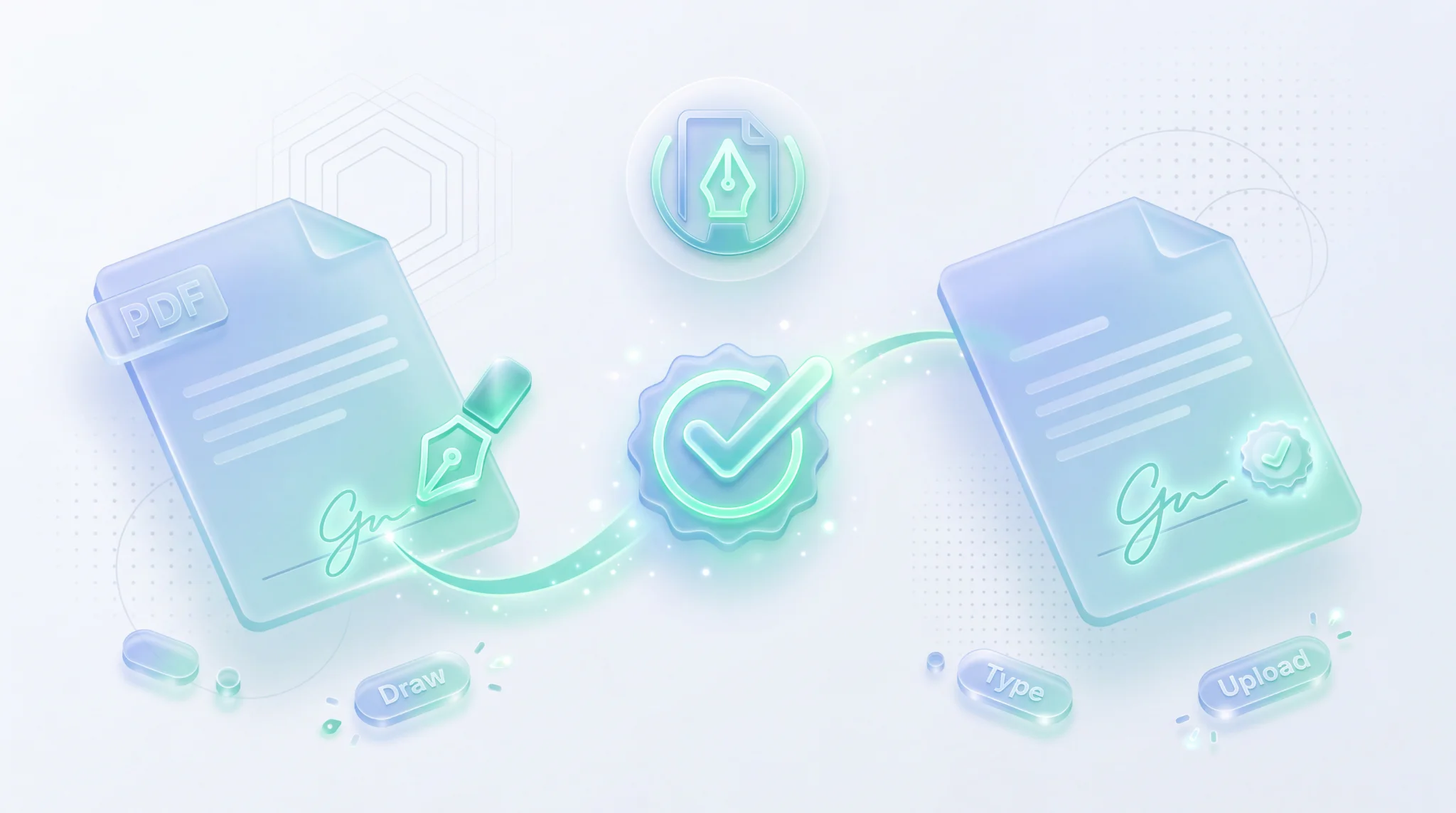
TL;DR: FileReadyNow's free Sign PDF tool lets you add your signature to any PDF instantly. Draw with your finger or mouse, type your name in a script font, or upload an image. The whole process stays in your browser, no account required, no file uploads, and you download the signed PDF in seconds.
You get an email with a contract, a permission slip, or a lease agreement. It needs your signature, but you don't have a printer, scanner, or any fancy PDF software. Maybe you're on your phone and need to fire it back right now. FileReadyNow's Sign PDF tool is built exactly for that moment. It lets you draw, type, or upload a signature straight onto a PDF in your browser. No downloads, no sign-up, and no fee. In under a minute, you'll have a signed document ready to send.
How Do I Sign a PDF Without Printing or Scanning?
You use a free online PDF signing tool like FileReadyNow's Sign PDF. It works entirely in your browser and gives you three ways to sign: draw your signature, type it in a handwriting-style font, or upload a clean image of your actual autograph. There's no printing, no scanning, and no software to install.
Each method suits a different situation. Here is a quick comparison:
| Method | Best For | How It Works |
|---|---|---|
| Draw | Touchscreen or mouse users who want a natural, handwritten look | Use your finger, stylus, or mouse to draw directly on the canvas |
| Type | Quick signatures where neatness matters, like filling out multiple forms | Type your name and choose from three signature-style fonts |
| Upload | People who already have a scanned image of their actual signature | Upload a PNG, JPG, or WebP file (transparent PNG works best) |
After you create your signature, you drag it onto the PDF page, resize it with the corner handle, and click Sign PDF. The whole document processes locally, so your original formatting never changes.
Can I Sign a PDF for Free Without Creating an Account?
Yes, the Sign PDF tool is entirely free, with no account or registration required. You can sign as many PDF documents as you need, and your signed PDF will have no watermarks or branding added.
Many online signature services force you to sign up, limit how many documents you can sign, or plaster a watermark on the final file. FileReadyNow takes the opposite approach. You open the tool, get your work done, and leave without ever handing over an email address. The tool is supported by the site, not by paywalls.
Is It Safe to Sign a PDF Online?
The Sign PDF tool keeps your file and signature safe because everything happens locally on your own device. Your PDF is never uploaded to any server; it's processed entirely within your browser. Once you sign and download the result, no copy remains on the web.
This browser-side approach eliminates the common risks of cloud storage leaks or unauthorised access. The tool does not collect, store, or share your document or your signature data. When you reload the page or close the tab, everything is gone. That's what “100% Private: Nothing Uploaded” really means.
How Do I Add a Drawn Signature to a PDF?
Open the tool, drop your PDF, and choose the “Draw” tab in the signature creator. Use your finger on a touchscreen, a stylus, or your mouse to draw your signature. You can adjust the color and thickness, clear it and redo until you're happy, then drag your signature onto the document, resize it, and place it exactly where you need it.
Here is the full flow:
- Go to the Sign PDF page.
- Drop your PDF file into the dotted area or click to browse.
- Once the preview loads, look for the signature panel and click the Draw tab.
- Use your finger (on a phone or tablet) or mouse to draw your signature inside the box. Change the color and line thickness using the controls below if needed.
- Click Clear to start over if you're not satisfied.
- Hit the Place Your Signature button below the canvas.
- Your signature appears on the PDF page. Drag it to the exact spot you need, then grab the corner handle to make it larger or smaller.
- Click the blue Sign PDF button. The tool processes your document and downloads the signed version automatically.
The same steps apply whether you choose Draw, Type, or Upload. You always get a draggable, resizable signature block.
What File Formats and Sizes Does the Sign PDF Tool Support?
The Sign PDF tool is built for PDF documents only. You can upload files up to about 50 MB in size for smooth performance. If your PDF is password-protected or locked, you will need to remove the restrictions first, the tool will direct you to an unlock option.
Large PDFs (those approaching 50 MB) may take a few extra seconds to render the preview, but the signing process itself remains fast because it all runs on your hardware. If you have an image, Word document, or Excel file that needs a signature, convert it to PDF first using FileReadyNow's more PDF tools like the Image to PDF or Word to PDF converters.
Is an Electronic Signature Valid for Legal Documents?
In many everyday situations, an electronic signature added with a tool like FileReadyNow is legally accepted. However, acceptance depends on your country's laws and the document type. For official or court documents, check local requirements. The tool places a graphical representation of your signature onto the PDF; it isn't a cryptographically certified digital signature.
For most ordinary contracts, permission forms, invoices, and housing agreements, an image of your handwritten signature is treated as a valid expression of intent. Still, if you are dealing with government filings, notarized documents, or contracts that specifically demand a qualified electronic signature (QES) under frameworks like eIDAS or the ESIGN Act, you may need a certificate-based service. When in doubt, a quick call to a legal advisor never hurts.
FileReadyNow's Sign PDF tool strips away all the friction of getting a document signed. No account, no software, no uploading your files to a stranger's server. Everything stays on your device, and you walk away with a signed, professional-looking PDF. Next time you need to put pen to paper, without actual paper, head over to the Sign PDF tool and get it done in seconds. For converting files to PDF, merging pages, and more, explore our more PDF tools.
Frequently Asked Questions
Is the Sign PDF tool really free?
Absolutely. There are no hidden costs, and you don't need to create an account. You can sign PDFs as often as you like without any charges.
Can I use my actual handwritten signature?
Yes. You can draw it directly with your finger, stylus, or mouse, or you can upload a clean image of your signature, ideally a PNG with a transparent background, for a natural look.
Will signing a PDF change its layout or formatting?
No. The tool overlays your signature on top of the original content without altering fonts, images, or spacing in the document.
Is my personal data safe when I sign?
Your PDF and signature are processed entirely inside your browser. No data is sent to a server, so your information stays private and is never stored online.
Can I sign PDFs on my mobile phone?
Yes. The Sign PDF tool works on any modern browser, including mobile phones and tablets, so you can sign documents on the go.
Table of Contents
Recent Posts
PDF to JPG Blurry? How to Convert a PDF Page With Sharp Text
5 days ago
HEX vs RGB vs HSL vs CMYK: Which Color Code Should You Use?
1 week ago
Video Converter Online Free: Which Format to Pick and Why
2 weeks ago
Audio Trimmer Online Free: Cut, Keep, or Remove Any Section
2 weeks ago
How Strong Should Your Password Actually Be in 2026?
3 weeks ago
HEIC vs JPG: Which Should You Actually Use?
1 month ago