Video Cropper: Free Online Video Crop Tool (No Sign-Up)

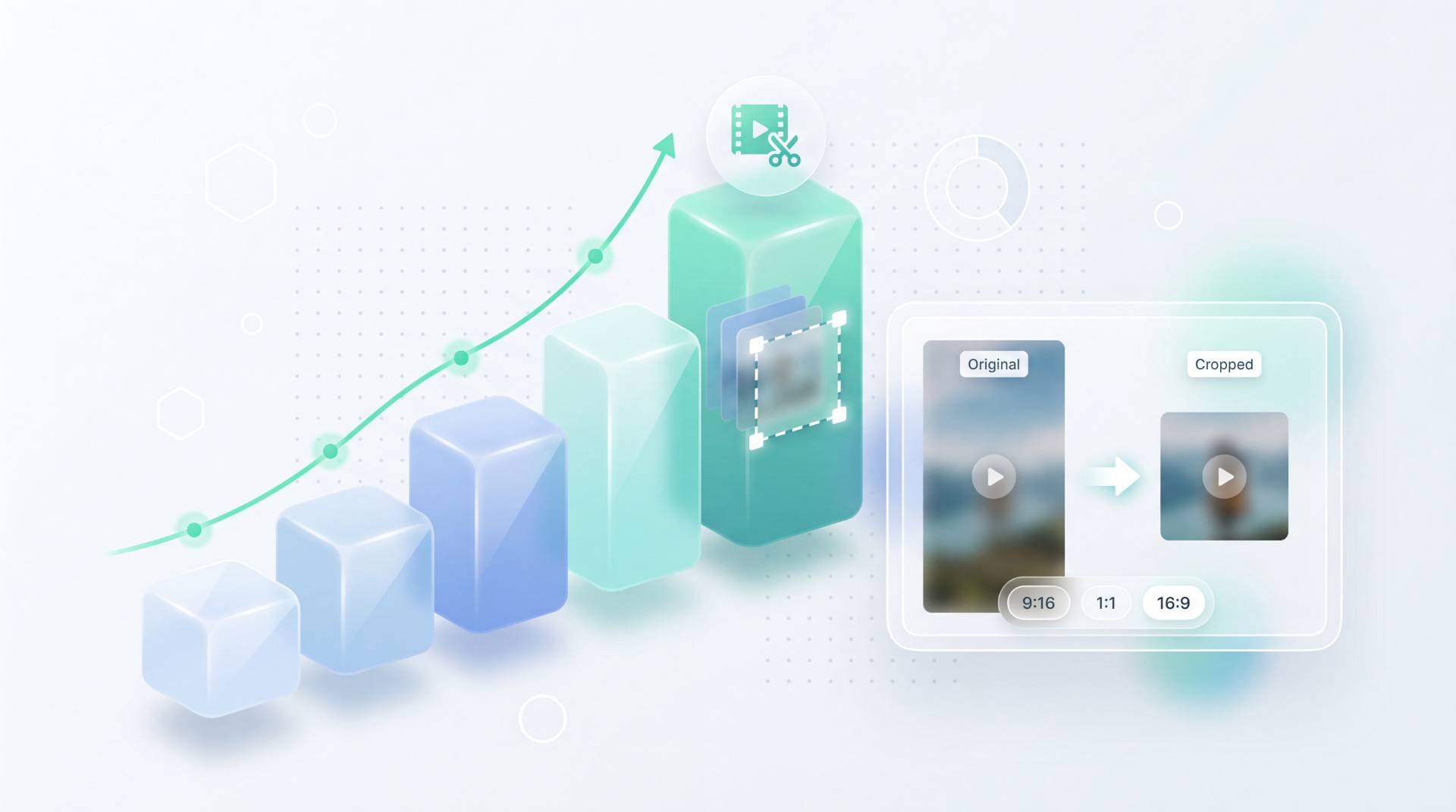
TL;DR: FileReadyNow's Video Cropper lets you crop any video online for free. No software, no sign-up, no watermarks. You get eight aspect ratio presets (including 9:16 for TikTok, 16:9 for YouTube) and can adjust the crop box freely. Upload up to 1 GB, choose output format like MP4, and download a clean video in minutes. Perfect for quick reframing, removing unwanted edges, or converting horizontal to vertical.
You shot a great clip, but the framing is off. Maybe there's a stranger walking into the frame, or you need a vertical 9:16 version for Instagram Reels. Rather than firing up heavy editing software, you can crop the video right in your browser with FileReadyNow's Video Cropper. It's completely free, works on any device, and doesn't slap a watermark on your file.
I recently turned a landscape travel clip into a crisp 9:16 reel in under a minute. The tool kept the original quality inside the crop area and let me download an MP4 that looked sharp. No adjustments needed to bitrate or codecs, just a quick crop and download.
How Do I Crop a Video Online for Free Without a Watermark?
You can crop a video online using the FileReadyNow Video Cropper. The tool is entirely free, requires no account, and never adds a watermark. Upload your file, drag the handles or pick a preset, then click 'Crop Video' to process and download a clean output in MP4, WEBM, or other formats.
Here's the step-by-step:
- Visit the video cropper page.
- Drop your video file into the upload area, or click to browse. It accepts MP4, MOV, AVI, MKV, WEBM, FLV, and WMV up to 1 GB.
- Once the preview loads, choose an aspect ratio from the presets on the right, or use Free mode to drag the crop box corners freely.
- Optionally, expand Advanced Settings to pick an output format (MP4 is safest), set quality to High, and decide if you want to keep or remove the audio.
- Click the 'Crop Video' button. The tool will process in your browser; a progress bar shows the status.
- When done, a download button appears. The file is ready to save. It gets deleted from the server after the time shown.
The whole thing takes less time than installing software.
What Aspect Ratio Presets Does the Video Cropper Offer?
The cropper includes eight presets: Free, 1:1 Square, 4:5 Insta, 9:16 TikTok, 16:9 YouTube, 4:3 Standard, 21:9 Cinema, and 2:3 Portrait. Each instantly resizes the crop box to that ratio, saving you the math.
| Preset | Aspect Ratio | Best For |
|---|---|---|
| Free | Custom | Any shape, precise pixel adjustments |
| 1:1 Square | 1:1 | Instagram feed posts |
| 4:5 Insta | 4:5 | Instagram portrait |
| 9:16 TikTok | 9:16 | TikTok, Reels, Shorts |
| 16:9 YouTube | 16:9 | YouTube, TVs, widescreen |
| 4:3 Standard | 4:3 | Classic presentations, old TV |
| 21:9 Cinema | 21:9 | Ultrawide movies |
| 2:3 Portrait | 2:3 | Portrait photos, tall prints |
You can also use the Position & Size fields under the presets to type exact X, Y, width, and height values in pixels if you need a custom crop that isn't covered by the presets.
How Do I Crop a Video to 9:16 for TikTok or Instagram Reels?
Upload your clip, click the 9:16 TikTok preset, and the crop box automatically snaps to the vertical 9:16 ratio. Then drag the box left or right to reframe the subject. Click 'Crop Video', and you'll get a perfectly sized vertical video for TikTok, Reels, or YouTube Shorts.
Here's the quick workflow:
- Go to the video cropper.
- Upload your landscape or square video.
- On the right panel, click the '9:16 TikTok' button. The crop area turns into a tall, narrow rectangle.
- Drag the box horizontally to center the main subject. If you need to adjust the framing vertically, use Free mode after moving, or set position manually.
- In Advanced Settings, ensure output format is set to MP4 and quality to High. If you want to keep the original audio, select 'Keep Audio'.
- Hit 'Crop Video', wait a few seconds, and download the result.
Because the tool processes locally, your video never sits on a cloud drive; it's processed right in your browser.
Does Cropping a Video Online Lower Its Quality?
Cropping removes pixels outside the selected region but does not degrade the quality of the remaining area. The output resolution is set by the crop dimensions you choose. Selecting 'High' quality in Advanced Settings preserves the most detail. If you crop a large area, the resulting resolution will be smaller, but the video won't look pixelated or compressed beyond the original.
Think of it like cutting a photo with scissors: the piece you keep is just as sharp as before. The only real limit is that a heavy crop, such as turning a 1920×1080 clip into a 400×400 square, will yield a smaller resolution. But that's a physical consequence, not a quality loss caused by the tool.
You have full control over the output quality setting. Choose High for the least compression (larger file size), Medium for a good balance, or Low for a smaller file. The codec used depends on the format: MP4 uses H.264, WEBM uses VP9. Both are efficient and widely supported.
What Video File Formats Can I Upload and Download?
You can upload MP4, MOV, AVI, MKV, WEBM, FLV, and WMV videos up to 1 GB. After cropping, download as MP4 (H.264), WEBM (VP9), MOV, AVI, or MKV. MP4 is the most compatible choice.
| Input Formats | Output Formats |
|---|---|
| MP4, MOV, AVI, MKV, WEBM, FLV, WMV | MP4, WEBM, MOV, AVI, MKV |
If your file is unsupported or exceeds 1 GB, you may need to compress or convert it first. FileReadyNow offers more Editing Tools including a Video Converter and Video Trimmer that can help you prep the video before cropping.
How to Crop a Video on an iPhone and Why an Online Alternative Can Help
The iPhone Photos app has a crop tool, but it's limited to basic aspect ratios and can't export different formats. Using the FileReadyNow cropper in your mobile browser gives you precise size controls, 8 presets, audio options, and multiple output formats. It works on Safari or Chrome without installing anything.
Steps from an iPhone:
- Open Safari and go to the video cropper page.
- Tap the upload area and select 'Photo Library' or 'Files' to pick your video.
- Once the preview loads, switch to landscape mode for a better view. Tap a preset like 9:16 TikTok or 1:1 Square.
- Pinch and drag to adjust positioning, or use the Advanced fields for exact numbers.
- Choose your output format and quality.
- Tap 'Crop Video', wait a moment, then tap the download link. The video saves to your Files app or Photos library.
Because the site is mobile-friendly, the crop box handles respond well to touch. There's no app to download, so you save storage space on your phone.
Ready to Crop Your Videos Without the Fuss?
The FileReadyNow Video Cropper gives you a no-account, no-watermark way to reframe any video into the exact shape you need. Whether you're repurposing a horizontal clip for Instagram Stories or trimming distracting edges from a presentation recording, the tool handles it in a few clicks. With eight presets, custom pixel controls, and format options, you're never stuck with a one-size-fits-all crop.
All processing stays in your browser, and your files are deleted automatically after download. Try it now at the Video Cropper and bookmark the full Editing Tools collection for your next project.
Frequently Asked Questions
How do I crop a video on iPhone without installing apps?
Open Safari or Chrome and go to the FileReadyNow Video Cropper. Tap the upload area, select your video from Photos or Files, then use the aspect ratio presets (like 9:16 TikTok) or drag the handles to set the crop area. Tap 'Apply', then download the cropped video directly to your iPhone. No app install needed.
Is the video cropper really free to use?
Yes. The tool is 100% free, requires no account, and never adds a watermark. There are no time limits or forced sign-ups. Your uploaded file is automatically deleted from the server after you download.
How do I crop a video to 9:16 for social media?
Upload your clip, click the 9:16 TikTok preset button, and the crop box will resize to the vertical 9:16 ratio. Drag the box to frame your subject, then click 'Crop Video'. The output is ready for TikTok, Instagram Reels, and YouTube Shorts.
What video formats can I crop online?
You can upload MP4, MOV, AVI, MKV, WEBM, FLV, and WMV files up to 1 GB. After cropping, download as MP4 (H.264), WEBM (VP9), MOV, AVI, or MKV. MP4 is the most compatible output format.
Will cropping my video make it blurry or lower the quality?
No. Cropping only removes the outer parts of the frame. The quality inside the selected area stays the same as the original. The output resolution matches the crop dimensions. Choosing 'High' quality in Advanced Settings preserves the most detail and minimizes compression artifacts.
Table of Contents
Recent Posts
PDF to JPG Blurry? How to Convert a PDF Page With Sharp Text
5 days ago
HEX vs RGB vs HSL vs CMYK: Which Color Code Should You Use?
1 week ago
Video Converter Online Free: Which Format to Pick and Why
2 weeks ago
Audio Trimmer Online Free: Cut, Keep, or Remove Any Section
2 weeks ago
How Strong Should Your Password Actually Be in 2026?
3 weeks ago
HEIC vs JPG: Which Should You Actually Use?
1 month ago